
If you have ever tried to transcribe video content from a 3-hour Zoom recording or a full semester of lectures, you already know how frustrating file size caps and minute quotas can be. The good news: a new generation of AI tools lets you generate transcripts from any video file without paying a cent or hitting artificial limits. Below is everything you need to know to get started.
Key Takeaways
- A video transcript generator free of file size or time limit lets you upload long videos, multiple videos, and recordings from platforms like YouTube, Zoom, or TikTok and receive accurate transcripts with timestamps for easy navigation.
- No sign up required for core features. You can transcribe video content, download the result in popular file formats (SRT, VTT, TXT, and more), and use it for online courses, research, content creation, or accessibility-all at zero cost.
- Users can transcribe videos in multiple languages, and AI transcription tools support multiple languages for global use, making them ideal for diverse audiences and international teams.
- Everything runs in the browser. There is no software to install, and the tool works on Windows, macOS, Linux, and mobile devices, using ai powered transcription processed online.
- Transcripts can be used to create articles or social media posts, improve SEO, and ensure compliance with accessibility regulations-turning passive video into active, searchable text.
Why Choose a Free Video Transcript Generator With No File Size or Time Limit?
Most free online video transcript generators impose file size or duration caps. A typical free tier might restrict you to 500 MB uploads, 15–30 minutes of audio, or a handful of transcription jobs per month. TurboScribe, for example, allows up to 3 transcription jobs per day for free users. If you exceed those limits, you are nudged toward a paid plan, forced to split your files, or left with watermarked output.
That model breaks down fast when you need to process a full-length webinar, a 90-minute lecture, or an entire online course series recorded between 2019 and 2026. Splitting files introduces errors at boundaries, and compressing video to meet size caps degrades audio quality-the single biggest factor in transcript accuracy.
A genuinely free video transcriber with no file size or time limit removes those barriers. Tools like AudioSRT explicitly promise no account, no duration cap, and no file count limit. ClapClip uses user hardware for unlimited transcription without cloud usage limits. For users who prefer full local control, unlimited free transcription requires open-source local software running on your hardware, such as OpenAI’s Whisper. Either way, you can handle very long videos in one pass, subject only to your device and browser constraints, and privacy is enhanced by local transcription tools that do not upload data to external servers.

How the AI‑Powered Video Transcript Generator Works
The workflow is straightforward: upload your video or paste a link, let the AI engine transcribe audio from the video track, then view and export your transcript as editable text.
Under the hood, modern ai powered transcription relies on transformer-based speech recognition models that have become the industry standard since roughly 2023. These models convert the audio track into a spectrogram, then use an encoder-decoder architecture to map sound patterns to text. OpenAI’s Whisper, for instance, was trained on audio in 99 languages and allows for limitless video transcription when run locally. Whisper Standalone Windows uses OpenAI’s speech recognition locally as well. Transcription is computationally expensive-local processing relies on your computer’s CPU or graphics card-but browser-based tools offload that work to remote servers so you do not need Python, FFmpeg, or any technical setup.
The engine is optimized for many languages and can handle mixed-language audio, automatically detecting the spoken language when possible. Advanced video transcription tools can convert videos in seconds for shorter clips, and AI transcription can convert a 1-hour video in 10-15 minutes depending on server load. Language detection reduces friction: you upload file, the system figures out whether the speaker is using English, Spanish, or Japanese, and returns a full transcript in the matching language.
Supported File Formats, Platforms, and AI Video Sources
Flexibility in file formats matters when you work across phones, cameras, meeting platforms, and screen recorders. A rigid tool that only accepts MP4 wastes your time on conversions.
The best free transcription tool handles common formats including:
| Video Formats | Audio Formats | Subtitle/Export Formats |
|---|---|---|
| MP4, MOV, MKV, M4V, WebM | MP3, WAV, M4A, AAC | SRT, VTT, TXT, JSON |
Most tools also support audio files extracted separately, so you can transcribe audio from a podcast just as easily as a video file. The tool supports files in all the common formats listed above, meaning you can move from recording to text online without converting anything first.
You can transcribe videos from YouTube, TikTok, or Instagram easily by downloading the content first and uploading the local file. The same applies to Zoom, Google Meet, Microsoft Teams, and OBS recordings. Transcription tools support video files up to 1GB on many platforms, and you can upload videos up to 1GB for transcription without sign-up on tools that advertise no-limit tiers.
Users can also transcribe ai video files recorded in 4K or HD without worrying about file size constraints, as long as their internet connection can handle the upload. This removes friction between platforms, allowing users to go from recording to readable text in just a few clicks.
Step‑by‑Step: Generate a Free Video Transcript With No Limits
Here is the simple three-step process anyone can follow in under a minute, excluding upload time.
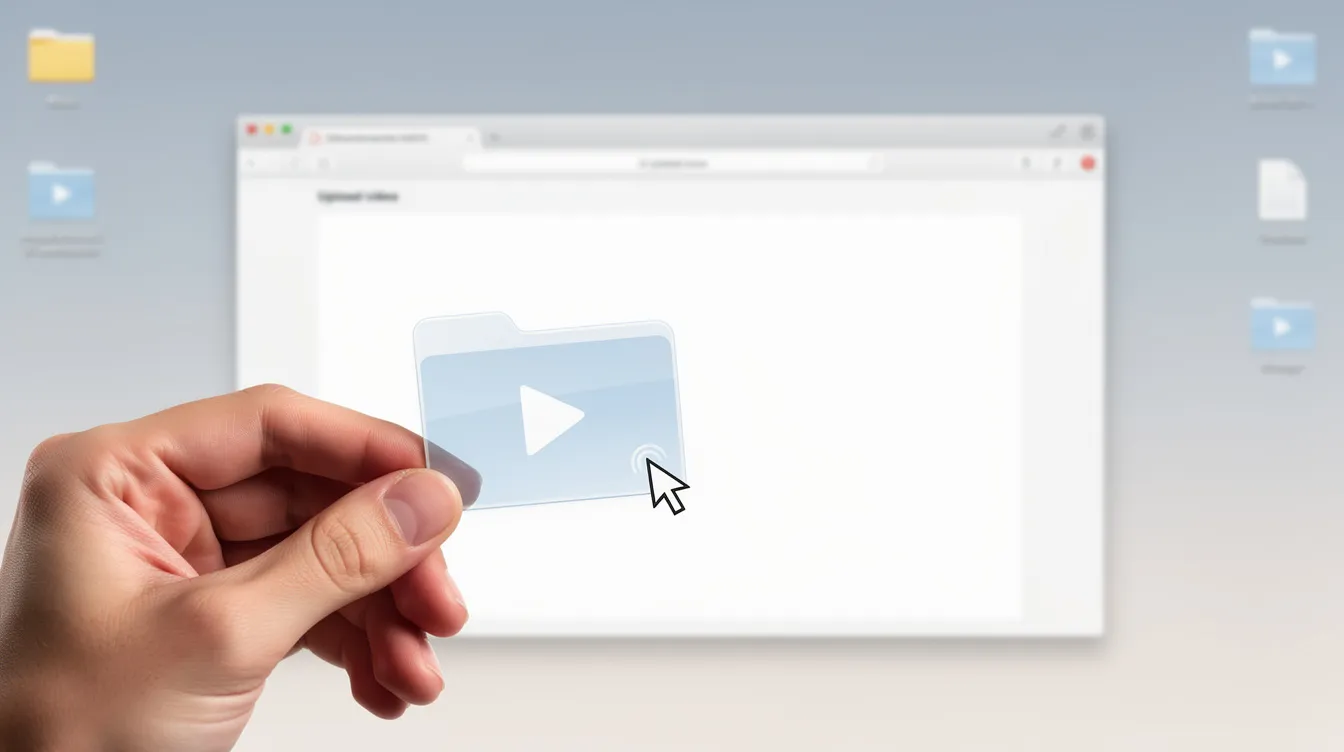
Step 1 – Upload or paste your video. Click the upload button or drag and drop your video file directly into the browser. You can also paste a video URL if the online tool supports link imports. Large files (5+ GB) may take longer depending on your connection speed, but there is no hard cap blocking you. Upload your video and let the system handle the rest.
Step 2 – Choose language and options. Select the spoken language or enable automatic detection. If the tool offers it, toggle timestamps and speaker labels for interviews or panel discussions. Some tools provide accuracy modes-Fast, Balanced, or Most Accurate-so you can trade speed for precision. Transcription tools can generate timestamps for easy navigation, which is especially useful for lectures and long recordings.
Step 3 – Let AI transcribe and export. The ai powered tool runs on the server (or locally, depending on the tool). Within a few minutes, you see the transcript instantly in the browser. You can scroll, search, and copy the text online right away. AI transcription can convert a 1-hour video in 10-15 minutes, meaning even long recordings do not require you to leave and come back hours later. Get accurate transcripts with timestamps for easy navigation, then export in your preferred format.
No sign up required for core transcription features. You can optionally create an account later to save history or sync across devices.
Transcribing Long Videos, Multiple Videos, and Full Online Courses
From 2020 onward, online courses, MOOCs, and recorded cohorts often span dozens of hours. Traditional minute caps make transcribing this volume painful and expensive.
With no time limit, you can upload entire lecture recordings of 90–180 minutes, daily standups, or multi-hour conference sessions without cutting them into parts. Students who need to transcribe video from a full 12-module online course published in 2022 can process multiple videos in sequence, creating a complete course workbook in a single afternoon. Video transcription can save hours of content creation time compared to manual transcription.
Practical workflows include:
- Students: upload videos from each week’s lessons and build searchable revision notes.
- Instructors: turn archives from platforms like Udemy, Teachable, or Thinkific into handouts and online tutorials.
- Teams: batch-transcribe a backlog of recorded meetings to extract action items.
While the service has no imposed file size cap, best practice is to use stable broadband for huge files (e.g., 10–15 GB 4K recordings) to avoid browser timeouts. SimpleScriber is an open-source tool that transcribes files locally without limitations, making it another option for users who want to process very long videos offline.
Accuracy, Speaker Recognition, and Multiple Languages
Accurate transcripts matter for study, research, and professional documentation-especially when dates, names, and technical terms need to be correct.
Modern tools aim for highly accurate output using context-aware models that outperform early 2010s systems by a wide margin. AI transcription accuracy can exceed 99% for clear audio, though the accuracy of free tools generally ranges from 80% to 88% on noisier recordings or accented speech. That gap narrows significantly when you start with good audio quality and select the correct language.
Speaker recognition is available in some tools as automatic speaker labels for interviews, panel discussions, and meetings. This makes it clear who said what-critical when converting interviews into articles or meeting minutes. Not every free tool includes diarization; extensions like WhisperX and Pyannote add speaker labels to Whisper-based pipelines.
Language support is broad. Users can transcribe videos in multiple languages-English, Spanish, French, German, Portuguese, Hindi, Arabic, Japanese, Korean, and more. Some engines handle code-switching between languages in the same recording, which is common in bilingual households, international teams, and multilingual lectures. You can generate accurate text in one language, then feed the transcript into translation or summarization workflows to repurpose video content for global audiences in other languages.
Use Cases: Students, Professionals, Creators, and More
From 2020 to 2026, remote work and learning have made video the default medium, sharply increasing demand for quick, accurate results when turning video to text.
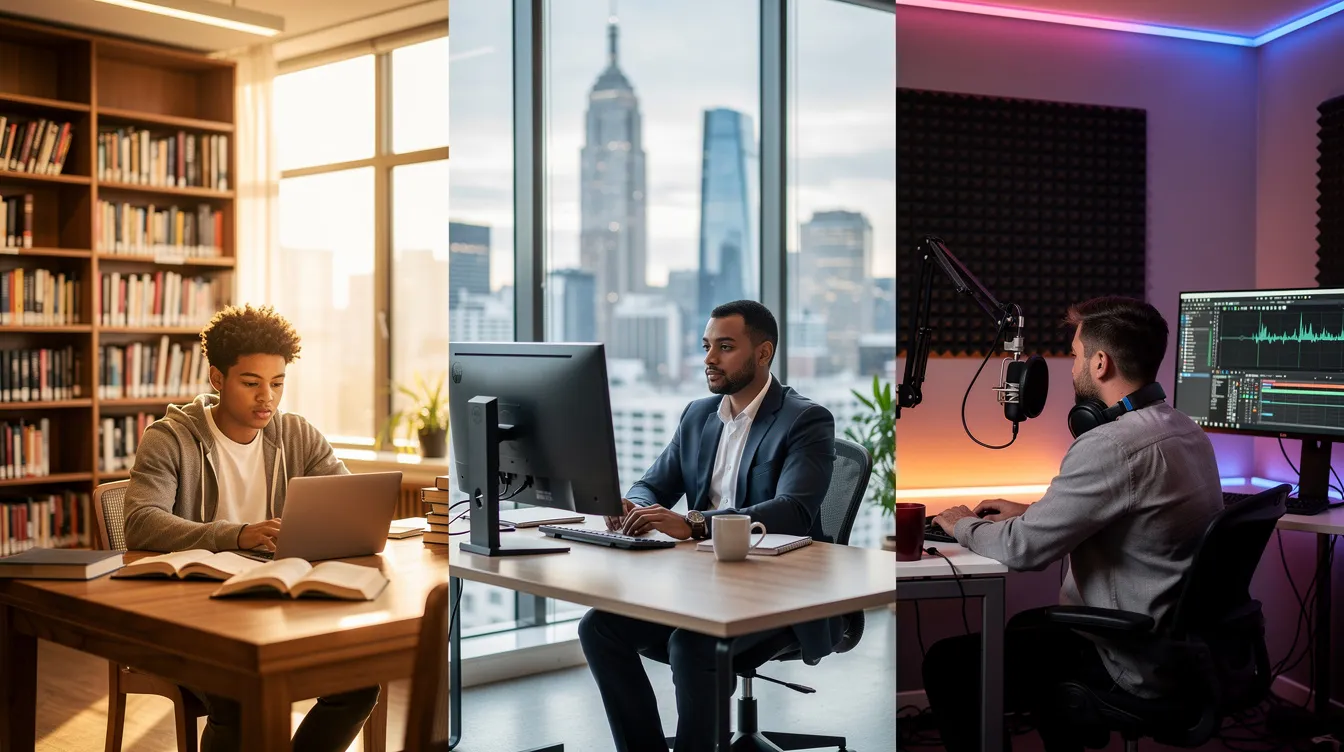
Students and learners. Converting recorded lectures and online courses into searchable notes is super easy with a free transcription tool. A full transcript lets you search for a specific topic instead of scrubbing through a 2-hour recording. Transcription allows quick keyword searches within video content, which speeds up exam revision and research.
Teachers and trainers. Turning class recordings and online tutorials into handouts, lesson plans, and caption files helps meet accessibility guidelines such as WCAG 2.1 AA. Creating content from existing recordings saves prep time.
Professionals and teams. Transcribing Zoom, Google Meet, and Teams meetings ensures decisions and action items are captured. A text file of every meeting becomes a searchable archive rather than a forgotten recording saved on someone’s hard drive.
Content creators and journalists. A content creator can repurpose interviews, podcasts, webinars, and vlogs into blogs, social media posts, and newsletter material. Converting interviews into polished articles is far faster when you start from an accurate transcript instead of manual transcription. Researchers conducting qualitative analysis also benefit: verbatim transcripts of interviews preserve detail that note-taking cannot match.
Exporting, Editing, and Reusing Your Transcript Text Online
A transcript is most valuable when it is easy to edit, search, and share in different file formats.
Most browser-based tools let you edit transcripts directly: fix names, remove filler words, and add headings or notes before exporting. Some offer a waveform editor so you can click on a word and hear the corresponding audio, making corrections faster.
Common export options include:
- Plain text in txt format for simple use
- Subtitle formats like SRT and VTT to create subtitles for YouTube, Vimeo, or any video player
- Word or document formats (.docx) for reports and handouts
- JSON (e.g., Premiere Pro JSON) for video editing workflows
- Burned-in MP4 with captions rendered directly into the video
Practical reuse scenarios are wide-ranging. You can turn a 2024 webinar into a long-form article, import transcripts into Notion or Obsidian for knowledge management, or create subtitles for a YouTube video to reach broader audiences. Quick copy-and-share workflows-one-click copy to clipboard, safe local download-let you move editable text into any downstream tool without friction.
Free Forever: Pricing, Limits, and When Sign Up Is Required
The core video transcript generator is completely free to use with no time limit or file size limit on individual videos. AudioSRT claims no account, file, or duration limits for transcription, making it a standout among browser-based options. You can upload videos up to 1GB for transcription without sign-up on most no-limit tools, and many handle larger files without complaint.
No sign up required applies to basic uploads and transcript downloads. There are no hidden fees, no forced credit card trials, and no automatic upgrades that block you from processing long videos. OpenAI’s Whisper model allows for limitless video transcription when run locally, giving technical users another path with zero cost.
Optional features that might require an account include:
- Saving transcript history across sessions
- Syncing projects across devices
- Team collaboration spaces
- Higher-priority processing queues
Any future premium tiers typically focus on advanced collaboration or automation-not on blocking everyday users from generating a transcript. The barrier to entry stays as low as possible: open a browser, upload, and download your result.
Best Practices for High‑Quality Transcripts From Any Video
Even with powerful AI, good audio quality and simple preparation steps noticeably boost accuracy.
- Use original-quality files. Upload the source recording rather than a compressed re-upload or a screen-captured clip. Every round of compression degrades the audio and reduces transcript accuracy.
- Reduce background noise. Record in a quiet space. For 2024-era laptops and phones, an external microphone dramatically improves clarity, especially for interviews and lectures.
- Select the correct language. When the tool offers language and accent options, choose manually rather than relying on auto-detection for niche dialects or domain-heavy recordings.
- Proofread key terms. Manually correct company names, product names, dates, and technical jargon in the final transcript. AI handles conversational speech well but may stumble on uncommon proper nouns.
- Break content into logical chunks. For very long videos, you can optionally split by chapter or topic to make later editing, labeling, and exporting easier-even though the tool does not impose limits. This also makes scripts and saved exports more manageable.
Good audio in equals good text out. A $30 USB microphone can be the difference between an 85% and a 98% accuracy rate.
Accessibility, SEO, and Compliance Benefits of Video Transcripts
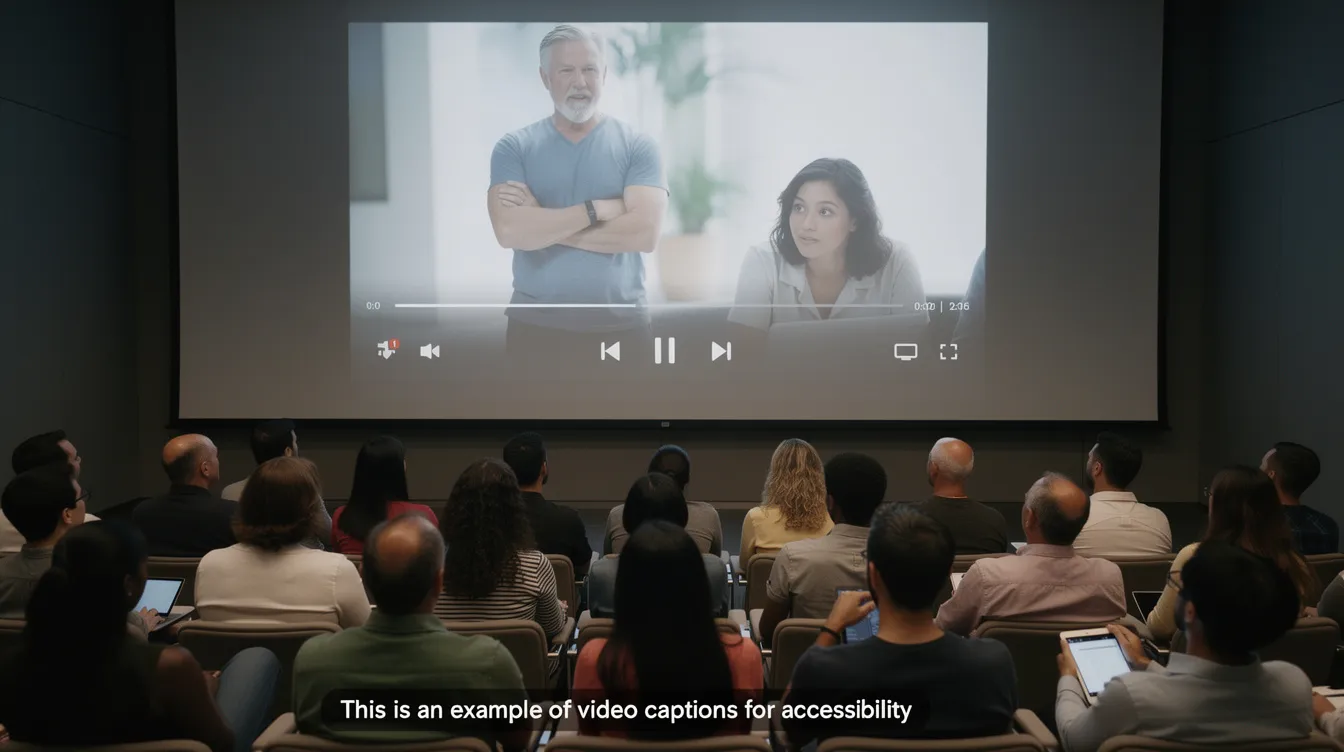
Transcription improves content accessibility for diverse audiences. Deaf and hard-of-hearing viewers, people with auditory processing differences, and anyone in a sound-off environment benefit from captions and transcripts.
Organizations that publish recorded meetings, e-learning content, or public-facing videos often must comply with accessibility regulations such as the ADA in the United States and the EU Web Accessibility Directive. Accurate transcripts and captions are one of the simplest ways to meet those requirements.
From an SEO perspective, transcribed content enhances search engine indexing and SEO value. Search engines cannot watch a video, but they can crawl and index a full transcript. Publishing the text alongside a webinar, tutorial, or lecture recorded between 2020 and 2026 boosts the page’s discoverability and drives organic traffic. Transcription improves content indexing for better SEO value across every page that includes it.
Transcripts also allow quick keyword search across multiple videos, helping teams retrieve decisions, quotes, or instructions without rewatching hours of footage. And because text is easy to translate, having a transcript supports localization into multiple languages for global audiences-extending the life and reach of every piece of video content you produce.
FAQ – Video Transcript Generator Free, No File Size or Time Limit
Below are answers to practical questions that go beyond the main sections, focused on real-world use and edge cases you are likely to encounter.
Is there really no limit on file size or video length?
The service does not deliberately cap file size or duration. However, very large uploads are still constrained by your internet speed and browser stability. In practice, tens of gigabytes and multi-hour recordings are usually fine on stable broadband. If you are unsure, test with a short sample first. For local tools like Whisper, the practical limit is your hardware’s memory and processing power.
Do I need to install any software or browser extensions?
Everything runs in the browser. No desktop app, no Python scripts, no FFmpeg, and no extensions are required-just a modern browser like Chrome, Edge, Firefox, or Safari. Mobile browsers on Android and iOS are supported, though extremely large files are easier to handle on desktop.
Can I transcribe multiple videos at the same time?
You can queue multiple videos one after another. Advanced users with accounts may be able to run several concurrent jobs depending on server load. Start with a few uploads at once to see how your device and connection handle simultaneous processing. Batch scripting is also possible with self-hosted tools like Whisper.
How is my data and privacy protected?
Browser-based tools that process media client-side never upload your files to an external server-your data stays on your device. For cloud-processed tools, uploaded files are typically stored only as long as needed for transcription and can be deleted manually. Transcripts are private by default and are not shared publicly.
Can I use the transcripts for commercial projects?
Generally yes. You can use your own transcripts for commercial purposes-paid courses, client reports, monetized videos-because the service only processes content you already own or have rights to. Always check the tool’s specific terms of use for any restrictions related to third-party platforms or copyrighted material, especially when allowing users to process content they downloaded from other creators.
[…] Click the upload button or drag and drop the file into the browser. Lunote supports M4A without prior conversion. The tool also accepts YouTube links and public video URLs. This direct upload saves transcription time. […]