
Getting a text version of any youtube video is easier than most people realize. Whether you need a transcript for studying, content creation, or accessibility, this guide walks you through every method available in 2026, from YouTube’s built-in tools to free AI-powered alternatives.
Key Takeaways
You can get a youtube video transcript directly inside YouTube using the “Show transcript” feature, or by using a free youtube transcript generator that works from just a link. Methods for viewing youtube transcripts include built-in features and third-party tools, and transcripts can be obtained directly from the YouTube platform without any extra software.
The fastest method on desktop is straightforward: open the video, click “More” under the video description, choose show transcript, select a language if needed, then copy and paste the full transcript into a text file, Google Docs, or a word document. YouTube transcripts load in a few seconds regardless of video length, making even long lectures quick to access.
On mobile, you can view transcripts through the YouTube app by tapping “More” and then “Show transcript,” but copying large blocks of text is awkward on phones. YouTube’s built-in methods for obtaining transcripts include desktop and mobile options, though for downloading and saving, a desktop browser or a web-based transcript generator is more practical.
Transcripts offer major benefits for accessibility, SEO, note taking, and feeding text into ai chat tools for summaries, translations, and repurposed content. Later sections compare manual transcription, built-in YouTube captions, and ai tools, showing when to use each based on video length, accuracy needs, and budget.
Why Get a Transcript From a YouTube Video?
Transcripts turn any youtube video – lectures, tutorials, podcasts, webinars – into searchable, scannable text that is far easier to review, quote, and reuse than scrubbing through a timeline. Imagine needing a specific quote from a 2-hour conference talk. Without a transcript, you’re guessing and rewinding. With one, you search a keyword and find it in seconds. YouTube transcripts help in note-taking without pausing videos, which alone makes them invaluable for students and researchers.
From an accessibility standpoint, full transcripts and closed captions support deaf and hard-of-hearing viewers, non-native speakers, and anyone who prefers reading over watching videos. Spoken content in educational videos, product demos, and interviews becomes available to a much wider audience when a written version exists alongside the video.
For SEO, having a transcript of a youtube video lets creators embed keyword-rich text in video descriptions, show notes, and blog posts. Search engines can’t watch a video, but they can crawl text, so transcripts directly improve how content ranks on Google and YouTube search. In 2024–2026, this has become especially critical for online courses, conference replays, and long-form commentary videos where discoverability drives revenue.
On the productivity side, marketers turn interview transcripts into articles, students create study guides from educational content, and researchers scan for specific phrases inside long recordings. Modern ai technology and transcript generators can handle long video length and multiple speakers with good accuracy, eliminating hours of manual effort.
How to See a YouTube Transcript on Desktop (Using “Show Transcript”)
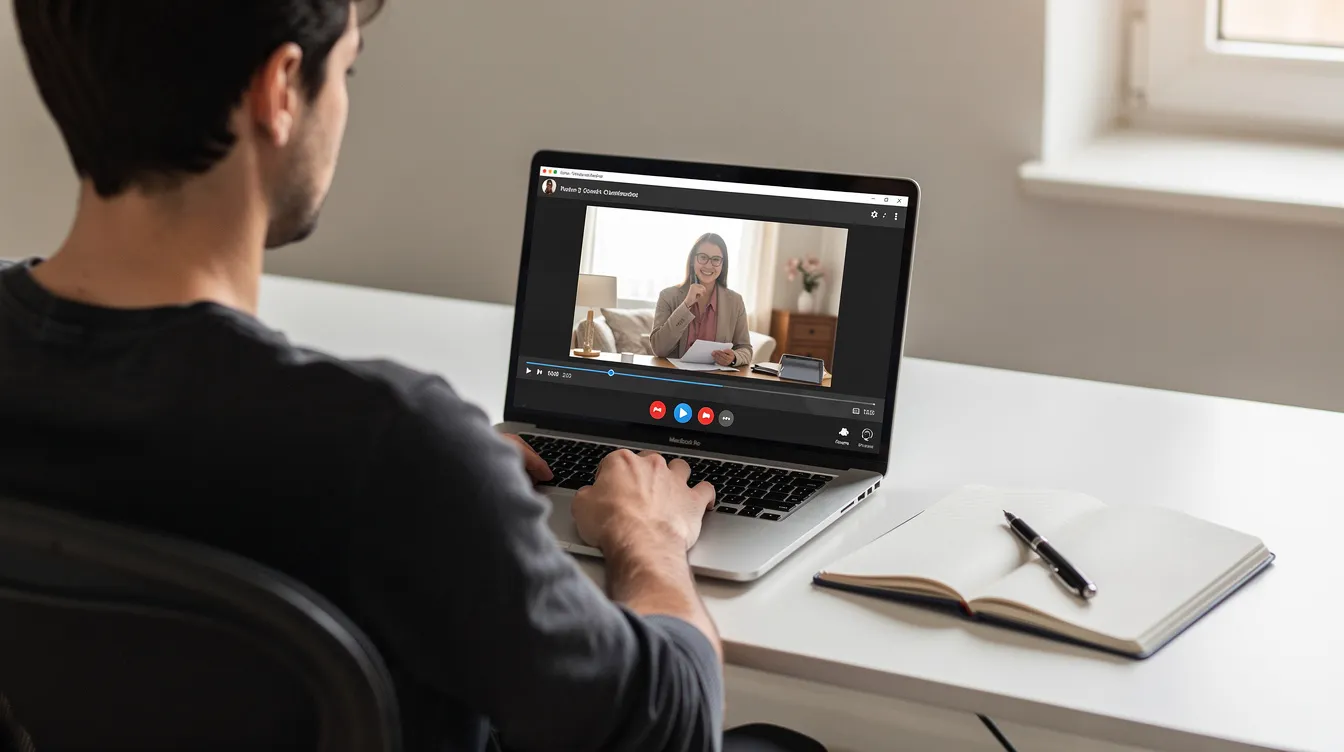
This is the fastest way to answer “how to get transcript from youtube video” for desktop and laptop users. No tools, no sign-ups – just YouTube and a browser.
- Open the video. Launch YouTube in any browser (Chrome, Firefox, Edge, Safari), search by title, keyword, or channel name, and click on the specific yt video whose transcript you want.
- Expand the video description. Under the video title, look for the “More” or “⋯ More” link. On the current 2024–2026 YouTube layout, clicking this expands the video description area and reveals extra options.
- Click “Show transcript.” After expanding, you’ll see a button labeled “Show transcript.” Clicking it opens a transcript panel on the right side of the video (or below it, depending on your screen size). The transcript text loads in a few seconds regardless of video length.
- Check requirements. This option only appears if the video has subtitles or closed captions, whether creator-uploaded or auto-generated. Not every YouTube video has an available transcript due to creator settings. Very old or private videos may not offer any transcript at all.
Tip: You can pause the video and click on any line inside the transcript to jump directly to that moment. Users can toggle timestamps in the transcript panel on YouTube, which is useful if you want clean text without time markers.
This method lets you read and copy the transcript text, but it doesn’t directly download transcripts as a file. The next section covers how to save what you’ve found.
How to Copy and Download a YouTube Transcript on Desktop
YouTube doesn’t have a native “download transcripts” button, but you can still save the full transcript as a text file or document in under a minute. Users can copy transcripts directly from the transcript panel on YouTube.
Select the transcript text. Click inside the show transcript panel, then use Ctrl+A (Windows) or Command+A (Mac) to select all. If you only need a portion, drag to highlight specific sections.
Copy the transcript. Press Ctrl+C or Command+C. This will include timestamps if they were toggled on, which can be useful for referencing exact moments later.
Paste as plain text. Open Google Docs, Microsoft Word, Notepad, or any text editor and paste using Ctrl+Shift+V (Windows) or Command+Shift+V (Mac) to strip formatting. Transcripts can be copied and pasted into text editors for saving without any special software.
Save the file. Save it as a .txt, .docx, or .md file depending on your workflow. Name the file with the video title and upload date (e.g., “YouTube-SEO-Guide-2025-05-10-transcript.txt”) for easier organization later.
Clean up the text. Delete repeated timestamps if you don’t need them, add paragraph breaks at topic transitions, and correct obvious auto-caption mistakes. This turns raw transcript text into a more readable document.
For large batches of multiple videos or very long content like 3-hour live streams, dedicated transcript generator tools are faster because they can export directly to a txt file, SRT, or VTT format. You can download transcripts in TXT, SRT, or VTT formats through these tools without manual copy and paste work.
How to Get a YouTube Transcript on iPhone and Android
The YouTube mobile apps on iOS and Android do let you view show transcript, but they’re more limited for copying and saving compared to desktop.
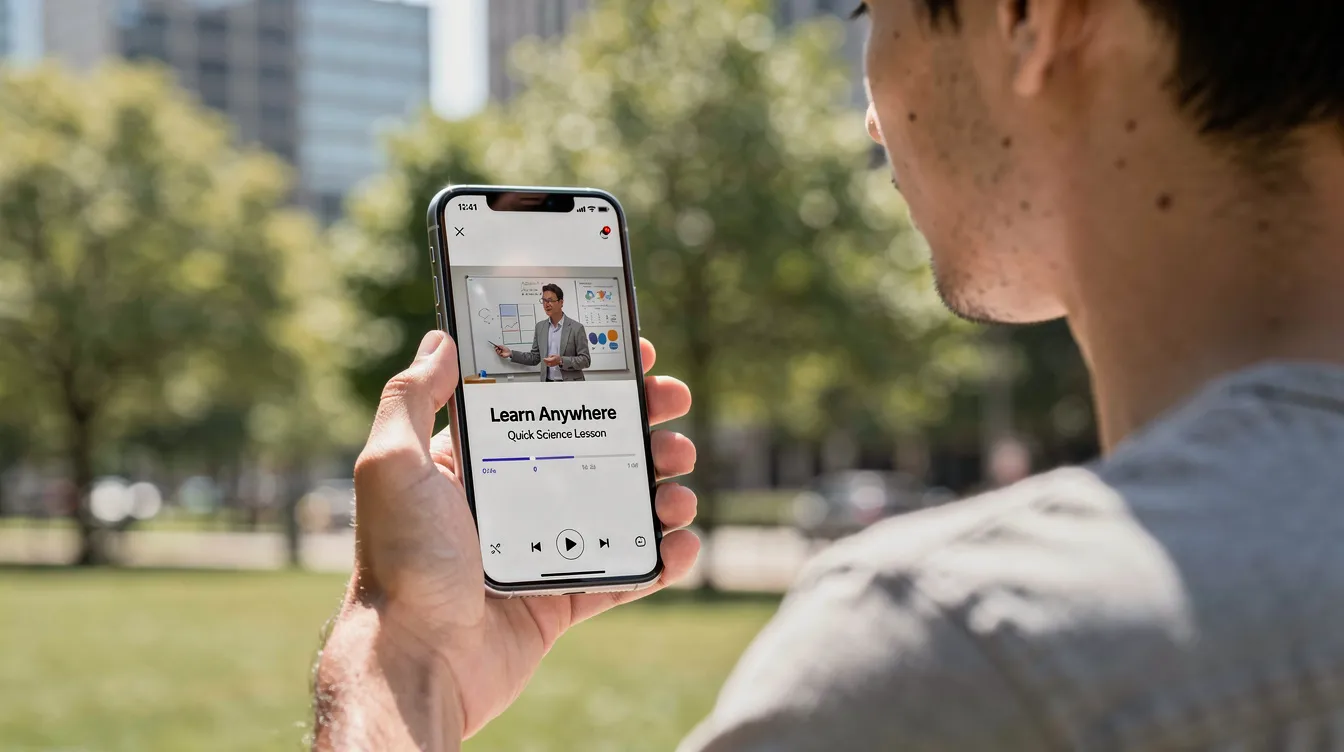
Find the video. Open the YouTube app, use the search bar to locate the video by title, keywords, or channel, and tap the correct result to start playback.
Access video details. Once the video is playing, scroll down under the player to find the description area. Tap “More” or the caret icon to expand it.
Tap “Show transcript.” Look for the “Show transcript” button inside the expanded details. Tap it, and the transcript appears below the video or in a sliding panel. Availability of transcripts may vary by app version and video, so not all users will see this option in the same place.
Language and timestamp controls. If multiple subtitle languages exist, a language selector appears at the top. You can toggle timestamps on or off and tap any timestamp to jump to that moment in the video.
Limitations. While you can read the transcript on mobile, selecting and copying long transcripts is awkward, and there’s no built-in way to download transcripts from the app directly.
Workaround: Open the same video on desktop to copy the full transcript, or use a web-based free youtube transcript generator in a mobile browser. Simply paste the youtube video url, tap a button, and copy the text in one click.
Choosing Transcript Language, Captions Type, and Accuracy
Not all transcripts are equal. YouTube offers auto-generated captions, creator-uploaded subtitles, and sometimes community contributions, and each affects the quality and language options of your transcript.
Choosing a language. Inside YouTube’s transcript panel, a dropdown lists the original captions plus any translated versions. YouTube supports transcripts in multiple languages if subtitles are available, but the selection depends entirely on what the creator or YouTube’s system has provided.
Auto-generated vs. human-created captions. YouTube’s auto-generated captions are available for most English videos, but they rely on speech recognition that can mishear names, technical terms, and accents. A VideoQuill study testing over 500 videos found that creator-uploaded captions achieve 95–99% accuracy, while auto-captions drop to 70–85%. AI terms like “Gemini,” product names, and niche jargon are routinely mis-transcribed. A 2026 study on dialect bias showed measurable word error rate differences across Spanish dialects, highlighting that auto-caption systems still struggle with non-dominant accents.
No captions at all. Some videos have no captions, meaning you won’t see show transcript. In that case, external youtube transcript extractor tools that can transcribe youtube video audio directly are your only option.
YouTube transcripts assist in translating content into different languages, but if no translated subtitles exist, you can copy the original-language transcript and use ai chat tools to translate it into your native language.
For legal content, medical information, or research interviews, prioritize accuracy over convenience. Either carefully edit auto-transcriptions or invest in manual transcription or professional services.
Using a Free YouTube Transcript Generator (URL‑Based Tools)
A free youtube transcript generator is a web tool where you paste a public youtube video link, click a button, and receive the full transcript in a clean, copy-ready format, often with timestamps. Third-party websites can retrieve publicly available YouTube captions without requiring you to navigate YouTube’s interface at all.
Basic workflow. Copy the youtube url from your browser’s address bar. Open a transcript generator site. Simply paste the link into the input field, click “Get Transcript,” and wait a few seconds for the text to load. Some browser extensions can also display and export transcripts from YouTube directly inside the browser.
Typical features. Most free tools offer instant transcript display, a one-click copy button, the ability to export as a text file (TXT) or caption files (SRT, VTT), and sometimes basic translation or video summary options. Tools like TranscribeYT claim to process one hour of video in under 60 seconds and support multiple formats including PDF, DOCX, and Markdown.
Advantages over YouTube’s native transcript. Cleaner output without UI clutter, easier copying of long transcripts, batch processing capabilities for multiple videos, and support for video content even when you’re not logged into YouTube.
Limitations. Some tools only work with videos that already have subtitles. Others perform their own AI transcription and may impose limits on video length, daily requests, or require an email for longer video files. Not all are completely free beyond basic use.
Best use cases. Turning long educational playlists into text notes, exporting captions for other platforms, and quickly extracting a full transcript for feeding into ai chat tools for deeper analysis. These tools are a game changer for anyone regularly converting video to text.
Check privacy and terms of service before using any tool, especially when working with unlisted or sensitive video content. Prefer services that don’t store or reshare your youtube links and transcripts.
Transcribing YouTube Videos With AI Tools and AI Chat
Beyond plain transcripts, modern ai tools and ai chat interfaces can take a transcript of a youtube video and automatically generate summaries, translations, or entirely new content formats. Some AI transcription services can generate transcripts from video audio even when no captions exist on the original video.
Common workflow. Use YouTube or a transcript generator to get the full transcript, copy it, and paste it into an ai chat interface. Then prompt it to summarize or analyze the spoken content. Transcripts can be used to create summaries of videos quickly this way.
Example prompts:
- “Summarize this 90-minute lecture into 10 bullet points”
- “Extract key points and deadlines from this webinar transcript”
- “Translate this transcript into Spanish and keep timecodes”
Some AI-powered youtube video transcript generator platforms skip the copy-paste step entirely. You paste a youtube link directly, and the tool will automatically generate a cleaned-up transcript, a video summary, and sometimes video chapters or a blog post draft. Free ai options exist alongside paid tiers for heavier use.
OpusClip’s transcription tool achieves over 95% accuracy in results, and Descript allows users to edit transcripts like a text document, making it easy to fine tune spoken words into polished written content. Transcription tools can achieve over 95% accuracy on clear audio with a single speaker.
AI can also fix typical auto-caption problems: misheard names, punctuation, casing, and speaker labels, turning raw transcript text into something closer to polished show notes.
Caution: Always review AI-edited transcripts and summaries for accuracy, especially in technical, legal, or medical content. AI output is not perfectly reliable without human checks.
Manual Transcription vs. Automated YouTube Transcription
Manual transcription means listening and typing everything yourself. Automated youtube transcription relies on YouTube captions or AI transcript generators to convert audio to text automatically. Both approaches have clear trade-offs.
When manual transcription is preferred. High-stakes projects like legal depositions, academic research interviews, or compliance-related training videos demand that every word and nuance is captured accurately. Manual effort here is justified by the stakes.
Time cost. Industry estimates suggest manual transcription takes 3–5 hours of work per 1 hour of audio, especially when speakers have accents, talk fast, or reference many proper nouns and numbers. That makes it impractical for everyday youtube video transcription needs.
Automated options. YouTube’s auto-captions, AI-powered youtube transcript generator tools, and professional hybrid services that start with AI and add human editing all drastically reduce turnaround time. In a sipsip.ai test, an external AI transcriber produced only 12 errors on a 45-minute technical talk versus 47 errors from YouTube’s auto-captions – roughly a 4x improvement.
Accuracy comparison in practice:
- Manual transcription: 98–100% accuracy, but slow and expensive
- Creator-uploaded captions: 95–99% accuracy on clean audio
- AI transcript generators: 90–97% depending on audio quality
- YouTube auto-captions: 70–85% accuracy, lower with accents or noise
For most everyday youtube videos – tutorials, vlogs, podcasts – automated methods plus a quick human review are sufficient. Reserve full manual transcription for specialized, high-stakes cases where a single misheard word matters.
Saving, Formatting, and Organizing Your YouTube Transcripts
Once you extract transcripts or copy them out of YouTube, organizing and formatting them properly saves significant time when you need to search or reuse content later.
File practices. Save each transcript as a separate text file or document. Use consistent naming like “ChannelName-VideoTitle-YYYY-MM-DD-transcript.txt” and store files in folders grouped by series, course, or client.
Formatting tips:
- Break long blocks into short paragraphs at natural topic shifts
- Insert headings based on section changes in the video
- Bold key terms or timestamps for easier scanning
Handling timestamps. Decide whether to keep timestamps at the start of each line, strip them for a cleaner reading experience, or maintain two versions. A text transcript without timestamps reads like an article; one with timestamps is an invaluable tool for referencing specific moments.
Add metadata. At the top of each transcript, include the youtube video url, upload date, channel name, video length, and relevant tags. This makes it easy to trace back to the original source.
Build a searchable archive. Store transcripts in a note-taking app like Notion, Obsidian, or OneNote where full-text search is available. You can also sync them to a cloud folder. Over time, this becomes a powerful reference library – a user friendly system for anyone who frequently revisits video transcripts.
A well-organized transcript library is especially valuable for content creators, marketers, students, and researchers who regularly repurpose video content across multiple formats.
Popular Uses for YouTube Transcripts (Creators, Students, Professionals)
Here are the most common real-world ways people use a transcript of a youtube video once they have it, grouped by audience rather than tool.
Content creators and YouTubers turn full transcripts into blog posts, email newsletters, social media posts, and rich video descriptions packed with keywords. Transcripts can be repurposed into blog posts or social media content with minimal rewriting. Adding accurate transcripts as closed captions also improves accessibility and helps search engines index the video content.
Marketers and business owners use transcripts to pull quotes for landing pages and case studies, summarize youtube videos from webinar recordings into whitepapers, and conduct market research by analyzing competitor content at scale. A go to tool for many teams is a youtube video transcript generator combined with AI to extract key insights without watching the full video.
Students and researchers rely on transcripts to simplify note taking from lectures. Students use transcripts to create study guides from educational videos by searching specific terms and quoting exact sentences with timestamps in essays or academic papers. This eliminates the need for rewinding and pausing repeatedly.
Professionals and teams document training sessions, create reference manuals from recorded internal demos, and summarize videos from client interviews for project briefs. Generating summaries from transcripts is a game changer for remote teams.
Scenario example: A 2025 remote marketing team recorded a series of sprint review calls on YouTube (unlisted). They used a transcript generator to extract text from each recording, fed the transcripts into an ai chat tool, and generated a written playbook summarizing key points, action items, and decisions across 12 sessions – work that would have taken days of watching videos compressed into a single afternoon.

Common Problems When Getting YouTube Transcripts (and How to Fix Them)
Most videos are easy to transcribe, but users regularly hit predictable problems. Here’s how to handle them.
Missing “Show transcript.” If the option doesn’t appear, the video likely has no captions, or the creator disabled them. If the “Show transcript” option is missing, the video may not have captions at all. The workaround: use an external youtube transcript extractor or download the audio and run it through a speech-recognition tool like Whisper.
Poor auto-caption quality. Heavy accents, multiple speakers talking over each other, music behind speech, and technical jargon all degrade accuracy. Auto-captions with error rates exceeding 30% on non-standard accents are common. For critical sections, manually edit the transcript or use a higher-quality AI transcription service.
Long videos and live streams. Extremely long content produces huge transcript files that some free tools can’t handle. Split transcripts into parts, or use tools specifically designed for long video length. A text converter that supports batch processing helps when dealing with multiple videos from a playlist.
Language and translation gaps. Not all languages are supported equally in YouTube’s auto-captions. Combine whatever transcript is available with external translation tools or ai chat to fill gaps. YouTube supports transcripts in multiple languages, but coverage varies widely beyond English.
Copy/paste and formatting glitches. When line breaks, strange characters, or extra spaces appear after pasting into a word processor or text editor, use plain-text pasting (Ctrl+Shift+V), “find and replace” to clean up double spaces, or basic cleanup scripts.
Once you know these workarounds, you can obtain a usable transcript from almost any publicly viewable YouTube video.
Legal, Ethical, and Privacy Considerations
YouTube transcripts are easy to obtain, but you need to think about copyright, fair use, and privacy before redistributing or monetizing them.
Copyright basics. The creator normally owns the spoken words and video content. Copying a transcript for personal use – notes, study, internal reference – is generally fine. Publishing the full transcript publicly on blogs or in e-books may require the creator’s permission.
Fair use. Limited quoting of short excerpts for commentary, criticism, news reporting, or teaching is often allowed under fair use doctrine. Reproducing entire transcripts on your website or in paid products creates real copyright risk.
Privacy concerns. Avoid transcribing private, unlisted, or sensitive videos (internal company calls, coaching sessions) without all participants’ consent. Be cautious when using third-party ai tools that might store or process the spoken content you upload.
Check YouTube’s Terms of Service and any relevant local laws around recording and transcribing content. For edge cases involving commercial use or paid course material, consult a legal professional.
Best practices:
- Anonymize personal information in transcripts before sharing
- Avoid uploading confidential content to unknown services
- Respect creators’ wishes when they explicitly disallow redistribution
Ethical use of transcripts builds trust with audiences and collaborators, and helps you avoid takedown requests or legal disputes down the road.
FAQ: Getting and Using YouTube Transcripts
Below are answers to common questions about how to get transcript from youtube video that weren’t fully covered in the sections above, focusing on edge cases and practical details.
Do all YouTube videos have a transcript available?
No. Not every YouTube video has an available transcript due to creator settings. Creators can disable auto-captions, choose not to upload subtitles, or publish content with audio that YouTube’s speech recognition system can’t process effectively. Older videos, those in less-supported languages, and videos with primarily music or ambient sound often lack any captions.
If show transcript is missing, your options are to use an external youtube video transcript generator that runs its own speech recognition on the audio, or to perform manual transcription. Some AI services can automatically generate transcripts from video audio even without existing captions, though accuracy depends on audio clarity.
Can I turn a YouTube transcript into a Word or PDF document?
Yes. Copy the transcript text from YouTube or a transcript generator, paste it into Microsoft Word or Google Docs, format it with headings and paragraphs, then save or export as .docx or .pdf. This gives you a polished written version suitable for sharing or printing.
Some transcript generators can directly download transcripts as TXT files, which can be imported into any word processor before conversion to PDF. This workflow is especially handy when you need accurate transcripts formatted for a specific audience.
Is there a way to get a transcript from a private or unlisted video?
Third-party transcript tools generally only work with publicly accessible videos, so private content can typically only be transcribed by people with direct viewing access. If you own the private video, you can turn on captions inside YouTube Studio or upload the audio to a trusted transcription service.
Always get consent from participants if sensitive information is involved. Uploading private video files to unknown online tools carries real privacy risks, particularly for internal business meetings or confidential coaching sessions.
How accurate are automatic YouTube transcripts compared to human transcription?
On clear audio with a single speaker, modern auto-captions can exceed 90–95% accuracy. However, they still misinterpret names, numbers, and jargon, especially with accents or background noise. For non-English content or strong dialects, error rates can exceed 30% of words.
For mission-critical tasks – legal, medical, or contractual content – either heavily edit the auto-generated transcript or invest in human transcription to ensure near-perfect accuracy. A hybrid approach (AI draft plus human review) often delivers the best balance of speed and precision.
Can I use YouTube transcripts with other AI tools besides chatbots?
Absolutely. Beyond ai chat, you can feed transcripts into note-taking or knowledge-management apps with AI features, use them to train simple internal search tools, generate captions in different formats for other platforms, or build datasets for analytics and market research.
Descript allows users to edit transcripts like a text document, making it useful for podcast producers. Other ai tools can extract key points, generate summaries, or create content outlines from raw transcript data. Always review each tool’s privacy policy before uploading transcripts that might contain confidential information or personal data.
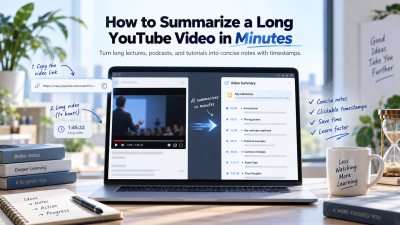
[…] you want to read the dialogue before creating a summary, see how to see transcript on youtube in the native player. The raw transcript can show whether the creator supplied edited subtitles or […]