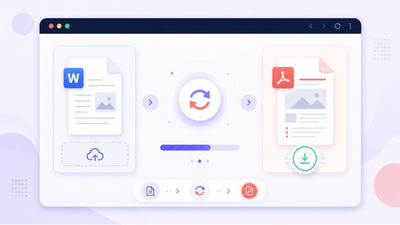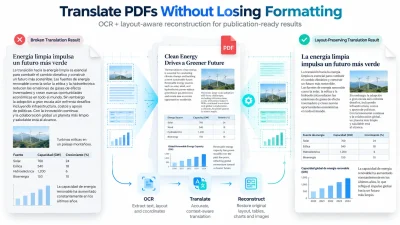
Whether you need to submit a resume, send a contract, or archive a report, knowing how to save a word document as a pdf ensures your file looks exactly the way you intended. This guide walks you through every method on Windows, Mac, and Word for the web so you can pick the approach that fits your workflow.
Key Takeaways
- The common method to save a word document as a pdf is the Save As feature in Microsoft Word – available in Word 2016 through Microsoft 365 on both Windows 11 and Windows 10.
- The Export / Create PDF/XPS route gives more control over quality, page range, bookmarks, and PDF/A options than a simple Save As.
- Users without desktop Word can convert docx files to pdf using Word for the web or a reputable free word to pdf converter in their browser.
- Microsoft Word allows saving documents as PDFs for free – no add‑on or subscription beyond the app itself is needed.
- Saving a document as a pdf preserves formatting, fonts, and layout across different devices and file types.
Why Save a Word Document as a PDF?
When you convert word to pdf, the resulting file freezes the document layout, fonts, headers, and page numbers so every recipient sees the same thing – whether they open it on Windows, macOS, iOS, or Android. That consistency is the core difference between an editable document like a docx file and a fixed pdf format: DOCX is ideal for drafting and collaboration, while a pdf is better for final delivery, printing, and archiving.
In 2026, common real‑world uses include job applications, university submissions that require pdf uploads, invoices, legal forms, and marketing brochures exported from a word doc. PDF conversion also eliminates issues with missing fonts, shifted margins, or images that reflow when someone opens the file in a different word processor or operating system.
How to Save a Word Document as a PDF on Windows (Desktop Word)
This section covers Microsoft Word 2016, 2019, 2021, and Microsoft 365 on Windows 10 and Windows 11 – all of which share nearly identical steps to convert word files to pdf.
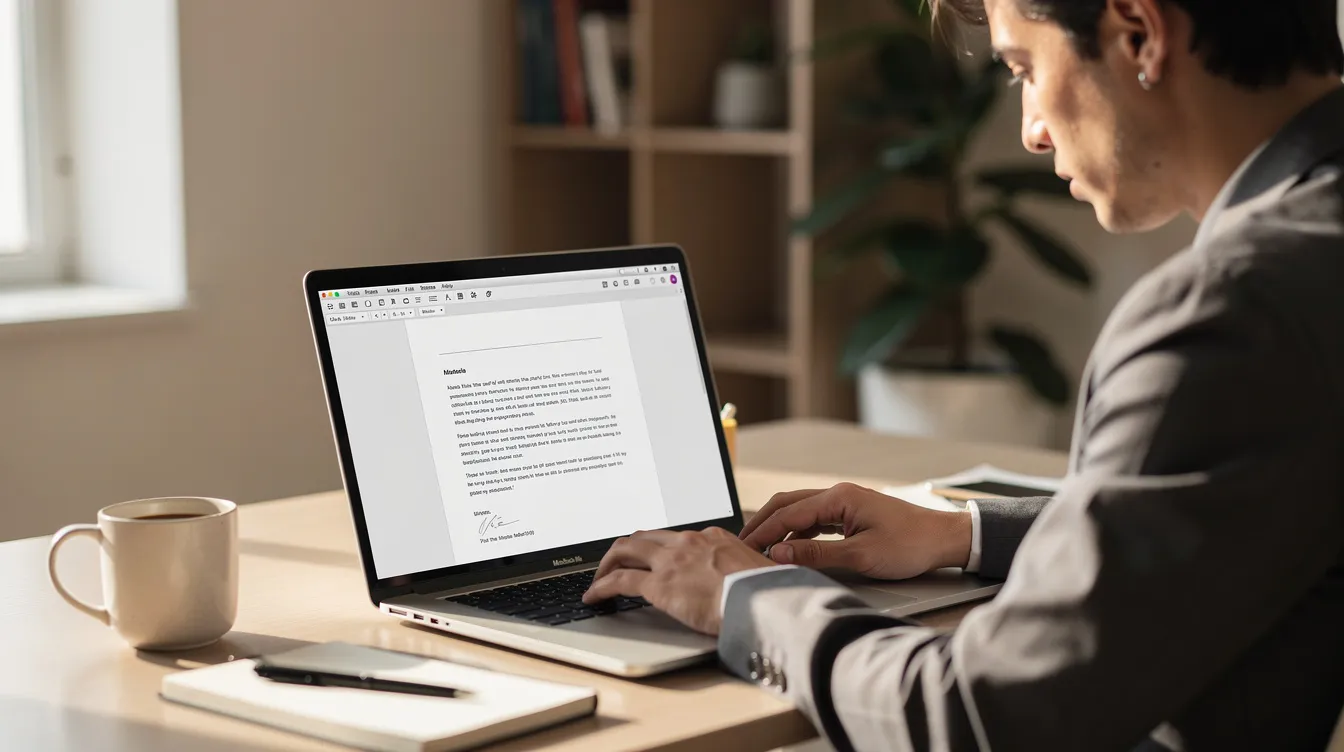
Save As method:
- Open the word file.
- Click the file tab, then choose Save As.
- Pick a folder, select pdf from the “Save as type” drop‑down, and click the save button.
This creates a new pdf while leaving the original docx intact, so you still have an editable copy for future changes.
Export / Create PDF/XPS method:
- Go to File > Export > Create PDF/XPS.
- Click the options button to set page range, choose Standard vs Minimum size, and decide whether to include bookmarks or document properties.
- Click Publish.
Select “Standard” for best print quality when exporting; choose “Minimum size” when file size matters for email or web upload. You can adjust options before saving a PDF in Word to optimize quality or size – including producing a PDF/A‑compliant version for long‑term archiving.
How to Save a Word Document as a PDF on Mac and Word for the Web
This section explains how to convert a word document to pdf on macOS (Word for Mac 2019, 2021, Microsoft 365) and in Word for the web using a browser like Edge, Chrome, or Safari.
Word on Mac:
- Open the document, go to File > Save As or File > Export.
- Choose PDF as the file format, set a name and location, then click Export.
Mac users can also use File > Print > PDF > Save as PDF from the print dialog for a quick, read‑only copy with default settings.
Word for the web (Office.com):
- Open the word document in your browser.
- Select File on the ribbon, choose Export, and then pick Download as PDF – or Download as PDF with comments to include review notes.
PDF files can be downloaded after exporting from Word for the web, making it a free word alternative for basic editing and pdf conversion as long as you have a Microsoft account. Note that complex documents with custom fonts or macros should be checked after conversion for accuracy, since the online word editor may substitute fonts not available in the browser.
Choosing Between Save As, Export, and Print to PDF
All three methods produce pdf files, but each fits a different scenario.
| Method | Speed | Preserves Links & Bookmarks | Advanced Options |
|---|---|---|---|
| Save As | Fastest | Yes | Limited |
| Export / Create PDF/XPS | Moderate | Yes | Full (page range, PDF/A, tags) |
| Print to PDF | Fast | Often strips them | Minimal |
Saving as PDF is faster for quick document sharing – ideal for everyday email attachments or drag‑and‑drop uploads. Exporting a PDF allows control over document quality settings and supports compliance and accessibility standards such as PDF/A. Exporting also allows adjustments for document structure and tags, which matters for formal reports or government forms.
Print to PDF acts like a virtual printer and is useful when Save As or Export are unavailable, but it may omit hyperlinks and metadata. After any conversion, open the new pdf and verify headings, images, and page numbers to confirm the layout intact matches the original word document.
Using Online Tools to Convert Word to PDF (When You Don’t Have Word)
If you only have a doc file or docx and no desktop Word, you can use online tools to convert word documents to pdf.
General steps for a typical online to pdf converter:
- Open the site in a browser.
- Drag and drop or upload the file.
- Wait for processing, then select download to get the new pdf.
Several reputable services handle both the older format DOC and newer DOCX, plus other file types like ppt, excel spreadsheets, and images:
- Adobe Acrobat Online is a free online tool for converting word files to pdf. You can convert docx files to pdf using Adobe’s online converter, and upload files up to 100MB for conversion.
- Smallpdf converts DOC and DOCX files to PDF in seconds, supporting compress options and batch processing.
- Canva’s tool preserves formatting when converting Word to PDF, which is handy for design‑heavy documents.
Avoid uploading confidential contracts, medical records, or financial data to unknown converters. Read the site’s deletion and encryption policy first.
When possible, prefer trusted platforms or Word for the web. Once converted, rename the pdf clearly (e.g., “2026‑Q1‑Report.pdf”) and store it in Google Drive or a secure backup.

Tips for Better PDF Conversion and Preserved Formatting
A few habits prevent layout surprises when you save word documents as pdf files, especially for multi‑page reports and resumes.
- Use heading styles. Apply built‑in Word heading styles (Heading 1, Heading 2) instead of manual formatting. This lets Export options automatically create bookmarks in the new pdf – a detail that helps readers navigate longer documents.
- Resolve tracked changes. Accept or reject all changes and delete unnecessary comments before converting to pdf. If a markup version is required, choose “Download as PDF with comments.”
- Use Copilot in Word to proofread before saving as pdf. Catching errors at this stage avoids re‑exporting later.
- Embed fonts. In Word’s advanced settings, enable font embedding. Avoid unusual or unlicensed fonts that may not display correctly on another device after conversion.
- Leverage page layout tools. Section breaks, consistent margins, and aligned tables in the original file keep each page well‑structured through the convert doc process.
- Keep the original DOCX. Always keep an editable .docx copy for future edits, because PDFs are much harder to modify cleanly, even with modern editing tools in 2026.
Frequently Asked Questions
Can I convert Word to PDF for free?
Yes. Microsoft Word includes built‑in Save As and Export options at no extra cost. Word for the web on Office.com also lets you download a pdf free word conversion. Browser‑based tools like Adobe Acrobat Online and Smallpdf handle basic pdf conversion without payment.
How do Standard and Minimum size affect the output?
Choosing “Standard (publishing online and printing)” keeps images at high resolution, producing a larger file. “Minimum size (publishing online)” compresses images and reduces resolution, which is better for email or web upload where bandwidth matters.
Can I convert only specific pages to PDF?
Yes. In both Save As and Export, click the options button and set a custom page range – for example, pages 2–3. The print dialog also allows selecting individual pages before creating the pdf.
Can I convert a PDF back to an editable Word document?
Word 2019 and Microsoft 365 can open many pdf files and convert them into editable docx files. However, complex layouts, forms, or unusual fonts may produce errors during conversion, so always review the result.
What other file types can I convert to PDF?
Modern tools handle more than word docs. You can convert excel spreadsheets, powerpoint presentations, images (JPG, PNG), and text files into PDFs using similar export or online converter workflows.