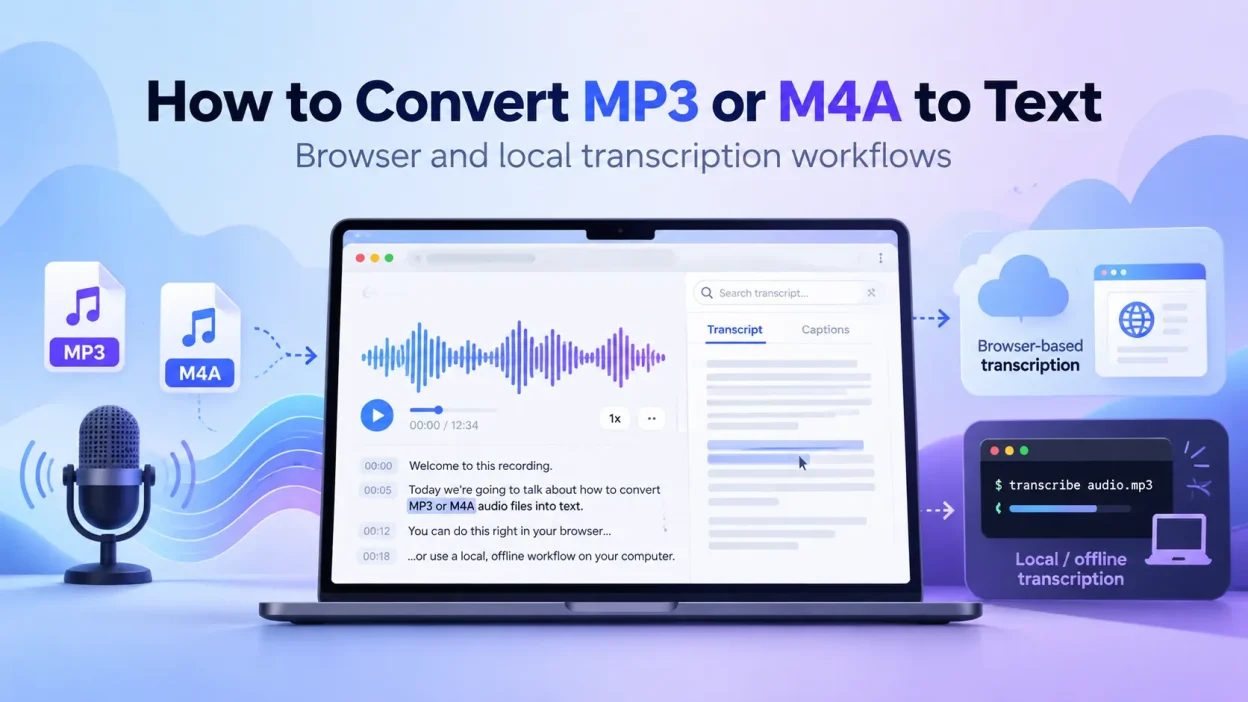
Transcribing audio once meant playing a recording repeatedly while typing every word. Speech recognition tools can now handle much of that work. Whether the source is an MP3 from a digital recorder or an M4A voice memo from an iPhone, the basic process is the same: choose a transcription method, review the result, and correct it against the original audio.
Quick Answer: How to Convert MP3 or M4A to Text
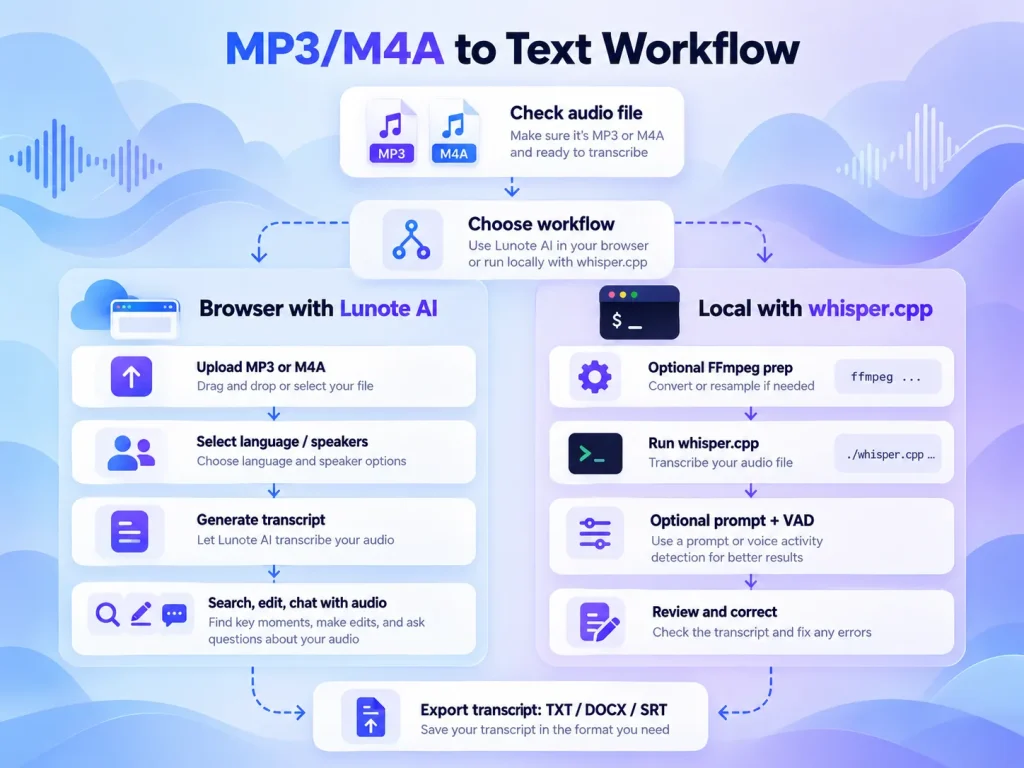
There is no single best method. A browser service is convenient, while a local tool gives you more control over privacy and processing.
Browser Transcription With Lunote AI
Lunote is useful when you need a workspace rather than a one-time text file. It supports searchable and editable transcripts, speaker-aware transcription, multiple languages, long recordings, and post-transcription chat with uploaded audio.
A typical workflow is:
- Upload the original MP3 or M4A. Lunote accepts common audio formats directly, so format conversion is usually unnecessary.
- Generate the transcript. For an interview or meeting, treat the speaker labels as a first draft and check every uncertain boundary.
- Search for details where an error would matter, including names, product terms, dates, numbers, acronyms, and quotations.
- Edit the transcript while the source recording is available for comparison.
- Use Lunote’s “Chat with Your Audio” feature to find decisions, quotations, topics, or follow-up items without rereading the entire transcript.
This approach suits people who want search, editing, speaker-aware output, and follow-up analysis in one browser workspace.
Local Transcription With whisper.cpp
For sensitive recordings or local processing, whisper.cpp provides an offline command-line workflow. After you build the project and download a Whisper model, it can transcribe supported audio without uploading the file to a browser service.
./build/bin/whisper-cli -m models/ggml-base.en.bin -f meeting.mp3If the input format needs conversion, FFmpeg can create a 16 kHz mono PCM WAV file:
ffmpeg -i input.m4a -ar 16000 -ac 1 -c:a pcm_s16le output.wavThis route takes more setup, but you control the model files, source audio, and processing environment.
How to Improve Proper Nouns With an Initial Prompt
Speech recognition often struggles with technical terms, company and product names, and uncommon surnames. The whisper.cpp CLI supports an initial prompt through --prompt. Use it to give the decoder a short vocabulary hint:
./build/bin/whisper-cli -m models/ggml-base.en.bin -f meeting.wav --prompt "Lunote AI, XGRIDS, Gaussian Splatting, LiDAR, SLAM, PortalCam"Keep the prompt short and focused on terms you expect to hear. It provides context but does not guarantee a correct result, so verify each term against the recording.
How to Skip Long Silences With whisper.cpp VAD
whisper.cpp also supports Voice Activity Detection (VAD). With a compatible model, VAD identifies speech and sends only those sections to Whisper. This can help with interviews, lectures, and field recordings that contain long pauses.
./models/download-vad-model.sh silero-v6.2.0

./build/bin/whisper-cli   -m models/ggml-base.en.bin   -f meeting.wav   --vad   --vad-model models/ggml-silero-v6.2.0.bin
VAD can reduce unnecessary processing, but an aggressive threshold may cut off quiet speech. Test the default settings before changing --vad-threshold, minimum speech duration, or minimum silence duration.
How to Convert an Audio File to Text Step by Step
A quick check before transcription can prevent failed uploads and avoidable recognition errors.
Step 1: Check the Audio File
Confirm that the file extension is .mp3 or .m4a. Play the first 30 seconds, then sample the middle and end. Make sure the volume is reasonably consistent and that the recording is not heavily clipped or distorted.
Apple Voice Memos commonly export as .m4a. Before uploading a memo to Lunote AI, wait for iCloud to download the entire recording to local storage. Otherwise, you may upload an incomplete file.
Step 2: Upload to Lunote or Keep the File Local
For browser transcription, open Lunote AI Audio to Text and upload the MP3 or M4A from your device. Keep the tab open until uploading and processing are complete.
For local transcription, leave the file on your computer and process it with whisper.cpp. This avoids a browser upload but requires the software and a model file.
Step 3: Select the Language and Speaker Options
Use only the settings available in your chosen tool:
- Select the spoken language if the tool has a language menu. The correct choice can prevent avoidable recognition errors.
- For an interview, meeting, or panel, enable speaker labels or diarization if available. Check the labels manually wherever voices overlap.
- If the tool accepts vocabulary hints, add relevant product names, acronyms, technical terms, and unusual proper nouns.
Step 4: Transcribe and Review the Draft
Start the transcription and treat the output as a draft. Processing time depends on the file size, upload speed, server load, local hardware, and model. Review names, figures, dates, product terms, acronyms, and overlapping dialogue first because errors there have the greatest effect.
How to Benchmark Audio Transcription Accuracy
Vendor accuracy claims do not provide a fair comparison by themselves. To test two workflows, use the same recording, reference transcript, and scoring method for each one.
Recommended Test Recording
- Use a 10-minute recording.
- Include 2 to 3 speakers.
- Include at least one technical term, one proper noun, a brief overlap, and some background noise.
- Create a manually corrected reference transcript before scoring any tool.
Results to Record
| Workflow | Processing Time | Peak Memory | WER | Proper-Noun Errors | Speaker-Label Errors |
|---|---|---|---|---|---|
| Lunote AI | Measure on the same network connection | Not applicable to browser-side local RAM unless measured separately | Calculate against the reference transcript | Count manually | Count manually |
| whisper.cpp, base model | Measure locally | Measure locally | Calculate against the same reference | Count manually | N/A unless a separate diarization workflow is used |
| whisper.cpp, larger model | Measure locally | Measure locally | Calculate against the same reference | Count manually | N/A unless a separate diarization workflow is used |
The table does not contain sample numbers because processing time, memory use, and WER depend on the recording, hardware, model, and network. A repeatable test is more useful than invented benchmark results. Replace the empty measurements with data from your own run.
How to Calculate Word Error Rate
WER = (Substitutions + Deletions + Insertions) / Reference Words × 100Track errors in product names and technical terms separately from WER. A transcript can have a good overall score and still miss the company name, drug, model number, or legal term that matters most.
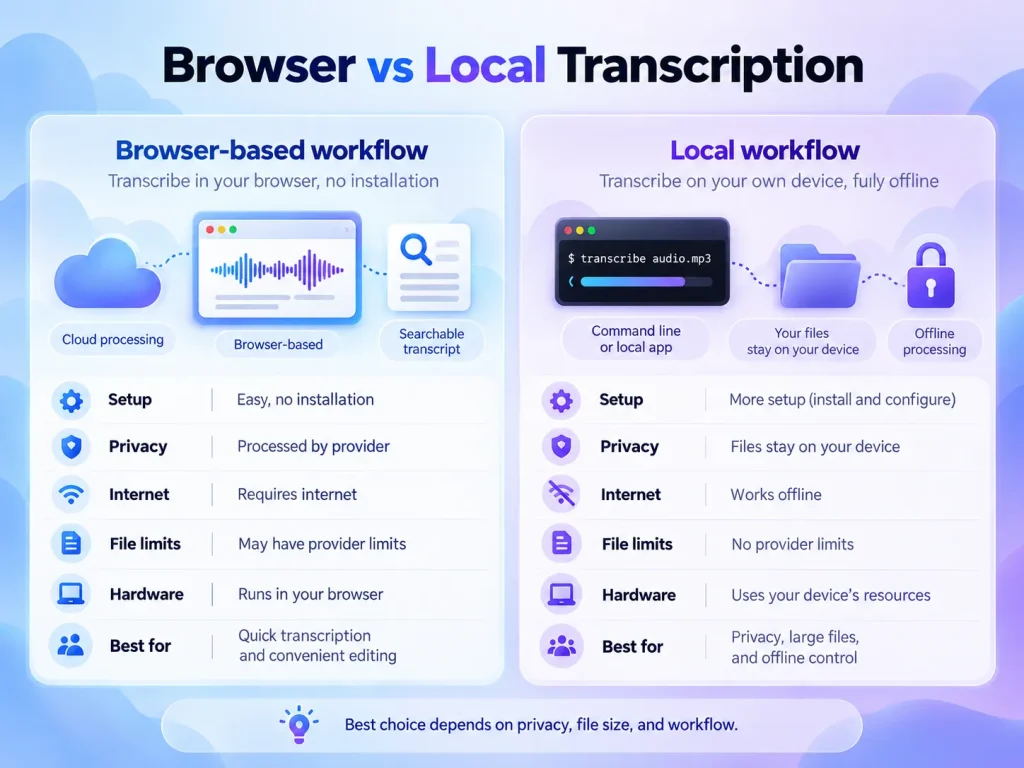
Online Audio Converters vs. Desktop Transcription Software
The better setup depends on file size, privacy requirements, and network reliability. Most workflows use either a cloud service or local software.
| Consideration | Web-Based Cloud Converter | Offline Desktop Software |
|---|---|---|
| Processing speed | Often convenient because processing happens remotely. | Depends on the local CPU or GPU. |
| File size limits | Free plans often limit files to 50 MB to 200 MB. | Usually avoids upload caps but remains limited by local storage, memory, and the software. |
| Internet requirement | Requires a stable, fast connection. | Can run offline after you install the software and model files. |
| Data privacy | The audio is uploaded to third-party cloud infrastructure. | The audio can stay on the device when you use a fully local tool such as whisper.cpp without external services. |
| Hardware | Works on basic laptops and tablets because the remote service handles processing. | Requirements vary with the model and software. Stronger hardware can speed up local processing. |
| Setup | Runs in a browser without an installation. | Requires software installation and model downloads. |
For students, researchers, and business users who want little setup, the browser-based Lunote workflow is simpler. If the recording should stay on the device, whisper.cpp gives you more control over where it is processed.
How to Reduce Audio File Size and Handle Long Recordings
Transcription services may limit file size, duration, or usage by plan. These limits differ by provider and can change, so check the current product details before preparing a long recording.
How to Downsample a High-Bitrate Voice Recording
Very high stereo bitrates often make speech recordings larger than necessary. Reducing the channel count or bitrate can preserve intelligible speech, but suitable settings depend on the source and the transcription model.
Audacity or FFmpeg can convert an oversized recording to mono and lower its bitrate. The amount of space saved depends on the original file, so do not assume a fixed percentage. Upload the smaller file through Audio to Text or process it locally.
How to Split a Long Recording at Natural Pauses
A fixed 30-minute cut can split a sentence. VAD is usually a better first step for local Whisper workflows because it finds speech and silence boundaries before transcription. If an upload service requires smaller files, split the recording at natural pauses when possible.
Reusable Scripts for Audio Preprocessing
If you prepare recordings regularly, save the conversion step as a script instead of typing the same FFmpeg command for every file.
Windows Batch Script for MP3 and M4A Files
@echo off
setlocal

for %%F in (*.mp3 *.m4a) do (
  ffmpeg -n -i "%%F" -ar 16000 -ac 1 -c:a pcm_s16le "%%~nF_16k_mono.wav"
)

echo Done.
pause
macOS and Linux Bash Script
#!/usr/bin/env bash
set -euo pipefail

shopt -s nullglob

for file in *.mp3 *.m4a; do
  ffmpeg -n -i "$file" -ar 16000 -ac 1 -c:a pcm_s16le "${file%.*}_16k_mono.wav"
done

echo "Done."
These scripts deliberately avoid automatic noise reduction. Destructive cleanup should not be applied to every recording. The scripts only standardize the format for a predictable local transcription workflow.
Python Batch Script With Optional whisper.cpp VAD
from pathlib import Path
import subprocess

INPUT_DIR = Path("audio")
OUTPUT_DIR = Path("prepared")
OUTPUT_DIR.mkdir(exist_ok=True)

for src in list(INPUT_DIR.glob("*.mp3")) + list(INPUT_DIR.glob("*.m4a")):
    wav = OUTPUT_DIR / f"{src.stem}_16k_mono.wav"

    subprocess.run([
        "ffmpeg", "-n",
        "-i", str(src),
        "-ar", "16000",
        "-ac", "1",
        "-c:a", "pcm_s16le",
        str(wav),
    ], check=True)

    subprocess.run([
        "./build/bin/whisper-cli",
        "-m", "models/ggml-base.en.bin",
        "-f", str(wav),
        "--vad",
        "--vad-model", "models/ggml-silero-v6.2.0.bin",
    ], check=True)
The wrapper keeps the jobs separate: FFmpeg standardizes the audio, while whisper.cpp detects speech and transcribes it. Preserve the original recordings in case preprocessing or VAD removes useful context.
How to Improve Transcription Accuracy for Interviews and Meetings
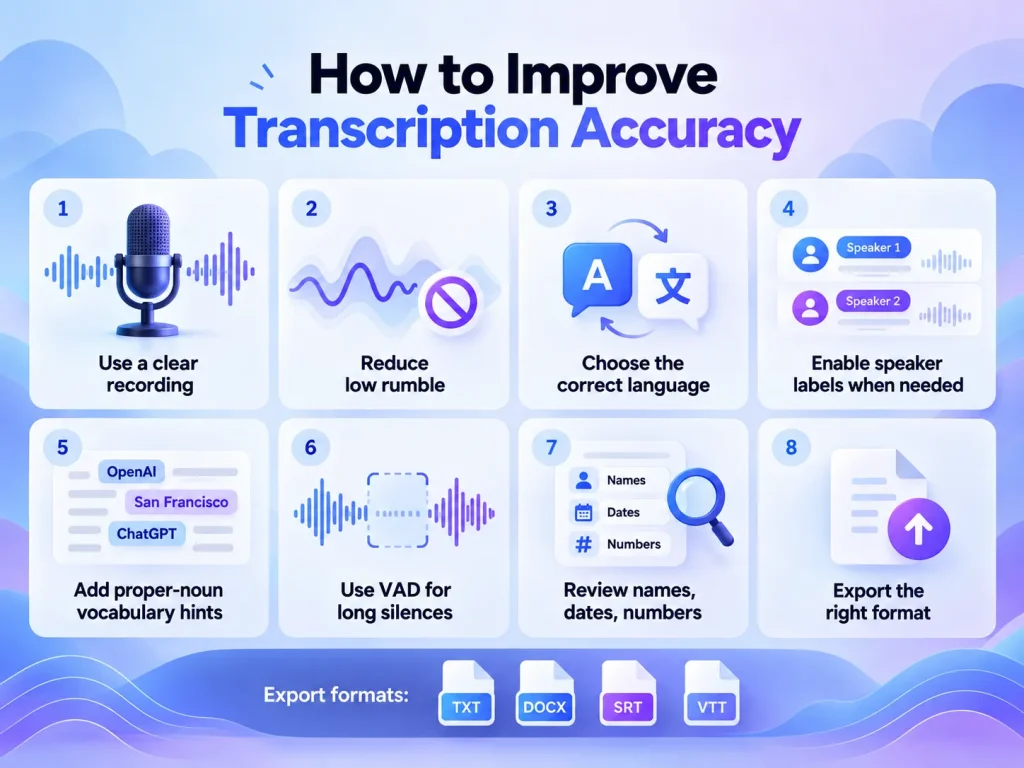
Speech-to-text works best with clear recordings. Background noise, overlapping voices, and differences in accent can all affect the result.
A systematic review of speech recognition word error rates reported rates below 10% in controlled recordings and above 50% in some conversational settings with several speakers. An empirical study of transcription performance across accents also found lower recognition accuracy for regional accents and nonstandard dialects. These practices can make a recording easier to transcribe:
- Place the microphone 6 to 12 inches from the speaker’s mouth. For a group meeting, put an omnidirectional boundary microphone in the center of the table instead of leaving a phone at the far end of the room.
- For noisy audio, try a gentle high-pass filter below 80 Hz. This can reduce air conditioner hum, microphone bumps, and traffic rumble without removing the main vocal range.
- Ask participants not to talk over one another. Overlapping speech is especially difficult for recognition and speaker diarization.
- Check proper nouns and acronyms early. Language models predict likely words, so medical terms, organizational abbreviations, and unfamiliar names often need manual correction.
Audio Recording Checklist for Better Transcription Accuracy
Use this checklist before transcription to catch common problems in interviews, meetings, voice memos, and field recordings.
| Check | Pass Condition | Why It Matters |
|---|---|---|
| Microphone distance | The main speaker sounds clearly louder than the room. | Improves the speech-to-noise ratio before software processing. |
| Low-frequency rumble | HVAC, desk vibration, handling noise, and traffic do not dominate the recording. | Low-frequency energy can mask speech detail and consume headroom. |
| Speaker overlap | Participants rarely speak at the same time. | Clear turns make speaker attribution and review easier. |
| Proper nouns | You have a list of names, brands, acronyms, and technical terms to check. | These are often the most consequential transcription errors. |
| Clipping | Loud speech does not sound distorted or flattened. | Clipped audio cannot be fully restored later. |
| File integrity | The beginning, middle, and end play correctly before upload. | This catches incomplete cloud downloads and damaged exports. |
Audacity Settings for Voice Cleanup
Audacity’s High-Pass Filter can reduce low-frequency rumble in spoken audio. Its manual suggests a speech cutoff in roughly the 60 to 100 Hz range as a starting point. A conservative setup for meeting audio is:
- Set the High-Pass Filter cutoff to 80 Hz.
- Use a roll-off of 12 dB per octave.
- Convert to mono only if the stereo channels do not contain separate speakers or other useful sources.
- Apply Noise Reduction only after sampling a section that contains noise without speech, and preview the result before saving it.
Do not treat “noise reduction + 80 Hz high-pass + mono” as a universal fix. Heavy noise reduction can introduce artifacts, and converting to mono can destroy useful separation when each interview participant has a different channel.
Optional Audacity Macro
1. High-Pass Filter: 80 Hz, 12 dB/octave
2. Normalize or Amplify conservatively
3. Convert to Mono only when appropriate
4. Export a new working copy
Audacity effect names and macro commands may differ between versions. Build the macro in the version you use and test every step on a duplicate before processing important recordings in a batch.
How to Review, Edit, and Export an Audio Transcript
Automatic transcripts need a structured review. Even accurate models can make contextual substitutions, confuse homophones, and punctuate a sentence incorrectly.
How to Proofread With Synchronized Audio
Many transcription editors can highlight the corresponding text as the audio plays. Listen at 1.25x or 1.5x speed while reading the transcript.
Research on speech recognition error correction supports systematic review and error detection before a transcript becomes an official record. Give extra attention to figures, money, deadlines, and names.
Which Transcript Export Format Should You Choose?
| Format | Use It When |
|---|---|
| TXT or Markdown | You need editable text for notes, search, AI summarization, or a knowledge base. |
| DOCX or PDF | You need a formatted document for review, distribution, or archiving. |
| SRT or VTT | You need timestamped captions for video playback or editing. |
MP3 and M4A Transcription Workflow Summary
Choose a browser service or local tool, check the source recording, transcribe it, and compare important details with the audio. Preprocessing can help with large or noisy files, but keep the original untouched. The final review is what turns automatic output into a transcript you can publish or rely on.
Frequently Asked Questions
Can I Convert M4A to Text on Windows Without Converting It to MP3?
Yes. Current speech recognition tools and online converters can handle M4A files on Windows, macOS, and Linux. You do not have to convert an M4A to MP3 before transcription.
What Accuracy Can I Expect From Automatic Audio Transcription?
Figures of 90% to 95% are often associated with clear recordings of one speaker in a quiet setting. In meetings with several speakers, overlapping voices, or background noise, reported accuracy may fall to 70% to 85%, which requires manual review. These ranges are not a guarantee for a particular file or service.
How Can I Transcribe Audio With Background Noise?
Begin with the least destructive cleanup. In Audacity, try a High-Pass Filter around 80 Hz to reduce rumble. Use Noise Reduction only if you can capture a brief sample of noise without speech, and preview the result before export. Keep the original file and compare the cleaned version with it during proofreading. For local transcription, you can then process the cleaned audio with whisper.cpp.
What Free Tools Can I Use Before Transcription?
Audacity can clean local audio with its High-Pass Filter and noise reduction tools. FFmpeg can resample audio, change the channel count, or create a WAV file for transcription. whisper.cpp provides local transcription. Together, these tools cover audio cleanup, format conversion, and offline speech recognition.
Are Confidential Recordings Safe on Free Online Converters?
Do not assume that “free” or “browser-based” means safe or unsafe. Read the provider’s current terms, retention rules, model training language, and subprocessor policy before uploading confidential material. If the audio must stay on your device, use a local workflow such as whisper.cpp:
./build/bin/whisper-cli -m models/ggml-base.en.bin -f meeting.mp3If the input needs conversion, use FFmpeg:
ffmpeg -i meeting.m4a -ar 16000 -ac 1 -c:a pcm_s16le meeting.wav