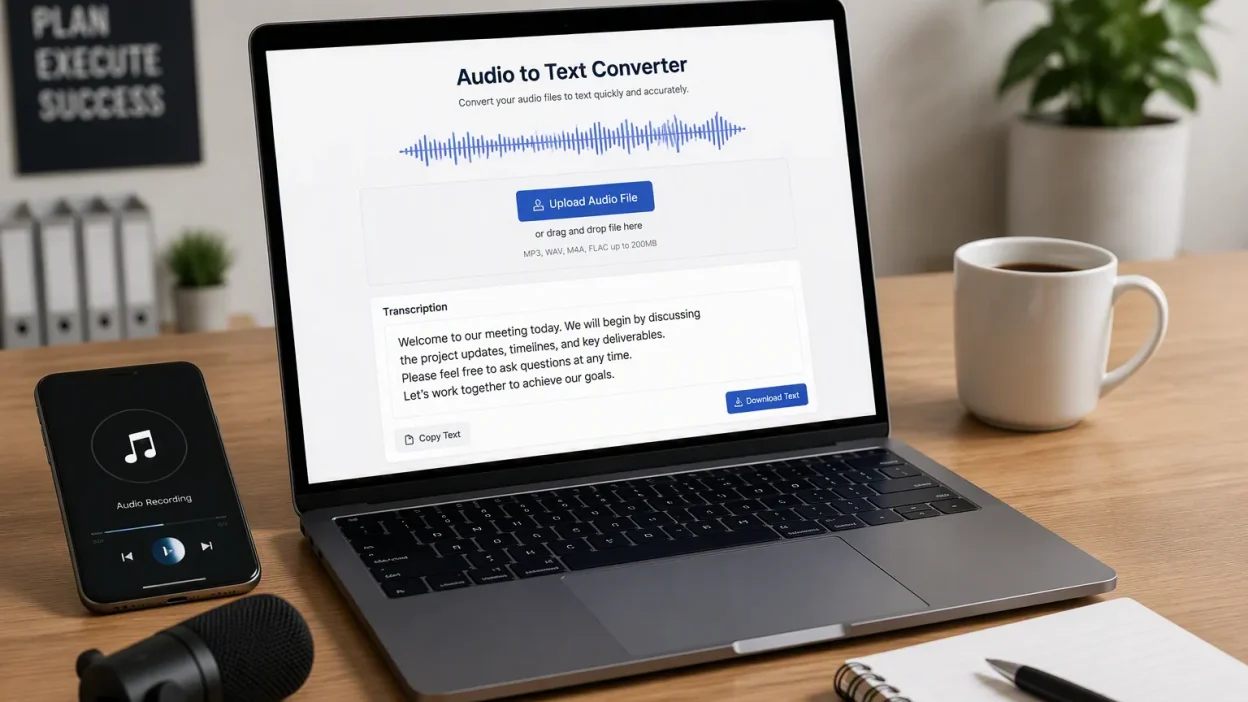
You recorded an important interview, lecture, or voice memo as an M4A file. Now you need the text, but audio files are hard to search, edit, and share. Doing it by hand takes 4-6 hours for each hour of audio, and it costs over $1.50 per minute. This post picks the best audio-to-text tools for 2026, focusing on reliable, truly free options. Each converter takes M4A uploads directly, saving you days of work. The best tool to turn audio into text changes hours into minutes, as shown below:
| Metric | Manual | Automated |
|---|---|---|
| Time per hour of audio | 4-6 hours | 1-3 minutes |
| Cost for 60 minutes | $200-400 | $6.00 |
Beyond the list, you’ll find a step-by-step guide covering the whole process of turning audio into text, from getting the file ready to exporting it. Whether you’re a student, journalist, or creator, this guide helps you succeed with any free tool. Start with the comparison table, then check out detailed reviews of the best audio to text converter choices. Your M4A files hold useful content—unlock it today. For a seamless experience, look for a tool that offers direct m4a to text conversion, eliminating the need for file format changes and letting you focus on the content itself.
Key Takeaways
- Free M4A to text converters save hours of manual work.
- Choose a tool based on your specific needs, like language support or privacy.
- Prepare your audio by ensuring clear quality, checking file limits, and reviewing the maximum duration on free plans before uploading.
- Use tools like Whisper for maximum privacy, as they run offline.
- Split large files with FFmpeg to fit free tier limits.
- Export transcripts in formats like TXT, SRT, DOCX, or PDF for different uses.
- Test a few tools with a sample file to find the best fit for your workflow.
Top Free M4A to Text Converters: Quick List
The market has many free tools that turn audio files into readable text. Each one works for a different need, from quick meeting notes to high-quality transcription. The table below shows the most popular converters in 2026, based on expert reviews and user ratings.
M4A to Text: Quick Comparison Table
| Tool | Free Tier Limit | Unique Feature |
|---|---|---|
| TurboScribe | 3 files/day, 30 min max | SRT and VTT export |
| Otter.ai | Perpetual free plan (limited minutes) | Real-time transcription, meeting notes |
| Whisper (OpenAI) | 100% free, open source | No duration limit, runs locally |
| Notta.ai | Free monthly minutes (e.g., 120) | Multilingual transcription (58 languages) |
| Happy Scribe | 10-minute free trial | Captioning, translation |
| Kapwing | Free tier with watermark | Suitable for short social clips |
| Microsoft Word | Requires Microsoft 365 subscription | 300 min/month cap, direct insertion |
| Google Cloud Speech-to-Text | Free allowance + $300 new-user credit | Enterprise-grade accuracy, M4A support |
Key Features and Pricing at a Glance
Each converter has its own strengths. TurboScribe gives you free files every day with subtitle exports, making it one of the more user friendly online tools for quick transcription, especially for creators who need captions. Otter.ai shines at live meeting transcription with smart notes you can search. Whisper is different because it’s totally free and open-source, and it runs on your own computer, which keeps your data private.
If you need translation, Notta supports 58 languages with multilingual transcription. Happy Scribe gives you a 10-minute trial and captioning tools. Kapwing is good for short social clips, but the free version adds a watermark. Microsoft Word users get transcription built into their subscription, with a 300-minute monthly limit and direct insertion into documents.
Accuracy and Language Support Comparison
Accuracy varies a lot between tools. Happy Scribe claims 85-99% automated accuracy, while VEED.IO says 95%. Whisper’s accuracy depends on your computer’s hardware and the model size you pick. For languages, Sonix handles 54+, Notta covers 58, and VexaScribe supports 99 for transcription plus 133 for translation.
The best audio to text converter for you depends on what matters most. If you need many languages, pick a tool like VexaScribe or Notta. If privacy is key, Whisper works fully offline. For meeting notes, Otter.ai is still a strong option. Most tools export text in several formats, like TXT, DOCX, SRT, and VTT, so you can use your transcripts in any workflow.
Think about how long and how often your audio is. Free plans often limit file size or monthly minutes. TurboScribe allows 3 files daily with a 30-minute cap. Notta gives you 120 free minutes each month. Whisper has no limits at all. Match the tool to how you use it, and you’ll find a free option that covers most transcription needs.
In-Depth Free Online M4A to Text Converter Reviews
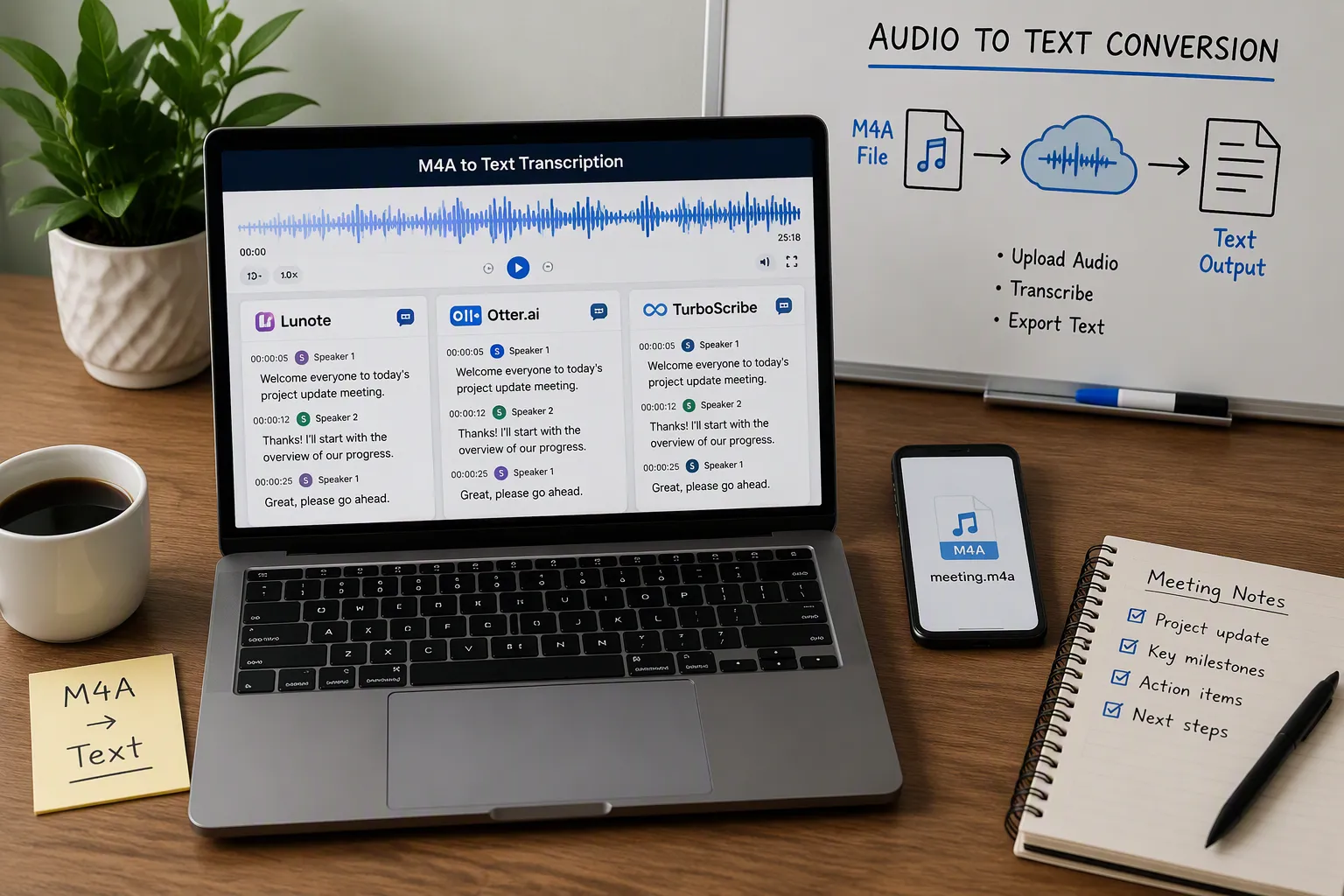
Top Performers: Lunote, Otter.ai, and TurboScribe
Lunote Review: Best Overall for M4A Transcription Features, Pros, Cons, and Free Tier
Lunote is the top choice for turning M4A files into text. It claims accurate transcription for clear M4A audio, which beats most free tools. You can upload M4A files directly, so there is no need to change formats. It also lets you paste a YouTube link or public video URL for transcription.
A special feature lets you talk with your audio. Instead of reading the whole transcript, you ask questions about the recording. The AI finds specific details, sums up main points, and digs into the content without searching by hand. This makes Lunote a smart helper, not just a converter.
Speaker-aware transcription tells different voices apart in group talks. This works well for meetings, interviews, and podcasts. The text output is searchable and editable, so you can copy and sort information fast. Lunote handles long content and supports long audio files without splitting. Many audio files have been transcribed, and users save significant manual hours each month.
Pros: High accuracy, chat with audio, speaker identification, long-file support. Cons: Free tier details vary; advanced features may require upgrades. Free Tier: Lunote offers a free tier for basic transcription needs, with paid plans for extended usage.
Otter.ai Review: Best for Meeting Recordings:Features, Pros, Cons, and Free Tier
Otter.ai shines at live transcription for meetings. It records audio in real time and creates searchable notes as people talk. The free plan gives limited minutes each month, which works for regular but short meetings. Users can upload M4A files for later transcription, though the tool works best during live sessions.
The interface sorts transcripts by date and speaker. You can mark key points, add comments, and pull out action items from meeting transcripts before you share notes with teammates. Otter.ai works with Zoom and Google Meet, making it a great fit for remote work.
Pros: Real-time transcription, meeting-focused features, collaboration tools. Cons: Free minutes run out quickly for heavy users, and some save, edit, or share features require an account so users may need to sign in. Free Tier: Perpetual free plan with limited monthly minutes.
TurboScribe Review: Best for Daily Free Transcription:Features, Pros, Cons, and Free Tier
TurboScribe gives you three free files each day, with each file up to 30 minutes long. This generous daily allowance makes it perfect for steady transcription work. The tool exports SRT and VTT subtitle files, which creators need for captions. Accuracy stays strong on clear recordings with little background noise.
Pros: Daily free files, subtitle export, simple interface. Cons: File length cap of 30 minutes per upload. Free Tier: 3 files daily, 30-minute maximum per file.
Solid Alternatives: Notta, Happy Scribe, and VEED.io
Notta Review: Best for Multilingual Transcription: Features, Pros, Cons, and Free Tier
Notta supports 58 languages for transcription, making it a strong pick for global projects. The free tier includes 120 minutes each month, which covers light use. Users can upload M4A files and get text in their chosen language. The interface is clean and easy to use.
Pros: Wide language support, monthly free minutes, easy upload. Cons: Free minutes may not suffice for long recordings. Free Tier: 120 free minutes per month.
Happy Scribe Review: Best for Editing and Subtitle Work: Features, Pros, Cons, and Free Tier
Happy Scribe earns praise as “highly accurate and easy to use,” with strong ratings of 4.7/5 on TrustPilot and 4.8/5 on G2. Human transcription services reach nearly 99% accuracy, and the tool follows GDPR rules. Customer support includes a help center, email, live chat, and priority support.
However, automatic transcription accuracy drops to 85%, so proofreading becomes necessary. Speed also lags; a 13-minute file took 3-4 minutes, and a 10-minute file needed about 5 minutes for subtitles. The tool lacks third-party integrations, and pricing feels expensive for large teams at $49/month for 600 minutes. Live chat response time exceeded one hour in some tests.
Pros: High human accuracy, GDPR compliance, subtitle tools. Cons: Slow automatic transcription, limited integrations, costly for teams. Free Tier: 10-minute free trial.
VEED.io Review: Best for Turning M4A Audio Into Social Content: Features, Pros, Cons, and Free Tier
VEED.io focuses on audio and video workflows with transcription built in. You can upload video files as well as M4A audio, generate text, and then create captions for social media posts. The free version adds a watermark to exports, which limits professional use. Accuracy reaches about 95% on clear audio.
Pros: Integrated editing tools, caption generation, social media focus. Cons: Watermark on free exports. Free Tier: Limited free usage with watermark.
Flixier Review: Best No-Download M4A to Text Converter
Flixier runs entirely in your browser, so no software installation is needed. You upload an M4A file, and the tool generates text within minutes. The interface supports collaborative editing, which helps teams work on transcripts together. Free usage includes basic features with some limitations on export quality.
Pros: Browser-based, collaborative editing, no download required. Cons: Free tier limits export options. Free Tier: Basic transcription with limited exports.
Niche and Specialized Tools: NoteGPT, Whisper, and Others
NoteGPT Review: Best for Notes and AI Summaries Features, Pros, Cons, and Free Tier
NoteGPT combines transcription with AI summaries. After converting audio to text, the tool generates concise notes that capture key points. This saves time for students and professionals who need quick takeaways. The free tier offers limited minutes but includes summary features.
Pros: AI summaries, note-friendly output, simple workflow. Cons: Limited free minutes. Free Tier: Basic minutes with summary access.
Whisper (OpenAI) Review: Features, Pros, Cons, and Free Tier
Whisper is an open-source speech recognition model from OpenAI. It runs locally on your computer, which keeps your audio private. There are no duration limits or file size caps. Accuracy depends on your hardware and the model size you choose. Larger models produce better results but require more computing power.
Pros: 100% free, offline operation, no limits, strong privacy. Cons: Requires technical setup, slower on weaker hardware. Free Tier: Entirely free and open source.
Kapwing Review: Best for Creators Who Need Transcripts and Subtitles
Kapwing serves creators who need both transcripts and subtitles. You upload an M4A file, generate text, and then style captions for video content. The free version adds a watermark, which pushes some users toward paid plans. The tool works well for short social clips.
Pros: Subtitle styling, video integration, creator-friendly. Cons: Watermark on free exports. Free Tier: Free with watermark.
Google Recorder
Google Recorder comes preinstalled on Pixel devices and works well for voice memos, offering free transcription. It records audio and converts speech to text in real time. The tool works offline and supports search within recordings. However, it lacks M4A file import, so you must record directly through the app.
Pros: Free, offline, real-time transcription. Cons: No M4A import, limited to Pixel devices. Free Tier: Completely free.
How to Transcribe M4A to Text: Step-by-Step Guide
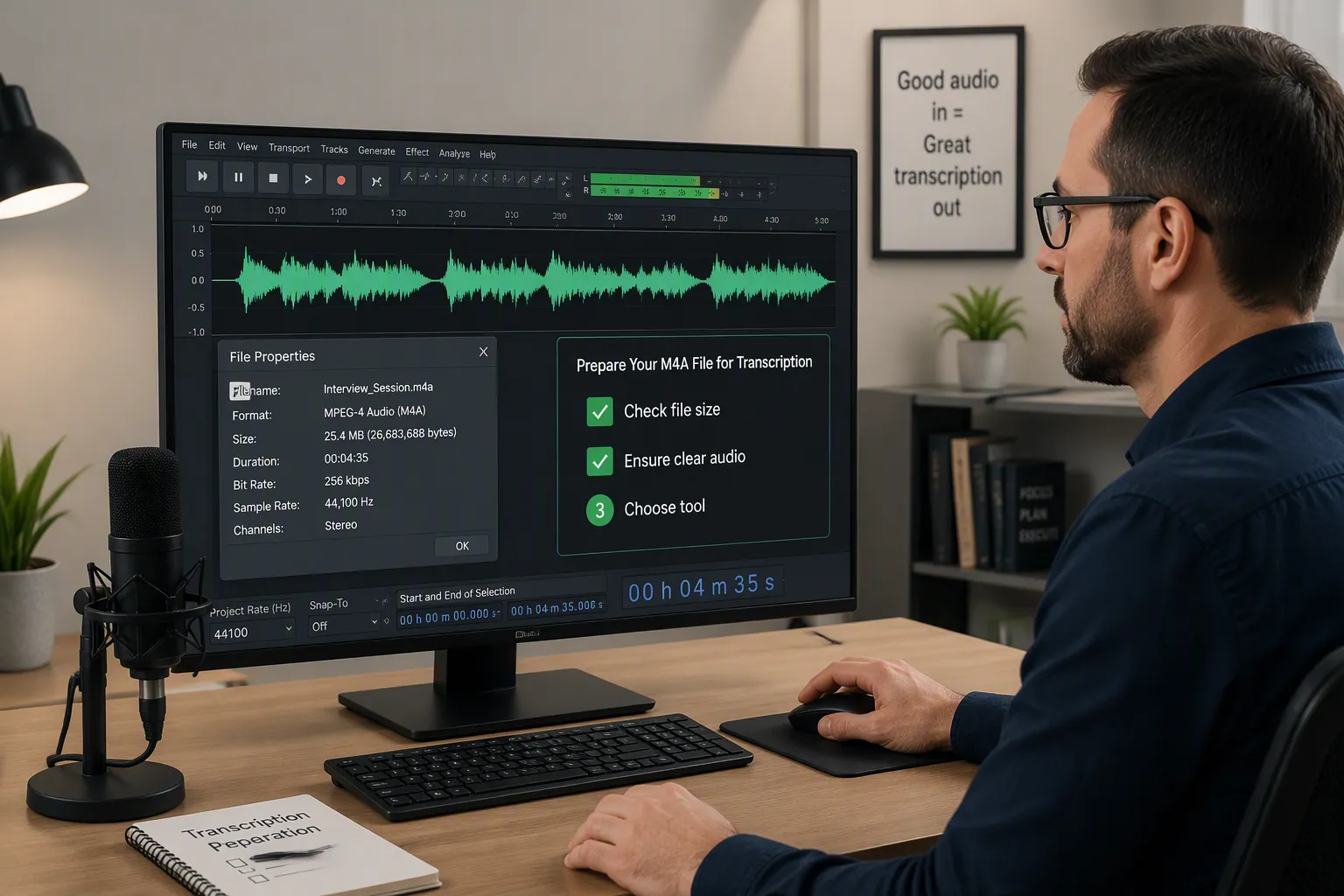
This guide shows you how to turn audio into text using free tools. It walks you through the whole process of converting m4a to text. Most platforms work in similar ways. Lunote is the main example here because it has high accuracy and takes M4A files directly.
Preparing Your M4A File for Transcription
Good prep makes transcription more accurate. Do these steps before you upload.
Check File Size and Duration Limits
Look at the tool’s limits before you upload. Every tool has rules about file size and length. Most free converters cap files at 30 minutes or 100 MB. Files under 30 minutes go through directly. Files between 30 and 60 minutes may need splitting. Files over 2 hours must be cut into parts.
Keep your file under 450 MB. If you see a “File too large” error, re-encode the audio at 96-128 kbps or split the file. For the best quality, use a high bitrate. Avoid low-quality formats like low-bitrate MP3 and AMR.
Ensure Clear Audio Quality
Background noise is the biggest cause of poor accuracy. Record in a quiet room. Turn off fans and AC. Close windows. Put the microphone close to the speaker. Keep peak recording levels at appropriate levels to avoid clipping.
Use an external USB microphone for better sound. Even a basic mic beats laptop microphones. After recording, apply light noise reduction and volume normalization. Convert stereo to mono if you hear channel separation issues. Remove long silent sections to cut processing time. The file is processed faster and yields more accurate results when the audio is clean.
Choosing the Right Tool for Your Task
Pick the audio to text converter that fits your needs. Think about accuracy, language support, file limits, and privacy.
Matching Tool Features to Your Needs
Start with accuracy. Most tools hit over 95% on clear audio. Performance drops with background noise, heavy accents, or poor recording quality. The best audio to text converter offers high accuracy.
Language support matters for multilingual projects. Some tools handle 50+ languages with automatic detection. Others support 125+ languages for transcription and subtitles.
Export format compatibility is another factor. Choose TXT for notes, SRT or VTT for captions, and DOCX for documents. Speaker identification improves readability. Custom vocabulary boosts accuracy for industry terms.
Data privacy is critical. Check if the service encrypts files in transit. Confirm that uploads are not stored or used for AI training.
Understanding Free vs. Paid Tiers
Free tiers have strict limits. Otter.ai offers 300 minutes per month with 30-minute sessions. Other tools offer varying limits. Happy Scribe gives a 10-minute trial. Pick the right converter for your budget.
Pay-per-use plans suit inconsistent users. A researcher transcribing during a 3-month data collection phase avoids paying for inactive months. Subscriptions become cheaper for high volume users who transcribe many hours per month. Compare monthly cost against expected volume.
The General Transcription Process
The transcription process follows three main steps. Lunote handles each step smoothly.
Uploading Your File
Click the upload button or drag and drop the file into the browser to upload your M4A. Lunote supports M4A without prior conversion. The tool also accepts YouTube links and public video URLs. This direct upload saves transcription time.
Selecting Language and Settings
Choose the spoken language or enable automatic detection. The right settings improve transcription quality. Lunote offers options for timestamps and speaker labels. Select an accuracy mode. Fast mode works for quick drafts. Balanced mode suits most tasks. Most Accurate mode delivers the best results.
Generating and Exporting the Text
Let the AI process the file. After upload and language selection, click Transcribe to start. Some tools, including Go Transcribe, can process an hour-long M4A file in just a few minutes. Most tools complete the transcription quickly, and Lunote can transcribe long recordings without splitting. Once the transcripts appear, review and edit them directly in the browser. Then download read through the text, and export the finished transcript. Review the text for errors. Export the final text in your preferred format. Lunote supports various export formats including TXT, SRT, DOCX, and PDF. Each format serves a different purpose. TXT works for notes. SRT creates captions. DOCX is ready for documents. The goal is to transcribe your audio and get the text you need.
With Lunote, you can also chat with the audio. Ask questions about the content. The AI finds specific details and summarizes key points. This feature turns the tool into a smart assistant for your recordings.
M4A to Text: Accuracy, Privacy, and Limits
How Accurate Are Free M4A to Text Converters?
Free transcription tools work very well on clear recordings. Lunote says it hits high accuracy on clean audio, which matches paid services. Some competitors, such as Jumpshare, advertise automated transcription with 99% accuracy for M4A audio transcriptions. Most other free converters land between 85% and 95% accuracy. That difference matters when you need exact quotes or special terms.
Factors Affecting Transcription Accuracy
Audio quality matters more than anything else for accuracy. Background noise confuses speech recognition models. When people talk over each other, the output gets messy. Strong accents and dialects lower accuracy unless the tool knows those language styles. Recording gear also plays a role. Laptop mics pick up room echo and keyboard sounds. External USB mics catch cleaner speech.
File compression changes results too. Heavy compression removes frequency details. Speech sounds unclear, and the model struggles with similar sounds. A 128 kbps M4A file transcribes better than a 64 kbps one. The original recording quality sets the limit for any converter.
Tips for Improving Accuracy
Record in a quiet room with little echo. Place the mic a few inches from the speaker. Keep recording levels at appropriate levels to stop clipping. Apply light noise reduction before uploading. Change stereo files to mono when channel issues appear. Remove long pauses to cut processing time. These steps boost accuracy on every tool.
Is It Safe to Upload Your Audio Files?
Most online converters need you to upload files to a server. Your audio leaves your device and goes to another system. The safety depends on the tool’s privacy rules and how it handles data.
Understanding Privacy Policies and Data Handling
Read the privacy policy before uploading sensitive recordings. Some tools keep files forever. Others delete them after processing. Some services use uploaded audio to train their AI models. That raises concerns for private interviews or medical recordings. Look for tools that encrypt files during transfer and delete them after transcription. Lunote says uploaded content stays protected during processing.
Tools with Stronger Privacy Stances
- Whisper (OpenAI): Runs fully on your hardware. Audio never leaves your machine. This meets strict confidentiality needs for researchers and medical staff.
- Google Recorder: Processes speech locally on Pixel devices. No cloud upload happens.
- Lunote: Keeps strong privacy protections for uploaded files during processing.
Whisper offers the strongest privacy choice among free tools. The open-source model runs locally, so no audio ever hits a server. This design meets ethics-board rules and HIPAA-adjacent needs by default, not by policy.
Navigating File Size and Duration Limits
Free tiers set strict caps on file size and length. A typical free converter limits uploads to 25 MB per file. That size holds a limited amount of audio at standard bitrates. Files that exceed the size limit may fail. Very long files within the size limit may return partial transcripts without notice.
What to Do When Your File is Too Large
Split larger files into smaller pieces before uploading. The FFmpeg command below divides audio into 10-minute parts:
ffmpeg -i input.mp3 -f segment -segment_time 600 -c copy chunk%03d.mp3
Upload each part separately, then combine the resulting transcripts. This workaround handles most free tier limits.
Splitting Audio Files for Free
FFmpeg is a free, open-source tool that works on Windows, macOS, and Linux. The command above copies audio without re-encoding, keeping quality. For M4A files, convert to MP3 or OGG first. Some M4A files may have encoding quirks that cause issues, and converting to WAV can also help when a tool accepts that format more reliably. A quick conversion avoids this problem. It is possible to compress large files into much smaller audio files using FFmpeg.
Which M4A to Text Converter Should You Choose?
The best pick depends on how you work, not just the features. A journalist who interviews people has different needs from a student who records lectures. Pick the tool that fits your daily tasks, and the free version will work well.
Matching the Tool to Your Use Case
For Journalists and Researchers
Journalists need high accuracy and the ability to tell different speakers apart. Interview recordings often have many voices, and getting the quotes right matters, so speaker names are useful when attributing quotes. Lunote gives high accuracy on clear audio and separates speakers on its own. This saves hours of manual editing. Descript also works well for interviews. It offers free minutes with speaker labels inside a video editor. Researchers who deal with private material should think about Whisper. It runs on their own computer. No audio ever leaves the machine, so it meets strict privacy rules.
For Students and Educators
Students need plenty of free minutes for long lectures. Otter.ai gives a generous amount of free minutes each month. That covers most lectures in a semester. The tool makes searchable notes with timestamps, which helps with studying. Educators who record their own lessons can use the same tool to make transcripts for students who need written materials. The free version handles most school needs without costing money.
For Content Creators and Marketers
Creators need to make subtitles and export them in different formats. EchoSScribe gives a limited number of free minutes each month and has a built-in video subtitle editor. It takes M4A uploads and exports SRT and VTT files directly. Descript also works well here. It combines transcription with audio editing, so you can cut mistakes from the text and the audio at the same time. For social media clips, VEED.io makes captions styled for each platform, but the free version adds a watermark.
Evaluating Free Tiers vs. Paid Upgrades
When the Free Version is Enough
Free versions work for short files and occasional use. Short files may transcribe without signing up on many platforms. Students with short weekly lectures may find Otter.ai‘s monthly limit enough. Privacy-focused users who run Whisper on their own computer face no limits at all. If your transcription needs stay under the monthly caps and you only need plain text, the free version is fine.
Signs You Might Need a Paid Plan
Several signs tell you the free version is not enough. Long interviews that exceed the time limit lose important content. Monthly minute limits force you to wait or pay when weekly work uses up the allowance. Missing export options like SRT, VTT, or DOCX make passing the work to editing messy. Transcripts that disappear before a project finishes create extra work. When you find yourself switching between tools for one job, the free plan is costing time instead of saving money. At that point, a paid upgrade makes more sense.
The main takeaway is clear: many excellent free transcription tools exist. The right one depends on your specific needs. Whether you are a journalist, student, or creator, a free tool fits your needs. The step-by-step guide in this article helps you prepare your audio files and choose the best converter. Start with one or two tools from this list that seem most relevant. Test them with a sample M4A file. Commit to the one that works best for your workflow. Converting audio to text is now an accessible task for everyone. These tools turn hours of manual transcription into minutes of automated work. The resulting text is searchable and editable, making your recordings truly useful.
FAQ
Can I transcribe M4A files longer than 30 minutes with a free tool?
Split longer audio into smaller parts using free tools like FFmpeg. Upload each part separately. Combine the resulting text. This transcription workflow handles most free tier limits.
How accurate are free M4A to text converters for noisy recordings?
Tools like Lunote claim high accuracy on clear audio. Noisy recordings produce lower results. Good microphones improve results significantly.
Is it safe to upload confidential M4A files to online converters?
Most tools upload files to servers. For sensitive content, use Whisper. It runs locally. No audio leaves your device. The resulting text remains private.
What export formats should I look for in a transcription tool?
Choose TXT for notes, SRT for captions, and DOCX for documents. TurboScribe exports SRT and VTT. Lunote supports multiple formats for transcription of audio files.
Do I need to convert M4A to another format before uploading?
Most modern tools accept M4A directly. Lunote, Otter.ai, and VEED.io support M4A uploads. No prior conversion is needed for clean audio.
Can I transcribe audio in languages other than English?
Notta supports 58 languages for transcription. VexaScribe handles 99 languages. Most tools detect the audio language before processing.
How do free transcription tools compare to paid services?
Free tools offer good accuracy on clear audio. Transcription limits include file size and monthly minutes. Paid services remove these limits.
What should I do if my file is too large for the free tier?
Split the file using FFmpeg. A command creates 10-minute segments. Upload each part for transcription. The process is simple and free.
![How to Transcribe Instagram Reels Free Online No Login in [2026 Ultimate Guide]](https://blog.lunote.ai/wp-content/uploads/2026/09/image-1-400x225.png)