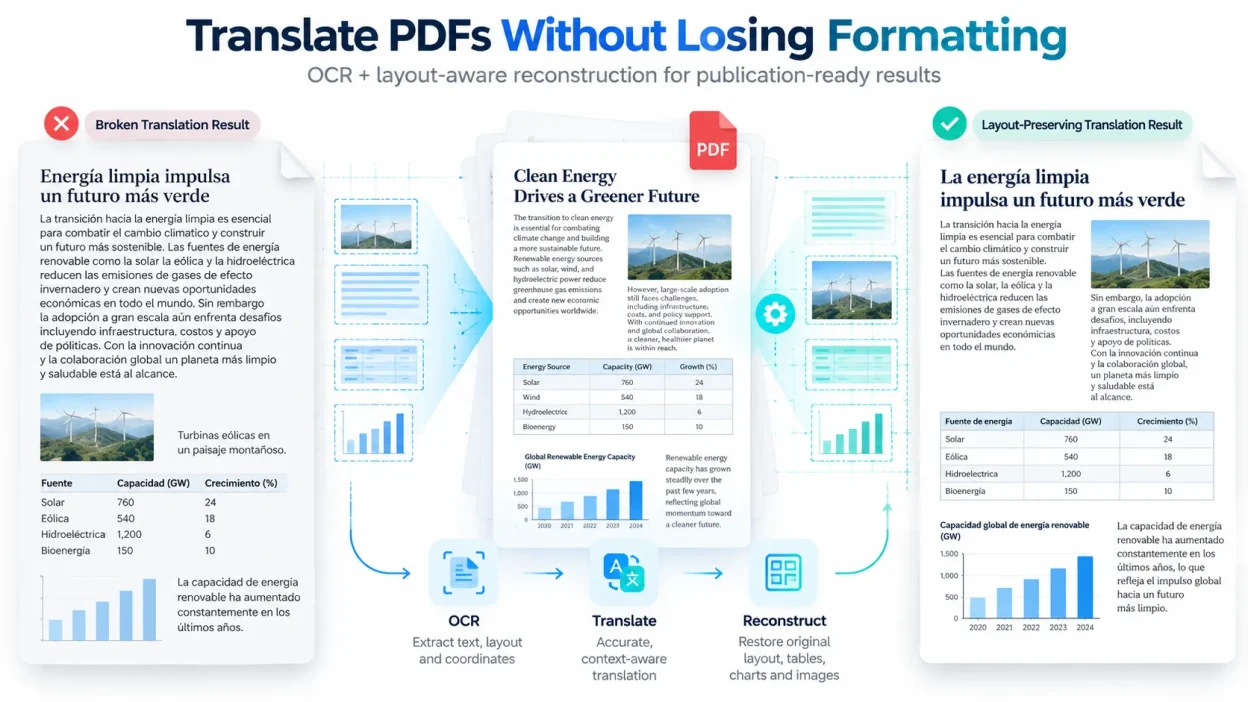
Translating a PDF while preserving its original formatting requires a tool built for document reconstruction rather than raw text extraction. When you run a styled PDF through standard copy-paste translation tools, the software strips spatial coordinates, flattens margins, and scrambles multi-column layouts. The resulting text appears as a single, unformatted column where tables break into disjointed lines, images separate from their captions, and hours of tedious manual redesign become inevitable.
To translate a PDF without losing its visual structure, you must use a layout-preserving translation engine powered by optical character recognition (OCR) and vector coordinate mapping. This guide breaks down why standard translators destroy document design, how layout-aware reconstruction engines solve this problem, and the exact step-by-step workflow to produce publication-ready translated files.
Why Standard Translation Tools Ruin PDF Formatting
Most web-based translation tools process text sequentially, ignoring how a Portable Document Format (PDF) file actually stores visual data. A PDF is not a reflowable word processing document like a .docx file. Instead, it functions as a rigid coordinate grid where characters, vectors, and bitmap graphics are pinned to precise horizontal and vertical positions (X and Y coordinates).
Standard translation engines treat files as linear text streams. They extract the raw text characters, send those strings to a translation model, and spit them out into a plain text buffer. During this extraction step, the engine discards positional metadata, bounding box coordinates, and styling rules. Two-column articles merge into one long paragraph, headers lose their hierarchical weights, and tabular borders vanish entirely. For sensitive business use cases like medical document translation, an unformatted text dump is unacceptable because scrambled dosages, disconnected patient tables, or mismatched column entries can introduce dangerous operational errors.
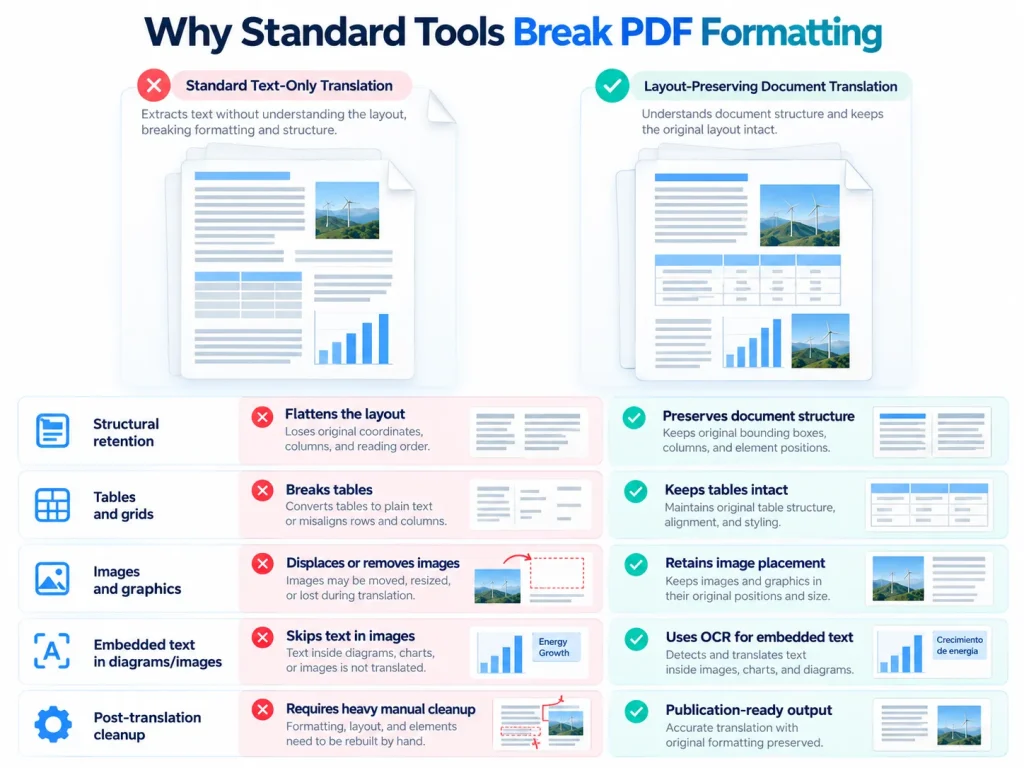
| Feature / Metric | Standard Text-Only Translation Engines | Layout-Preserving Document Translators |
|---|---|---|
| Structural Retention | Discards coordinates; flattens multi-column layouts into linear strings | Reads and rebuilds bounding boxes, retaining exact column geometry |
| Table and Grid Fidelity | Collapses cell borders; merges rows into continuous plain text | Identifies cell limits and updates text within existing grid structures |
| Image and Graphic Handling | Strips out images or displaces them away from relevant body copy | Retains raster and vector elements at their source X/Y coordinates |
| Embedded Text Processing | Skips text inside diagrams, stamps, charts, and scanned images | Uses coordinate-aware OCR to detect and translate text inside graphics |
| Post-Translation Clean-up | Demands extensive manual restructuring and typographic realignment | Produces near-instant, publication-ready downloads with minimal touch-ups |
How Layout-Preserving Translation Technology Works
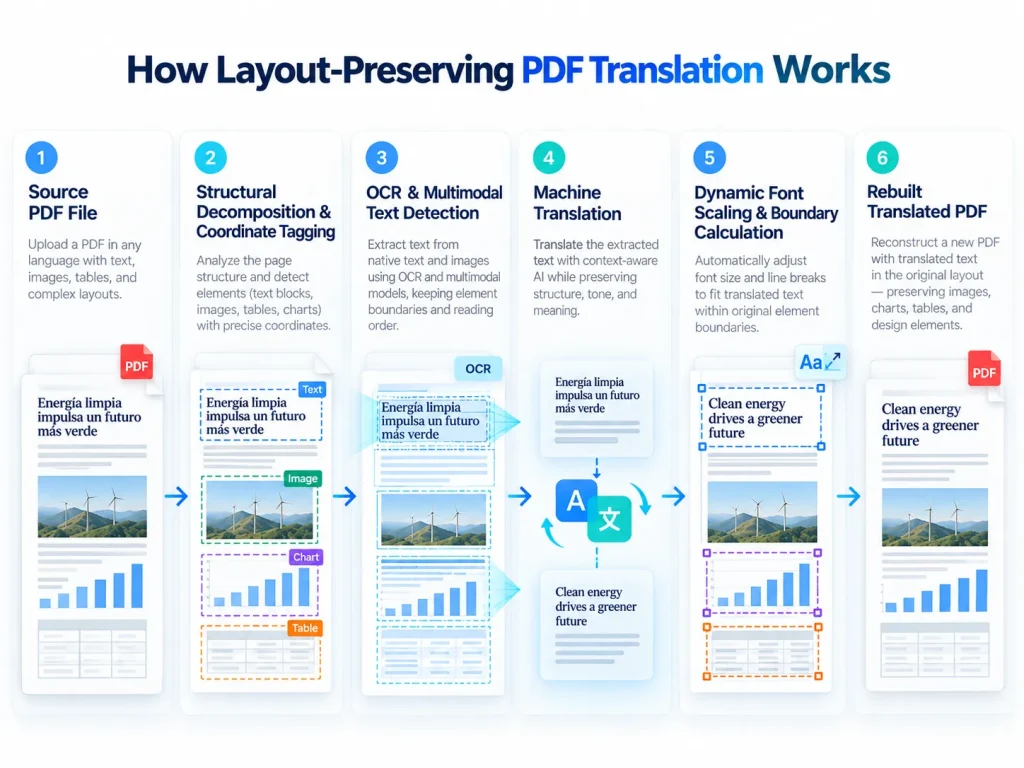
Modern document translation software relies on a specialized multi-tier pipeline called document reconstruction. Rather than simply extracting and replacing text, the software operates in distinct phases to ensure the final output mirrors the source file’s geometry.
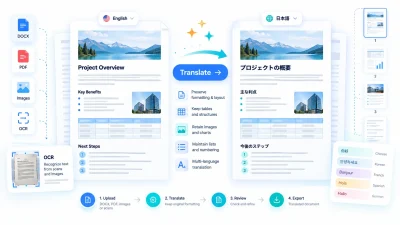
First, a spatial parsing engine deconstructs the PDF into separate layers: structural vector elements, bitmap graphics, and textual bounding boxes. Each string of text receives an assigned coordinate pair marking its exact perimeter, font family, weight, and color. When documents contain flattened scans or visual graphics, integrated OCR runs to translate embedded characters directly on the page canvas. For example, specialized services offering a free pdf ocr translate eng to kor capability allow users to extract Korean glyphs while holding the surrounding design frame intact.
Recent breakthroughs in end-to-end visual document understanding research show that processing layout, imagery, and text simultaneously prevents error propagation that typically plagues fragmented processing pipelines. Once the target text is translated, the reconstruction engine executes dynamic font scaling. Because different languages require different character counts to convey identical meanings, the engine calculates the new text boundary and adjusts kerning, line spacing, and font size so the translated phrase fits neatly inside the original bounding box.
[Source PDF File]
       │
       ▼
[Structural Decomposition & Coordinate Tagging]
       │
       ▼
[OCR & Multimodal Text Detection (Images / Text)]
       │
       ▼
[Target Machine Translation Processing]
       │
       ▼
[Dynamic Font Scaling & Boundary Calculation]
       │
       ▼
[Target PDF Rebuilding & Visual Preservation]
Native PDFs vs. Scanned Documents: Preparing Your File for Translation
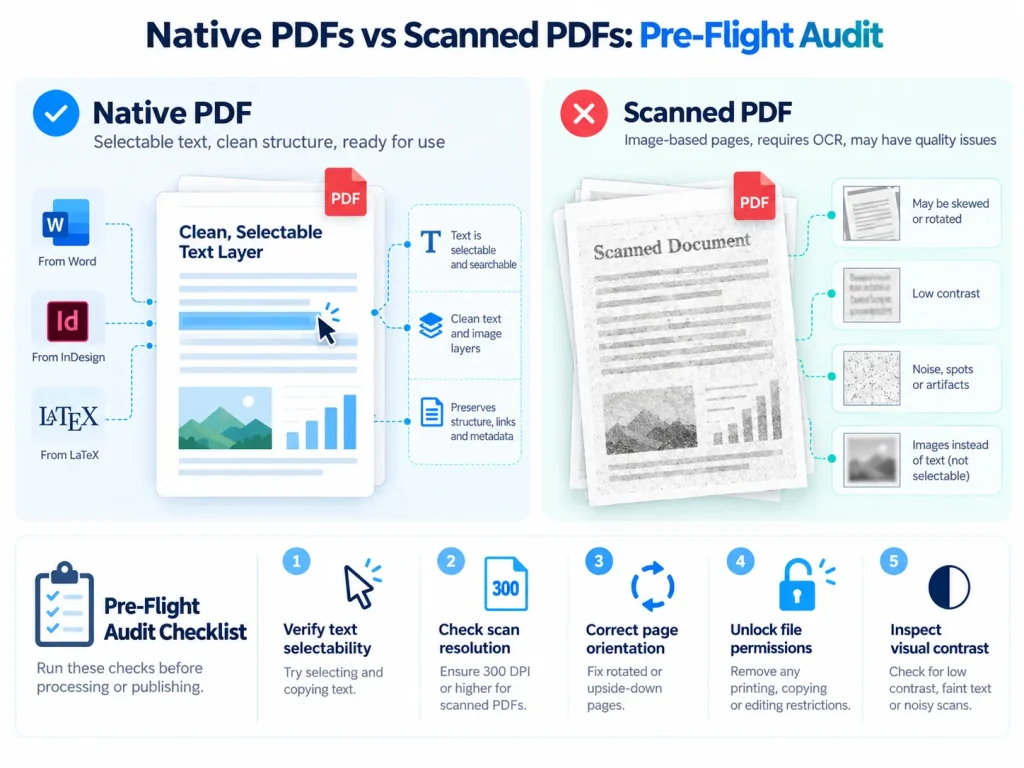
Before translating your document, determine whether your PDF is a native digital file or a scanned image. A native PDF is generated directly from software like Adobe InDesign, Microsoft Word, or LaTeX, and contains selectable text layers. A scanned PDF is merely a photographic snapshot stored inside a PDF wrapper, where every letter is a flat arrangement of pixels.
Translating scanned documents introduces optical obstacles such as image skew, uneven lighting, and compression noise. As highlighted in surveys on information extraction in scanned documents, pulling legible content from physical scans requires structural modeling to overcome physical defects, tilted lines, and visual artifacts. Performing a pre-flight audit prevents optical character recognition failures and maintains strict formatting, which is particularly critical in technical document translation where schematics and technical indices require pinpoint geometric accuracy.
Document Pre-Flight Audit Checklist
- Verify Text Selectability: Open the PDF and try highlighting a sentence with your cursor. If you can highlight individual words, the document has a native text layer. If it selects as an image block, you must enable OCR.
- Inspect Scan Resolution: If working with scanned pages, ensure the image resolution is at least 300 DPI (dots per inch). Lower resolutions cause OCR character misreads.
- Correct Page Orientation: Rotate all upside-down or sideways pages before uploading. Skewed angles degrade character recognition rates.
- Unlock File Permissions: Check if the file is password-protected or encrypted. Layout reconstruction engines cannot parse secured PDF metadata.
- Inspect Visual Contrast: Ensure background colors, watermarks, or page aging do not obscure text legibility.
Step-by-Step Workflow to Translate PDFs Without Losing Formatting
Achieving an accurate, visually pristine document translation requires a systematic workflow. Follow these five steps to translate your PDF while preserving every table, image, and typographic element:
Step 1: Audit and Clean the Source File
Complete the pre-flight checklist outlined above. Remove unnecessary blank pages, crop away unnecessary margins, and ensure high-contrast visibility across complex graphics. If you need to translate an operational manual or figure out how to translate a work document in swahili to english., ensuring crisp typography on the source file guarantees the highest translation and reconstruction fidelity.
Step 2: Choose a Layout-Aware Translation Engine
Select a dedicated document translation platform that explicitly features document reconstruction technology rather than a generic text-paste field. Upload your cleaned PDF to the platform workspace.
Step 3: Configure Language Settings and OCR Detection
Define your source language and target language. If your document contains scanned pages, embedded flowcharts, or certificate stamps, verify that the platform’s optical character recognition engine is turned on. Set the OCR language to match the source language so the engine accurately parses regional characters and punctuation marks.
Step 4: Run Automated Document Reconstruction
Initiate the translation process. The layout-preserving tool parses the file’s geometric framework, queries the translation model, scales font sizes dynamically, and writes the translated copy directly into the source document’s existing layout framework.
Step 5: Conduct Side-by-Side Visual Verification
Open the original source file and the translated document side-by-side on your screen. Inspect complex visual areas: confirm that table headers align with their corresponding data columns, check that page margins are uniform, and verify that embedded diagrams remain clear and readable.
How to Translate Text Inside Images and Embedded Graphics
Many business and technical PDFs contain critical information trapped inside non-text elements, such as infographic callouts, circuit diagrams, organizational charts, and official notary stamps. Standard PDF converters either ignore these graphics or wipe them out completely.
Translating text inside graphics requires advanced visual parsing. Academic papers exploring multimodal models combining visual, textual and layout signals show that modern vision engines analyze graphical bounding boxes to parse the semantic relationship between text characters and the background art.
Raster/Vector Graphic Parsing Process:

┌───────────────────────────────────────────────┐
│  1. Image Segmentation: Isolates graphic box  │
│  2. OCR Coordinate Detection: Finds text area │
│  3. Pixel Inpainting: Cleans source text area │
│  4. Scaled Text Rendering: Injects new target │
└───────────────────────────────────────────────┘
When handling vector graphics (like Illustrator diagrams or charts made of pure geometry), the reconstruction engine accesses the vector text paths directly, swaps the text string, and adjusts character spacing. For rasterized bitmap images (like JPEG screenshots or PNG charts), the tool performs OCR, detects the text boundary, masks out the original background pixels, and renders the translated text directly inside that cleared visual envelope.
Essential Features to Look for in a Document Translator
Selecting the right document translation platform depends on balancing geometric accuracy, linguistic quality, and data security. Organizations managing regulated workflows, such as legal document translation, must vet software against strict data security parameters to avoid compromising confidential client information.
Consider these essential evaluation criteria when choosing an enterprise-grade document translator:
- Document Reconstruction Engine: The software must preserve intricate design elements, including multi-column layouts, wrapped text boxes, bullet points, and footers.
- High-Precision Table Parsing: The engine must recognize borderless and bordered tables alike, maintaining strict cell-by-cell alignment without merging rows.
- Enterprise Security and Compliance: Choose platforms that comply with GDPR, HIPAA, or SOC 2 standards. Ensure the platform implements zero-data-retention policies so your proprietary files are deleted after processing.
- Broad Language and Script Support: The platform must support right-to-left (RTL) scripts (such as Arabic and Hebrew) and complex character scripts (such as Chinese, Japanese, and Korean) alongside Latin alphabets.
- Generous File Capacity: The tool should handle large document payloads, supporting files with high page counts and large megabyte sizes without timing out.
How to Handle Text Expansion and Post-Translation Layout Shifts
One of the most persistent hurdles in document translation is linguistic text expansion. When translating from English to German, French, or Spanish, the translated phrase often expands in length by 20% to 30%. Conversely, translating from English into Chinese or Korean often compresses the text footprint by 30% or more.
When text expands inside a fixed-width container, unoptimized tools allow the words to overflow across margins, clip inside narrow table cells, or overlap adjacent imagery. The following troubleshooting reference outlines how to resolve common layout shifts:
| Issue Observed | Underlying Cause | Recommended Solution |
|---|---|---|
| Text Overlapping Borders | Target language expansion (e.g., German, Russian) exceeds cell limits. | Use dynamic auto-scaling to decrease font size by 1–2 points or adjust cell padding in a PDF editor. |
| Blank Orphan Pages | Expanded body copy spills over and pushes remaining content forward. | Rebalance paragraph leading, slightly reduce line heights, or trim redundant target verbiage. |
| Broken Table Columns | Cell text wraps prematurely, forcing rows into unreadable vertical shapes. | Widen individual table columns while maintaining overall grid margins across the page. |
| Mismatched Line Breaks | Hard line breaks in the source document divide translated phrases unnaturally. | Remove manual carriage returns from the source file before translation so text reflows naturally. |
| RTL Alignment Inversion | Text orientation fails when translating to languages like Arabic or Hebrew. | Ensure the platform features native bidirectional text rendering that automatically flips layout axes. |
Summary: How to Translate a PDF and Keep the Original Formatting Successfully
Translating complex documents does not have to mean spending hours manually restructuring columns, repositioning images, and repairing broken tables. Standard copy-paste translation tools fail because they destroy the fixed-coordinate architecture that defines the Portable Document Format.
By following a layout-aware process—auditing source files, enabling high-precision OCR, and leveraging document reconstruction technology—you can effortlessly achieve high-fidelity translations across any language pair. Understanding how to translate a PDF and keep the original formatting empowers legal teams, medical researchers, and global enterprises to communicate clearly across borders without sacrificing their visual standards.
FAQs
Why does my PDF lose its layout when translated using free tools?
Basic free translation tools extract text linearly as an unformatted stream, discarding underlying X and Y coordinates, column boundaries, margins, and table grid structures.
Can I translate a scanned PDF without breaking the formatting?
Yes. Scanned PDFs maintain their formatting when processed through layout-preserving document tools that combine high-resolution OCR with coordinate-aware visual reconstruction engines.
What should I do if the translated text overflows the original text box?
Linguistic expansion (such as German requiring up to 30% more space than English) can be addressed by choosing platforms with dynamic font auto-scaling or slightly reducing font sizes in a desktop PDF editor.
How are tables and charts preserved during document translation?
Document reconstruction technology identifies the boundary lines of individual cells, replaces the text specifically within those limits, and leaves grid lines, row heights, and vector designs intact.