YouTube does not have a “Download TXT” button on the watch page. The right way to get a transcript depends on whether captions are available and what you plan to do with the text.
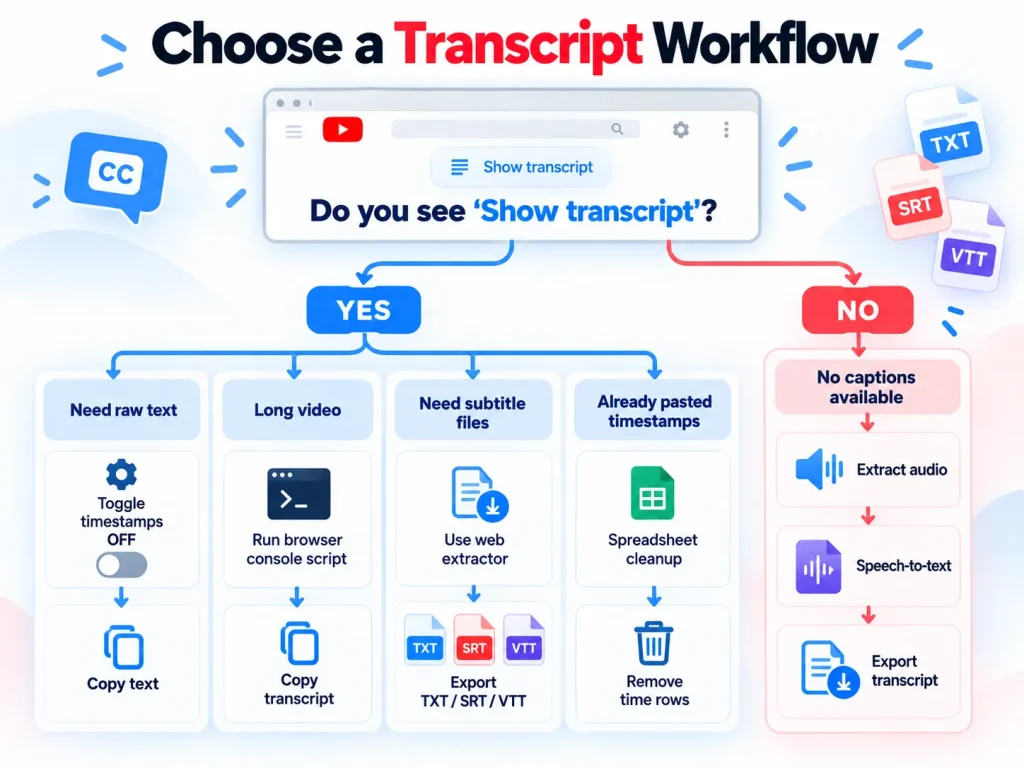
Choose a transcript workflow
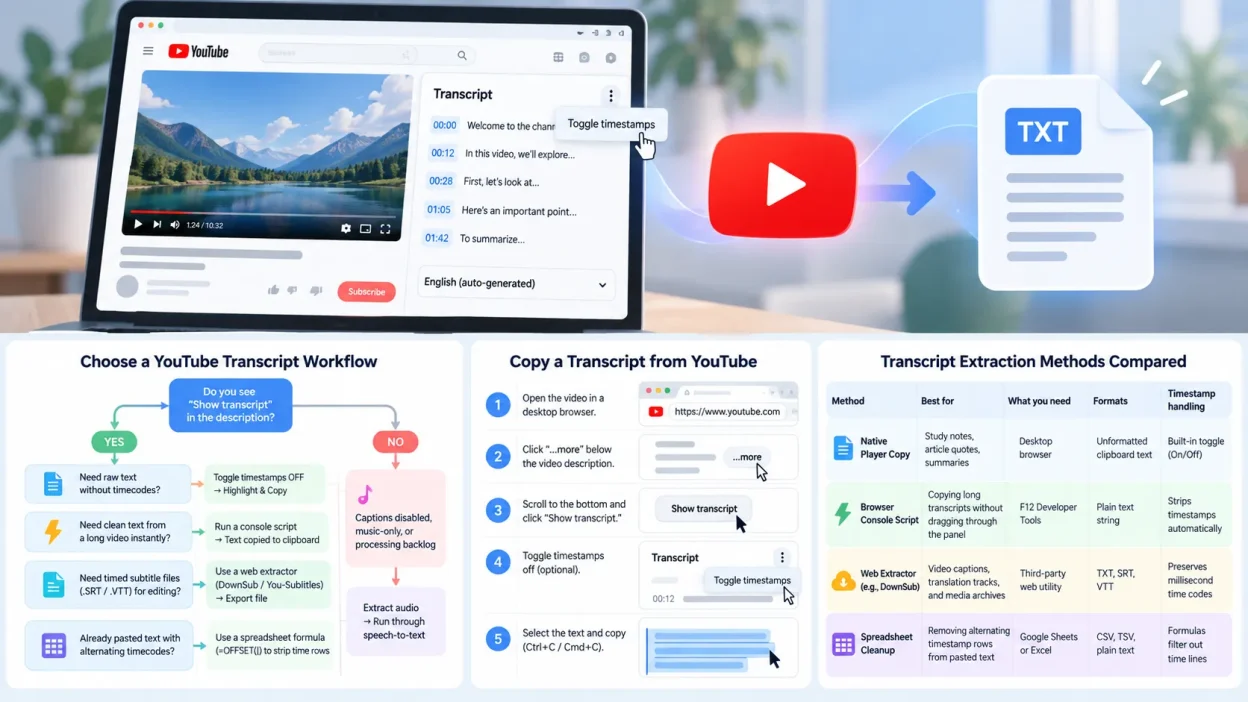
Do you see "Show transcript" in the description?
├── YES
│   ├── Need raw text without timecodes?
│   │   └── Native player: Toggle timestamps OFF → Highlight & Copy (Ctrl+C)
│   ├── Need clean text from a long video instantly?
│   │   └── Developer Console: Run JS one-liner → Text copied to clipboard
│   ├── Need timed subtitle files (.SRT / .VTT) for editing?
│   │   └── Web Extractor (DownSub / You-Subtitles) → Export file
│   └── Already pasted text with alternating timecodes?
│       └── Spreadsheet cleanup: Use =OFFSET() formula to strip time rows
└── NO (Captions disabled, music-only, or processing backlog)
    └── Alternative Workflow: Extract audio → Run through speech-to-text
To skip manual copying, you can use a dedicated tool to download a YouTube transcript directly from the video link.
Three ways to get an existing transcript
- Copy from YouTube. Open the transcript panel in a desktop browser, turn off timestamps, select the lines, and paste them into your notes.
- Use a web extractor. Paste the video link into a tool such as DownSub or You-Subtitles. You can download a TXT file or a timed SRT or VTT file.
- Use a console script or spreadsheet formula. A browser console script can copy a long transcript without manual dragging. If you already pasted timestamps with the text, an Excel or Google Sheets formula can filter them out.
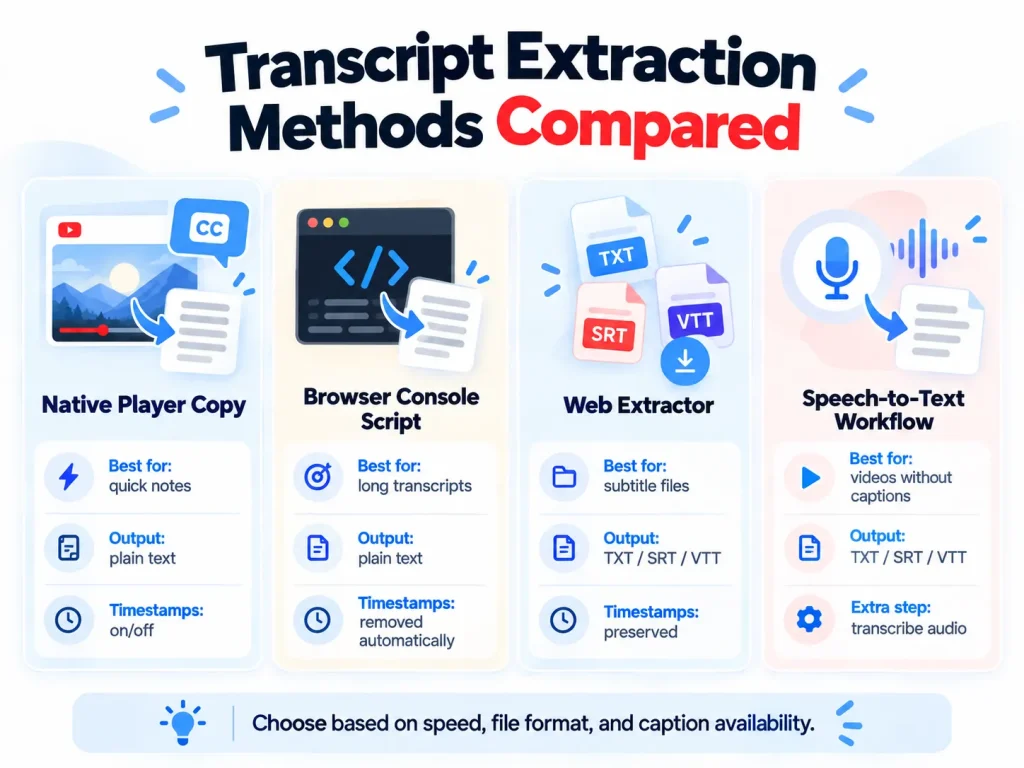
Transcript extraction methods compared
| Method | Best for | What you need | Formats | Timestamp handling |
|---|---|---|---|---|
| Native Player Copy | Study notes, article quotes, summaries | Desktop browser | Unformatted clipboard text | Built-in toggle (On/Off) |
| Browser Console Script | Copying long transcripts without dragging through the panel | F12 Developer Tools | Plain text string | Strips timestamps automatically |
| Web Extractor (e.g., DownSub) | Video captions, translation tracks, and media archives | Third-party web utility | TXT, SRT, VTT | Preserves millisecond time codes |
| Spreadsheet Cleanup | Removing alternating timestamp rows from pasted text | Google Sheets or Excel | CSV, TSV, plain text | Formulas filter out time lines |
Copy a transcript from the video player
YouTube displays automated and manually edited transcripts in its desktop interface. You can copy a YouTube transcript without installing an extension or another app.
- Open the video in a desktop browser such as Chrome, Safari, Firefox, or Edge.
- Click “…more” below the video description.
- Scroll to the bottom of the expanded description and click “Show transcript.”
- The Transcript panel will open beside the video, or below it on a smaller screen.
- Place the cursor at the beginning of the dialogue and select the lines you need. Press Ctrl+C on Windows or Cmd+C on Mac, then paste the text into your document.
If the creator uploaded manual captions as well as YouTube’s automatic track, check the language menu at the bottom of the transcript panel. Manual captions are more likely to preserve technical terms, punctuation, and capitalization.
Turn timestamps on or off before copying
YouTube puts a time marker such as 01:14 before each spoken line. If you copy the panel as it is, your notes will alternate between timestamps and dialogue.
To turn off timestamps in a YouTube transcript, use the control in the transcript panel:
- Open the transcript panel as described above.
- Click the three vertical dots (⋮) in the upper-right corner of the Transcript header.
- Click “Toggle timestamps.”
- The time markers will disappear, leaving only the spoken text.
A faster option: browser console scripts
Selecting an hour-long transcript inside a scrolling panel is awkward. You can copy the whole transcript through the browser’s Developer Tools Console. Open it with F12 or Ctrl+Shift+J on Windows, or Cmd+Option+J on Mac.
The scripts below work with both older YouTube elements (ytd-transcript-segment-renderer) and newer web components (transcript-segment-view-model).
1. Copy the transcript without timestamps
Paste this into your console while the transcript panel is open, then press Enter:
const segments = [
  ...document.querySelectorAll(
    'transcript-segment-view-model, ytd-transcript-segment-renderer'
  )
];

const text = segments
  .map(el => {
    const node =
      el.querySelector('span[role="text"]') ||
      el.querySelector('#segment-text') ||
      el.querySelector('.segment-text') ||
      el.querySelector('[class*="segment-text"]');
    return node?.textContent?.trim() || '';
  })
  .filter(Boolean)
  .join(' ');

copy(text);
console.log(`Copied ${segments.length} segments to clipboard.`);
2. Copy timestamps and transcript text line by line
Use this version to keep each timestamp with its line of dialogue:
const segments = [
  ...document.querySelectorAll(
    'transcript-segment-view-model, ytd-transcript-segment-renderer'
  )
];

const text = segments
  .map(el => {
    const lines = el.innerText
      .split('\n')
      .map(line => line.trim())
      .filter(Boolean);

    const timestamp = lines.find(line =>
      /^\d{1,2}:\d{2}(?::\d{2})?$/.test(line)
    );

    const transcript = lines
      .filter(line => line !== timestamp)
      .join(' ');

    return timestamp ? `${timestamp} ${transcript}` : transcript;
  })
  .filter(Boolean)
  .join('\n');

copy(text);
console.log(`Copied ${segments.length} timed lines to clipboard.`);
DevTools may return undefined after you run copy(text). That is normal. The script has already put the text on your clipboard.
Download a transcript as a TXT, SRT, or VTT file
Video editors such as Premiere Pro, DaVinci Resolve, and Final Cut need timed captions rather than text copied from a transcript panel. SRT and VTT files store captions in standardized timecode blocks.
If you often turn video audio into editable text, converting an MP4 to text or exporting a caption file can save the work of retyping it.
Transcript file formats
- TXT (plain text): Contains the spoken words without time markers or subtitle formatting. It works well for reading, studying, and drafting.
- SRT (SubRip Subtitle): Uses numbered entries, comma-separated millisecond timecodes (
00:01:14,200 --> 00:01:18,500), and blocks of caption text. Most video editors and media players support it. - VTT (Web Video Text Tracks): An HTML5 format similar to SRT. It uses decimal points for milliseconds (
00:01:14.200 --> 00:01:18.500) and can include web font styling and screen positions.
Export with an online extractor
- Copy the full YouTube URL from your browser address bar.
- Open a tool such as DownSub or You-Subtitles and paste the link into its URL field.
- Click Download so the service can find the video’s caption tracks.
- Choose a language. When both are available, prefer the creator’s manual captions to the automatic track.
- Select TXT, SRT, or VTT and save the file.
What to do when a video has no captions
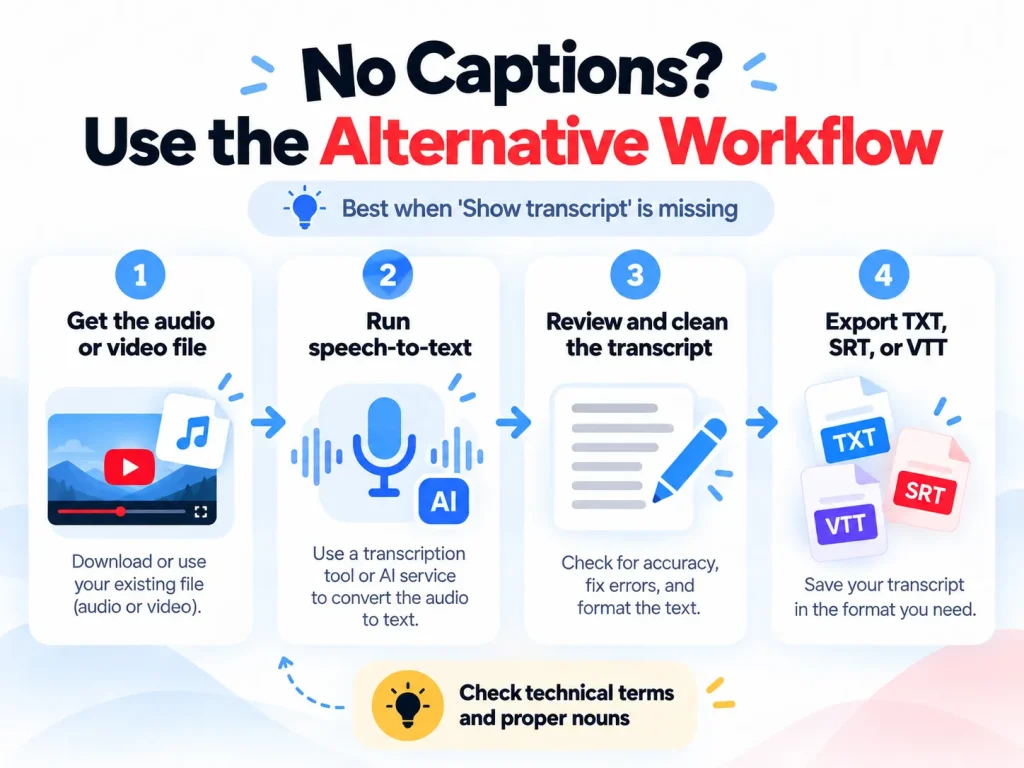
Not every video has a transcript. The “Show transcript” button may be absent if the creator disabled automatic captions, YouTube does not support the spoken dialect, or no closed captions were uploaded. In that case, web extractors such as DownSub will also return nothing.
You can still make a transcript by extracting the audio and running speech recognition yourself.
Step 1: Get the audio or video file
- If you own or manage the video: Download the source MP4 or audio file from YouTube Studio under Content > Options > Download.
- If you are transcribing a public third-party video for research or notes: An open-source command-line tool such as
yt-dlpcan extract the audio track without re-encoding it:yt-dlp -x --audio-format mp3 "<VIDEO_URL>"
Step 2: Transcribe the file
Once you have the audio, process it with an automatic transcription tool:
- Online transcription service: Upload the MP3 or MP4 to a Whisper-based tool or another video-to-text service. These tools can add punctuation and identify speakers.
- Local Whisper model: For sensitive material or to avoid paid APIs, run OpenAI’s open-source Whisper model locally through a tool such as WhisperX or MacWhisper. The audio stays on your computer and is processed by its CPU or GPU.
- Desktop audio loopback: If you cannot download the file, open a new Google Doc in Chrome and select Tools > Voice typing. Route both the system output and Chrome input through a virtual audio cable such as VB-Cable or BlackHole, then play the video. Google Docs will transcribe the incoming audio as it plays.
Step 3: Export text or subtitles
Most transcription tools can export plain TXT for reading and summaries, or timed SRT and VTT files for video editing. Check technical terms and proper nouns because automatic transcription can mishear specialized language.
Native copying or an online extractor?
Your choice depends on the file format you need and how you want the video link handled.
Research on note-taking suggests that turning spoken material into organized written summaries can support comprehension and recall. Cleaning up timestamps or navigating ad-heavy tools, however, adds work that has little to do with studying.
| Feature | Copying in YouTube | Third-party web extractor |
|---|---|---|
| Installation or sign-in | None. Built into YouTube. | None, but sites frequently run banner ads. |
| Output formats | Unformatted text via clipboard. | Formatted .txt, .srt, .vtt, or .json. |
| Timecode precision | Minute-and-second markers (01:23). |
Millisecond precision (00:01:23,450). |
| Batch support | One video at a time. | Some tools support playlists or multiple URLs. |
| Privacy | The transcript stays in your browser session. | The video link is sent to a third-party server. |
Use YouTube’s transcript panel for a quick quote or study notes. Use an extractor when you need caption files for an editing project or an offline subtitle archive.
Remove timestamps with a spreadsheet formula
If you copied a transcript before turning off timestamps, the pasted content may alternate between timestamp rows and dialogue rows.
You can convert a text file to an Excel sheet and use an offset formula to remove the timestamp rows:
- Open a blank spreadsheet in Google Sheets or Excel.
- Click cell A1 and paste the transcript. Column A should show timecodes on odd rows (A1, A3, A5) and dialogue on even rows (A2, A4, A6).
- In cell B1, paste this exact formula:
=OFFSET(A$1, (ROW()-1)*2 + 1, 0)
- Select B1 and drag its fill handle down. Column B will show the dialogue rows and skip the timestamps.
- Select Column B, copy it (Ctrl+C), right-click cell C1, and select Paste Special > Values Only.
- Column C now contains dialogue that you can paste into your notes.
How the offset formula works
The OFFSET formula moves down from cell A$1:
A$1anchors the starting cell.(ROW()-1)*2 + 1calculates how far to move. In row 1,(1-1)*2 + 1 = 1, so the formula returns A2. In row 2,(2-1)*2 + 1 = 3, so it returns A4. Continuing the formula down the sheet extracts the even-numbered dialogue rows and skips the odd-numbered timestamp rows.
Why a video transcript may be missing
If the “Show transcript” button is missing, one of these conditions may be responsible:
- The creator disabled captions: Creators can turn off automatic captions in YouTube Studio, which also prevents YouTube from publishing a transcript.
- YouTube is still processing the video: Automatic captions take time to generate. Processing can take several hours for long streams or high-resolution uploads.
- The video has no detectable speech: Music, ambient sound, or a silent software demonstration may give the speech recognition system nothing to transcribe.
- The audio is difficult to recognize: Published data on speech recognition error rates shows that background noise, poor microphones, and overlapping speakers can increase errors. YouTube may withhold automatic captions when its confidence is too low.
- The speech uses a regional dialect or a fast pace: Research comparing transcription across accents has found that speech models can struggle with regional dialects and rapid speech. A failed confidence check may leave automatic captions unavailable.
- The video is restricted: Age restrictions and private access can prevent third-party tools from reading caption data.
Summary
For study notes or a quick quote, open YouTube’s transcript panel, turn off timestamps, and copy the text. A console script is quicker for a long transcript. For video editing, use an online extractor to download an SRT or VTT file. If the video has no captions, extract the audio and process it with a speech-to-text model.
FAQs
Can I download a YouTube transcript directly on mobile?
The YouTube mobile app does not have a button for downloading or copying a transcript. You can expand the video description and tap “Show transcript” to read along. To copy the text, open YouTube in Chrome or Safari, switch to “Desktop Site” mode, and turn off the timestamps.
How do I transcribe a YouTube video that has no subtitles or transcripts?
Extract the audio with a tool such as yt-dlp, or record the system audio through a virtual cable. Then process the file with an automatic speech-to-text service or a local Whisper model and export the result as SRT or TXT.
How do I choose between auto-generated and manual transcripts?
Open the transcript panel or check the language menu in your extractor. Automatic captions appear as “English (auto-generated)”, while a manual track appears as “English”. Choose the manual track when it is available because it is more likely to have correct punctuation, speaker labels, and technical terms.
What is the practical difference between TXT, SRT, and VTT files?
TXT contains the spoken text without timecodes, so it suits reading and summaries. SRT uses numbered caption blocks and comma-separated millisecond timecodes that work with desktop video editors. VTT is the HTML5 format. It separates milliseconds with decimal points and supports CSS styling.
Is it legal to download transcripts from publicly hosted YouTube videos?
People commonly download transcripts for personal study, research, accessibility, or quotations that qualify as fair use. Copyright rules vary by jurisdiction and context. Commercial redistribution, rehosting, or monetizing copyrighted dialogue without permission may infringe the creator’s rights.