A good video transcript is not simply every spoken word pasted into a document. Its format should match what the reader needs to do next: quote an interview, study a lecture, edit raw footage, follow a tutorial without seeing the screen, or access the content with assistive technology.
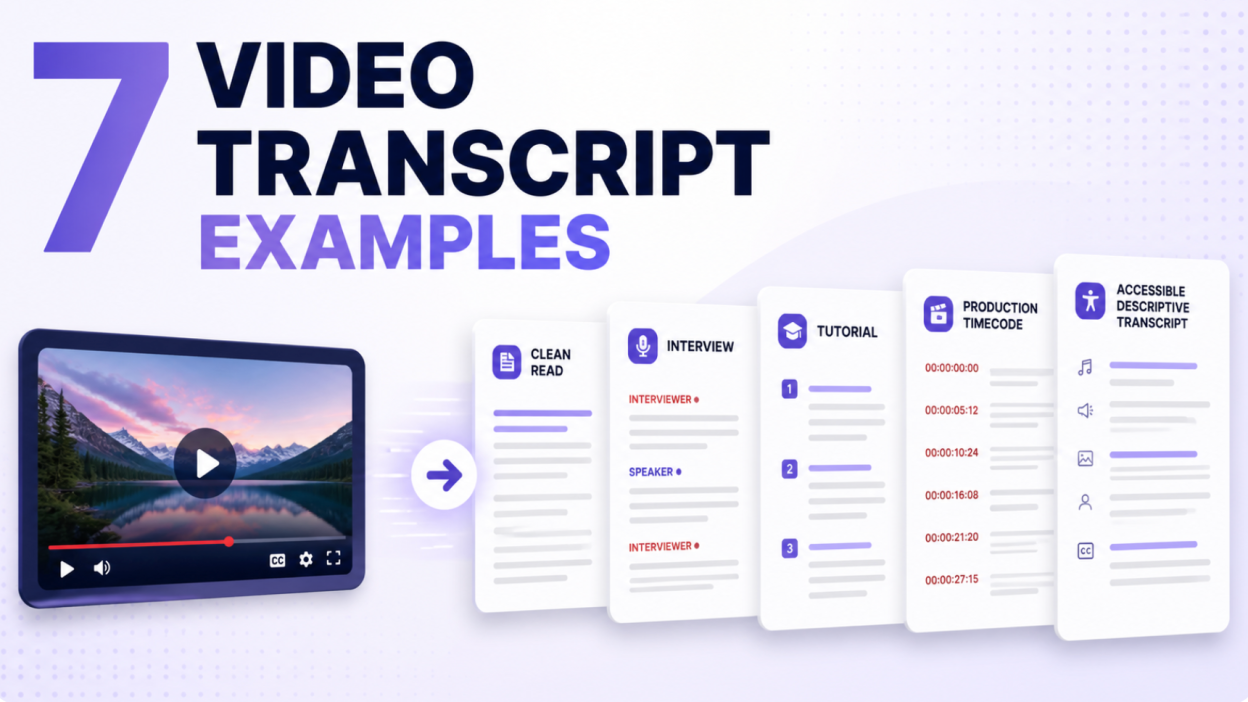
This guide shows seven original video transcript examples using different formats. Each example explains what to include, what to leave out, and where timestamps, speaker labels, sound cues, and visual descriptions actually help. You can copy the templates and adapt them to your own video rather than guessing from a finished transcript whose formatting decisions are never explained.
Video Transcript Examples at a Glance
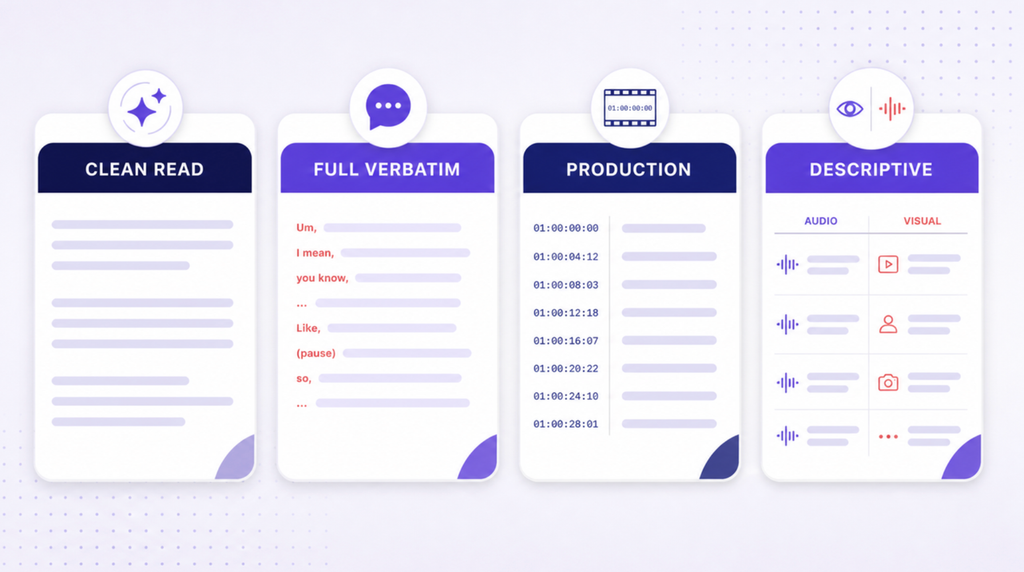
| Transcript type | Best for | Speaker labels | Timestamps | Visual descriptions | Filler words |
| Clean-read transcript | Blogs, podcasts, internal notes | When needed | Optional | Only when needed | Removed unless meaningful |
| Full verbatim transcript | Research, legal review, discourse analysis | Yes | Usually | Relevant actions | Preserved |
| Multi-speaker interview | Panels, focus groups, meetings | Essential | At speaker changes or intervals | Relevant nonverbal events | Depends on purpose |
| Tutorial transcript | Product demos, training, how-to videos | Usually | At steps or chapters | Essential for unspoken actions | Usually removed |
| Lecture transcript | Education, revision, research | As needed | By topic or chapter | Slides and board content when important | Usually removed |
| Production transcript | Film, documentary, editing | Yes | Detailed timecode | Shot and footage notes | Often preserved |
| Descriptive accessible transcript | Access without audio or visuals | Yes | Optional and purposeful | Essential visual information | According to meaning |
The right format is a project decision, not a universal quality ladder. A full verbatim transcript can be more accurate for a qualitative researcher and less useful for a reader who needs a concise tutorial. A polished clean-read transcript can improve readability while being inappropriate for courtroom evidence or an analysis of speech patterns.
What Is a Video Transcript?
A video transcript is a text version of information conveyed through a video. At minimum, it records spoken content and meaningful non-speech audio. Depending on the purpose, it may also identify speakers, add timestamps, describe relevant visuals, reproduce on-screen text, and mark uncertain or inaudible sections.
The W3C Web Accessibility Initiative distinguishes two especially important forms:
- A basic transcript includes the speech and non-speech audio needed to understand the content.
- A descriptive transcript also includes visual information needed to understand the video.
This distinction is why exporting automatic captions is only a starting point. Captions are designed to accompany the moving picture. A transcript may need to stand on its own for someone who cannot hear, see, load, or conveniently watch the original media.
Transcript, Captions, and Subtitles Are Not the Same
| Format | Where it appears | Main purpose | Typical file or presentation |
| Transcript | On the page or in a separate document | Read, search, quote, study, or access the full content as text | HTML, TXT, DOCX, accessible PDF |
| Captions | Synchronized inside the video player | Represent speech and relevant audio while the video plays | VTT, SRT, TTML or embedded track |
| Subtitles | Synchronized inside the video player | Translate or reproduce dialogue for viewers | VTT, SRT, TTML or embedded track |
| Audio description | Spoken during pauses in dialogue | Describe important visual information | Separate or integrated audio track |
A caption file can be converted into a transcript, but caption line breaks are usually too fragmented for comfortable reading. W3C recommends combining caption lines into logical paragraphs and adding speaker identification or visual information that the captions omit. Timestamps are optional in a readable transcript; include them when they help navigation, not simply because the caption file contains one on every cue.
Example 1: Clean-Read Video Transcript
Clean-read transcription preserves the speaker’s meaning while removing false starts, repeated words, non-meaningful fillers, and obvious verbal clutter. It is a strong default for podcasts, creator interviews, business videos, and searchable article pages.
Video context
A founder explains why her team changed its onboarding process.
Clean-read transcript example
Video: Why We Rebuilt Customer Onboarding
Speaker: Maya Chen, Co-founder
Recorded: August 12, 2026
[00:00] MAYA CHEN: We originally asked new customers to configure every setting before they saw the product work. That made sense to us because we knew why each choice mattered. To a first-time user, it felt like paperwork.
[00:18] We changed the sequence. Now a customer imports one sample file, sees a result, and then adjusts the settings that affect that result. Completion improved because each field had a visible purpose.
[00:37] The important lesson was not “remove setup.” It was “show value before asking for setup.” Enterprise customers still complete the security and data controls they need.
Why this format works
- The speaker’s argument and qualification remain intact.
- Repetition and non-meaningful fillers are removed without rewriting the idea.
- Timestamps appear at useful paragraph-level entry points.
- The header gives enough source context to reuse the transcript responsibly.
What not to do
Do not turn spoken language into marketing copy. Changing “completion improved” to “completion skyrocketed” is not clean-up; it is an unsupported claim. Clean-read editing should remove noise, not strengthen certainty, repair weak reasoning, or substitute the editor’s voice.
Example 2: Full Verbatim Interview Transcript
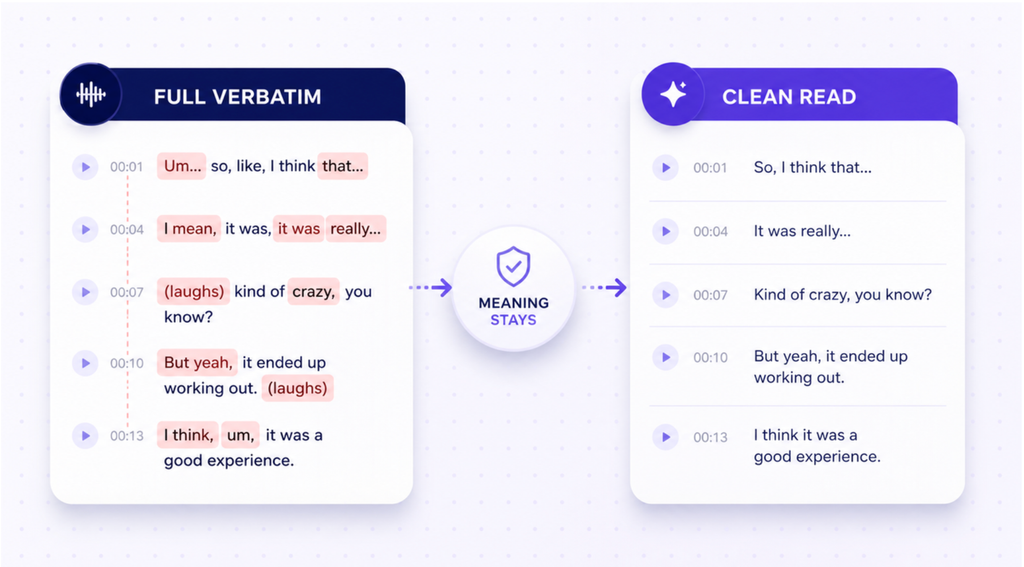
Full verbatim transcription records how something was said as well as what was said. It can preserve fillers, repetitions, false starts, stutters, pauses, laughter, and relevant nonverbal behavior. This matters in qualitative research, focus groups, legal review, linguistic analysis, and situations where hesitation itself may be evidence.
Video context
A researcher interviews a participant about a new scheduling app.
Full verbatim transcript example
Project: Scheduling App Usability Study
Participant: P04
Interviewer: Dana Ruiz
Date: August 14, 2026
[00:04:11] DANA: When you opened the calendar, what did you expect the blue circle to do?
[00:04:17] P04: I, um—I thought it would add something. Like, add an appointment. But then I clicked it and it, it moved me to today. [laughs] So I was kind of confused because I was already looking at today.
[00:04:31] DANA: You expected an add button?
[00:04:33] P04: Yeah. Or maybe a plus sign. The circle looked important, but I didn't know it meant “today.”
[00:04:41] [Participant points to the floating blue control in the lower-right corner.]
Why this format works
- Hesitation and repetition show genuine uncertainty rather than a polished answer.
- Speaker IDs and timestamps support research coding and source review.
- The bracketed action clarifies which interface element the participant means.
- The transcript does not silently correct the participant’s grammar.
When full verbatim becomes harmful
Full verbatim can make ordinary speakers look less articulate on the page because natural speech contains fragments and fillers. Do not publish it by default when a clean transcript would communicate the same content more fairly. Define whether repeated words, stutters, habitual fillers, background acknowledgments, and speech errors must be retained before transcription begins.
Example 3: Multi-Speaker Video Transcript
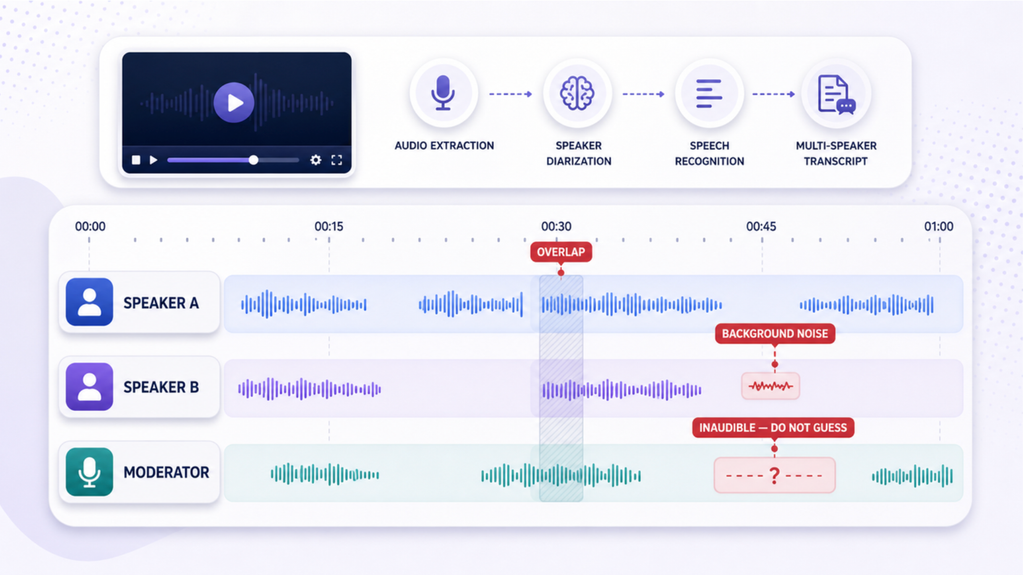
Multiple speakers introduce attribution errors, interruptions, crosstalk, and similar voices. The formatting must make it easy to follow who owns each statement. Generic labels such as “Speaker 1” are acceptable temporarily, but stable names or roles are better once identity is confirmed.
Video context
A moderator hosts a panel about remote learning.
Multi-speaker transcript example
Panel: Designing Better Hybrid Classes
MODERATOR: Lena Ortiz
PANELISTS: Professor Amir Shah; Instructional Designer Robin Lee
[00:12:08] LENA ORTIZ: What changes when half the class is online?
[00:12:13] AMIR SHAH: The pause after a question becomes more important. In the room, I can see someone preparing to answer. Online, silence looks like disengagement even when a student is thinking.
[00:12:27] ROBIN LEE: And the interface can hide that thinking. A raised hand might be below the fold—
[00:12:33] AMIR SHAH: Right, or the student is typing in chat.
[00:12:36] ROBIN LEE: Exactly. So the instructor needs an explicit response routine instead of relying on eye contact.
[00:12:44] [Two remote participants raise their digital hands.]
[00:12:48] LENA ORTIZ: Give us one example of that routine.
Formatting rules for multiple speakers
- Start a new paragraph every time the speaker changes.
- Use names consistently; do not alternate between first name, full name, and role without reason.
- Mark overlap only when it affects interpretation.
- Do not guess an identity from voice alone. Use
[UNIDENTIFIED SPEAKER]until confirmed. - Use
[CROSSTALK]or[OVERLAPPING SPEECH]when words cannot be assigned reliably. - Keep a speaker roster at the top when a panel has many participants.
Background noise example
[00:18:02] ROBIN LEE: The microphone should be close enough to reduce room echo.
[00:18:06] [Chair scrapes across the floor, briefly obscuring speech.]
[00:18:09] UNIDENTIFIED SPEAKER: [inaudible 00:18:09–00:18:12]
Do not invent missing words from context. Marking a short section as inaudible is more accurate than producing a grammatically satisfying sentence that nobody can verify.
Example 4: Tutorial and Product Demo Transcript
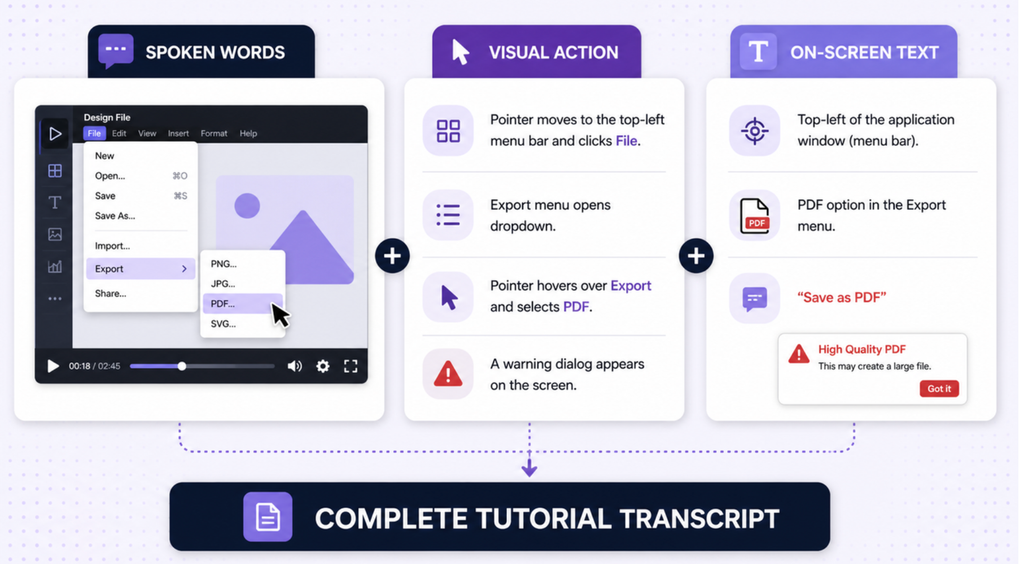
A tutorial transcript must capture actions that are obvious on screen but absent from the narration. Otherwise, a reader receives instructions such as “click here” without knowing where “here” is.
Video context
A presenter demonstrates how to export a project report.
Tutorial transcript example
Tutorial: Export a Project Report as PDF
Product version: 4.8
[00:00] NARRATOR: Open the report you want to share.
VISUAL: The dashboard displays the “Quarterly Retention Review” project. The pointer selects Reports in the left navigation.
[00:08] NARRATOR: Choose Export, then select PDF.
VISUAL: The pointer opens the Export menu in the upper-right corner. Available options are PDF, DOCX, and CSV. PDF is selected.
[00:18] ON-SCREEN TEXT: Include comments; Include appendix; Page size: Letter.
[00:23] NARRATOR: Leave “Include comments” off if the report contains internal discussion.
[00:30] VISUAL: A warning appears: “Two charts extend beyond the printable area.” The presenter selects Fit charts to page.
[00:39] NARRATOR: Preview the file before downloading it, especially if the report contains wide tables.
Why this is more useful than automatic captions
Automatic captions can capture the narrator’s sentences but not the menu location, option names, warning message, or selection. Those visual details are the procedure. A descriptive tutorial transcript should state the result of each meaningful action without narrating every pointer movement or decorative animation.
Keep version context
Interfaces change. Add the product name, platform, version, and recording date when menu wording matters. If a button has moved since the video was produced, preserve the historical transcript and add a clearly labeled editorial update rather than changing the speaker’s record.
Example 5: University Lecture Transcript
Students generally need a readable academic transcript organized by concept, not every hesitation in a 60-minute recording. Headings, definitions, slide text, and periodic timestamps make the material easier to review and cite back to the lecture.
Video context
A lecturer introduces correlation and causation.
Lecture transcript example
Course: Introduction to Research Methods
Lecture 6: Correlation Is Not Causation
Lecturer: Dr. Elena Morris
### Why association is not enough [00:00]
DR. MORRIS: When two variables move together, we have evidence of association. We do not yet know that changing one variable will change the other.
ON-SCREEN DEFINITION: Correlation — a statistical relationship between two variables.
### Three alternative explanations [06:42]
DR. MORRIS: First, X may influence Y. Second, Y may influence X. Third, another variable may influence both.
VISUAL: A diagram shows X and Y connected by a double-headed arrow. A third node, Z, points to both X and Y.
DR. MORRIS: Temperature is the third variable in the familiar relationship between ice cream sales and sunburn cases.
### Study question [12:16]
How could a researcher distinguish reverse causation from a shared third variable?
Why this format works
- Headings match meaningful topic changes rather than fixed time blocks.
- Slide definitions and diagrams are represented when they carry information.
- A few timestamps support review without reproducing caption-level clutter.
- The study question is labeled as added learning support, not spoken dialogue.
University and research caution
Recording and transcription rules vary by institution, course, research protocol, and jurisdiction. Obtain permission where required. Do not upload student discussion, unpublished research, disability information, or identifiable participant data to an unapproved transcription service merely because it offers a free tier.
Example 6: Production Transcript With Timecodes
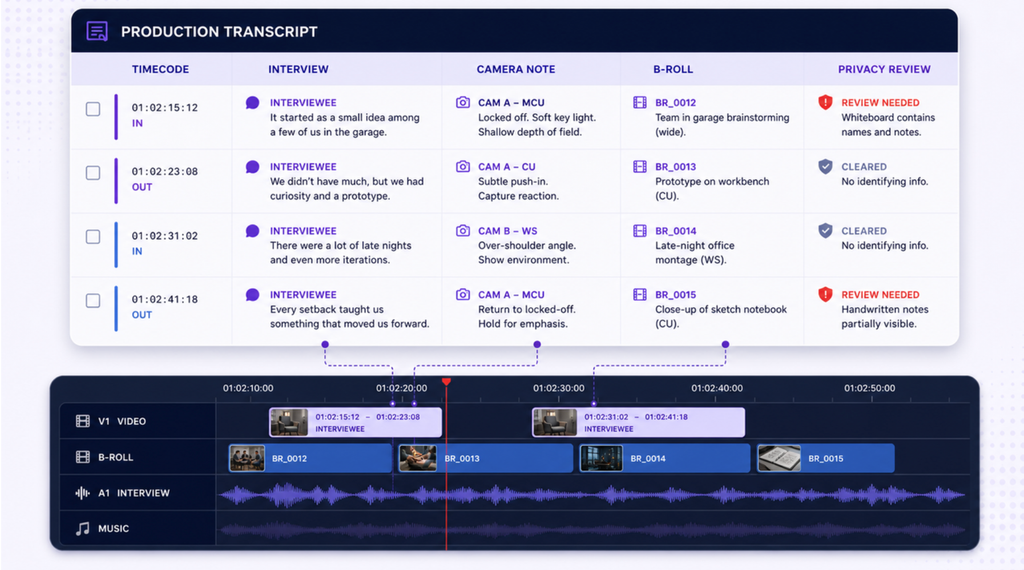
Production transcripts help editors locate usable statements, compare takes, assemble paper edits, and track B-roll. Timecodes are much more detailed because navigation—not comfortable reading—is the primary job.
Video context
A documentary editor reviews a founder interview and supporting footage.
Production transcript example
PROJECT: Second Harvest Documentary
REEL: A_CAM_Interview_03
TIMECODE: 01:00:00:00
01:02:14:08  INTERVIEWER (O.S.)  When did the project stop feeling temporary?
01:02:18:03  NIA PARK             After the second winter. We had volunteers returning who knew the route better than I did.
01:02:27:19  NIA PARK             [continues] That was when I realized we had built a system, not just responded to an emergency.
01:02:36:02  CAMERA NOTE          Slow push-in begins; clean audio.
01:02:41:11  NIA PARK             The harder question was whether the system was fair to the people using it.
B-ROLL LOG
B02  10:14:06:12–10:14:18:20  Volunteers label pantry boxes; wide shot.
B07  10:32:44:01–10:33:02:16  Driver checks route sheet; close-up includes participant address—privacy review required.
What makes a production transcript different
iProbe’s production transcript examples show how editorial workflows can use timecodes at speaker changes and regular intervals, with options for questions-and-answers, answers only, foreign-language source text, and parallel translation. The correct interval depends on the editing system and deliverable. A timestamp every 30 seconds may work for interview searching; frame-level timecode is appropriate when an editor needs exact in and out points.
Privacy and clearance notes
Raw footage often contains personal information, copyrighted media, background conversations, release-status issues, and material that will never appear in the final program. A production transcript should retain access controls and flag risks without turning unverified legal judgments into transcript text.
Example 7: Descriptive Accessible Video Transcript
A descriptive transcript includes the important information conveyed visually as well as the audio. It is intended to provide equivalent understanding when a reader cannot access both channels together.
Video context
A silent safety demonstration shows how to use an emergency eyewash station. Text appears on screen, but there is no narration.
Descriptive transcript example
Video: Using the Laboratory Eyewash Station
Duration: 1 minute 12 seconds
[00:00] VISUAL: A laboratory worker wearing safety goggles stands beside a green emergency eyewash station. An arrow points to the activation handle.
ON-SCREEN TEXT: If chemicals enter the eyes, begin flushing immediately.
[00:12] VISUAL: The worker pushes the handle away from the body. Two water jets begin flowing upward.
[00:20] VISUAL: Keeping both eyes open with their fingers, the worker lowers their face into the water. Their eyes remain above the jet nozzles.
ON-SCREEN TEXT: Flush continuously for at least 15 minutes. Seek medical assistance.
[00:43] VISUAL: A second person calls for assistance while the worker continues flushing. The water remains running.
[01:03] ON-SCREEN TEXT: Keep the path to emergency equipment clear at all times.
[01:10] VISUAL: The screen fades to the laboratory safety office contact information.
Why every visual detail is not included
The worker’s shirt color and the wall paint do not affect the safety procedure. The activation handle, flowing jets, hand position, continuous flushing, assistance, and displayed instructions do. Good description selects information required for equivalent understanding; it does not inventory the frame.
What accessibility guidance says
W3C explains that descriptive transcripts add the visual information needed to understand video and are necessary for important use cases including access by people who are Deaf-blind. Its WCAG summary is nuanced: captions for prerecorded video with audio are Level A, while a transcript for all prerecorded synchronized media appears at Level AAA; prerecorded video-only media requires a descriptive transcript or audio description at Level A. Consult the actual success criteria and applicable law rather than reducing accessibility to “every video legally needs the same transcript.”
Boise State University’s guidance recommends including everything said, relevant sounds, and key visual information. It also cautions that a text document is not automatically accessible—for example, a poorly produced PDF can hide text from assistive technology. W3C generally favors an easy-to-find HTML transcript on the same page as the media.
Basic Transcript vs. Descriptive Transcript Example
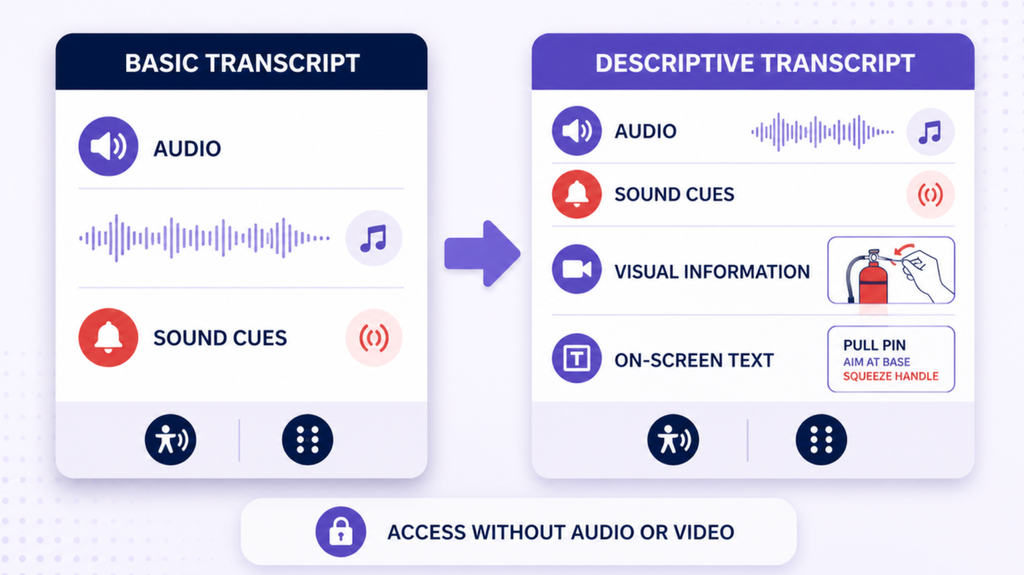
The same moment shows the practical difference:
| Basic transcript | Descriptive transcript |
| NARRATOR: Select Export and choose PDF. | NARRATOR: Select Export and choose PDF. VISUAL: The pointer opens the upper-right Export menu and selects PDF from options PDF, DOCX, and CSV. |
| [Applause] | [Audience applauds as the chart reaches the target line. The presenter smiles and points to “18% reduction” on screen.] |
| PRESENTER: This is the result. | PRESENTER: This is the result. VISUAL: A before-and-after image shows the damaged component replaced; the status changes from Fail to Pass. |
If the spoken audio already explains a visual fully, do not repeat it. Description should fill the information gap.
Video Transcript Formatting Template
Use this reusable structure for most interviews, lectures, webinars, and tutorials:
VIDEO TITLE:
SOURCE URL:
CREATOR / ORGANIZATION:
SPEAKERS:
RECORDED OR PUBLISHED:
TRANSCRIPT TYPE: Clean read / Full verbatim / Descriptive / Production
TRANSCRIPTION METHOD: Human / AI draft + human review
EDITORIAL NOTES: [Explain any conventions or corrections]
### [Section heading] [00:00]
[SPEAKER NAME]: Spoken content in readable paragraphs.
[SOUND]: Relevant non-speech audio.
VISUAL: Important action, expression, graphic, or on-screen text not available through audio.
[inaudible 00:00:00–00:00:04]
[uncertain term: “model seventeen”? 00:00:00]
Style guide decisions to make before transcription
| Decision | Options | Recommended default |
| Verbatim level | Full verbatim, intelligent verbatim, clean read | Clean read unless speech behavior is evidence |
| Speaker labels | Full name, first name, role, numbered speaker | Stable confirmed name or role |
| Timestamps | Every line, interval, speaker change, topic, none | Topic or speaker change for readable transcripts |
| Non-speech sounds | All sounds, meaningful sounds only | Sounds needed for meaning or context |
| Visual descriptions | None, essential visuals, comprehensive description | Essential visuals for a standalone video transcript |
| Unclear audio | Guess, omit, mark uncertain or inaudible | Mark with a timestamp; never guess silently |
| Numbers | Spoken style or standardized numerals | Follow the project style guide without changing meaning |
| Profanity and sensitive terms | Preserve, mask, editorially replace | Define in advance and document any alteration |
How to Create a Video Transcript With AI and Human Review
AI speech recognition can create a useful first draft, but the quality of the final transcript depends on source audio, speaker separation, terminology, visual review, and editorial decisions.
Step 1: Define the transcript’s job
Decide whether the output supports accessibility, editing, legal review, research coding, study, SEO, translation, or general reading. This determines the required accuracy, verbatim level, timecode detail, and visual description.
Step 2: Prepare the recording
Use the cleanest available audio track. Do not permanently remove the original. If background noise obscures speech, create a processing copy and compare uncertain sections with the source. Noise reduction can also remove quiet consonants or distort technical terms.
Step 3: Generate the first draft
For a public video, Lunote Video Transcript provides a direct link-to-text workflow. For a local recording, use an authorized transcription service that supports the file type, language, duration, and privacy requirements. Happy Scribe and Canva also position video-to-text tools inside broader editing or transcription workflows, while services such as TranscribeMe and Rev offer human-supported options for higher-stakes work.
Step 4: Correct the transcript while listening
Review proper names, numbers, dates, URLs, acronyms, technical vocabulary, quotations, and speaker changes. Listen around each error rather than editing only the isolated word. Keep an uncertainty marker when evidence remains insufficient.
Step 5: Watch for visual information
Add meaningful on-screen text, diagrams, demonstrations, gestures, scene changes, or outcomes that the audio does not convey. For accessibility work, this cannot be completed from the audio track alone.
Step 6: Format for reading
Combine caption fragments into paragraphs. Add headings to long transcripts, use stable speaker labels, and limit timestamps to useful navigation points. W3C notes that headings, links, summaries, and logical sections can improve usability and search visibility.
Step 7: Publish beside the video
Place the transcript on the same page or provide a clearly labeled link immediately near the player. Use semantic HTML headings and paragraphs where possible. If offering a downloadable document, confirm its reading order, text accessibility, language, headings, and link labels.
How to Transcribe a Video to Text for Free Online
The simplest free workflow depends on where the source lives. For a YouTube video with captions, open the transcript panel or use Lunote Video Transcript, copy the text, and correct it against the video. For a local video file or separate audio file, a free tool may offer a limited number of minutes, uploads, or AI credits; confirm the allowance before sending a long recording.
Use this process:
- Make sure you own the video or have permission to process it.
- Start with the cleanest available audio or caption track.
- Generate a transcript draft and export it before the free session expires.
- Check the first, middle, and final sections so one successful opening minute does not hide later drift.
- Search for every proper name, number, acronym, and
[inaudible]marker. - Add speaker labels, useful timestamps, meaningful sounds, and visual information according to the selected format.
- Publish in HTML or an accessible document rather than leaving the transcript inside a private editor.
“Free video transcription” rarely means unlimited, human-verified, descriptive transcription at no cost. It usually means a limited AI draft. The responsible comparison is not only price per minute; it is the free allowance plus the time needed to repair each minute of output.
Interactive Video Transcript Example
An interactive transcript connects each text segment to the corresponding moment in the player. The current phrase may be highlighted during playback, and selecting a sentence can move the video to that timestamp.
[00:00] Why we changed the onboarding sequence
[00:18] Showing value before requesting configuration
[00:37] Security setup still required for enterprise customers
This compact format works well for lectures, webinars, interviews, product demos, and searchable media libraries. It is not a replacement for readable paragraphs or descriptive visual information. Treat interactivity as an additional navigation layer: the transcript should remain understandable when copied, printed, read with assistive technology, or accessed without the custom player.
How Video Transcripts Support Video SEO and Search
A transcript exposes spoken information as indexable, searchable text. That can help a reader find a name, definition, product feature, or quotation without replaying the video. It can also give a page enough substantive text to explain what the media contains instead of relying only on a title and thumbnail. For video SEO, that usefulness matters more than simply publishing a large block of auto-generated text.
For a useful search experience:
- Use one clear page title and a short summary before the transcript.
- Organize long recordings with descriptive headings that follow real topic changes.
- Preserve names and terminology people may search for.
- Add links to referenced resources where editorially appropriate.
- Keep the transcript on the same canonical page as the video when possible.
- Avoid publishing unedited auto-caption fragments as keyword-heavy paragraphs.
- Do not add words that were never spoken merely to target a search query.
W3C notes that headings and links can make transcripts more usable and can also help search. The SEO value comes from accurate, useful information—not from repeating “video transcript” throughout the page. A transcript also improves internal search, content reuse, quotation discovery, and the ability to create a verified video summary.
Video Transcription Tools Compared
| Option | Best for | Useful capabilities | Main limitation |
| Lunote Video Transcript | Quick public video-to-text workflow | URL input, transcript extraction, connection to video summaries and translation | Requires available source access; visual descriptions still need review |
| Happy Scribe | Editing, subtitles, translation, and transcription workflow | Video upload, AI transcription, editor, exports, language support | Plan and human-service costs depend on workflow and volume |
| Canva Video to Text | Creators already editing videos in Canva | Transcription inside a visual content workflow | A transcript used for accessibility still needs accuracy and visual-information review |
| TranscribeMe | Sample formats and human transcription services | Multiple transcript samples and human-supported workflow | More service-oriented than a quick free URL tool |
| Rev | High-consequence and specialized transcript workflows | AI and human options; interview, legal, research, and production use cases | Cost and turnaround increase with human verification and specialization |
| Subly | Descriptive transcript workflow | Provider says it analyzes speech, speakers, on-screen text, visuals, and sounds; export options | Automated visual descriptions require human accessibility review; sales-led product |
What competitors explain well
TranscribeMe’s sample transcript library helps buyers see deliverable styles before ordering. GoTranscript’s examples make the contrast between formats concrete. Rev connects formats to interview, legal, research, and production needs. iProbe adds the production details editors care about: answers-only options, interval timecodes, source-and-translation columns, and raw-footage conventions.
What tool pages often leave unclear
“Accurate,” “instant,” and “accessible” are not transcript formats. Before choosing a tool, confirm:
- Whether it extracts existing captions or transcribes the audio itself.
- Whether speaker identification is automatic, editable, or human-verified.
- How it marks uncertainty, inaudible audio, overlap, and background noise.
- Whether it processes visual information or only audio.
- Whether timestamps are based on captions, words, sentences, speakers, or fixed intervals.
- Which formats are exportable and whether the HTML or PDF output is accessible.
- How uploaded recordings, transcripts, and model-training settings are handled.
- Whether “human accuracy” refers to every order or a separate paid service.
How Long Does It Take to Transcribe 30 Minutes of Video?
There is no responsible universal number. An AI draft may appear within minutes, while human correction can take much longer than the recording itself. The real time depends on:
- Audio clarity and background noise.
- Number of speakers and amount of overlap.
- Accent familiarity and language switching.
- Technical terminology, names, and numbers.
- Full verbatim versus clean-read requirements.
- Timestamp frequency and production timecode.
- Visual-description requirements.
- Accuracy and quality-control standard.
Measure editing time on a representative five-minute segment before estimating the full project. A cheap automatic transcript that requires extensive repair can cost more in staff time than a stronger initial draft.
Common Video Transcript Mistakes
Treating automatic captions as the finished transcript
Caption fragments, missing speaker names, and absent visual information make raw exports hard to read and incomplete for many uses.
Guessing through poor audio
A plausible word is not necessarily the spoken word. Mark uncertainty with a timestamp and request source clarification.
Overusing timestamps
Caption-level timecodes can overwhelm a page. Use chapter, topic, speaker-change, or periodic timestamps according to the reader’s task.
Editing away meaning
Removing “not,” changing a number, standardizing a product name incorrectly, or deleting a qualification is not clean-up. Protect facts before improving readability.
Describing every visual detail
Descriptive transcripts communicate meaningful information, not wardrobe inventories. Describe what changes understanding, action, context, identity, or outcome.
Publishing an inaccessible document
A transcript locked in an image, poorly tagged PDF, or inaccessible accordion can defeat its purpose. HTML on the media page is often the simplest usable option.
Ignoring privacy
Interviews, meetings, research sessions, classrooms, legal footage, and health recordings can contain sensitive information. Confirm consent, retention, access, and approved tools before upload.
Frequently Asked Questions
What is an example of a video transcript?
A video transcript example is a formatted text record of spoken content, relevant sounds, speaker identities, and—when needed—important visuals. The appropriate example depends on whether the transcript supports reading, research, production, or accessibility.
What should a video transcript include?
Include accurate speech, speaker labels when needed, meaningful non-speech audio, uncertainty markers, and useful structure. Add important visual information and on-screen text when the transcript must communicate the video without relying on the picture.
What is the best video transcript format?
Use clean read for general publication, full verbatim when speech behavior is evidence, detailed timecodes for production, topic headings for lectures, and descriptive transcripts when visual information is necessary for understanding.
Should a transcript include timestamps?
Only when useful. Timestamps help readers return to quotations, topics, editing points, or tutorial steps. They become clutter when copied from every caption cue into a transcript intended for continuous reading.
How do I transcribe a YouTube video to text?
Open YouTube’s transcript when captions are available, or paste the public link into Lunote Video Transcript. Correct the draft, identify speakers, and add important visual information before publishing it as a finished transcript.
Can I convert a video transcript to another language?
Yes, but first correct names, numbers, and source-language errors. Then use a tool such as Lunote Text Translator and keep the source transcript available for bilingual review.
Is a transcript required for video accessibility?
The answer depends on media type, WCAG level, applicable law, and the alternatives already provided. W3C identifies different requirements for prerecorded audio-only, video-only, synchronized video, and live media. A descriptive transcript supports a broader range of users even when another alternative meets a particular success criterion.
Is an AI-generated transcript accurate enough?
It can be a useful draft. It is not automatically publication-ready, research-ready, or accessibility-ready. Review critical terms, speaker changes, unclear audio, and visual information against the original recording.
What is the difference between verbatim and clean transcription?
Full verbatim preserves fillers, repetitions, false starts, and relevant speech events. Clean transcription removes non-meaningful verbal clutter while preserving the speaker’s meaning and level of certainty.
Where should I put a video transcript?
Place it on the same page as the video or provide a clearly labeled nearby link. W3C recommends making the transcript easy to discover and access from the media.
Final Takeaway
The most useful video transcript example is not necessarily the longest or most literal. It is the one designed for a specific reader and task. Start with the recording, choose the correct format, generate a draft, verify it against both audio and visuals, and publish it in a form people can actually navigate.
For quick video-to-text work, start with Lunote Video Transcript. If the next task is understanding rather than quoting, compare the corrected transcript with Lunote Video Summary. Automation can remove the blank page; human review is what turns the output into a trustworthy transcript.