![How to Transcribe Instagram Reels Free Online No Login in [2026 Ultimate Guide]](https://blog.lunote.ai/wp-content/uploads/2026/09/image-1-1248x702.png)
In 2026, you can generate an Instagram transcript for free online without logging in. Many tools exist, but finding the right one can feel overwhelming. This guide helps by focusing on three key parts: reliable web tools, a simple step-by-step process, and clear guidance on accuracy and privacy. Each part helps you get usable text from any public Reel, and every method works seamlessly whether you own the content or someone else made it. Most tools accept a direct URL link, so you skip video downloads entirely—just paste the link and your Instagram transcript is ready in seconds. By the end, you will have a practical method that saves time and effort, turning any Reel into searchable, editable text. This post is your only resource for fast, private, and accurate transcription, ensuring your Instagram transcript is always just a click away.
Key Takeaways
- Copy the Reel’s link and paste it into a free online tool to get a transcript in seconds.
- Use tools like Lunote or SpeakApp for free transcription without logging in.
- Clear audio with minimal background noise gives the most accurate transcripts.
- If a link fails, download the video and upload it to the tool instead.
- Free tools have daily limits, like 60 minutes per day with Lunote.
- Choose a tool that respects your privacy and does not store your transcripts.
- Export your transcript in formats like TXT, DOC, PDF, SRT, or VTT.
- Review and edit the transcript to fix any errors from background noise or accents.
Quick Answer: Instagram Reel to Text in 3 Steps
The whole process takes less than two minutes from start to finish. You don’t need to download the video, install software, or make an account. This method works for any public Reel, whether you posted it or someone else did. Private accounts stay off-limits because the tools can’t access content that needs permission to view.
Step 1: Copy the Reel’s URL
Open the Instagram app or website and go to the Reel you want to transcribe. Tap the share icon (the paper airplane symbol) and pick “Copy Link.” On a desktop browser, you can also right-click the timestamp on the Reel and choose “Copy Link Address.” The URL will look something like instagram.com/reel/AbCdEfGhIjK/. Keep that link in your clipboard for the next step.
Step 2: Paste the Link into a Transcription Tool
Visit a free online transcription service that accepts Instagram URLs. VideoToTextAI is one reliable option, trusted by more than 15,000 customers. It needs no credit card and no upfront payment. Paste your copied link into the input field on the tool’s homepage. Select the language spoken in the Reel if the tool asks. Most tools default to English, but you can change this for other languages. Click the “Transcribe” or “Generate Transcript” button to start processing.
Step 3: Review and Export Your Transcript
The tool processes the audio and returns a text version of everything spoken in the Reel. Processing time depends on the video’s length. A 30-second Reel usually finishes in under ten seconds. A longer Reel may take a minute or more. Once the transcript appears, read through it quickly to catch any obvious errors. Most tools provide an editing interface where you can fix misheard words. When satisfied, download your transcript in your preferred format. VideoToTextAI offers TXT, DOC, PDF, SRT, and VTT options. SRT and VTT work well for captions. TXT and DOC suit note-taking and editing.
Why This Method Works So Well
The direct URL approach removes the need to download the Reel first. Downloading adds extra steps and often requires separate software. URL-based transcription keeps everything in your browser. The tool fetches the audio directly from Instagram’s servers. This approach also keeps the original audio quality, which improves accuracy.
What You Can Expect from Accuracy
Clear speech with minimal background noise gives the best results. A person speaking directly into the camera in a quiet room will yield near-perfect text. Music-heavy Reels or videos with overlapping voices will contain more errors. The AI models behind these tools improve constantly, but they still struggle with heavy accents, rapid speech, and technical jargon. For critical projects, plan to spend a few minutes editing the output.
Free Access and Daily Limits
VideoToTextAI provides 60 daily bonus credits after sign-up. Each credit covers one minute of content. That means you can transcribe up to 60 minutes of Reels every day at no cost. The sign-up process requires only an email address. No credit card is needed. If you need more than 60 minutes in a single day, you can wait until the next day or explore paid tiers.
Supported Content Types
The tool handles more than just Reels. It also processes Instagram Live replays and standard video posts. Any public video on Instagram works through the same URL-paste process. This flexibility makes the tool useful for content creators who manage multiple video formats.
A Quick Word on Privacy
Free tools process your link on their servers. The audio from your Reel passes through their systems for transcription. Most reputable services do not store your transcripts permanently. Check the privacy policy of any tool before using it with sensitive content. For public Reels, this concern rarely matters because the content is already visible to anyone.
Your First Transcription in Under Two Minutes
Copy the link from any public Reel. Paste it into VideoToTextAI or a similar tool. Download the finished transcript. That is the entire workflow. No login walls, no software installations, no video downloads. The process works the same whether you transcribe your own content or someone else’s. This simple three-step method turns any Instagram Reel into an instagram transcript you can search, edit, and repurpose.
The next section of this guide compares the top free tools in detail. You will learn which one suits different use cases, from quick captions to full content repurposing. Each tool has strengths and weaknesses. Understanding those differences helps you choose the right one for your specific needs.
Top Free Online Transcribe Instagram Generators
There are many good tools to turn Reels into text. Each tool is good at something different. Some tools are fast. Others are accurate. A few have extra features like chat or many export options. The best tool depends on what you need. A content creator needs different features than a student. This section covers the top tools so you can pick the right one for your job.
Quick Comparison Table
| Tool | Best For | Max Reel Length | Output Formats | Standout Feature |
|---|---|---|---|---|
| Lunote | All-round use | Long Reels | TXT, DOC, PDF, SRT, VTT | Chat with transcript |
| SpeakApp | Fast results | 2 minutes | TXT, SRT | 99% accuracy claim |
Both tools work with direct Instagram URLs. You do not need an account for basic use. Both support over 50 languages. The table shows the main differences. The next sections look at each tool in more detail.
Lunote: The AI-Powered All-Rounder
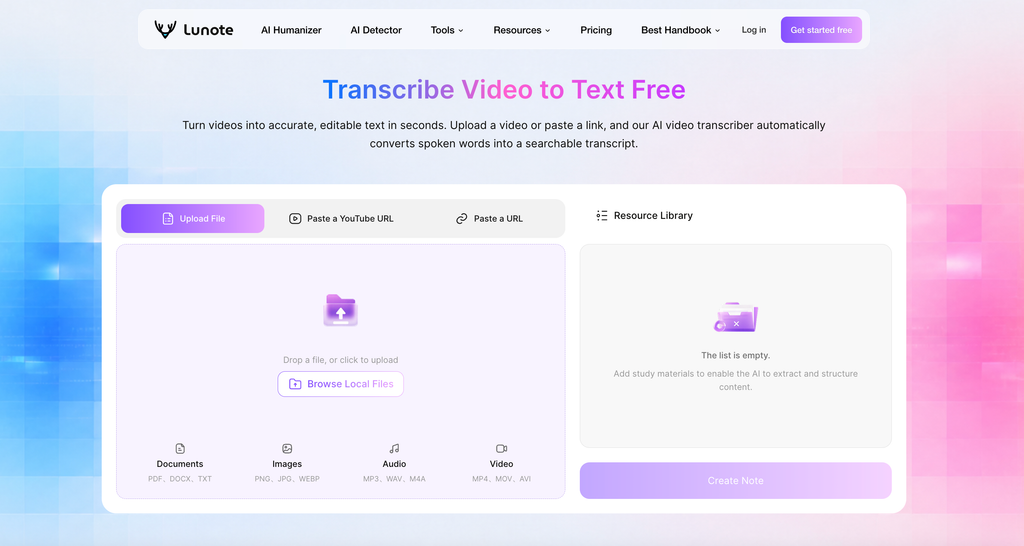
Lunote is the most flexible tool for getting an Instagram transcript. It can handle all kinds of transcription needs. You can paste a URL or upload a video file. This is useful when a link does not work or when you have the file saved on your device. The tool uses the same AI for both methods, so the quality stays the same.
Key Features and User Interface
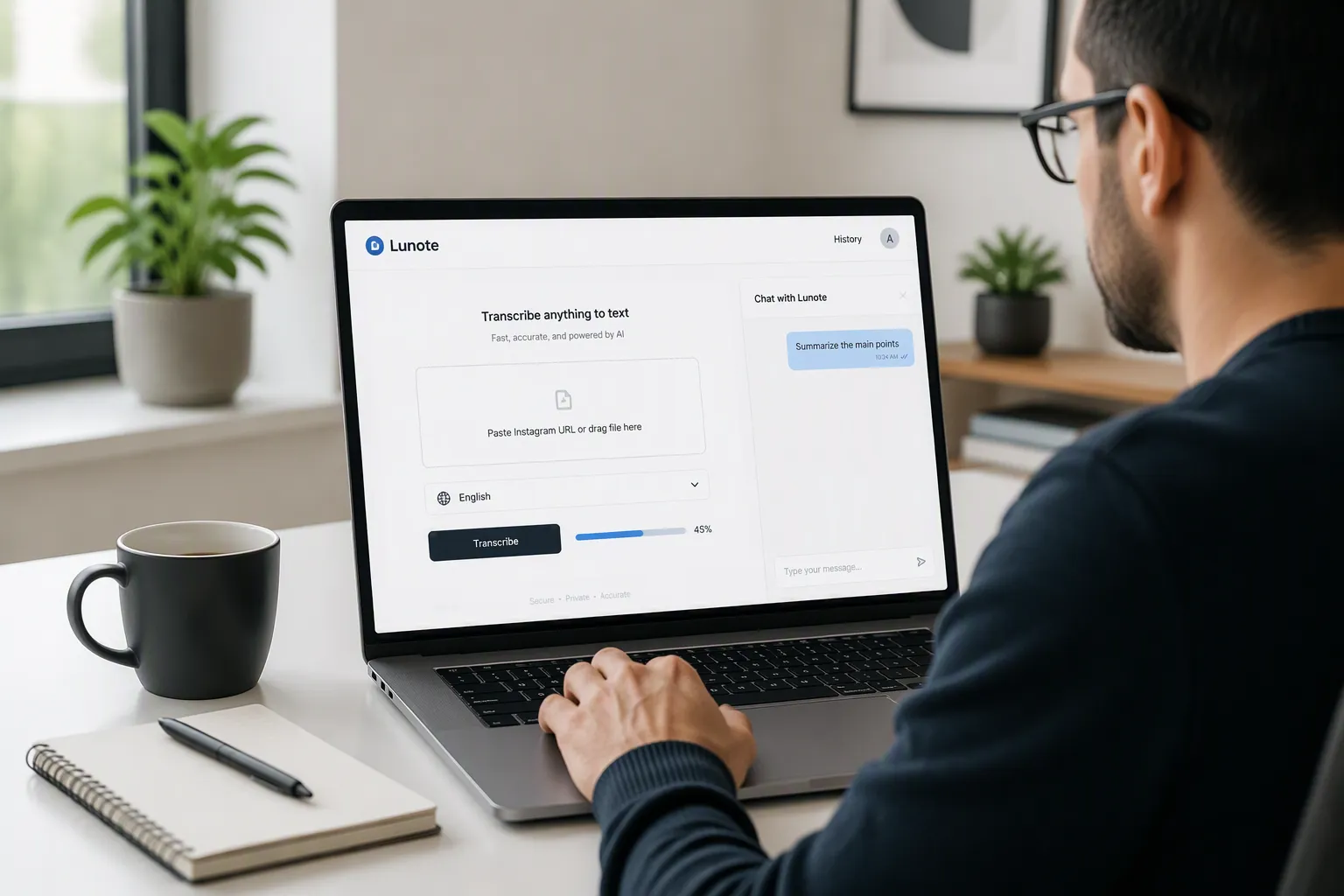
The interface is simple. There is one main field on the homepage. You paste your link or drag a file into the drop zone. Below that, you can pick the language. This helps the tool be more accurate. The default is English, but it supports over 50 languages. After you click the transcribe button, a progress bar shows the status. Most Reels finish in seconds.
The chat feature makes Lunote different from other tools. After the transcript is ready, you can ask questions about it. For example, you can type “Summarize the main points” or “Find the part about pricing.” The AI scans the transcript and shows the relevant parts. This saves time when you need to find specific information without reading everything. It also helps with reusing content. You can pull out quotes, find main themes, or make a summary for social media.
Output options cover all common uses. TXT and DOC work for notes and editing. PDF is good for sharing and saving. SRT and VTT files work with video editors for captions. The tool claims up to 99% accuracy with clear audio. Background noise, music, or strong accents lower that number, but the AI handles most everyday content well.
Pros and Cons
Lunote’s strengths are its two input methods, the chat feature, and many export formats. The file upload option is a backup when URL processing fails. The chat feature turns a simple transcript into an interactive document. The 60 daily bonus credits after sign-up cover most users’ needs.
The main drawback is that full access needs a sign-up. Basic URL transcription works without an account, but the chat feature and higher daily limits require registration. You only need to give an email address. No credit card is needed. For users who need more than 60 minutes of transcription each day, the free tier may not be enough.
SpeakApp: The Speed Demon
SpeakApp focuses on one thing: getting your transcript fast. The tool processes Reels quickly and gives clean text with little delay. Its simple interface removes extra options. You paste a link, pick a language, and hit transcribe. The result appears in moments. This simplicity makes SpeakApp good for quick jobs where you need text right away.
How It Handles Long Reels
SpeakApp works with public Instagram videos but has a limit. The tool cuts longer videos to a maximum of two minutes. This is fine for most Reels, which are usually 15 to 60 seconds. Longer content, like Instagram Live replays or extended video posts, may lose the part beyond two minutes. For those cases, Lunote’s file upload option is a better choice.
Supports public Instagram videos (longer videos trimmed to 2 min)
99% Accuracy
The accuracy claim holds up well with clear audio. A person speaking directly to the camera in a quiet room gives near-perfect text. Music-heavy content or videos with multiple speakers cause more errors. The tool handles single-speaker content very well. For interviews or conversations, expect to do some manual cleanup.
Pros and Cons
The speed of SpeakApp is its biggest plus. Results appear almost instantly for short Reels. The interface has no learning curve. Anyone can paste a link and get a transcript within seconds. The 99% accuracy claim with clear audio makes it reliable for straightforward content.
The two-minute limit is the main weakness. Longer videos lose content beyond the cutoff. The tool also offers fewer export formats than Lunote. You get TXT and SRT options, which cover basic needs but lack the flexibility of DOC, PDF, or VTT. Users who need captions in many formats may find the options limited.
Both tools give great results for their purposes. Lunote offers the most complete set of features for getting an Instagram transcript. SpeakApp wins on raw speed for short content. Choose based on what you need most. For most users, Lunote’s versatility makes it the better daily tool. Keep SpeakApp for quick, simple jobs where speed is most important.
What to Do When the Instagram Reel Link Does Not Work
Sometimes the URL method fails. The tool shows an error message. The transcript never appears. This happens more often than you might expect. The good news is that you have backup options. Two alternative methods exist. Both work without logging in. Both produce the same quality results. This section explains why links fail and how to work around the problem.
Why the Link May Fail
Several reasons cause link failures. The most common one is a private account. Transcription tools cannot access content that requires permission to view. If the Reel belongs to a private profile, the tool receives no data. Another reason involves regional restrictions. Some content is blocked in certain countries. The tool’s servers may sit in a region where Instagram blocks the video. Expired links also cause problems. Instagram occasionally changes URL structures. Old links stop working after these changes.
Language selection matters too. Many tools ask you to choose the spoken language before processing. Picking the wrong language lowers accuracy significantly. One practitioner who tested AI video tools with Malayalam content reported that pronunciation drifts and lip-sync wanders. The conclusion was clear: for Indian regional languages, the tools are not yet production-grade. This means non-English Reels may produce lower-quality transcripts. The AI models simply have less training data for regional languages.
The Actor handles non-English audio automatically — Deepgram detects the spoken language for you. No language setting is needed.
Some tools offer automatic language detection. This feature removes the guesswork. If your tool has this option, use it. Manual selection works best when you know the exact language. For mixed-language Reels, automatic detection usually performs better.
Method 2: Upload an Authorized Reel Video
When the link fails, download the Reel first. Then upload the video file directly to the transcription tool. This method bypasses Instagram’s URL restrictions entirely. The tool processes the file the same way it processes a link.
“Whenever you find an Instagram video—downloaded or not—you can easily convert it into text by pasting the link or uploading the video file to our free Instagram transcript generator.”
Follow these steps for file upload:
- Download the Instagram Reel video to your device. Use Instagram’s built-in save feature or a reputable downloader.
- Upload the audio file of the downloaded video via the in-app bulk tool.
- Run AI transcription on the uploaded audio to generate the transcript.
The upload method works with tools like Lunote. The interface accepts drag-and-drop files. Processing time stays the same as URL-based transcription. You can download the final text in TXT, SRT, or VTT format. This method also helps when you want to transcribe your own Reels after downloading them for editing.
Method 3: Upload Audio Only
Sometimes the video file is too large. Or the tool only accepts audio files. In these cases, extract the audio first. Then upload the audio file alone. This method reduces file size and speeds up processing.
The extraction process requires a few tools. Python 3.7 or newer must be installed. FFmpeg handles the audio extraction. The openai-whisper library performs the transcription. Here is the workflow:
- Install the prerequisites: Python 3.7+, FFmpeg, and the tool’s dependencies (yt-dlp, ffmpeg-python, openai-whisper).
- Clone the repository, create a virtual environment, and install dependencies via
pip install -r requirements.txt. - Install FFmpeg using platform-specific commands. macOS uses
brew install ffmpeg. Ubuntu usessudo apt install ffmpeg. Windows requires a manual download. - Run the tool with
python main.pyand enter the Instagram reel URL when prompted. - The tool downloads the reel, extracts audio using FFmpeg, transcribes it with OpenAI Whisper, and saves the transcript as a JSON file in the
transcripts/directory. - The JSON file contains the URL, timestamp, video path, audio path, and the complete transcribed text.
This method works well for users comfortable with command-line tools. The output includes metadata alongside the transcript. That extra information helps when organizing multiple transcriptions. For most users, the simpler upload method works fine. The audio-only approach serves as a technical fallback when other options fail.
Whichever method you choose, always review the final text. Minor errors appear in every transcript. An editing interface helps fix these quickly. The result is a clean, accurate instagram transcript ready for any purpose.
Is a Free No-Login Instagram Transcriber Really Free?
The short answer is yes. A free no-login Instagram transcriber gives real value. Users pay nothing. No credit card is needed. No account is required. The tool takes audio from public Reels. It turns that audio into text. That is the main job. But “free” has limits. Users should know what they get and what they miss.
The main trade-off is accuracy. Free tools use AI models. These models work well. They handle clear speech with high accuracy. A person talking straight into the camera in a quiet room gets near-perfect text. But background noise lowers quality. Music causes confusion. Multiple speakers create errors. Users must accept these limits. The tool does not promise perfect results for every Reel.
Daily usage caps exist. Most free tools limit how much content you can process. Lunote gives 60 minutes per day after a simple sign-up. SpeakApp limits Reels to two minutes. These caps keep things fair for all users. Heavy users may need to wait or pay. Casual users rarely hit these limits.
Privacy matters for any free service. Users worry about their data. The facts show that trusted tools handle data well. Services use secure, encrypted processing. They do not sell user data. They follow GDPR-compliant privacy rules. Videos are processed safely. They are not stored forever. Transcripts are ready for quick download. They are not kept after processing. This means your instagram transcript stays private. The content is already public on Instagram. But the tool does not save a copy of your text.
The cost of free is not always money. Sometimes it is features. Free tools may lack advanced options. They may not support all languages equally. They may have fewer export formats. Users who need more can upgrade. Paid tiers unlock longer processing times. They offer more export formats. They provide faster service. They remove daily limits.
A free no-login transcriber is truly free. It costs nothing to use. It makes an instagram transcript without payment. But it is not unlimited. It is not perfect. Users must manage expectations. The tool works best for short, clear Reels. It works well for single speakers. It works less well for music or noisy places. Accuracy depends on audio quality. Users should plan to edit the output a bit.
The answer is clear. The tool is really free. But freedom comes with limits. Knowing these limits helps users get the best results. The tool does its job well. It gives value without cost. That is a fair deal for most users. For occasional transcription needs, the free option works great. For professional use, paid tiers offer more reliability. Choose based on your needs. The free option is a strong start for anyone.
Troubleshooting Common Transcription Issues
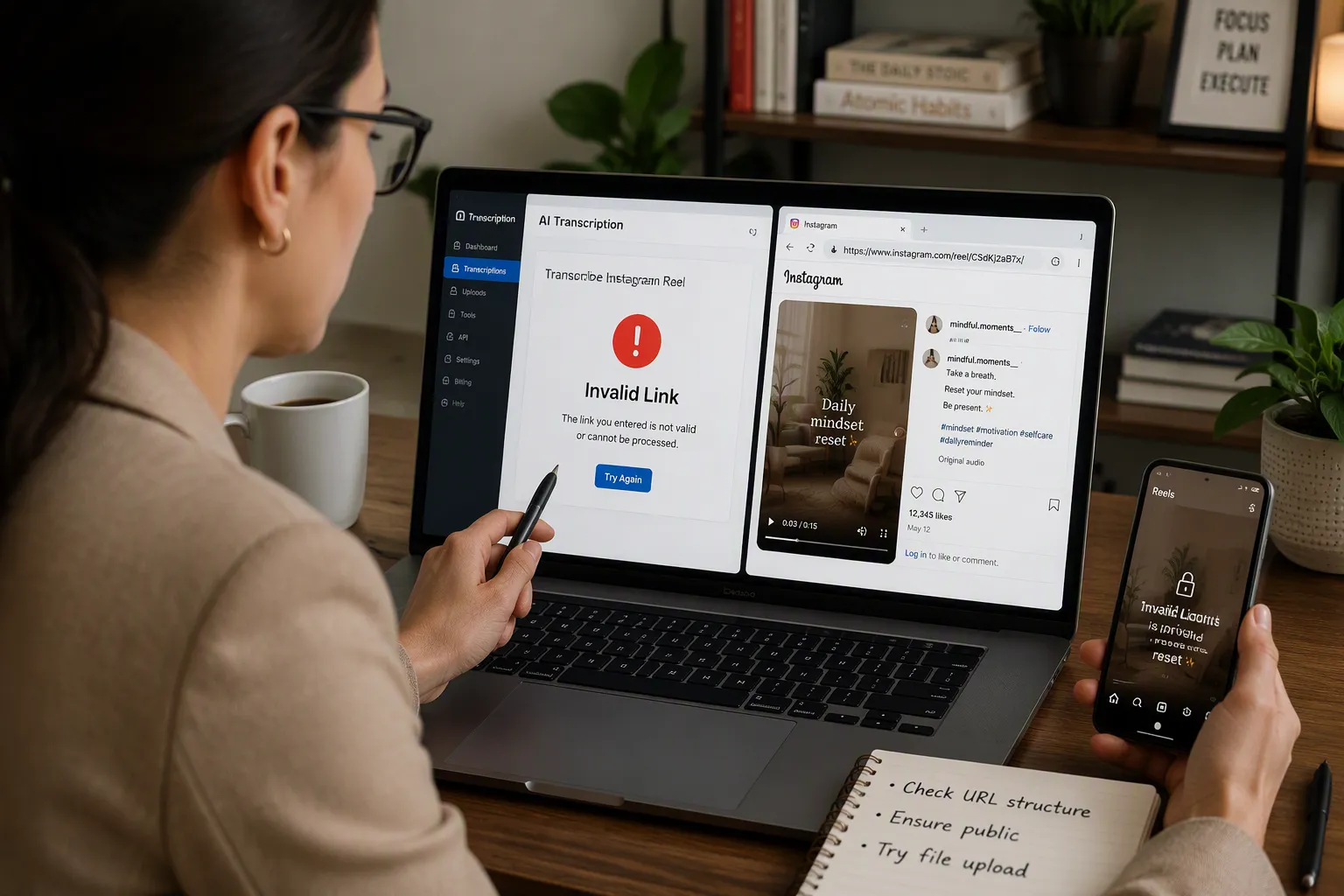
Even the best tools hit snags. A link fails. The transcript comes out garbled. The tool freezes mid-process. These problems have simple fixes. This section walks through each common issue and shows you how to solve it quickly.
The Tool Says “Error” or “Invalid Link”
This message appears for several reasons. The most common cause is a private account. Transcription tools only access publicly viewable content. If the Reel belongs to a private profile, the tool receives no data. Another cause involves restricted or deleted posts. Once Instagram removes content, the URL stops working. Expired links also trigger this error. Instagram occasionally changes URL structures, making old links invalid.
Silent videos cause a different kind of failure. If a Reel contains only music, ambient sound, or visual content with no spoken words, there is nothing to transcribe. The tool extracts spoken language only. It cannot process instrumental audio or sound effects. The result is an error message or an empty transcript.
Double-Checking the Reel’s URL
Start by verifying the link itself. Open the Reel in a new browser tab. Confirm the video plays normally. Look at the URL structure. A valid Instagram Reel link contains /reel/ followed by a short alphanumeric code. If the link looks different, copy it again from the share menu. On desktop, right-click the timestamp and select “Copy Link Address.” This method captures the exact URL without extra tracking parameters.
Ensuring the Reel is Public
Check the account’s privacy settings. Open the profile in a private browser window. If you can see the Reel without logging in, the content is public. If Instagram asks you to log in or shows a “This account is private” message, the tool cannot access it. You have two options. Ask the account owner to make the Reel public temporarily. Or download the video and use Lunote’s file upload feature instead. The upload method bypasses URL restrictions entirely.
The Transcript is Full of Gibberish
Garbled text usually traces back to audio quality. Music-only or speech-light clips force the AI to guess. The model interprets sounds as words, producing nonsense. Non-English content also causes problems. Major languages like Spanish, French, Mandarin, and Japanese work well. Smaller languages degrade quickly because the AI has less training data.
AI transcription accuracy depends on audio quality and complexity. Clean speech with minimal background noise achieves 80-95% accuracy, but Reels with heavy music, background noise, or multiple speakers talking simultaneously produce more errors. You’ll need to manually review and edit transcripts from noisy environments to ensure accuracy.
Re-Running with a Different Tool
Each tool uses different AI models. One tool may struggle with a particular accent while another handles it fine. If the first attempt fails, try a second tool. SpeakApp processes quickly and works well for short clips. Lunote offers automatic language detection, which helps with non-English content. Running the same Reel through two tools often produces one usable transcript.
Checking for Heavy Audio Distortion
Loud background music and overlapping speakers create the worst results. The AI cannot separate voices from instruments. Heavy accents and technical jargon also lower accuracy. For these cases, clean the audio first. Upload the Reel recording to an audio cleanup tool before sending it to a transcription service. This reduces background noise and improves speech clarity. The cleaned file gives the transcription engine a stronger signal. Noisy recordings that are hard to hear become easier for both humans and AI tools to transcribe.
The Tool is Too Slow or Crashes
Slow processing often relates to browser issues. Browser extensions interfere with web tools. Too many open tabs drain memory. The tool itself may have server problems during peak hours. Most free tools process a 30-second Reel in under ten seconds. If yours takes much longer, something is wrong.
Trying a Different Browser
Switch to a different browser and try again. Chrome, Firefox, and Edge all work well with transcription tools. Disable browser extensions that block scripts or trackers. These extensions sometimes prevent the tool from fetching the Reel’s audio. Clear your browser cache and reload the page. A fresh session often resolves the issue.
Using a Simpler, Text-Based Tool
Some tools offer more features than others. Extra features require more processing power. If the full-featured tool crashes, switch to a simpler option. SpeakApp has a minimal interface that loads quickly. It handles short Reels without lag. For longer content, consider splitting the audio into smaller segments. Process each segment separately, then combine the transcripts. This approach avoids the length limits some tools impose.
When URL-based transcription keeps failing, remember Lunote’s file upload feature. Download the Reel, then upload the video file directly. This method bypasses link issues and often produces a cleaner instagram transcript. The file upload process takes the same amount of time as URL processing. It simply uses a different input method.
Transcribing Instagram Reels for free without login is possible and easy. The right approach makes all the difference. Start by copying the link from any public Reel. Choose a reliable tool like Lunote. Paste the URL into the tool. Generate your transcript in seconds. Manage your expectations about accuracy. Clear audio produces the best results. Background noise or music may lower quality. Choose a privacy-conscious tool to protect your data. Trusted services process content securely. They do not store transcripts permanently. Try the recommended tools today. Share your experience in the comments. Ask questions about specific use cases. This process works for any public Reel. You can turn any video into searchable text quickly.
FAQ
Is the transcription service really free?
Yes. The tools in this guide give free transcription. You don’t need to log in. Lunote gives 60 free credits each day after you sign up. One credit is for one minute of content. You don’t need a credit card. You can transcribe up to 60 minutes of Reels every day for free.
How accurate is the transcription?
Accuracy depends on the audio quality. Clear speech with little background noise gives near-perfect text. Reels with lots of music or overlapping voices have more errors. Most tools say they get up to 99% accuracy with clean audio. For important projects, plan to check and fix the text.
Can I transcribe Reels in other languages?
Yes. Most tools work with over 50 languages. Pick the right language before you start. Some tools can detect the language on their own. This works well for Reels with more than one language. Non-English Reels might give lower quality text. The AI models have less training data for regional languages.
What happens if the Reel link does not work?
Several things can make a link fail. Private accounts block access. Regional rules stop processing. Old links stop working. Silent videos give empty transcripts. Download the Reel and upload the video file instead. This method works around the URL problems.
What export formats are available?
Most tools give you several ways to save your text. TXT and DOC are good for notes and editing. PDF is good for sharing and saving. SRT and VTT files work with video editors for captions. Pick the format that fits your needs. Caption files help with video editing.
Do I need to create an account?
For basic transcription, you don’t need an account. Some features need you to sign up. Lunote’s chat feature needs a simple sign-up with email. No credit card is needed. Signing up gives you higher daily limits and more tools. Casual users can transcribe without making an account.