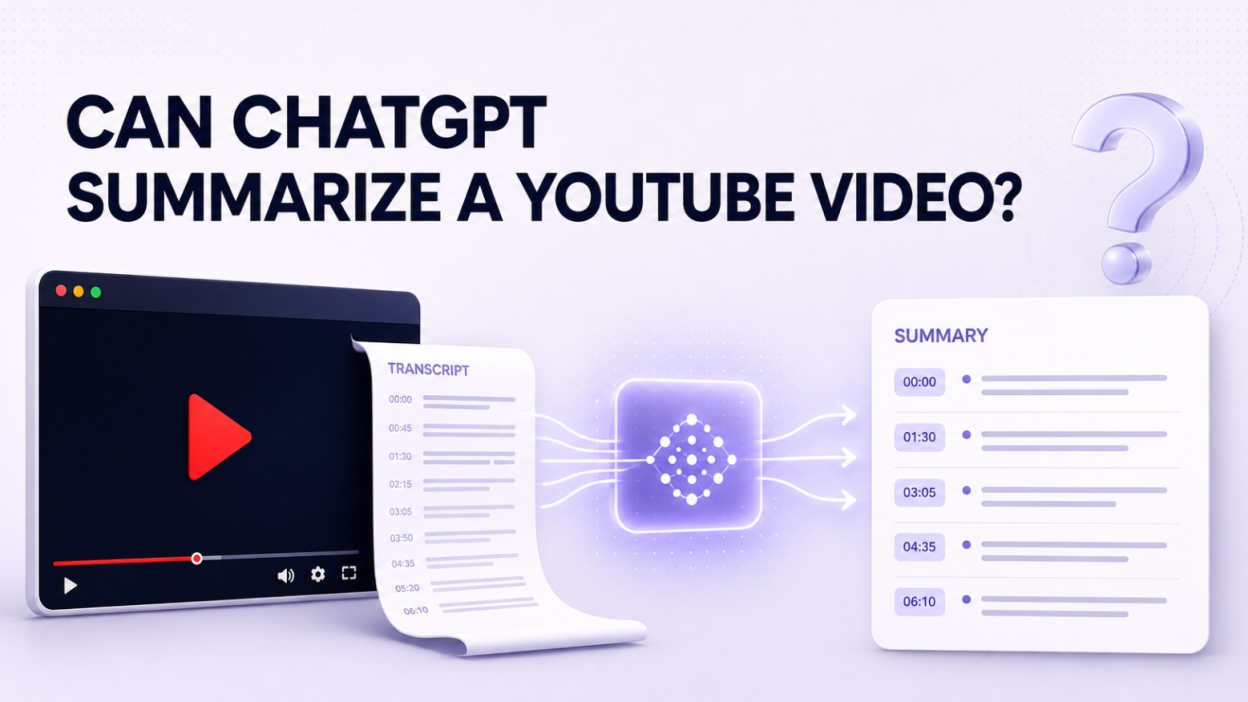
Yes, ChatGPT can summarize a YouTube video, but the reliable workflow is not simply “paste a link and trust the answer.” ChatGPT needs usable source material—usually the video’s transcript, subtitles, or a text document created from the audio. A bare YouTube URL may sometimes give ChatGPT enough public page information to discuss the topic, but that does not prove it watched the video, heard the audio, or inspected every frame.
The distinction matters. A confident answer based on a title, description, search result, or partial transcript can look like a video summary while missing the speaker’s actual reasoning. For a quick, repeatable workflow, I would either copy the YouTube transcript into ChatGPT or use a purpose-built tool such as Lunote Video Summary, which retrieves the available source text before generating the summary.
The Short Answer
| Question | Practical answer |
| Can ChatGPT summarize a YouTube video from its link? | Sometimes, but link-only results are not reliable enough to assume ChatGPT accessed the full video. |
| Can ChatGPT watch a YouTube video? | A pasted URL does not establish that ChatGPT processed the video’s audio and frames. For dependable results, provide a transcript or supported document. |
| Can ChatGPT summarize a video transcript? | Yes. This is the most transparent manual method because you control the source text. |
| Can ChatGPT summarize long YouTube videos? | Yes, but a long transcript should be uploaded as a document or divided by meaningful sections rather than pasted in arbitrary chunks. |
| Can ChatGPT summarize a YouTube video without subtitles? | Not from missing text alone. First transcribe the audio with a video-to-text service, then summarize the transcript. |
| Is there a free method? | Yes. Copy YouTube’s available transcript and paste it into ChatGPT, subject to ChatGPT’s current usage limits. |
What ChatGPT Is Actually Summarizing
Most “YouTube summary with ChatGPT” workflows contain two separate jobs:
- Source retrieval: obtain captions, a transcript, or an audio transcription.
- Language processing: ask ChatGPT to condense, organize, explain, or question that text.
ChatGPT is strong at the second job. The first job is where many workflows break. A YouTube page is not a direct video file, and captions may be unavailable, incomplete, auto-generated, or wrong. In a Zapier community discussion, users ran into exactly this distinction: a YouTube page URL was not a direct downloadable file, and a separate transcription step was needed before summarization and automation.
OpenAI’s current documentation lists common text, spreadsheet, presentation, and document formats such as TXT, DOCX, PDF, CSV, and PPTX for ChatGPT file uploads. It does not list a YouTube URL as a guaranteed transcript source. OpenAI also documents a 512 MB hard limit per uploaded file and a 2-million-token limit for text and document files in its file upload guidance. Those large technical ceilings do not remove the need for a clean transcript, a clear prompt, or fact checking.
Why Pasting a YouTube Link Into ChatGPT Can Produce the Wrong Result
The most dangerous failure is not an error message. It is a plausible summary created from incomplete context.
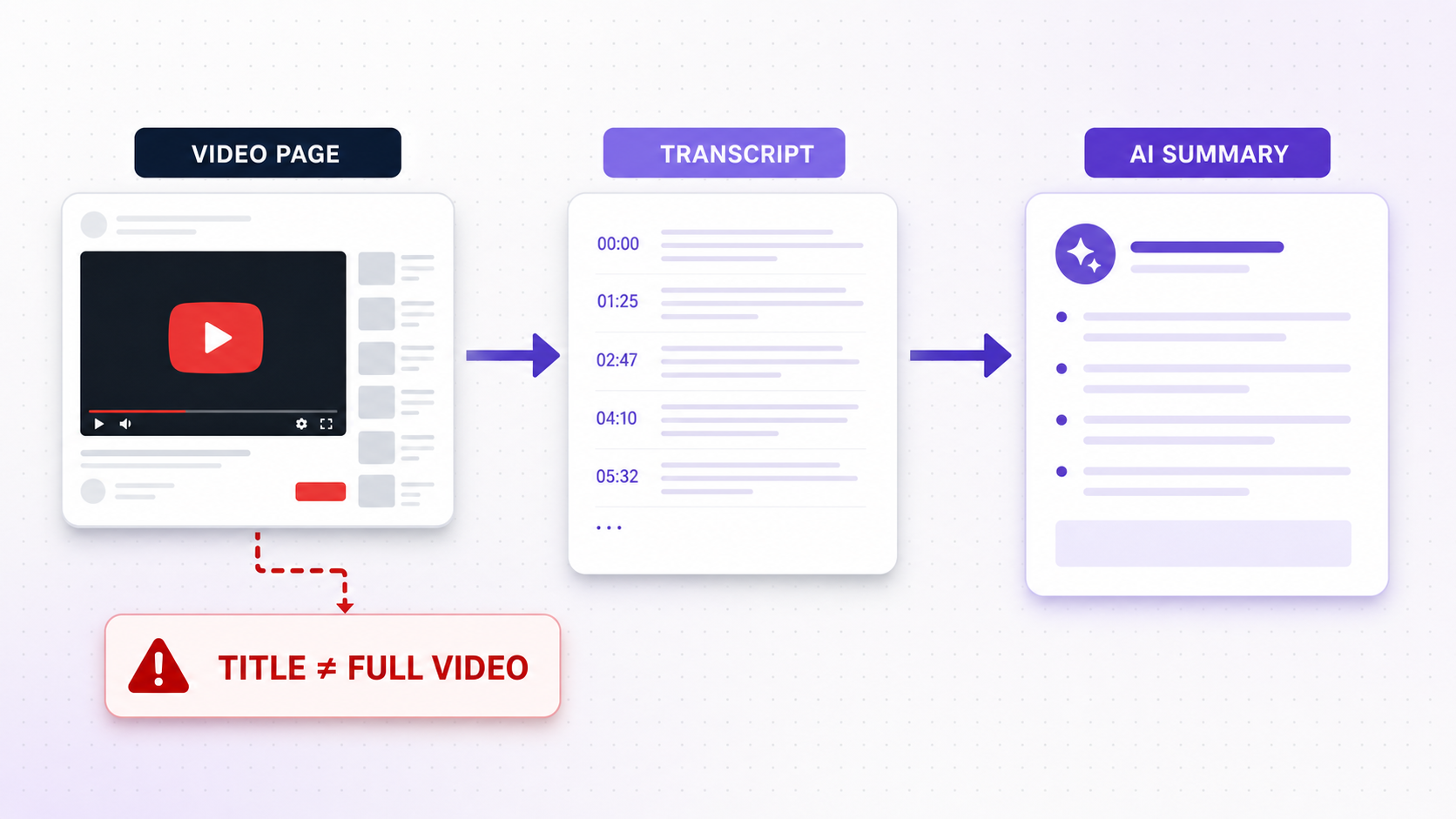
ChatGPT may see page information rather than the video
A public page can expose a title, description, channel name, chapters, comments, snippets, or related search results. Those elements help identify the subject, but they are not equivalent to the complete spoken content. Ask ChatGPT what source it actually used. If it cannot show a transcript passage or identify the evidence behind a claim, do not present the answer as a verified summary of the video.
The transcript may not exist or may be inaccessible
Private, members-only, age-restricted, region-restricted, newly uploaded, live, or caption-disabled videos can block transcript retrieval. A third-party summarizer may fail for the same reason. “Paste any URL” describes the interface, not guaranteed access to every video’s content.
Automatic captions can corrupt important details
Names, figures, acronyms, product models, scientific vocabulary, accents, and overlapping speakers are frequent failure points. ChatGPT can sometimes infer a likely correction, but inference is not evidence. The Reddit transcript workflow is useful because it saves time and enables follow-up questions, yet its suggestion that ChatGPT can repair inaccurate captions should be treated cautiously. A fluent correction may still be wrong.
Transcript summaries miss visual-only information
If a tutorial shows a button without naming it, a review displays a benchmark chart without reading the figures aloud, or a cooking video demonstrates texture visually, the transcript does not contain the full lesson. Any transcript-based tool—including ChatGPT, Lunote, or a browser extension—can omit these details unless visual frames are supplied and analyzed separately.
Method 1: Copy the YouTube Transcript Into ChatGPT
This is the best free method when the video already has accessible captions and you want control over the prompt.
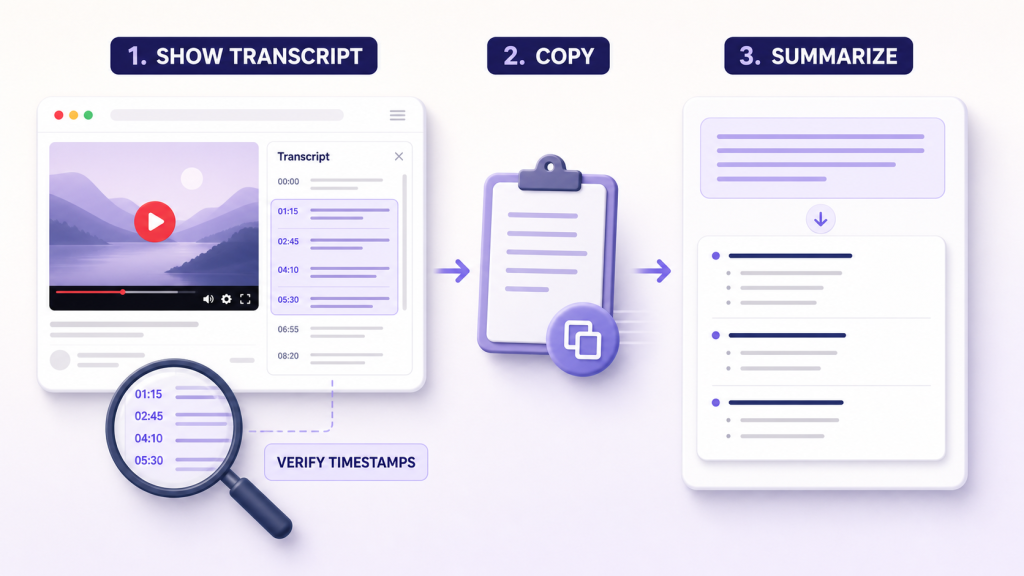
Alt: Method 1: Copy the YouTube Transcript Into ChatGPT
How to do it
- Open the YouTube video on a desktop browser.
- Expand the description or open the video’s additional options and select Show transcript when available.
- Choose whether to keep timestamps. Keep them if you need a route back to the source; remove them only if they create too much noise.
- Copy the transcript into ChatGPT. For a long transcript, save it as a TXT or DOCX file and upload the file instead of forcing the whole text into one message.
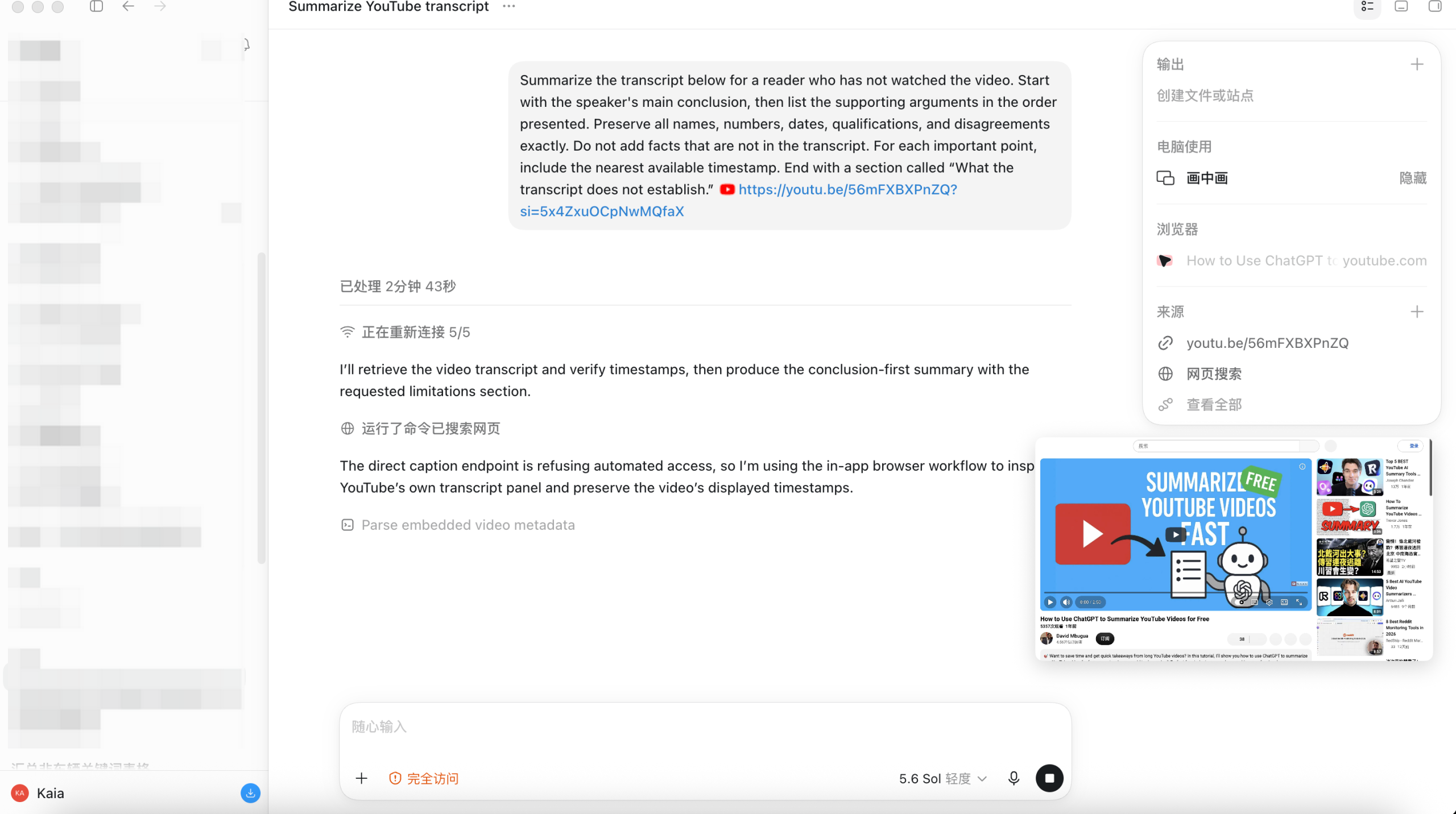
- Tell ChatGPT the audience, output format, required level of detail, and facts that must be preserved.
- Verify names, numbers, quotations, and conclusions against the transcript and original video.
Prompt to use
Summarize the transcript below for a reader who has not watched the video. Start with the speaker’s main conclusion, then list the supporting arguments in the order presented. Preserve all names, numbers, dates, qualifications, and disagreements exactly. Do not add facts that are not in the transcript. For each important point, include the nearest available timestamp. End with a section called “What the transcript does not establish.”
Advantages
- Free when YouTube provides the transcript and your ChatGPT allowance is sufficient.
- You can see exactly what source text ChatGPT received.
- Prompts can be adapted for study notes, action items, definitions, arguments, or a concise overview.
Limitations
- Copying and cleaning a long transcript takes time.
- YouTube captions may contain transcription errors and weak speaker separation.
- Visual demonstrations remain outside the source text.
- Removing timestamps makes verification harder.
Method 2: Upload a Transcript File to ChatGPT
Uploading a document is usually cleaner than pasting a lecture-length transcript across several messages. It also lets you keep headings, speaker labels, and timestamps in one source.
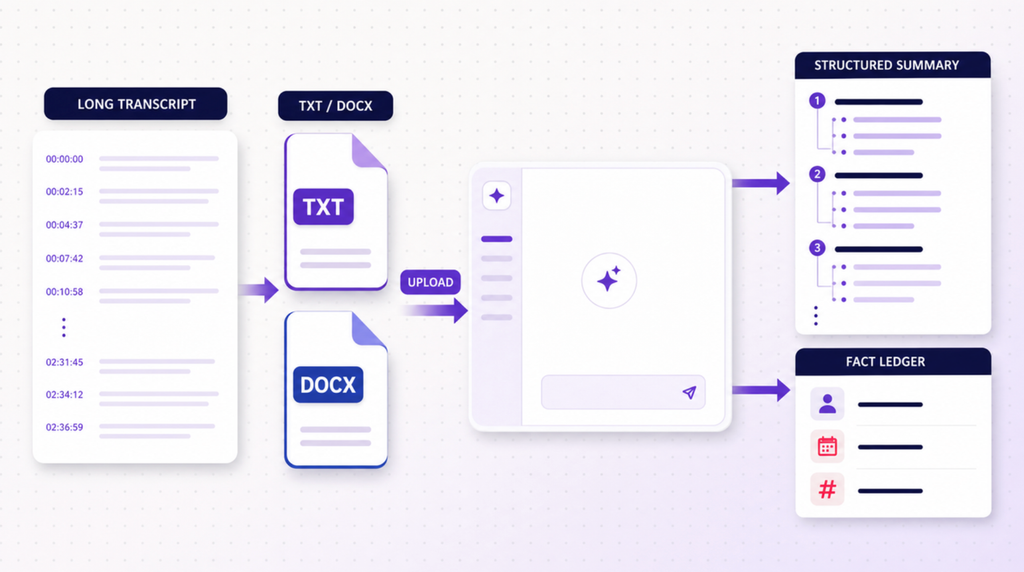
How to do it
- Obtain the transcript from YouTube or a transcription tool.
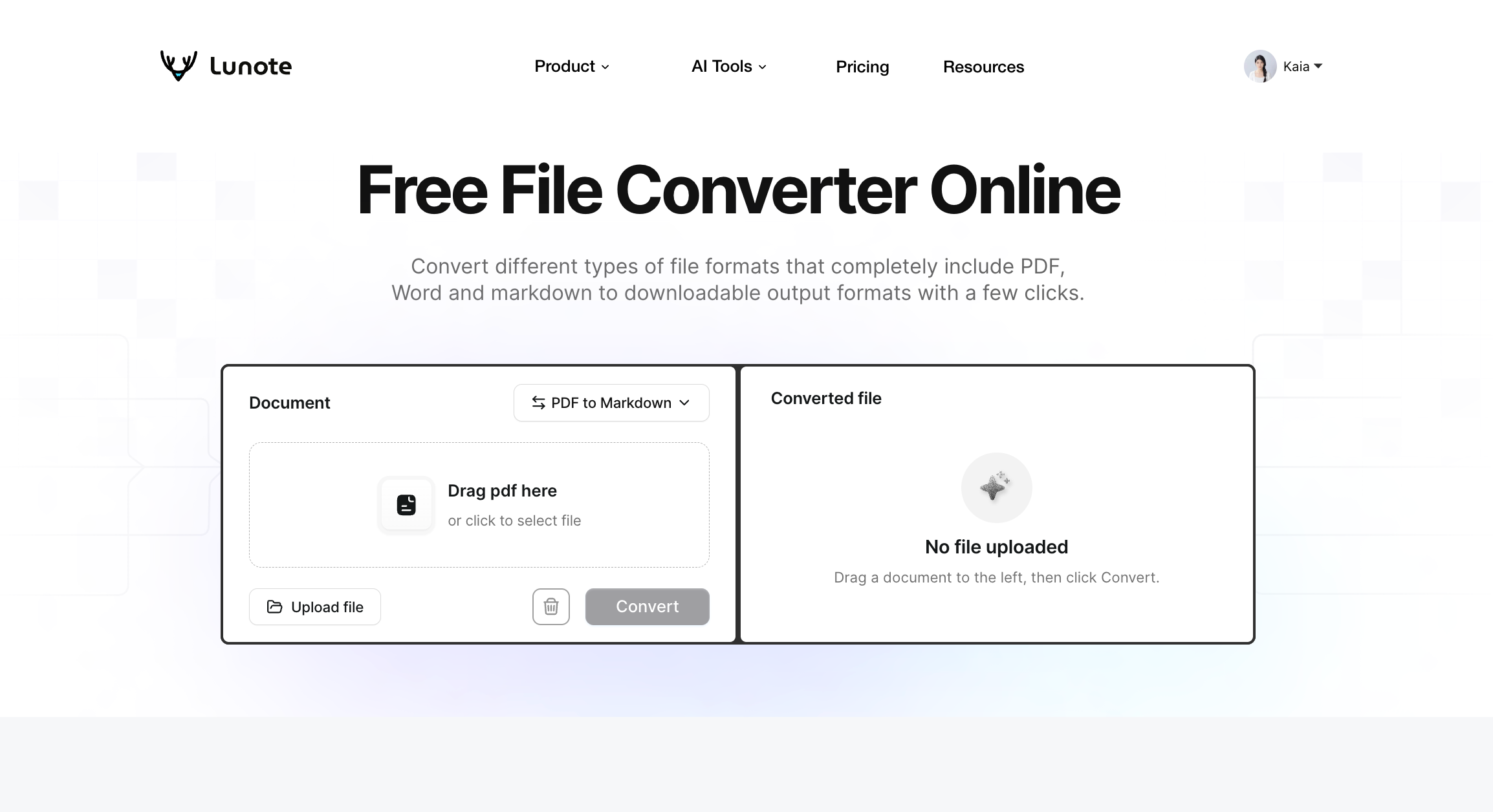
- Save it as TXT, DOCX, or PDF. If you have an incompatible format, use Lunote File Converter before uploading it.
- Add a short source header containing the video title, channel, URL, publication date, and transcript type: creator captions, YouTube auto-captions, or third-party transcription.
- Upload the document to ChatGPT and ask it to confirm the title, first timestamp, final timestamp, and speaker names it can see before summarizing.
- Request the output you need, then spot-check its most important claims.
A better long-video prompt
Read the entire uploaded transcript before answering. Create a hierarchical outline by topic rather than summarizing equal-sized chunks. For each section, give the central claim, supporting evidence, example, and any caveat. Distinguish the speaker’s statements from your inference. If a term appears corrupted or uncertain, quote the transcript’s wording and mark it for review instead of silently correcting it.
Advantages
- Better suited to long lectures, podcasts, interviews, and webinars.
- Preserves one complete source instead of scattering context across messages.
- Makes follow-up questions easier because the transcript remains attached to the conversation.
Limitations
- File-upload and model usage limits depend on the user’s ChatGPT plan and current rate limits.
- A PDF created from images may need OCR before the text is useful.
- Uploading a file does not improve an inaccurate transcript automatically.
- Confidential recordings require a review of account settings, retention, consent, and workplace policy.
Method 3: Use Lunote to Retrieve the Transcript and Summary
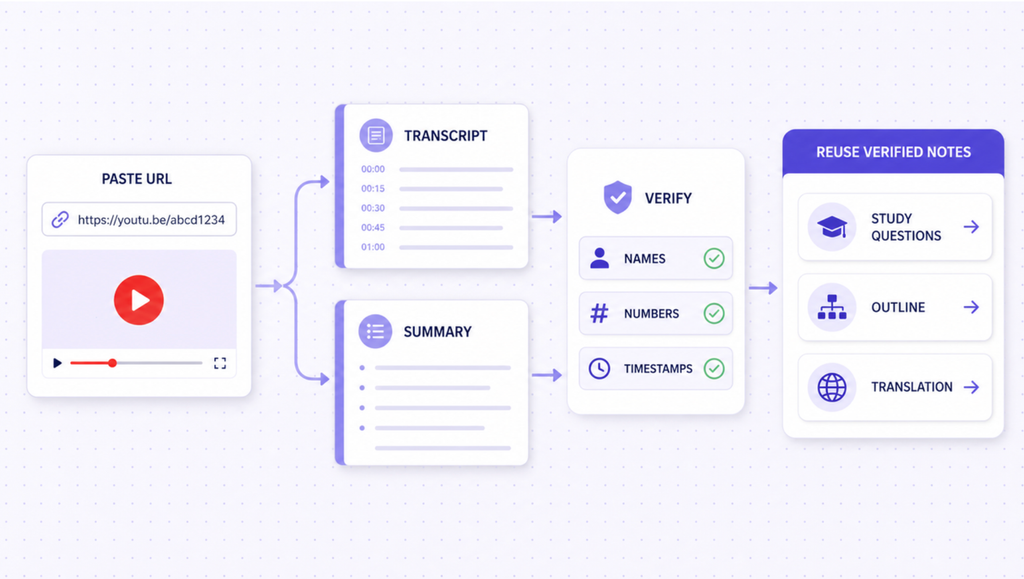
When I do not want to copy a transcript manually, I prefer a workflow that exposes both the summary and the underlying text. Lunote Video Transcript handles source extraction, while Lunote Video Summary creates the overview. ChatGPT can then be used for a second-stage task such as turning verified notes into questions, an outline, or a reader-specific explanation.
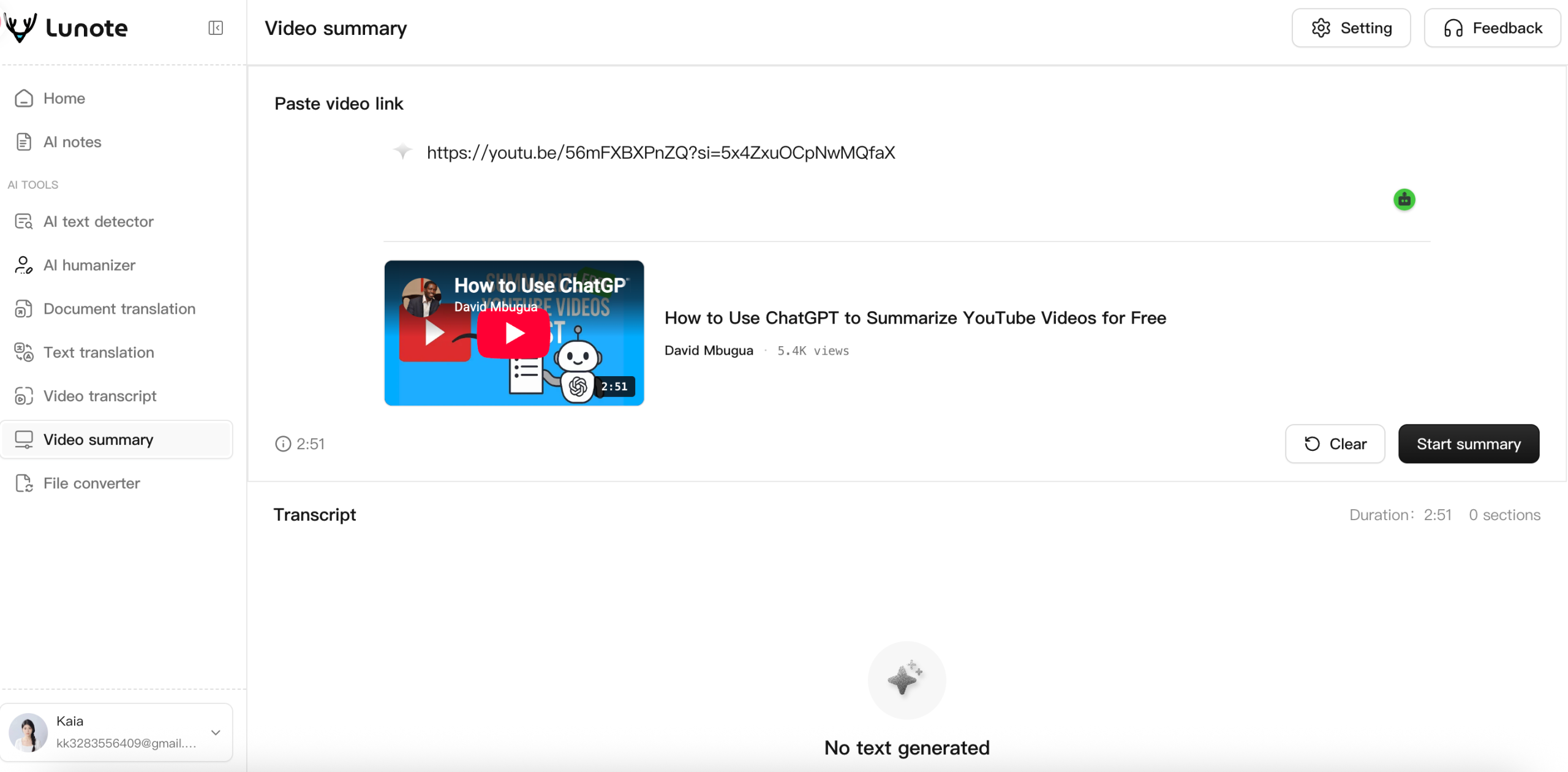
How to do it
- Copy the full URL of a public YouTube video.
- Paste it into Lunote Video Transcript and generate the available transcript.
- Open the video summary tool when you need a quick overview rather than the full text.
- Compare the summary’s names, numbers, and major claims with the transcript.
- Copy only the verified transcript sections or notes into ChatGPT and give it a specific follow-up task.
- If the material is multilingual, use Lunote Text Translator on the selected source passages rather than translating an unverified summary alone.
Advantages
- Removes much of the manual transcript-copying work.
- Keeps transcript retrieval and summary generation in one Lunote workflow.
- Better traceability than asking ChatGPT to infer the content from a bare URL.
- Useful when the next step involves translation, document conversion, or content editing.
Limitations
- Results still depend on the captions or source content available for the video.
- It is not a substitute for watching sections that rely on graphics, screen actions, or demonstrations.
- Free allowances and paid packaging should be checked in the live product.
- A Lunote summary should not be cited as if it were the creator’s exact wording.
When I would choose it
I would use Lunote when speed matters but I still want a visible path from summary back to transcript. For a one-off video with clean captions, manual copying may be enough. For repeated research, switching between YouTube, a transcript-cleaning document, and ChatGPT becomes the expensive part—even if every individual tool is free.
Method 4: Use a YouTube Summary Browser Extension
Browser extensions reduce friction by placing a transcript or summary beside the video. The tradeoff is that the extension receives permissions and becomes another party in the workflow.
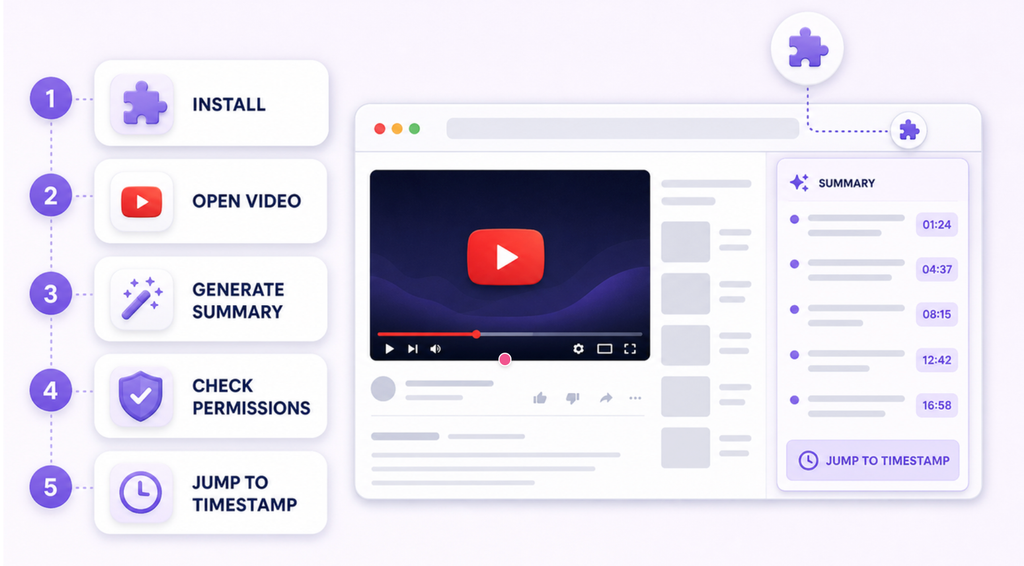
Glasp: YouTube Summary with ChatGPT & Claude
Glasp’s Chrome extension listing reports more than one million users, a 4.3 rating from roughly 4,000 ratings, and an update dated August 5, 2026. It can produce summaries with or without timestamps, copy the transcript, customize prompt and length, and route work through models from OpenAI, Anthropic, Google, or Mistral.
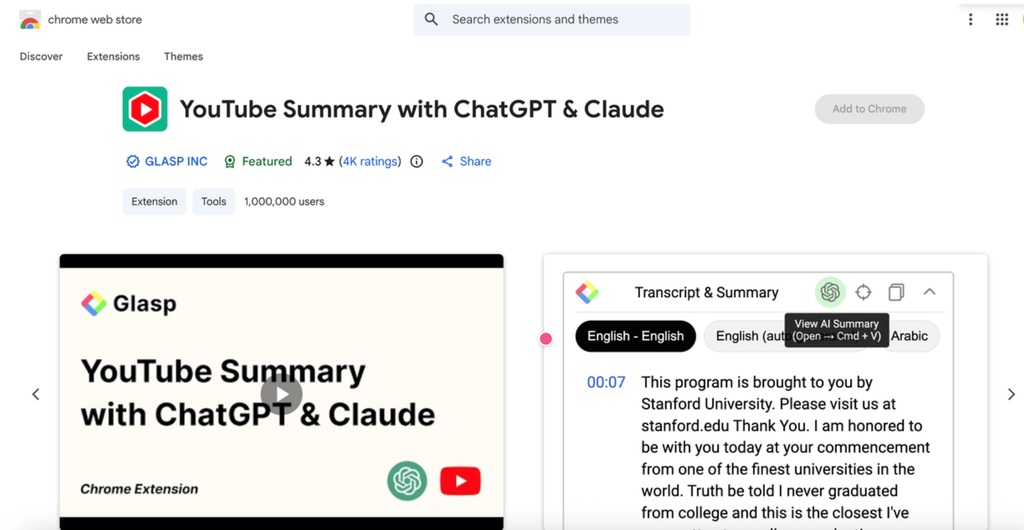
Best for: people who summarize videos frequently while browsing and want transcript access, timestamps, customizable prompts, and a knowledge-library workflow.
Advantages: close to the YouTube page; flexible model and prompt choices; timestamps help source checking; established extension footprint.
Limitations: the Chrome listing says the extension handles personally identifiable information and website content, so permissions and privacy deserve review; advanced use is tied to Glasp’s wider plan limits; the summary still depends on retrievable source text.
YouTube Digest
YouTubeDigest is positioned as a browser-based summarization and translation extension. Its attraction is output flexibility: users looking for a quick digest can avoid copying a transcript into another tab.
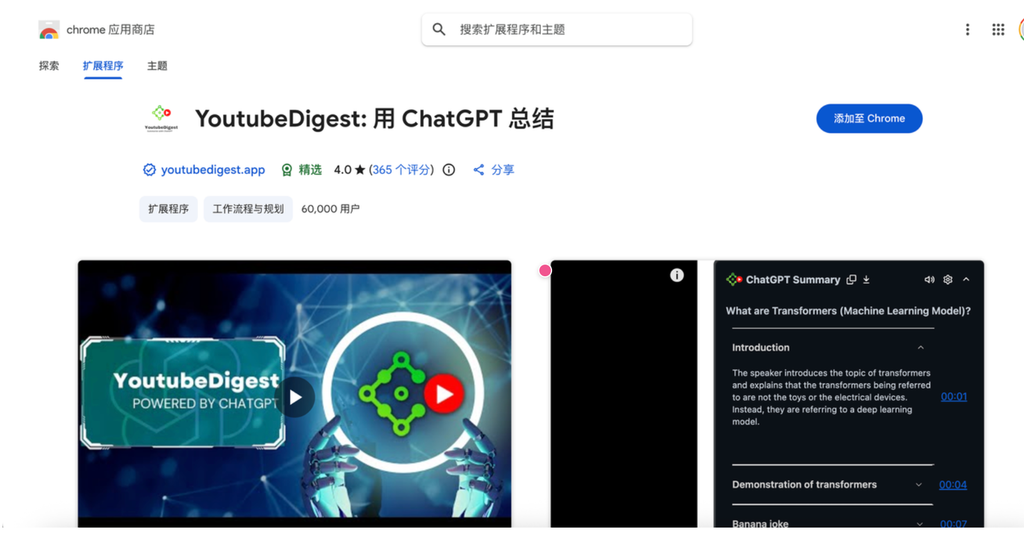
Best for: occasional viewers who want a compact summary or translation from the video page.
Advantages: low-friction access; summary and language options; suitable for quick screening.
Limitations: extension permissions, caption availability, and ongoing maintenance matter more than the ChatGPT name in the title. Check the current Chrome Web Store listing before installing, including its last update, data disclosures, reviews, and in-app purchases.
Extension safety checklist
- Install from the official browser store, not a copied download page.
- Confirm the publisher, update date, review pattern, and requested permissions.
- Read what data the extension handles and whether it can access every website or only YouTube.
- Do not expose private, paid, employer-owned, or client content without authorization.
- Keep timestamps and verify consequential claims in the original video.
Method 5: Use a Dedicated AI YouTube Summarizer
Dedicated tools combine transcript retrieval and summarization behind one URL box. They are usually easier than manual ChatGPT for repeated work, but their claims must be separated from confirmed limits.
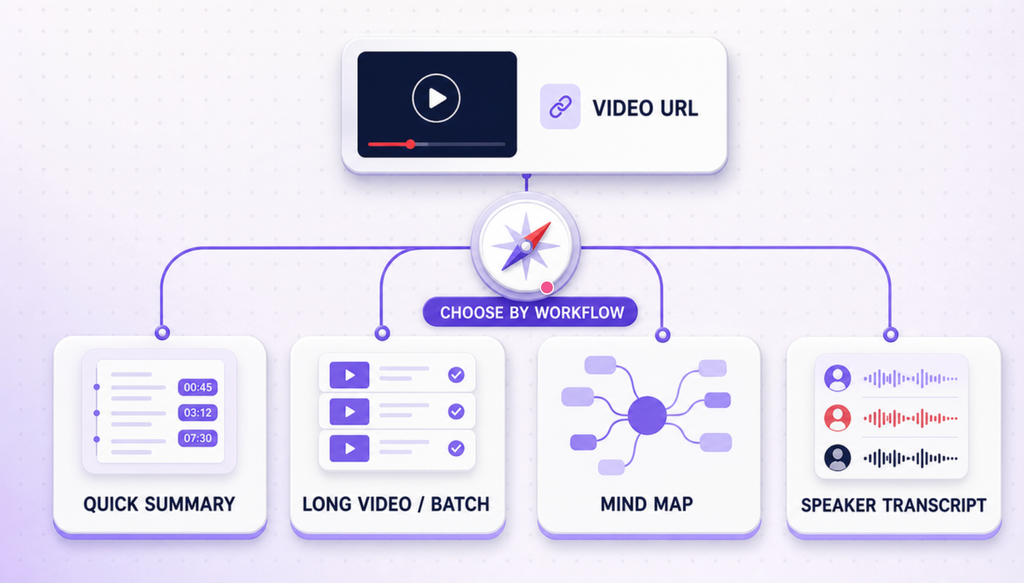
| Tool | Workflow | Best use | Free-access signal | Main limitation |
| Lunote | URL to transcript or summary, followed by related writing and translation tools | Direct, reviewable video-to-text workflow | Free access is available; check current allowance | Depends on accessible source content and still needs visual review |
| Glasp | Browser extension or web summarizer with transcript, timestamps, models, prompts, and saving | Research library and repeated browser use | Free plan includes limited daily basic summaries | Extension permissions and knowledge-library complexity |
| NoteGPT | URL, playlist, or batch input to transcripts, summaries, mind maps, quizzes, and chat | Long videos, playlists, and study artifacts | Free account uses shared quotas | Complex quota system; provider claims about length and accuracy need verification |
| Monica | Browser summary button with multilingual transcript and summary | Users already using Monica across devices | Product page advertises two new-user summary quotas | Very small entry allowance and broader subscription ecosystem |
| Eightify | Web, browser, and mobile summaries with timestamps and top-comment context | Fast screening while watching YouTube | Trial or free access varies by platform | Highly compressed takeaways can omit nuance; store pricing varies |
| Mapify | URL or extension produces a visual mind map and timestamped transcript | Visual learners and topic mapping | Free or trial limits depend on current plan | Mind maps can make incomplete source interpretation appear authoritative |
| Noota | Transcribes recordings and meetings before summary or ChatGPT handoff | Meetings, interviews, and speaker-labeled records | Free entry is advertised | More suited to transcription workflows than simple public YouTube browsing |
NoteGPT
NoteGPT goes well beyond a basic ChatGPT prompt. It supports YouTube links and playlists, batch input, transcripts, summaries, speaker separation, custom prompts, mind maps, translation, quizzes, and flashcards. Its page also advertises processing for videos without subtitles, which is important because it implies a separate transcription step rather than dependence on YouTube captions.
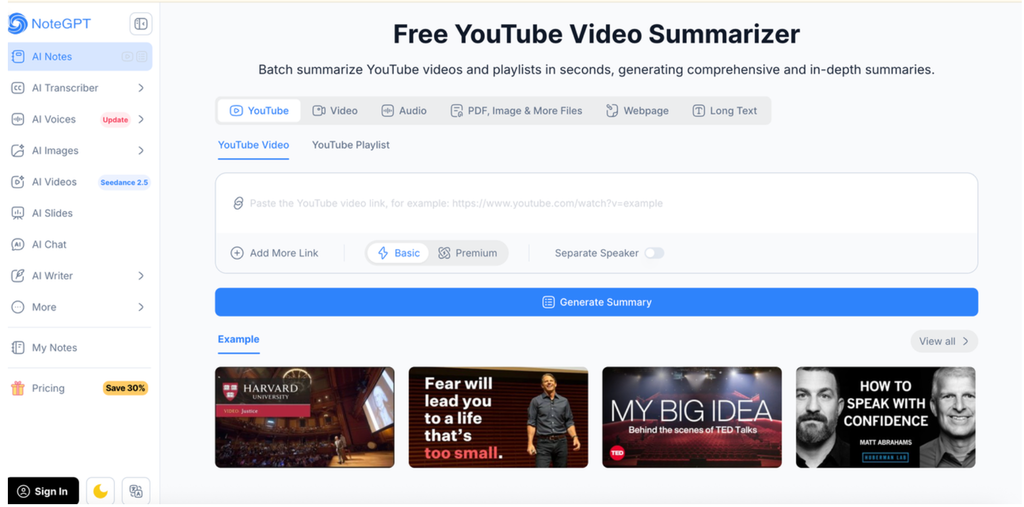
The strength is depth. A lecture can become notes, a mind map, questions, and revision material. The drawback is plan complexity: subtitle status, video length, batches, basic quotas, and premium credits can affect what a user actually receives. I would test one representative video before processing an entire playlist, and I would treat “no limits” and accuracy language as provider claims rather than independent findings.
Monica
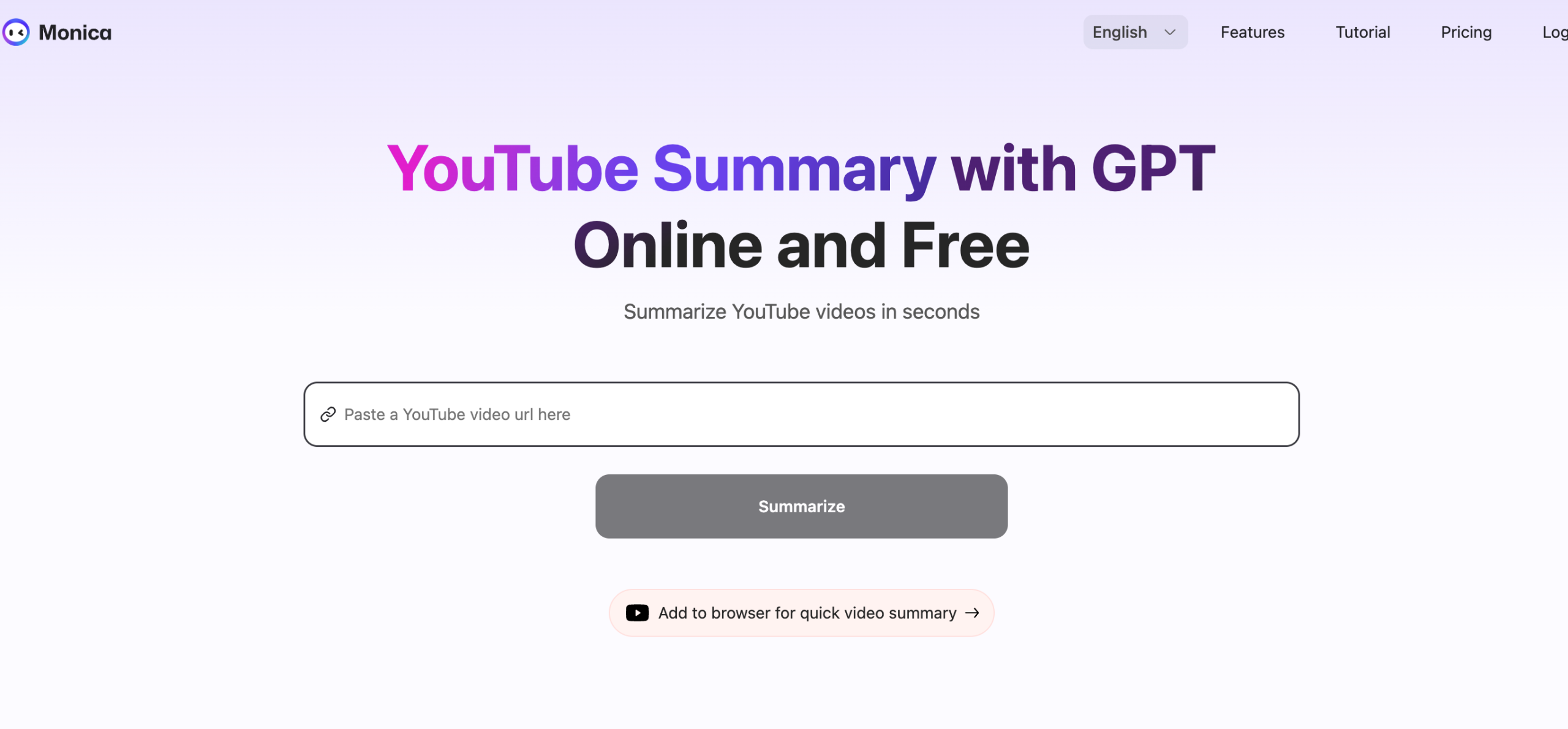
Monica’s YouTube Summary with GPT runs through its browser environment and supports multilingual transcripts and summaries. The current product page says new users receive two summary quotas and can subscribe for more. That makes it easy to sample but too limited to call unrestricted free use.
Monica is most logical for someone who already uses its cross-platform assistant. If the only task is summarizing one public video, installing a broad AI assistant may add more account, permission, and pricing complexity than necessary.
Eightify
Eightify emphasizes key ideas, timestamp navigation, top-comment context, transcription, summaries in more than 40 languages, and shareable articles. I see it primarily as a screening tool: it can tell me whether a long review, interview, or tutorial deserves more attention and where to jump.
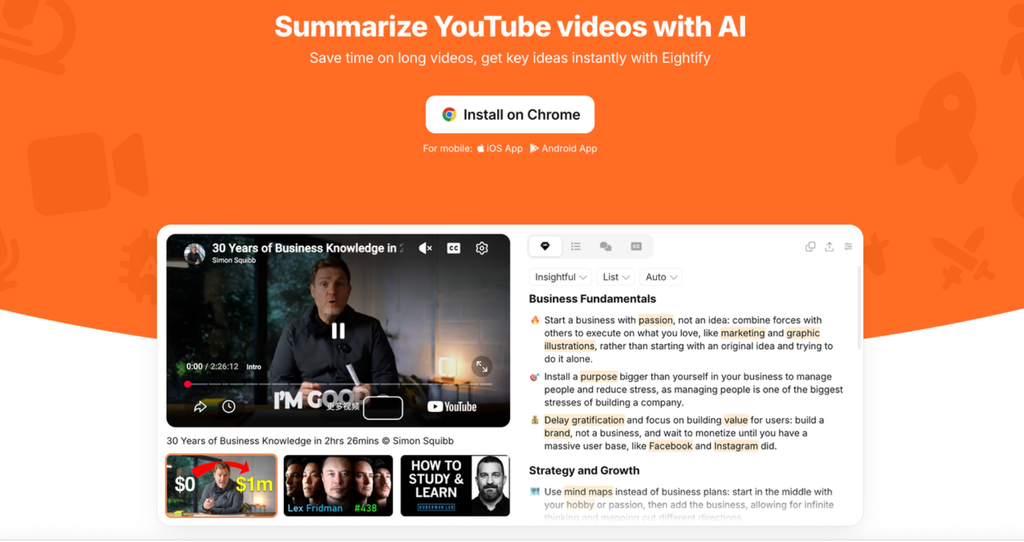
Its weakness follows from its strength. Aggressive compression is helpful for browsing but risky for academic evidence, product specifications, legal commentary, or debates where the qualification arrives after the headline. Use timestamps to inspect the original section instead of repeating an Eightify bullet as a verified quotation.
Mapify
Mapify converts videos into mind maps and can include timestamped transcripts, language selection, different summarization modes, and custom instructions on eligible plans. This format helps when the user’s question is not only “What did the video say?” but “How do the concepts relate?”
A map is still an interpretation. Branch size, hierarchy, and omitted nodes can create a false impression of importance. I would use Mapify to understand structure, then return to the transcript for evidence.
Noota
Noota’s guide correctly centers the transcript: clean source text, speaker names, an explicit prompt, and review. Noota is strongest for uploaded recordings, meetings, interviews, and team workflows where speaker-labeled transcripts and integrations matter.
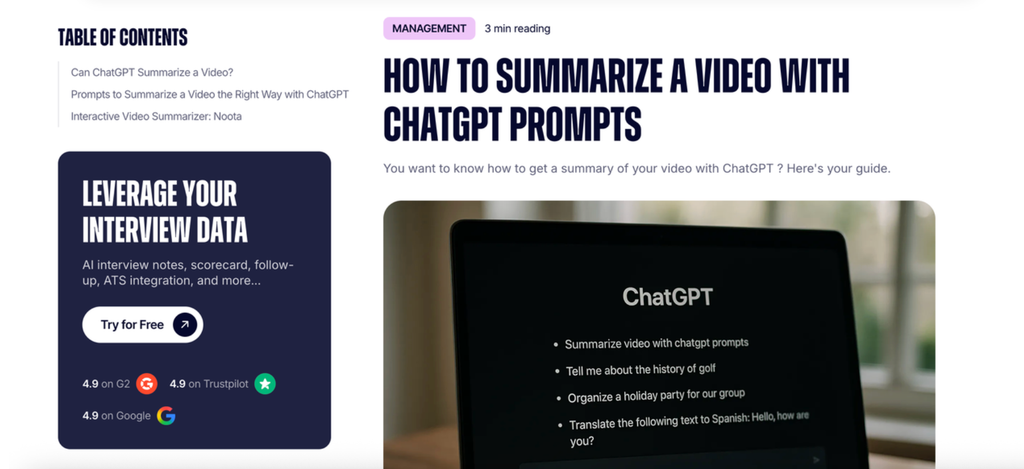
For a normal public YouTube video, Noota can be more system than the user needs. Its own performance and time-saving figures are vendor claims, so they should not be treated as independent benchmarks. Choose it when transcription is the core job, not merely because an article contains the words “with ChatGPT.”
How to Summarize a YouTube Video Without a Transcript
If YouTube does not show a transcript, ChatGPT needs another source. Use this order:
- Check whether creator captions exist in another language.
- Try a video transcript tool that explicitly supports audio transcription rather than caption extraction alone.
- If you own or are authorized to process the recording, obtain the audio or video file and transcribe it with an approved service.
- Review uncertain names, terminology, and numbers while listening to the source.
- Give the corrected transcript to ChatGPT or summarize it with Lunote.
- Add notes for visual events the speaker never describes.
Do not bypass access controls or download material in violation of rights, platform terms, or organizational policy. A missing transcript is not permission to copy private or paid content.
How to Summarize a Long YouTube Video Accurately
Long videos fail when users optimize only for a short output. A five-line recap of a two-hour discussion may be concise but not useful.
Divide by topic, not arbitrary character count
Use chapters, timestamp ranges, speakers, or topic changes. Arbitrary chunks can separate a claim from its evidence or a recommendation from its caveat.
Create section summaries before the final synthesis
Ask ChatGPT to record the claim, evidence, example, and limitation for each section. Then request a final synthesis that compares the sections. This reduces the chance that the opening receives detailed coverage while later content disappears.
Carry forward a fact ledger
Maintain a short list of protected facts: names, dates, numbers, definitions, product models, quotations, and disputed statements. Ask ChatGPT not to normalize or “correct” them without marking uncertainty.
Preserve timestamps
Timestamps turn a summary into a navigation tool. Without them, verification requires searching the entire video again, erasing much of the time saved.
Prompts That Produce Better YouTube Summaries
Quick overview
Summarize this transcript in 150 words. State the video’s main question, the speaker’s answer, and the three strongest supporting points. Do not add background knowledge. Mark any uncertain term with [check transcript].
Lecture notes
Turn this lecture transcript into study notes organized by concept. Include definitions, examples, comparisons, and questions the lecturer leaves unresolved. Preserve technical terms and add timestamps where available. End with five retrieval-practice questions, but do not provide answers not supported by the transcript.
Tutorial steps
Extract the procedure from this transcript as numbered steps. For each step, include prerequisites, the action, the expected result, and any warning mentioned by the speaker. Add [visual check required] when the transcript refers to something shown on screen without describing it.
Interview or podcast
Summarize each speaker’s position separately before identifying agreements and disagreements. Do not merge opinions. Preserve qualifications such as “may,” “usually,” and “in this example.” Include timestamps for statements that could be quoted.
Fact-checking prompt
Audit the draft summary against the transcript. Create a table with: summary claim, supporting transcript passage, timestamp, confidence, and correction needed. Remove any claim that has no transcript support.
How I Would Check a ChatGPT YouTube Summary in Five Minutes
- Compare the first and last transcript sections with the summary. Weak summaries often overrepresent the beginning.
- Search every number, date, named person, product, and technical term in the transcript.
- Check whether the speaker’s caveats survived. Words such as “might,” “in our test,” and “for this use case” can change the meaning.
- Open three timestamps: one central claim, one example, and one conclusion.
- Look for visual dependencies. If the speaker says “as you can see,” the transcript is probably incomplete by itself.
- Ask what is missing, not only what is present: counterarguments, exceptions, questions, and unresolved points.
Which Method Should You Choose?
| Situation | Best starting method | Why |
| One short public video with captions | Copy the YouTube transcript into ChatGPT | Free, transparent, and easy to verify |
| Long lecture or interview | Upload a timestamped transcript file | Keeps the full source together and supports structured analysis |
| Repeated video research | Lunote Video Transcript plus Video Summary | Reduces manual copying while keeping transcript and summary close |
| Daily YouTube browsing | Glasp or Eightify extension | Lowest friction and useful timestamp navigation |
| Playlist or batch study | NoteGPT | Broader batch and study-artifact workflow |
| Visual concept mapping | Mapify | Converts topic relationships into a mind map |
| Meetings or private recordings | An approved transcription platform such as Noota, then ChatGPT | Speaker labels, consent, retention, and team workflow matter more than a public URL box |
Frequently Asked Questions
Can ChatGPT summarize a YouTube video from a link?
It may sometimes use public page information or accessible text, but a link-only answer is not reliable proof that ChatGPT processed the whole video. For a dependable summary, paste or upload the transcript and ask for source-grounded output.
Can ChatGPT watch videos and summarize them?
A pasted YouTube URL does not mean ChatGPT watched the audio and frames. Current official file-upload documentation emphasizes common text, document, spreadsheet, presentation, and image formats. Treat transcript analysis and visual video analysis as different jobs.
Can ChatGPT summarize a YouTube video for free?
Yes. If YouTube provides a transcript, copy it into ChatGPT and request a summary. Free ChatGPT users are subject to stricter model and file-upload rate limits, so availability can vary.
What is the best prompt for summarizing a YouTube video?
The best prompt defines the audience, structure, length, protected facts, and verification rules. Ask ChatGPT to use only the transcript, preserve qualifications, mark uncertainty, and include timestamps instead of requesting only “a good summary.”
Can ChatGPT summarize a long YouTube video?
Yes, if it receives the full transcript within supported limits. Uploading one document is usually cleaner than pasting many pieces. For very long content, summarize by topic or chapter and then synthesize the section summaries.
Can ChatGPT summarize a YouTube video without subtitles?
Not reliably without first obtaining text from the audio. Use an authorized transcription tool, correct critical terms, and then provide the transcript to ChatGPT.
Can ChatGPT summarize videos in languages other than English?
Yes, when it receives a usable transcript in the source language. For important work, summarize in the source language first and translate the verified summary afterward so transcription and translation errors are easier to isolate.
Is a ChatGPT YouTube summary accurate?
It can be useful, but accuracy depends on transcript quality, source completeness, prompt specificity, and review. A fluent summary can still omit caveats, misread names, or miss visual evidence.
Is ChatGPT better than a dedicated YouTube video summarizer?
ChatGPT offers more control over prompts and follow-up questions. A dedicated summarizer is faster at transcript retrieval and timestamped navigation. The best choice depends on whether you value manual source control or repeated one-link convenience.
Can Gemini summarize YouTube videos?
Gemini offers YouTube-related workflows in Google’s ecosystem, but access and behavior depend on the product, account, and source. The same verification rule applies: confirm whether the answer is grounded in the complete transcript or video rather than assuming that a pasted link guarantees full processing.
Final Verdict
ChatGPT can summarize a YouTube video well when you give it the video’s actual words. The dependable sequence is transcript first, summary second, verification third. Pasting only the URL may work in some sessions, but it hides the most important question: what content did the model actually receive?
For one short captioned video, copy the transcript into ChatGPT. For a long recording, upload a structured transcript document. For repeatable link-to-transcript and link-to-summary work, use Lunote and return to the original video whenever a claim depends on an exact quotation, number, or visual demonstration. The best AI summary is not the shortest one—it is the one that saves time without breaking the path back to the source.
[…] comparison with standalone tools matters. I use ChatGPT often. The galaxy ai chat review summary shows strengths and weaknesses. The chat experience here […]