
Converting a DOCX file to PDF is useful when you want to submit, print, email, or share a Word document in a format that is easier for other people to open. You can do it online, inside Microsoft Word, through Google Docs, or from a Mac or mobile device.
The best method depends on what you already have available: a browser, Microsoft Word, cloud storage, or only a phone. This guide walks through six practical options, including free DOCX to PDF converters, and explains when each one makes sense. Formatting changes can happen with some files, so the guide also includes a short quality check after the main conversion steps.
For a quick browser workflow, I would start with the Lunote File Converter. If the document uses complex Word features or must match the source exactly, I would export it from Microsoft Word on the computer where it was created. This guide explains both routes, the problems users actually encounter, and why a PDF to DOCX converter is a different—and less predictable—operation.
The Short Answer: The Best Way to Convert DOCX to PDF
Use an online DOCX to PDF converter when the file is routine, you are working on a phone or shared computer, and the service’s privacy terms are suitable for the document. Use Microsoft Word’s native PDF export for contracts, reports, resumes, dissertations, or files with custom fonts, cross-references, tracked changes, complex tables, or strict print requirements.
My practical workflow is:
- Finish editing and save the DOCX.
- Remove comments or tracked changes that should not appear in the final copy.
- Convert the document with Lunote or export it directly from Word.
- Open the PDF independently rather than trusting the thumbnail.
- Check page count, fonts, tables, images, links, headers, footers, and the last line of every page.
- Keep the original DOCX as the editable master.
That last step matters. PDF is designed to hold a page layout; DOCX is designed for editing. The PDF should be the distribution copy, not your only working file.
Six Ways to Convert DOCX to PDF
There is no single best method for every file. The right choice depends on where the document was created, how complicated its layout is, whether the content can be uploaded to a third party, and what you need to do with the PDF afterward.
| Method or tool | Best for | Cost at the time of review | Account required | Important limitation |
| Lunote File Converter | Fast browser conversion and a wider document workflow | Free access available; current allowance depends on plan | Depends on the current workflow | Complex Word layouts still require visual QA |
| Microsoft Word export | Maximum control over a Word-authored file | Included with your Word access | Microsoft account or licensed app may be required | Requires Word and the fonts/assets used by the source document |
| Adobe Acrobat online | Free conversion plus established PDF tools | Word-to-PDF conversion is advertised free; Acrobat Pro trial is separate | Not required for the basic conversion described by Adobe | Online upload; 100MB file limit published on the tool page |
| Drawboard Quick Tools | Free, no-account conversion and multiple-file sessions | Free for the DOCX-to-PDF tool | No | Provider makes strong formatting claims that still need checking on your file |
| Google Docs | Files already stored or edited in Google Drive | Free with a Google account | Yes | Importing the DOCX can alter Word-specific formatting before export |
| Print to PDF | Offline fallback from an app that can print the document | Built into common operating systems | No additional converter account | May not preserve bookmarks, tags, links, or accessibility structure like a true export |
Prices, limits, and product behavior can change. I reviewed the linked official pages on August 15, 2026.
Recommended DOCX to PDF Converters
If you want an actual tool rather than another list of selection criteria, these are the converters I would put on the shortlist. My first recommendation for a normal browser-based job is Lunote: it gets you from a DOCX file to a shareable PDF without requiring desktop Word, and it sits inside a broader workflow for converting, translating, and reviewing content. I would still use Microsoft Word for a contract, thesis, resume, or designed report where the original Word renderer gives you the best chance of preserving layout.
| Converter | Best use case | Why I recommend it | What to check |
| Lunote File Converter | Best overall browser choice for routine documents | Focused upload-convert-download workflow, cross-device access, and related document tools in one workspace | Review complex tables, custom fonts, text boxes, and privacy requirements |
| Microsoft Word | Best for formatting-critical Word files | Uses Word’s own rendering and exposes export, markup, range, bookmark, and quality settings | Requires Word plus the source fonts and linked assets |
| Adobe Acrobat online | Best when the PDF will later be compressed, signed, merged, or edited | Straightforward browser conversion and a mature set of follow-up PDF tools | Published 100MB limit, external upload, and account prompts for some follow-up actions |
| Drawboard Quick Tools | Best for several routine files without registration | Multiple-file conversion and individual or ZIP downloads are described on the official tool page | Confirm current privacy behavior and inspect every distinct template |
| Google Docs | Best when the document already lives in Drive | Convenient for collaborative files that have already been reviewed in Google’s editor | DOCX import can change Word-specific pagination and formatting before PDF export |
My primary recommendation: start with Lunote for a straightforward, non-sensitive document and open the result immediately for visual QA. Move to Microsoft Word export when layout fidelity or local processing matters more than browser convenience. That gives most users a clear default and a dependable fallback instead of forcing one converter onto every document.
Method 1: Convert DOCX to PDF Online Free With Lunote
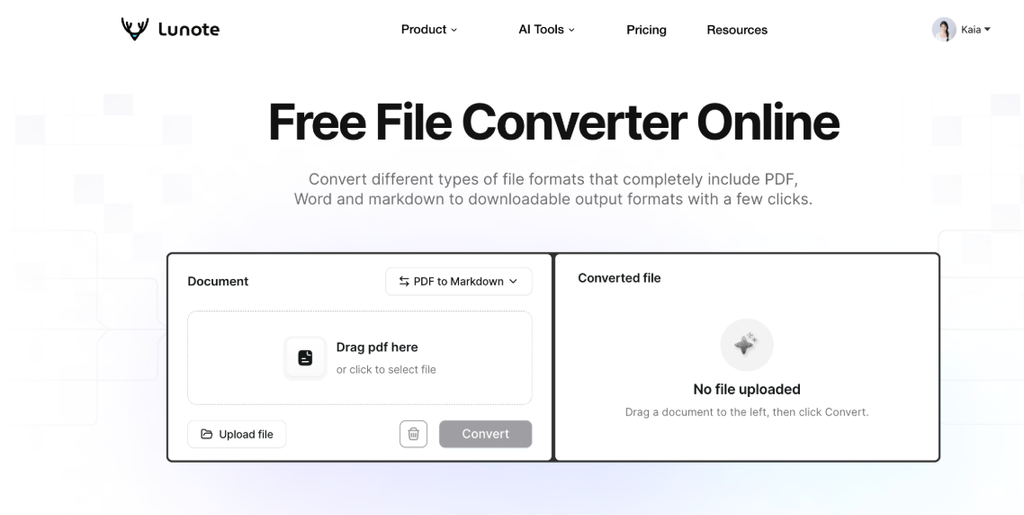
The Lunote online file converter is the route I would use when I need a PDF quickly without installing another desktop program. It is especially convenient on a Chromebook, tablet, borrowed computer, or any device where the full version of Word is unavailable.
How to convert a DOCX file to PDF with Lunote
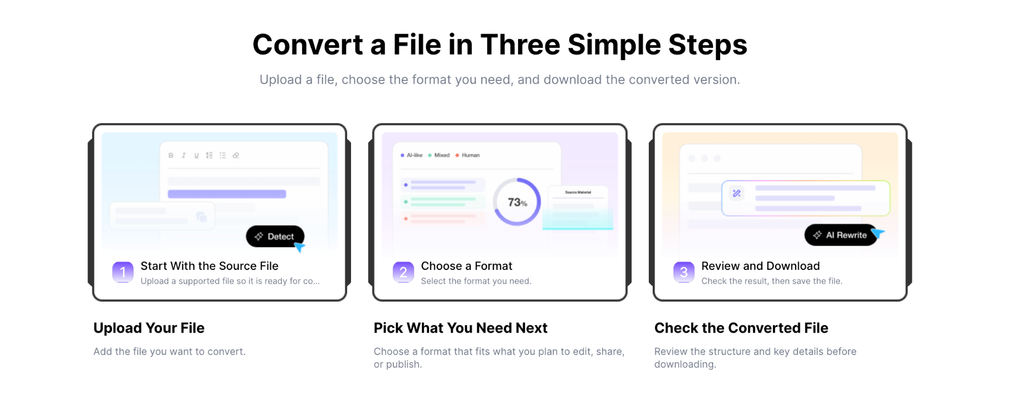
Alt: How to convert a DOCX file to PDF with Lunote
- Open Lunote File Converter in a modern browser.
- Select the DOCX file from your device or add it through the upload area.
- Choose PDF as the destination format if an output menu appears.
- Start the conversion and keep the browser tab open while the file processes.
- Download the resulting PDF to local storage.
- Open the PDF in a separate viewer and complete the formatting checklist later in this guide.
This process answers the immediate “how can I convert DOCX to PDF?” query, but the sixth step determines whether the result is usable. An online converter has to interpret styles, fonts, floating objects, and pagination stored in the DOCX. A simple letter may convert perfectly while a designed report with text boxes needs correction.
When I would choose Lunote
I would use this route for ordinary reports, class notes, letters, article drafts, proposals, and documents that need a stable sharing format. It also fits a larger document workflow. Lunote Doc Translator can handle a document that needs translation first, Lunote Text Translator can help with a selected passage, and the Lunote AI workspace can support review before the document is finalized.
The main advantage is access: the conversion happens through a web browser, so you do not need to find a version-specific Word menu. The limitation is the same one applying to every online converter: sensitive files deserve an explicit privacy review, and elaborate layouts still need human QA.
Choose Lunote when: you need a quick cross-device DOCX to PDF converter and expect to use related document, translation, transcript, or content tools.
Choose another method when: policy prohibits third-party uploads or the document relies heavily on Word fields, macros, embedded objects, custom fonts, or precise print production.
Method 2: Convert DOCX to PDF in Microsoft Word
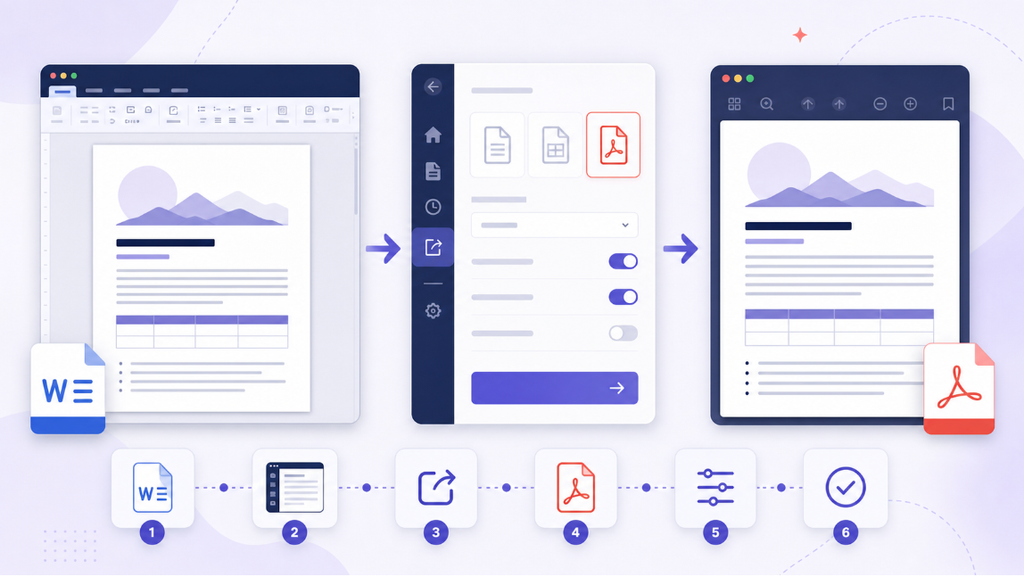
Alt: Export a Word document to PDF through the desktop export settings
If I own the source document and still have the fonts and Word features it uses, native export is my first choice for layout-critical work. Microsoft documents the desktop route as File > Export > Create PDF/XPS, with options available before publishing. Depending on the Word version and operating system, Save As may also offer PDF as the file type.
Steps in Word for Windows
This content is only supported in a Feishu Docs
- Open the DOCX in the desktop version of Word.
- Choose Review and resolve or accept tracked changes that should not remain in the final copy.
- Delete comments that must not be published, then confirm whether Print Markup is enabled.
- Choose File > Export > Create PDF/XPS.
- Select Options and confirm the page range, document properties, markup status, bookmarks, and accessibility-related settings needed for the file.
- Choose standard quality for print or high-quality viewing; use a minimum-size option only when smaller delivery size matters more than image detail.
- Publish the PDF, open it outside Word, and compare it with Print Layout view.
Why native Word export often preserves formatting best
Word understands its own section breaks, style definitions, headers, footers, fields, footnotes, captions, and object anchors. A third-party converter has to reproduce that behavior. Native export does not guarantee perfection, but it removes one layer of interpretation.
I still check the result. A font missing from the computer can trigger substitution, a linked object can fail to update, and a paper-size change can alter pagination. The conversion is complete only after the PDF has been reviewed.
When to use Save As, Export, or Print to PDF
Use Export or Save As PDF when you want Word to create the PDF and preserve document structure as well as the selected export options allow. Use Print to PDF as a fallback when the application exposes the correct printed layout but lacks a dedicated PDF export. Printing is more likely to flatten the page and may lose interactive or accessibility features.
Choose Microsoft Word when: formatting fidelity, bookmarks, headings, accessibility, comments, tracked changes, or print settings matter.
Choose another method when: you do not have Word, the file is routine, or you need to convert from a phone, Chromebook, or temporary computer.
Method 3: Convert Word to PDF With Adobe Acrobat Online
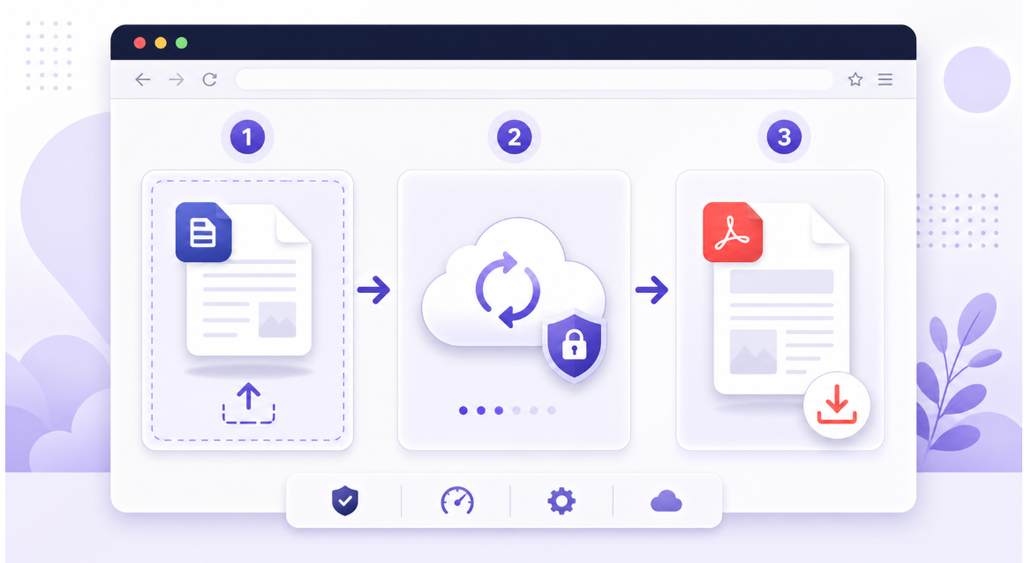
Alt: Convert a DOCX file with a secure browser upload and PDF download workflow
Adobe’s online Word-to-PDF converter accepts DOC, DOCX, RTF, and TXT through a browser. Adobe’s published workflow is direct: select or drag and drop the source, wait for automatic conversion, then download the PDF.
Steps with Adobe Acrobat online
- Open Adobe’s Word to PDF page.
- Select the document or drag it into the upload area.
- Wait while the service converts the file.
- Download the PDF; sign in only if you want account-based saving or additional online features.
- Inspect formatting and remove the downloaded file from shared-device storage if necessary.
Adobe currently publishes a file limit of up to 100MB. The page says no credit card is needed for the basic conversion, files are protected with HTTPS/TLS 1.2 and AES-256 storage encryption, and files are deleted from its servers unless the user signs in to save them. These are Adobe’s own security and retention statements, so regulated or confidential work should still follow organizational policy.
Adobe also claims its converter preserves fonts, images, alignment, and layout on Mac and Windows. I would treat that as a provider claim rather than a guarantee. Test one representative file containing the tables, fonts, images, headers, and page breaks you actually use.
Choose Adobe when: you want a familiar PDF ecosystem or expect to compress, merge, sign, protect, or edit the PDF afterward.
Choose another method when: the 100MB ceiling is too low, the file cannot be uploaded externally, or Word-specific fidelity is more important than browser convenience.
Method 4: Convert DOCX to PDF With Drawboard
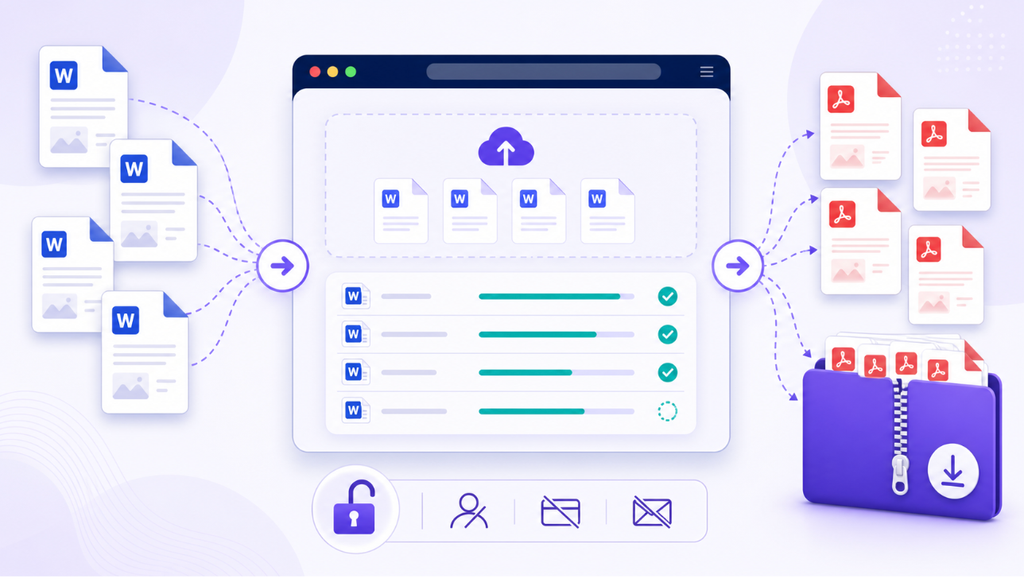
Drawboard’s DOCX-to-PDF tool is a strong free option when the user wants drag-and-drop conversion without installing software or creating an account. Its page says multiple files can be added, each file is converted individually, and the results can be downloaded separately or together as a ZIP.
Steps with Drawboard
- Open the Drawboard DOCX to PDF converter.
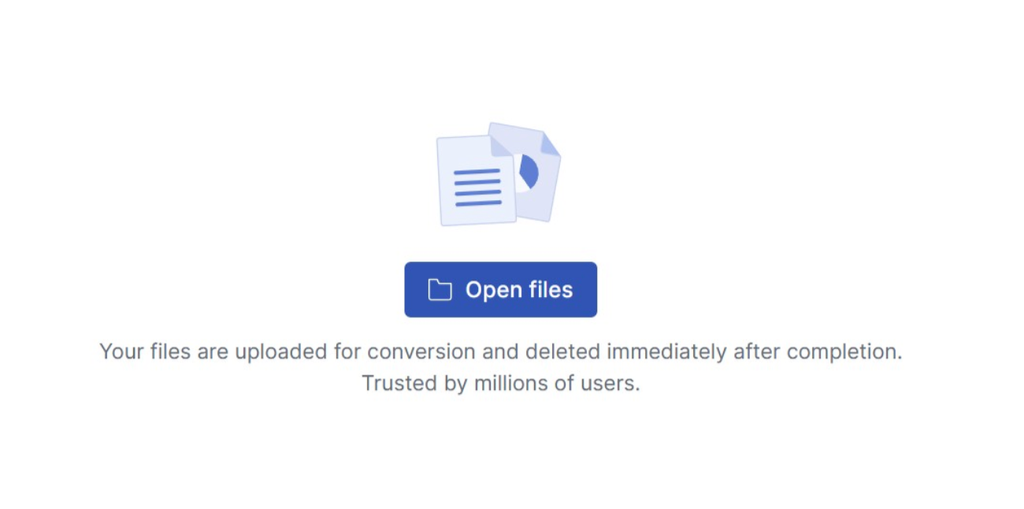
Alt: Open the Drawboard DOCX to PDF converter.
- Drag one or more DOCX files into the tool or select them through the file browser.
- Click Convert in the right-side panel.
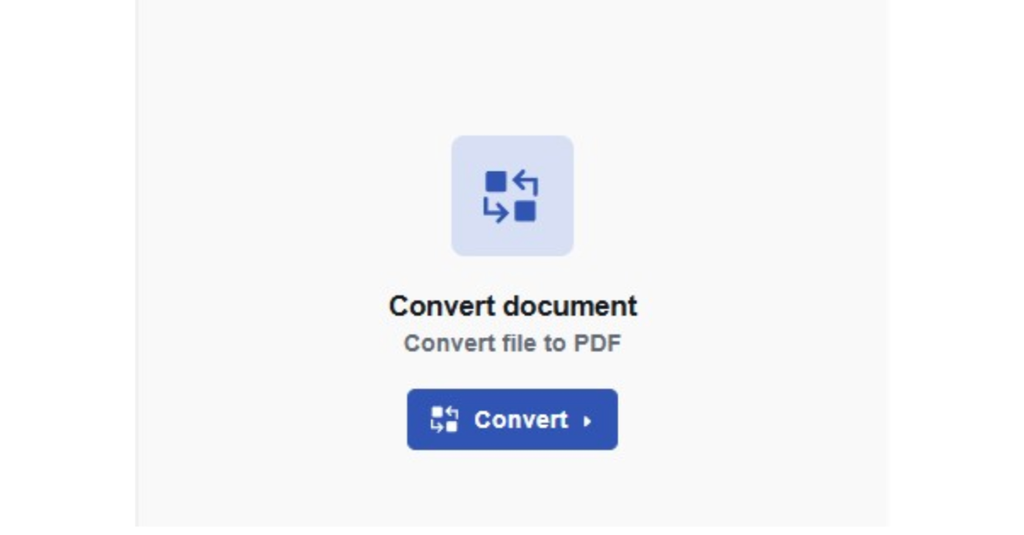
- Download each PDF individually or download multiple results as a ZIP.
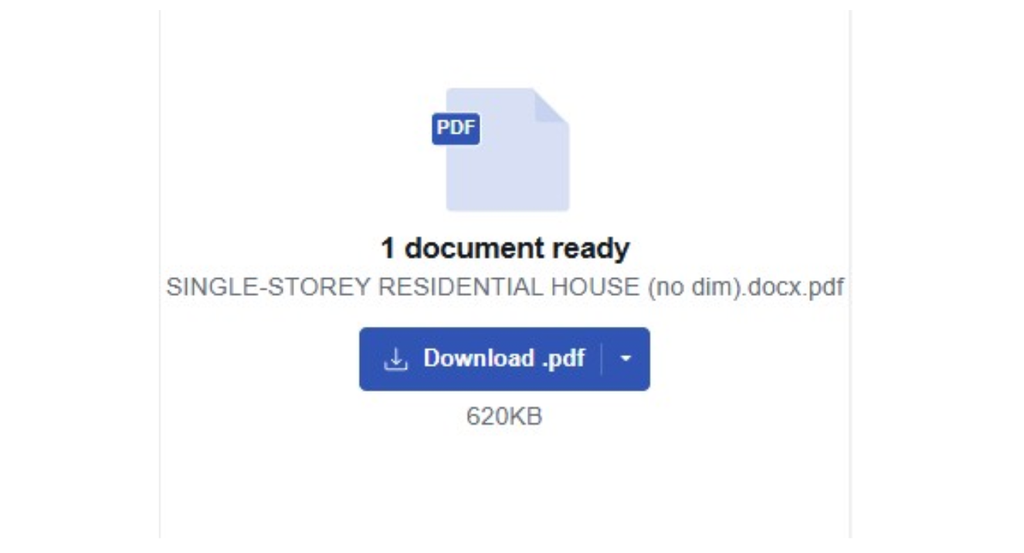
- Open at least one result from every distinct document template you converted.
Drawboard makes two slightly inconsistent descriptions of processing on the same page: its upload area says files are uploaded for conversion and deleted immediately afterward, while an FAQ says files remain local and nothing is uploaded. Because those statements describe materially different data flows, I would confirm the current behavior and privacy policy before processing confidential files rather than choosing the more favorable sentence.
The provider also says headings, tables, spacing, and layout are carried over exactly. No renderer can make that promise meaningful for every custom font, macro, embedded object, or unusual Word layout. The useful part of Drawboard’s offer is no-account browser access and support for multiple files; formatting quality still needs a source-to-output comparison.
Choose Drawboard when: you want a free DOCX to PDF converter, do not want to register, and need to process several routine documents in one browser session.
Choose another method when: privacy depends on confirmed local processing or the document has highly controlled typography and print requirements.
Method 5: Convert a DOCX to PDF With Google Docs
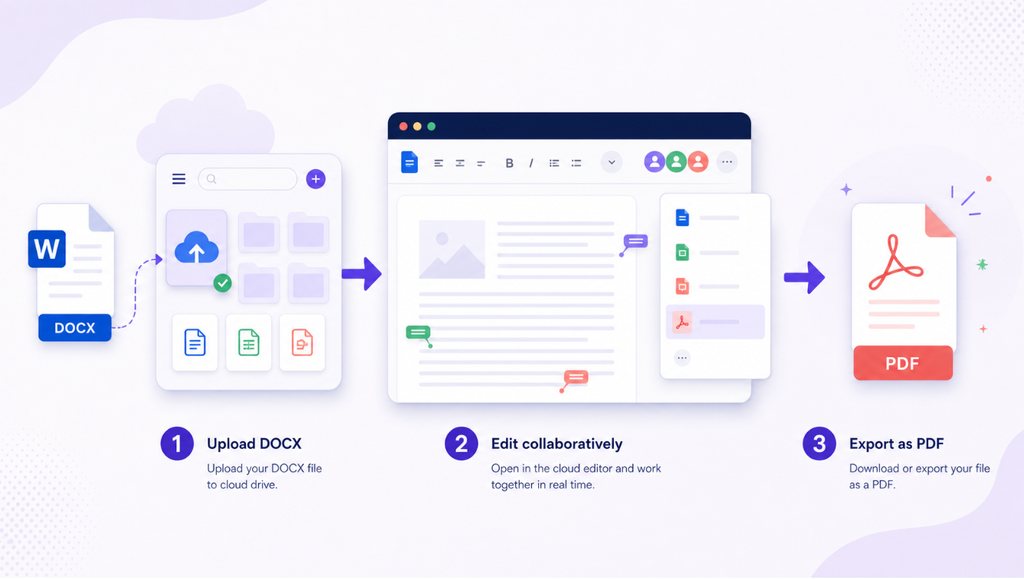
Alt: Upload a DOCX to a cloud editor and export the reviewed document as PDF
Google Docs is useful when the file already lives in Drive or several people have finished collaborating in the browser. Upload the DOCX, open it in Google Docs, then use File > Download > PDF Document (.pdf). Google’s file help documentation covers downloading a copy in another file type.
Steps in Google Docs
- Upload the DOCX to Google Drive.
- Open it with Google Docs.
- Compare the imported document with the source, paying attention to pagination, tables, fonts, equations, text boxes, headers, and footnotes.
- Make corrections only if Google Docs is now the intended working copy.
- Choose File > Download > PDF Document (.pdf).
- Open the downloaded PDF and run the same quality check again.
There are two conversions here: DOCX into Google Docs’ editing model, then that model into PDF. If the imported version already moved a table, changed a font, or repaginated a section, the PDF will faithfully preserve the changed Google version rather than the original Word layout.
Choose Google Docs when: collaboration already happens in Drive and the document uses uncomplicated formatting.
Choose another method when: exact Word pagination, fields, text boxes, tracked changes, or custom styles must remain intact.
Method 6: Convert DOCX to PDF on Mac, iPhone, iPad, or Android
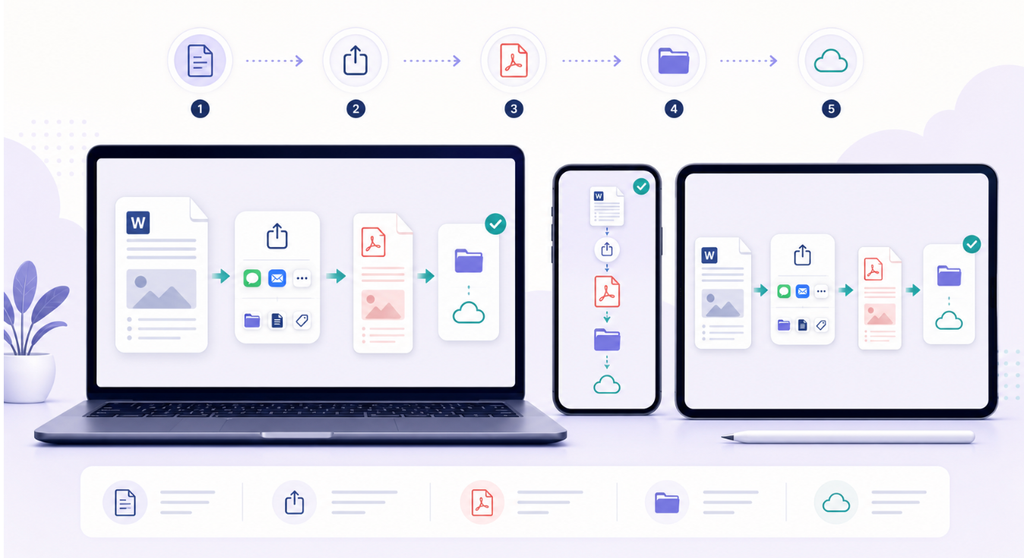
This method covers three different operating environments, so there is no single menu path that works everywhere. On a Mac, the strongest option is Word’s native PDF export. On iPhone or iPad, Word provides a direct Export > PDF route, while Pages can also open a DOCX and export a PDF. On Android, Microsoft documents a Print > Save as PDF workflow. If the required app is unavailable, Lunote File Converter provides the same browser-based starting point across all four device types.
How to convert DOCX to PDF on Mac
Option 1: Export the PDF from Microsoft Word for Mac
This is the route I would use for a resume, contract, report, thesis, or document with custom styles. Microsoft currently documents the following steps for Word for Microsoft 365 for Mac, Word 2024 for Mac, and Word 2021 for Mac:
- Open the DOCX in Word and switch to Print Layout so you can check the page breaks before exporting.
- Resolve comments and tracked changes that should not appear in the final document.
- Choose File > Save As. The Save icon in the ribbon can lead to the same Save As dialog in supported versions.
- Give the PDF a different filename from the DOCX. For example, keep
proposal.docxas the editable source and saveproposal-final.pdfas the distribution copy. - Open the File Format menu and select PDF.
- Choose the destination folder, then select Export.
- Open the new PDF in Preview or another PDF reader. Check the first page, the last page, all tables, and any page containing images, columns, headers, or footnotes.
Microsoft notes that saving as PDF can create a tagged PDF, which helps screen readers understand reading order and navigation. It also recommends keeping a separately named Word original because a PDF is not a convenient replacement for the editable DOCX. See Microsoft’s current Mac PDF instructions.
Option 2: Use Apple Pages when Word is not installed
Pages can open Microsoft Word files with .doc or .docx extensions. Drag the DOCX onto the Pages icon or open it from inside Pages, then compare the imported document with the original before exporting.
- Open the DOCX in Pages.
- Look for font-substitution warnings and inspect tables, text boxes, equations, headers, and pagination. Pages must translate the Word document into its own editing model, so this check happens before PDF creation.
- Choose File > Export To > PDF.
- Select the image-quality setting appropriate for sharing or printing. Higher image quality produces a larger file.
- Choose whether comments or annotations should appear, then select Next.
- Name the PDF, choose a destination, and export it.
Apple confirms that Pages can open DOCX files and export them through File > Export To > PDF. This is a practical free Mac alternative, but it may not reproduce Word-only fields or complex layout as closely as Word itself. See Apple’s Pages export instructions.
Option 3: Use Print to PDF only as a fallback
If an app can display the DOCX correctly but does not offer a proper PDF export, choose File > Print, open the PDF menu in the macOS print dialog, and select Save as PDF. This captures the printed pages, which is useful for a simple document. However, it may flatten or omit bookmarks, document structure, form behavior, comments, and accessibility information. Use Word export or Pages export when those features matter.
How to convert DOCX to PDF on iPhone or iPad
Option 1: Export from Microsoft Word for iOS
Microsoft’s documented iOS route is shorter than the Android route:
- Open the DOCX in Word on the iPhone or iPad.
- Tap the three-dot menu.
- Tap Export.
- Select PDF.
- Choose a destination such as On My iPhone/iPad, iCloud Drive, OneDrive, or another location available in the Files picker.
- Rename the PDF if necessary and save it.
Do not tap Share Link when you need an actual PDF attachment. A link may still point to the editable cloud document. If you want to email the finished file, use Send a Copy and choose PDF where that option appears. Microsoft documents both the mobile PDF export and the three dots > Send a Copy > PDF sharing route.
Option 2: Convert the DOCX with Apple Pages
If Word is unavailable, save the DOCX in Files and open it with Pages. With the document open, tap the Actions or Share control, choose Export or Export and Send, and select PDF. Review the layout options, decide whether comments or annotations should be included, then choose Save to Files or another destination. Apple’s Pages guide confirms that the exported PDF is a separate copy and does not alter the original document.
Option 3: Convert in the browser with Lunote
Open Lunote File Converter in Safari, select the DOCX through the Files picker, choose PDF, and download the result. When Safari finishes downloading, tap the download indicator or open Files > Downloads, preview the PDF, then move it into the intended iCloud Drive or local folder. This route avoids installing Word or Pages, but it should be used only when uploading the document complies with its privacy requirements.
How to convert DOCX to PDF on Android
Option 1: Use Word’s Print command and Save as PDF
Microsoft’s current Android instructions use the system print service rather than an ordinary Save As command:
- Open the DOCX in Microsoft Word for Android.
- Tap the three-dot menu, then open File if it appears as a separate option.
- Tap Print.
- At the top of the print screen, tap Select a printer and choose Save as PDF.
- Review the preview, page range, orientation, paper size, color, and number-of-pages settings shown by your device.
- Tap the round PDF or save icon.
- Choose a folder, enter a filename, and tap Save.
- Open the Files app or your device’s Downloads folder and verify that the PDF exists and opens correctly.
The exact appearance varies across Samsung, Google Pixel, and other Android versions, but the critical sequence remains Print > Select a printer > Save as PDF in Microsoft’s official mobile instructions. The Android walkthrough supplied for this guide provides an additional visual reference if the menu labels on your phone differ.
Option 2: Use a browser converter
Open Lunote in Chrome, tap the upload area, and select the DOCX from Files, Downloads, Google Drive, or the document provider available in Android’s picker. Convert it to PDF, download the result, then open the Downloads notification or the Files app to move and rename it. This is usually faster for a one-off conversion, but it sends the file through an online service; use the local Word route for confidential documents or when company policy prohibits uploads.
If Save as PDF does not appear
First make sure the printer selector at the top of the Android print screen is expanded—Save as PDF is a virtual printer and may be hidden behind the currently selected physical printer. If it is still missing, update Word and the Android System WebView/print components, restart Word, or use the browser method. If the preview is blank or pages are missing, return to Word, allow the document to finish loading and syncing, then open Print again.
Mobile conversion cautions
Mobile conversion is convenient, but the small preview can hide problems. Before submitting or sending the PDF:
- Confirm the filename and save location; mobile apps often place exports in Downloads or cloud storage rather than beside the DOCX.
- Compare the PDF page count with the original document.
- Zoom into tables, images, equations, signatures, non-Latin text, and the last line of each page.
- Rotate the device to inspect landscape pages and wide tables.
- Tap at least one hyperlink if links are important.
- Share the PDF to another viewer or device before a high-stakes submission.
- Keep the DOCX as the editable master instead of replacing it with the PDF.
- Do not upload employer, client, health, legal, financial, or unpublished documents through an unapproved converter or personal account.
My recommendation: use Word’s native export on Mac, Word’s direct PDF export on iPhone or iPad, and Android’s Print > Save as PDF route when the document is sensitive or formatting matters. Use Lunote when you need a quick cross-device conversion and the document is suitable for an approved online workflow.
Which DOCX to PDF Method Should You Use?
| Your situation | Recommended starting method | Why |
| One routine file on any device | Lunote | Fast browser workflow and related document tools |
| Resume, contract, thesis, or designed report | Microsoft Word export | Best access to the original Word layout and export controls |
| File up to 100MB plus later PDF editing/signing | Adobe Acrobat online | Clear file limit and a broader Acrobat workflow |
| Several routine files without an account | Drawboard | Multiple-file session and ZIP download described by the provider |
| Collaborative document already in Drive | Google Docs | No need to move the working copy into another editor |
| Offline or confidential Word file | Microsoft Word export | Keeps the document inside the approved local application |
| Mac without Word | Print to PDF or a browser converter | Uses built-in printing or avoids desktop installation |
| iPhone, iPad, Android, or Chromebook | Lunote or the document app’s export command | Accessible without a full desktop Office installation |
| Hundreds of recurring files | A supported batch/API or controlled server workflow | Manual consumer tools lack reliable automation, logging, and error handling |
Why DOCX Files Lose Formatting During PDF Conversion
The required font is missing
A DOCX can refer to fonts that are installed on the author’s computer but unavailable to the converter. The replacement font may be wider or narrower, changing line wraps and page breaks. For a resume or form, one substituted font can move an entire section.
Use common licensed fonts, embed fonts where the workflow permits, or export from the machine on which the document was designed. In the PDF, zoom in on headings, symbols, equations, and non-Latin characters. Boxes or blank spaces usually point to a font or glyph problem.
Floating objects move
Word supports images, shapes, captions, and text boxes with several wrapping and anchoring modes. Objects positioned relative to a paragraph can move when the renderer calculates the page differently. “In Line with Text” objects are generally more predictable than elaborately floated layouts.
Tables reflow or split
Wide tables, merged cells, fixed row heights, nested tables, and rows that are not allowed to break can produce unexpected pagination. Before conversion, make sure the table fits inside the page margins and repeat header rows only where appropriate. After conversion, inspect every page on which a table continues.
Page and section settings conflict
A document can contain mixed portrait and landscape sections, custom margins, different headers, or more than one paper size. The PDF converter has to honor those section-level instructions. Check that Letter versus A4 is intentional; the wrong choice changes wrapping even when every font is present.
Comments and markup were left visible
Tracked changes and comments are editing data, but Word can print markup depending on the selected settings. Decide whether the PDF is a clean final, a redline, or a review copy before export. Do not assume comments are hidden simply because the editing pane is closed.
Images are compressed
An aggressively optimized PDF may look fine on screen and poor in print. Logos, screenshots with small text, charts, and scanned signatures reveal compression quickly. Choose print-quality export when needed, then reduce the file carefully rather than starting with the smallest possible output.
My 60-Second Formatting QC Checklist
I use a short inspection routine even for a simple conversion:
- Confirm the PDF page count matches the intended DOCX page count.
- Check the first and last line of each page for changed breaks or orphaned headings.
- Inspect tables, numbered lists, equations, special characters, and text boxes.
- Compare headers, footers, page numbers, margins, and landscape sections.
- Click important hyperlinks and table-of-contents entries.
- Zoom to 200% for logos, charts, screenshots, and fine text.
- Search the PDF for a phrase to confirm the text remains selectable where expected.
- Review document properties and remove metadata that should not be shared.
- Open the file in a second viewer or on a phone if it will be distributed widely.
For a resume, I also copy a few lines from the PDF into a plain-text editor. This is not a complete applicant-tracking-system test, but it can reveal whether the text order became nonsensical. For a print document, I inspect at the intended paper size and, when the stakes justify it, print a proof page.
DOCX to PDF vs. PDF to DOCX: Why Direction Matters
The two searches sound like mirror images, but the conversion problems are not symmetrical.
A DOCX stores editable structure: paragraphs, styles, lists, tables, headings, images, and section rules. Converting DOCX to PDF turns that structure into a fixed page. When the renderer has the correct fonts and understands the Word features, the result can be highly faithful.
A PDF primarily stores where text, images, and vector graphics appear on a page. It may not retain the relationships that say “these lines form a table” or “this text is a footnote.” A PDF to DOCX converter therefore has to reconstruct editable structure from visual positions. Microsoft explains that PDF-to-Word conversion works best for mostly textual files and may struggle with cell-spaced tables, page borders, tracked changes, multi-page footnotes, endnotes, bookmarks, tags, comments, and certain font effects.
This explains a common Reddit complaint: a PDF can look perfect yet turn into a DOCX with collapsed tables or displaced pictures. The converter is not simply unlocking an existing Word file; it is making an informed guess about the original structure.
When a PDF to DOCX converter should work reasonably well
- The PDF was digitally generated rather than scanned.
- It contains one or two straightforward text columns.
- Fonts are conventional and text is selectable.
- Tables are simple and images are placed predictably.
- The user needs editable content more than exact page-for-page fidelity.
When to expect manual cleanup
- The PDF is a scan or photographed document and needs OCR.
- It uses multi-column magazine layouts, forms, dense tables, or many text boxes.
- Pages combine headers, sidebars, footnotes, equations, and floating graphics.
- The file has a password or editing restrictions.
- Exact pagination must remain unchanged after the text becomes editable.
If you only need to add a signature, comment, highlight, or small correction, a PDF editor may be better than converting the whole file to DOCX. If the original DOCX exists, edit that source and export a new PDF. Reconstruction should be the fallback, not the default.
How to Choose a Free DOCX to PDF Converter
1. Test the promise of “free”
Look for the actual file-size limit, number of conversions, account requirement, waiting time, watermark policy, and download restrictions. “Free conversion” can describe a trial rather than a sustainable free workflow.
2. Read the privacy and deletion policy
A resume and a public worksheet are not the same risk as a contract, medical record, student submission, financial statement, or unpublished manuscript. Check whether processing occurs locally or on a server, how long files are retained, whether links are public, and whether uploaded content is used for another purpose. For highly confidential documents, an approved offline workflow may be the only reasonable choice.
3. Use a representative test document
Do not evaluate a converter with a one-page letter if your real work contains 40 pages of tables and section breaks. Build or select a test file containing the features you rely on: custom fonts, images, hyperlinks, headers, footnotes, landscape pages, and non-English text.
4. Decide whether batch conversion matters
Converting one file manually is easy. Converting hundreds requires batch processing, consistent output names, error reporting, and possibly an API. The keyword data includes demand for programmatic DOCX-to-PDF conversion, but a consumer web tool should not be forced into an automated production pipeline. Developers should evaluate a supported SDK or API and test rendering in their actual server environment.
5. Compare output, not landing-page claims
“Preserves formatting” can mean basic paragraphs and spacing, not perfect reproduction of every Word feature. Put two outputs side by side, record the failures, and choose the converter that preserves the features important to your files.
How to Reduce PDF File Size Without Ruining the Document
First create a good-quality PDF, then optimize it. This makes it easier to identify whether a problem came from conversion or compression.
For email or web use, compress oversized photographs before placing them in Word, crop unused image areas, and choose an appropriate PDF quality setting. Avoid repeatedly converting or recompressing the same file; each pass can reduce image quality. Keep the original DOCX and a high-quality PDF master so you can create smaller copies later.
If the document begins as audio, video, or meeting material, prepare the content before layout. Lunote Video Transcript can turn spoken material into text, while Lunote Video Summary can reduce a long recording to key points. Edit and format that content in DOCX, then make the PDF the final sharing format. The sequence is cleaner than converting back and forth between fixed and editable files.
Common Mistakes to Avoid
Uploading confidential files without checking data handling
Convenience is not consent. Use an organization’s approved tools for protected data and remove unnecessary personal information before conversion.
Deleting the DOCX after making the PDF
The PDF is harder to edit faithfully. Retain the source document and any linked assets or fonts needed to reproduce it.
Assuming a successful download means a successful conversion
A converter can generate a technically valid PDF with visual defects. Open and inspect it before sending, submitting, signing, or printing.
Using PDF to DOCX for a document you already own
If the source DOCX exists, locate it. Editing a reconstructed Word file wastes time and can silently damage tables, reading order, and references.
Chasing the smallest file size
A tiny PDF is not useful if screenshots are unreadable or print images are pixelated. Optimize for the delivery channel and preserve a high-quality master.
Converting a scan without OCR
An image-only PDF does not contain normal editable text. A PDF to DOCX converter needs OCR to recognize the characters, and recognition errors must be proofread—especially names, numbers, formulas, and low-quality scans.
Frequently Asked Questions
How do I convert DOCX to PDF for free?
Use a browser-based converter such as Lunote File Converter, or export the document from an application that offers PDF output. Confirm any file-size, account, or daily limits before relying on a free service, then inspect the PDF after download.
Can I convert DOCX to PDF without Microsoft Word?
Yes. An online DOCX to PDF converter works in a modern browser, and Google Docs or other office applications can also export PDF. Complex Word-specific formatting may render differently, so compare the result with the source.
How do I convert DOCX to PDF on a Mac?
Open the document in Word for Mac and save or export it as PDF. You can also use the macOS print dialog’s PDF option or an online converter. Native Word export is preferable when exact Word layout matters.
How do I convert DOCX to PDF on iPhone or Android?
Use a browser-based converter or the export/share function in a compatible document app. After downloading, locate the PDF in Files, Downloads, Drive, or the destination selected by your browser, then open it before sharing.
Why did my font change after conversion?
The converter may not have access to the font used in the DOCX or may not be permitted to embed it. Export on a device with the font installed, use an embeddable font, or replace it with a widely supported alternative.
Will hyperlinks still work in the PDF?
Often they do when the PDF is exported properly, but printed or reconstructed workflows can lose interactive features. Click-test essential links, email addresses, bookmarks, and table-of-contents entries in the final file.
Is an online DOCX to PDF converter safe?
It depends on the provider and the document. Review upload, retention, deletion, encryption, and reuse terms. Use an approved offline method for information that should not leave your device or organization.
Can I batch convert DOCX files to PDF?
Some services and desktop applications support multiple uploads or automation. Check maximum file count, total size, naming behavior, and error handling. For recurring production work, use a documented API or server-side library rather than manually automating a consumer page.
Why does PDF to DOCX look worse than DOCX to PDF?
DOCX contains editable document structure, while PDF usually describes fixed positions on a page. A PDF to DOCX converter must infer paragraphs, columns, tables, and reading order. Scans add OCR uncertainty, so reverse conversion frequently needs cleanup.
Should I send a resume as DOCX or PDF?
Follow the employer’s requested format. PDF normally preserves the visible layout, while DOCX may be requested for a particular recruitment workflow. Keep both versions, use simple structure, and verify that the PDF text is selectable and copies in a sensible order.
What is the point of converting DOCX to PDF?
DOCX is designed for editing and can reflow when fonts, Word versions, devices, or printer settings change. PDF is designed to preserve a fixed page for reading, printing, signing, archiving, or submission. Keep the DOCX as the editable master and distribute the PDF when consistent appearance matters.
How do I convert a Word 2007 document to PDF?
Updated Microsoft Word 2007 installations can save or publish to PDF through Microsoft’s PDF/XPS support. If the option is missing, install the relevant Microsoft Office updates or open the document in a newer supported Word version. A browser-based free Word to PDF converter is another route, but inspect older DOC features and compatibility changes carefully.
Can Adobe convert a Word file larger than 100MB?
Adobe’s online Word-to-PDF page currently publishes a 100MB upload limit. For a larger file, reduce oversized images, split the document if acceptable, use Word’s desktop export, or choose a service with a clearly documented larger allowance. Do not divide a legally or structurally continuous document without checking the consequences.
Is Drawboard’s DOCX to PDF converter really free?
Drawboard currently describes the browser converter as free, with no account or payment required, and says multiple documents can be processed individually in a session. Verify the live tool before a batch job because limits and policies can change, and review its data-processing statements before uploading confidential material.
Conclusion
For a normal document and a fast cross-device workflow, use Lunote File Converter, download the result, and complete the one-minute visual check. For a layout-sensitive Word document, export from the desktop version of Word on the machine where the file was authored. For confidential material, let the privacy requirement choose the method before convenience does.
Most importantly, keep the conversion direction straight. DOCX to PDF is usually a finalization step. PDF to DOCX is a reconstruction step. The first should preserve a finished page; the second creates an editable approximation. Knowing that difference will save more time than switching repeatedly between free converters.