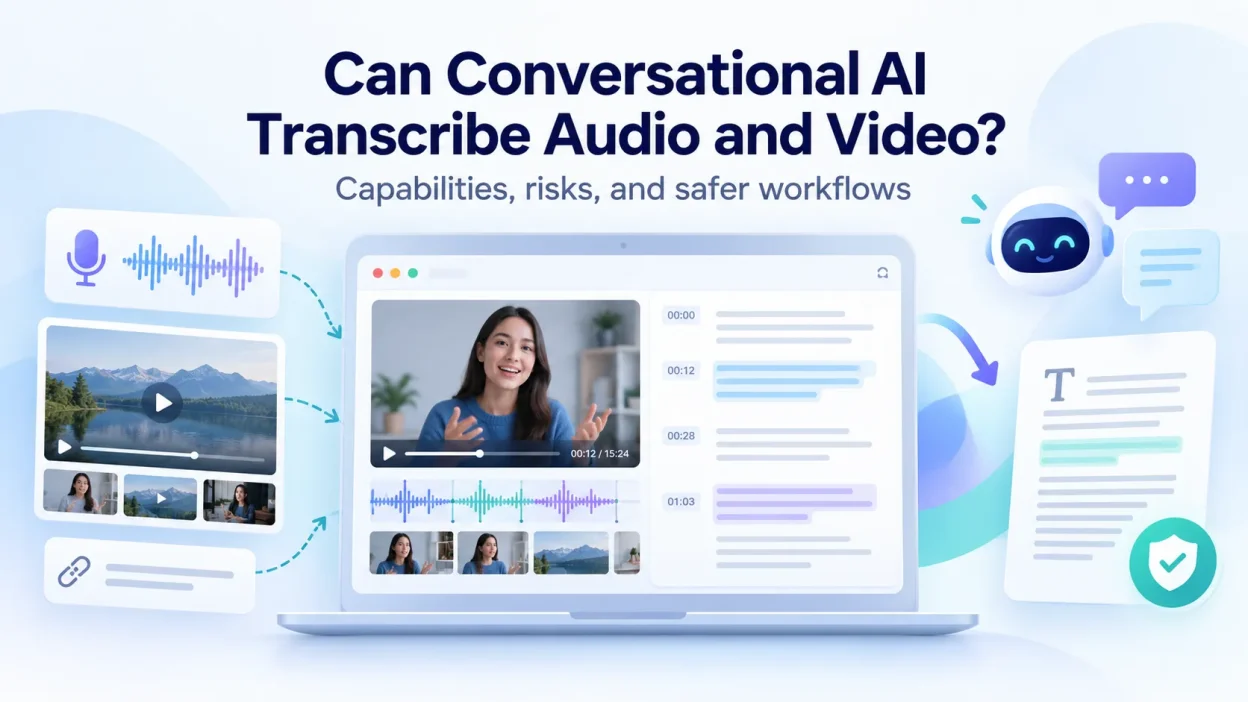
Sometimes, but it depends on the product, model, and input method. Some multimodal models accept audio or video directly. Others mainly work with text and images, so they need a separate speech-to-text tool. A public video URL adds another complication: opening a webpage is not the same as decoding the media stream behind it.
We saw this difference in a September 29, 2026 test. ChatGPT, running GPT-5.6 Sol with Medium reasoning, accepted a 19:49 M4A attachment but could not transcribe it through the available processing path. Gemini 3.8 Flash returned speaker-labeled dialogue from the same file. Instead of assuming that every conversational AI has the same media capabilities, check the model and interface you plan to use and keep a transcription-first fallback.
Can Conversational AI Transcribe Video and Audio Files?
For multimedia work, it helps to separate visual understanding, speech recognition, and language generation. A single chat interface may offer all three, but they are still different technical functions. A model can reason well over text and images without accepting audio or video as native input.
As of September 29, 2026, GPT-5.6 Sol documents text input and output plus image input. It does not list audio or video as supported inputs. Gemini 3.8 Flash lists text, image, video, audio, and PDF inputs. That is why broad claims that AI chatbots either can or cannot transcribe video are misleading.
A video file is a container, not a plain text document. It can hold synchronized frames, one or more audio tracks, subtitle streams, and metadata. If you need to convert an mp4 to text, first confirm that the product can send the media to a decoder and speech-recognition system.
Real Test: The Same 19:49 M4A in ChatGPT and Gemini
On September 29, 2026, we uploaded the same 19-minute-49-second M4A file to both interfaces and used the same request: “Extract subtitles.” This was not a word error rate benchmark. We only wanted to see whether each interface could turn the attached audio into transcript text.
| Test | Model / Setting | Observed Result | What It Shows |
|---|---|---|---|
| ChatGPT | GPT-5.6 Sol, Medium reasoning | The interface recognized the uploaded audio and its 19:49 duration, but replied that the available processing path did not provide speech-to-text decoding for the M4A. It declined to guess the dialogue. | File attachment alone does not guarantee that the selected model or chat path can decode speech. |
| Gemini | Gemini 3.8 Flash | The interface returned speaker-labeled dialogue from the uploaded M4A file. | A model with native audio input can handle the same task very differently. |
One limitation: this test only shows whether the two interfaces produced a transcript. We did not compare either result with a human reference transcript or calculate word error rate, so the test does not establish full-transcript accuracy.
Why AI Video Link Transcription Can Be Inaccurate
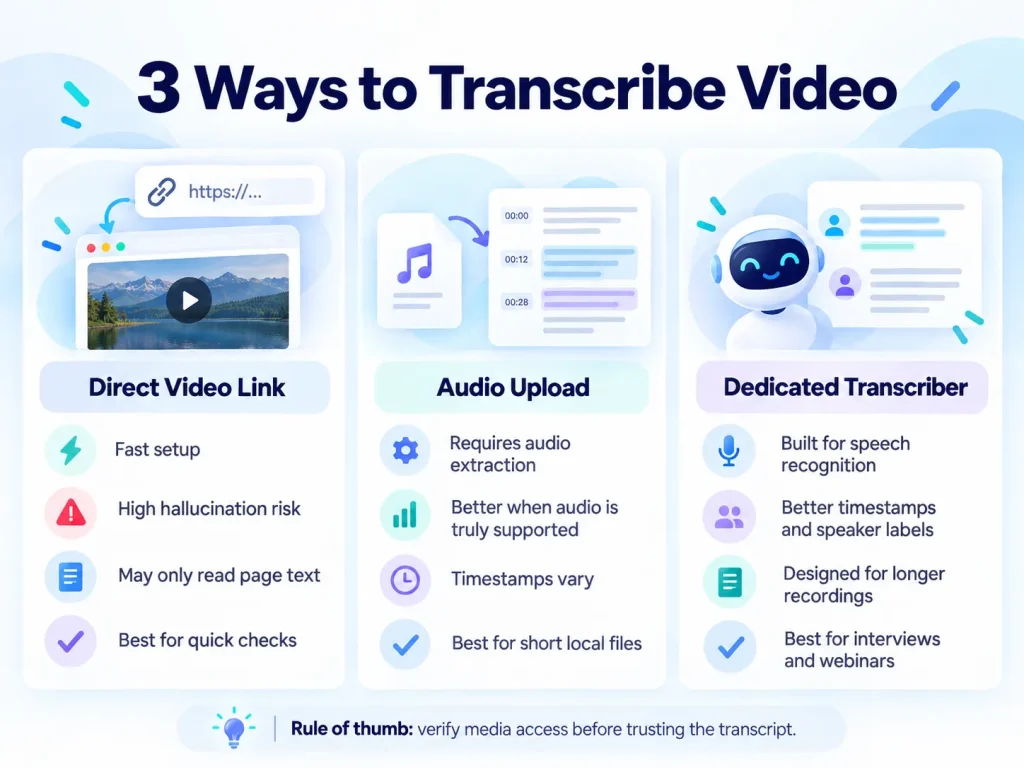
Pasting a public video link into a general chat prompt and asking for a transcript may or may not work. A dedicated transcription service may fetch the media stream. A general assistant might see only the webpage, captions, metadata, or indexed text. If the model cannot access the media, it can still produce a fluent but incorrect answer.
URL access and media decoding should be treated as separate capabilities. When a system can only access the webpage, several things can go wrong:
- It may receive the page title, description, visible captions, or other indexed text instead of the media stream.
- Without the speech signal, it may infer an answer from the page context rather than produce a verbatim transcript.
- Bot checks, authentication, regional restrictions, or paywalls may block the media even when the page is visible.
- Sarcasm, interruptions, technical terms, speaker changes, and off-script remarks may be lost when the system works from incomplete text.
Peer-reviewed research on LLM hallucination mechanisms describes how generative models can produce fluent, ungrounded responses when they lack the primary media data. If you need a reliable transcript, do not rely on the URL alone.
How to Transcribe Video by Extracting the Audio Track
If you have a local video, extracting its audio track can still help. Before uploading the audio to a conversational model, confirm that the model or product accepts audio input. The ChatGPT and Gemini test above shows why this check matters.
An audio-only file removes the video frames, which add upload size without helping speech recognition. FFmpeg offers a repeatable command-line workflow. A standard MP4-to-MP3 command is:
ffmpeg -i input.mp4 -vn -c:a libmp3lame -b:a 128k output.mp3In this command, -vn removes the video stream, -c:a libmp3lame encodes the audio as MP3, and -b:a 128k sets a bitrate suitable for speech. Then work through these checks:
- Use FFmpeg or another media utility to export only the audio stream.
- Check the current documentation for the exact model or chat product. Do not assume that it can transcribe MP3, WAV, M4A, AAC, or FLAC files.
- Correct very low volume, clipping, or severe channel imbalance when necessary. Extra processing can distort speech.
- Check the product’s duration and file-size limits. They vary by product, account tier, and interface. Re-encode or split long recordings if the documented limits require it.
- If the product supports audio, attach the file and ask for a verbatim transcript: “Please provide a verbatim, clean transcription of this audio file. Do not summarize or omit sentences.”
When the product accepts audio, this method lets you convert mp3 to text transcript content from the speech signal instead of relying on webpage metadata. If the chat model does not accept audio, run the file through a dedicated transcription tool first.
Lunote AI also includes Chat with Your Audio. Once a recording is available as searchable text, you can ask about its contents, find a detail, summarize specific sections, or work through a long recording without scrubbing the full timeline.
How to Edit and Summarize an Existing Video Transcript
Extracting audio can be cumbersome for long symposiums, two-hour webinars, and online videos. A faster option is to obtain existing closed captions or use a browser tool to create raw text first. Once you have that text, a conversational model can edit and organize it.
Many video platforms generate closed captions for accessibility. If those captions are available, capture the text track and give it to the model instead of asking the model to infer speech it cannot hear.
Step-by-Step Transcript Ingestion
First, use a transcript view or a dedicated extension to extract the video’s caption stream. For an online lecture, you can download youtube transcript files in TXT, SRT, or VTT format.
Next, paste the raw text into the chat window. For a very long transcript, save it as a plain .txt file and attach it as a reference document.
Then give the model a precise editing task. Automatic captions often lack punctuation, capitalize words incorrectly, and contain no useful paragraph breaks.
Prompts for Refining a Transcript
These templates cover three common editing tasks:
- Punctuation and paragraph formatting:
“Below is an unpunctuated raw transcript extracted from a presentation. Reformat this text into readable paragraphs with appropriate capitalization, sentence structure, and punctuation. Do not alter the spoken vocabulary or rephrase statements.” - Executive summary and key takeaways:
“Review the attached seminar transcript. Provide an executive summary of the central premise in 200 words, followed by bulleted action items organized by speaker topic.” - Content repurposing:
“Extract all technical definitions and case studies from this raw transcript. Organize them into a comprehensive study guide with bold definitions and numbered procedural steps.”
This approach reduces media-upload overhead, although normal attachment and context-window limits still apply. It also separates speech recognition from editing: the first tool creates the transcript, and the language model works with text that you can review.
A Safe Prompt for SRT Cleanup
If timestamps matter, do not ask the model to rebuild them from prose. Provide the existing SRT file and lock its structure:
You are editing an existing SRT subtitle file.

Rules:
1. Keep every cue number exactly unchanged.
2. Keep every start and end timestamp exactly unchanged.
3. Correct only spelling, punctuation, capitalization, and obvious transcription errors.
4. Do not merge, split, delete, or reorder subtitle cues.
5. Do not add facts or dialogue that are not present in the source.

Return only the corrected SRT.
Video Transcription Methods Compared: Links, Audio Uploads, and Dedicated Tools
The right transcription method depends on the source, the time you have, and how much manual editing you can accept. Direct links, audio uploads, and dedicated tools differ in speed, accuracy, and setup effort.
The table below compares the three approaches:
| Operational Feature | Direct Video Link Pasting | Audio Track Upload (MP3/WAV) | Dedicated Transcription Utility |
|---|---|---|---|
| Upload Friction | Very low (simple URL paste) | Moderate (requires audio extraction) | Low to none (direct URL or file import) |
| Hallucination Risk | High when the system cannot access the actual media stream | Lower when the selected model truly processes the speech signal | Low at the ingestion stage, but recognition errors still require review |
| Processing Speed | Often fast, but may return page-level text rather than a transcript | Product-dependent; includes extraction, upload, and decoding time | Usually optimized for transcription workloads |
| Multi-Speaker Diarization | Unavailable unless the media or caption source exposes speaker data | Model-dependent and often inconsistent in general chat interfaces | Often available as a dedicated feature |
| Timestamp Preservation | Usually absent unless timestamps are available from captions or the media tool | Model- and interface-dependent | Designed to preserve or export SRT/VTT timing |
| Maximum File Duration | Depends on whether the service can fetch and decode the remote media | Varies by model, interface, plan, and file size | Often designed for long-form recordings; product limits still apply |
| Technical Overhead | Usually absent unless timestamps are available from captions or the media tool | Requires conversion tools | Minimal (browser or SaaS interface) |
Improvised workflows can reduce transcription accuracy. A clinical evaluation of ASR word error rates found that error rates vary sharply with recording conditions. Controlled dictation can remain under 10%, while complex multi-speaker discussions or conversations can exceed 50%.
Overlapping speech, strong accents, and background noise make recognition errors more likely, so review the transcript before summarizing it. If you want to avoid manual file conversion, a dedicated free video transcribe tool can create the text before you send it to a language model.
Video Transcription File Size Limits and Timestamp Requirements
Audio uploads and raw transcripts come with practical limits. Check file size, duration, speaker separation, and caption format before you start.
Audio File Size and Duration Limits
Attachment and media-duration limits vary by product and plan, so there is no single threshold to follow. Current Gemini Apps documentation, for example, sets separate audio and video duration limits and extends them on paid Google AI plans. ChatGPT’s general file-upload documentation focuses on supported document-style file types and does not promise audio transcription for GPT-5.6 Sol.
For large recordings:
- Voice recordings do not need 320 kbps studio quality. Export speech as mono MP3 or M4A at 64 kbps to reduce file size without losing vocal intelligibility.
- For recordings that last several hours, split the file into 30-minute chapters and process each chapter separately.
- Background music and sound effects compete with vocal frequencies. Apply a high-pass filter at 100 Hz to remove sub-bass rumble before uploading the audio.
Preserving Timestamps and Subtitle Synchronization
Do not assume that a conversational audio upload will preserve production-grade time codes. Some systems return plain prose, while others retain or generate timing. If you need subtitles or exact interview references, begin with a timestamped transcription workflow and keep its timing structure.
To preserve synchronization, provide a formatted subtitle file instead of raw audio. Language models can read standard subtitle formats:
- SubRip (.SRT): Uses sequential counters, millisecond time spans (
00:01:15,000 --> 00:01:18,500), and plain text strings. - Web Video Text Tracks (.VTT): Similar to SRT but includes specialized styling tags and metadata headers.
When asking the model to clean or translate an SRT file, give it an explicit constraint: “Correct typographical errors and punctuation in the following SRT subtitles. Do not modify the numeric counters or timestamp coordinates under any circumstances.”
Preventing Transcription Errors From Spreading
Speech recognition often mishears similar sounds, drops negative words, and misspells specialized terms. If you summarize an unverified transcript, those errors can carry into the summary.
Research on ASR error detection frameworks shows how transcription errors can affect later natural language processing tasks, including sentiment analysis and reasoning. Before publishing or summarizing a transcript, check technical terms, names, and numbers against the recording.
How to Choose the Best AI Video Transcription Workflow
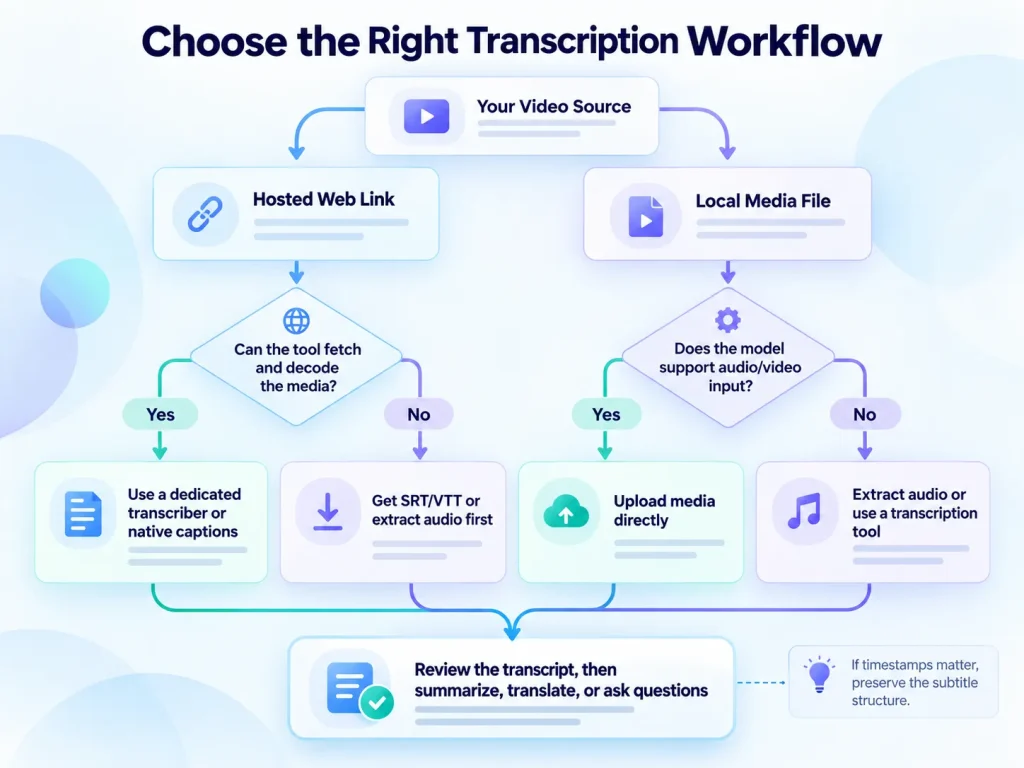
Your workflow mainly depends on where the video is stored and what you want to do with the transcript. One input method will not suit every project.
Use this decision tree to choose a path:
                                [Your Video Asset]
                                         |
        +--------------------------------+-------------------------------+
        |                                                                |
[Hosted Web Link]                                                [Local Media File]
        |                                                                |
Can your chosen tool fetch                                      Does the selected model
and decode the media itself?                                    support audio/video input?
        |                                                                |
   +----+----+                                                      +----+----+
   |         |                                                      |         |
  Yes        No                                                    Yes        No
   |         |                                                      |         |
   v         v                                                      v         v
Dedicated   Get SRT/VTT or                                  Upload media     Extract audio or
transcriber native captions                                 directly        use a transcriber
   |         |                                                      |         |
   +----+----+                                                      +----+----+
        |                                                                |
        v                                                                v
[Searchable transcript with timestamps / speaker labels where available]
                                         |
                                         v
                 [Ask questions, summarize, edit, translate, or export]
Common Workflow Examples
- For voice memos and clips under 15 minutes, upload the file directly if the model explicitly supports audio. Otherwise, extract the audio and use a transcription tool instead of retrying the same chat interface.
- For webinars, interviews, and multi-speaker panels, use a workflow that preserves timestamps and speaker separation. After transcription, use conversational AI for summaries, action items, translation, or editing.
- For lectures and online videos, reuse existing captions when possible. If none are available, use a service that accepts the file or a supported public URL. You can then create notes from video ai from the transcript instead of asking a general chat model to infer the recording’s contents.
Lunote AI puts these steps in one workflow: it creates searchable text from the recording and then makes that text available through Chat with Your Audio. You can use it to find a statement, ask questions about what was said, or summarize a long recording without scanning the entire file yourself.
Choose the input method based on the model’s documented capabilities. This reduces unsupported-file errors and gives you a transcript that you can check before editing or summarizing it.
Frequently Asked Questions About AI Video Transcription
Can I Paste a Public Video Link Directly Into the Chat Prompt?
Sometimes. A pasted URL does not automatically give the model access to the underlying audio or video. A dedicated transcription service may fetch and decode supported public media, while a general assistant may see only the webpage, metadata, captions, or indexed text. For a verbatim transcript, confirm that the product supports media ingestion or provide an SRT or VTT file.
Which Current Models Accept Audio or Video Directly?
Capabilities vary by model and change over time. As of September 29, 2026, Gemini 3.8 Flash documents text, image, video, audio, and PDF inputs. GPT-5.6 Sol documents text input and output plus image input, with no audio or video model input. Check the documentation for the exact model instead of relying on the chat product’s brand name.
Why Did the Same M4A Work in Gemini but Not in ChatGPT?
File attachments, model modalities, and speech-to-text routing are separate layers. In our test, ChatGPT with GPT-5.6 Sol Medium could see the 19:49 M4A and identify its duration, but it could not transcribe the file through the available path. Gemini 3.8 Flash returned transcript text. This matches the published input differences between the two models.
Which Audio Formats Can I Upload for Transcription?
There is no universal list for every conversational model. MP3, WAV, M4A, AAC, and FLAC are common formats, but transcription still depends on the product’s audio support, upload rules, and plan limits. If the underlying model does not accept audio, converting the file to another audio format will not solve the problem.
What Should I Do if I See “Unsupported File,” “Failed to Analyze,” or a Similar Error?
First, confirm that the exact model accepts audio or video input. Then check the file-size and duration limits for your account. If the container is damaged or unusual, re-encode it with FFmpeg. For timestamps or speaker labels, use a transcription-specific tool and give the resulting SRT, VTT, or text file to the language model. Consumer chat interfaces do not always provide stable public error codes, so the error message and model documentation are usually more useful than a code search.
Can AI Transcription Label Multiple Speakers Accurately?
That depends on the transcription engine. A general chat interface may return unlabeled prose or inconsistent speaker names. Dedicated transcription systems can include diarization as a separate step. For interviews, meetings, and panels, compare speaker labels with the audio before publishing.
How Can I Preserve Timestamps When Transcribing Video?
Use a transcription workflow that exports SRT or VTT. Then ask the language model to edit only the subtitle text and preserve every cue number and timestamp. If synchronization matters, do not ask the model to invent timing from a prose transcript.
What Can I Do After Generating the Transcript?
A transcript can be more useful than a block of text. In Lunote AI, Chat with Your Audio lets you search the recording, ask questions about it, find specific information, and summarize selected content without manually reviewing the full timeline.