Turning video into accurate text is useful for creators, researchers, educators, and business teams. You might need to archive a Zoom meeting, add captions to a social clip, or turn a recorded lecture into study notes. None of these jobs requires hours of manual typing anymore.
Current speech-to-text tools can transcribe an MP4 through a short browser workflow. Generating the text is only the first pass, though. You still need to check names, numbers, technical terms, speaker changes, and sections where background noise or overlapping voices may confuse the automatic speech recognition system. This guide uses Lunote AI as its example and explains how FFmpeg can prepare a large video for a faster upload and review.
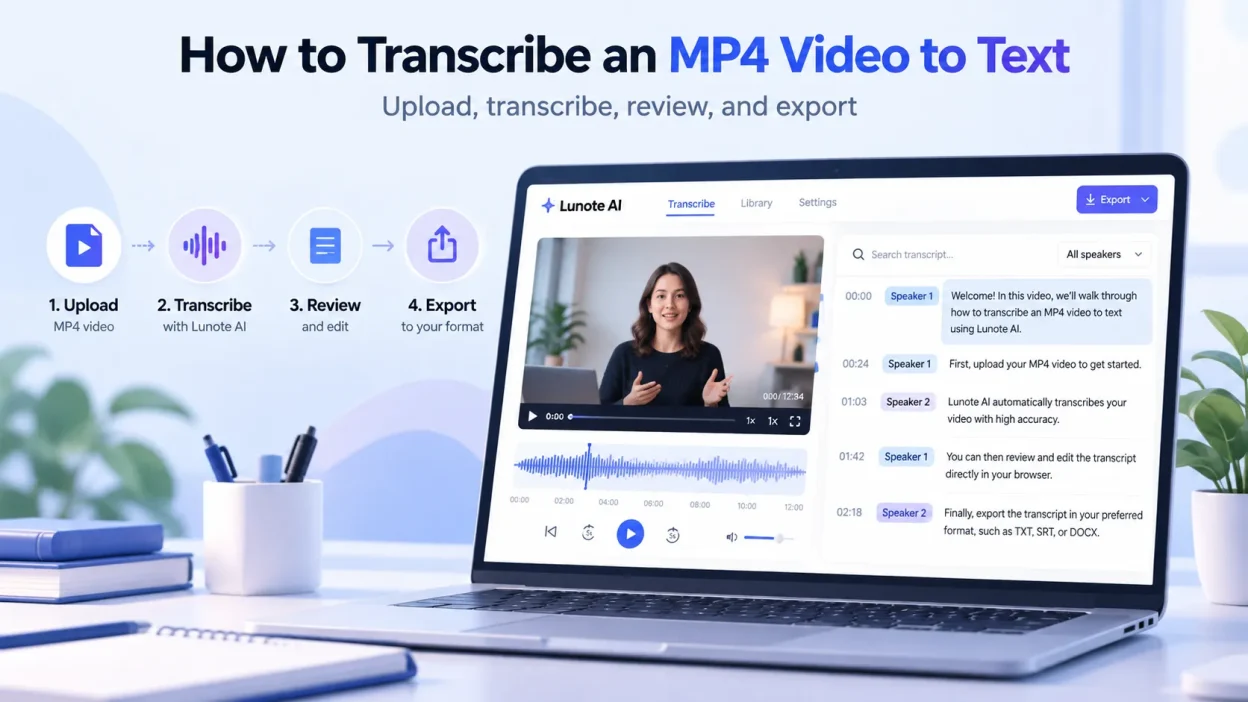
How to Transcribe an MP4 Video With Lunote AI
These steps use Lunote AI rather than a generic transcription service, so you can follow the same workflow in the named tool.
- Open Lunote AI in your browser.
- Upload the MP4 from your computer. Lunote’s public pages also list MOV and AVI as supported video formats.
- Start the transcription. Lunote processes the speech and returns editable text.
- Compare uncertain passages with the source. Check names, numbers, acronyms, product terms, and sentences that sound unnatural. Use timestamps to find the corresponding point in the recording.
- Clean the transcript, then copy, export, or reuse it for notes, captions, summaries, articles, research, or another task.
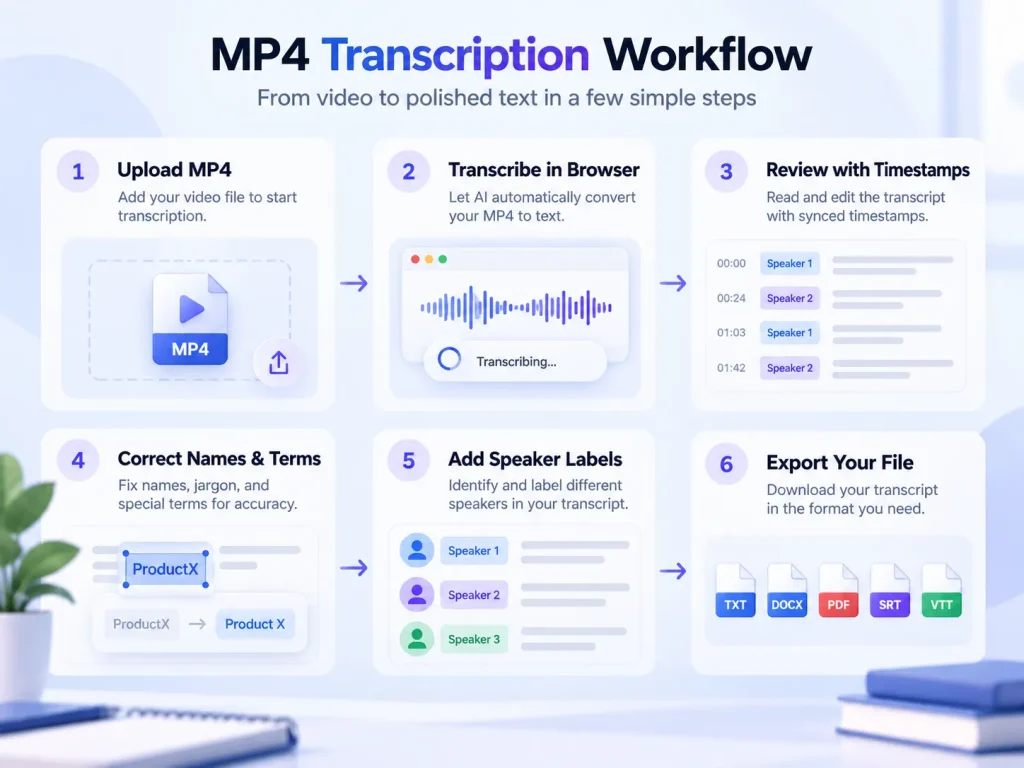
Step 1: Upload the MP4
Open Lunote’s Video to Text tool and choose an MP4 from local storage. Because the public interface lists MP4, MOV, and AVI among its supported formats, a standard video normally does not need a separate audio conversion.
A long 4K recording is different. It can contain far more video data than speech recognition needs. If file size or browser upload speed becomes a problem, extract a smaller audio file locally and upload that instead. The FFmpeg example later in this guide shows how.
Step 2: Generate the Transcript
Start the transcription and let Lunote turn the speech into searchable text. Speech-to-text systems work from the audio stream rather than the video frames, but Lunote can handle the audio inside a normal MP4 without requiring you to separate it first.
The first result is not ready for publication. Automatic speech recognition can confuse similar-sounding words, proper names, accents, technical language, and voices that overlap.
Step 3: Compare the Transcript With the Video
Read the transcript with the source video nearby. Lunote’s public guidance describes searchable, editable text and review aided by timestamps. This is useful when you need to confirm a quotation or replay a doubtful passage.
Check the details that affect meaning most: names of people and companies, dates, measurements, prices, model numbers, acronyms, and specialized terms. An error in one of these details often matters more than a missing filler word or punctuation mark.
Step 4: Clean and Reuse the Text
After checking the transcript, copy, edit, or export it for the next task. Lunote’s transcription materials mention plain text, Markdown, and subtitle formats such as SRT and VTT as part of its broader workflow. Use the export options shown in your current account or on the current tool page because available formats may change.
How to Edit an MP4 Transcript and Add Speaker Labels
Fast speech, overlapping voices, and technical jargon can trip up even strong speech-to-text systems. A careful edit turns the first draft into a document you can rely on.
Correct Domain Terminology and Punctuation
Automatic models use context to predict spoken words. In fields such as medicine, software development, and corporate law, they may replace a specialized term with a similar-sounding everyday phrase. A discussion of “Kubernetes clusters,” for example, might appear as “co-ordinate us clusters.”
Use global search and replace to fix repeated terms, acronyms, and product names. Check sentence boundaries as well. A model may mistake a natural pause for the end of a sentence and split one thought into fragments.
How to Review Speaker Diarization and Overlapping Speech
Speaker diarization is the process of identifying who spoke and when. Algorithms can distinguish voices in a quiet recording, but accuracy falls when people talk at the same time during a debate or workshop.
A 2018 review, Automatic Speech Recognition Errors Detection and Correction: A Review, examines methods for finding and correcting ASR errors. Its practical relevance here is simple: automatic output still benefits from focused human review when context, terminology, or speaker boundaries are unclear. For a recording with several speakers:
- Look for passages where the speaker labels switch unusually quickly.
- Replay unclear exchanges at 0.8x speed to identify the actual handoffs.
- If the editor allows it, rename generic labels consistently. For example, replace “Speaker 1” with the participant’s name.
- Correct broken or wrongly attributed dialogue in the editor. If the editor does not support that change, fix it in the exported text.
Consistent speaker labels make meeting minutes, legal depositions, and interview logs easier to follow and help preserve their legal usefulness.
Which MP4 Transcript Format Should You Choose?
The wrong export format can create unnecessary reformatting later. Each application needs a different mix of readable text, document structure, and accurate timecodes.
Before downloading, consider what a video transcript looks like in your intended use. Interview notes need readable paragraphs. Subtitles for a video editor need millisecond timecodes.
| Format | Extension | Timestamps | Text styling | Best for | Typical uses |
|---|---|---|---|---|---|
| Plain text | .txt |
Optional or minimal | No | Archives, raw text analysis, and input for an LLM | Knowledge bases, raw training data, and quick reading |
| Word document | .docx |
Yes | Yes, including bold, colors, and tables | Collaborative review and executive summaries | Meeting minutes, legal briefs, and editorial drafts |
| Portable document | .pdf |
Yes | Yes, with a fixed layout | Distribution and permanent archiving | Academic papers and customer-facing case studies |
| SubRip subtitle | .srt |
Yes, with a sequence number and timecodes | Basic, with limited tags | Video captions and social media video | YouTube, Vimeo, Adobe Premiere, and Final Cut Pro |
| WebVTT subtitle | .vtt |
Yes, with timecodes and cue settings | Advanced, including CSS, positioning, and classes | HTML5 media players and modern web development | Browser-based players such as Video.js and accessible web apps |
Plain Text vs. DOCX and PDF
Choose plain text (.txt) for easy copying, data analysis, or sending a transcript to a generative AI tool for summarization. It avoids CSS styles, unusual fonts, and extra markup.
Choose .docx or .pdf when clients, colleagues, or managers will read the transcript as a document. These formats retain headings, speaker labels, highlighted passages, and margins.
SRT vs. WebVTT for Video Subtitles
To add the transcript to a video player as closed captions, export a subtitle file rather than an ordinary text document.
- SubRip (
.srt): A widely supported caption format. Each entry has a number, start and end times (00:01:15,000 --> 00:01:18,500), and caption text. It works with nearly every media player and social platform. - WebVTT (
.vtt): A format for HTML5 video. It starts with a requiredWEBVTTheader and supports styling, text alignment, and screen position. Choose it when embedding video in a modern web application.
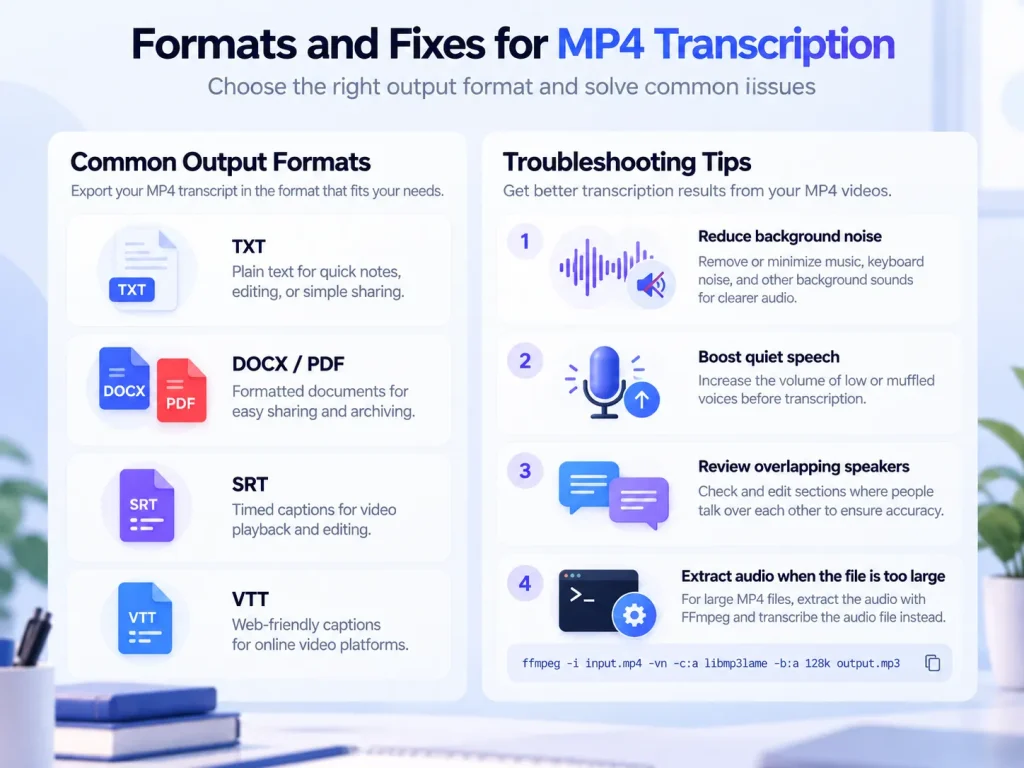
How to Fix Common MP4 Transcription Problems
Most everyday recordings do not have clean studio audio. Background sound, room echo, microphone clipping, and large files can all cause trouble.
Published research also shows why one accuracy percentage cannot describe every recording. A 2025 systematic review, Evaluating the performance of artificial intelligence-based speech recognition for clinical documentation, examined 29 clinical studies. Reported word error rates ranged from 0.087 for controlled dictation to more than 50% in some conversational or multi-speaker settings. These results come from clinical use, not consumer video transcription, and are not a benchmark for Lunote. They show that recording conditions and context can change ASR performance substantially.
| Problem | What to try before transcription | What it will not fix |
|---|---|---|
| Low-frequency rumble | Apply a gentle high-pass filter around 80 Hz, then listen for thinning voices before export. | A high-pass filter does not remove room echo. |
| Steady background noise | Use light noise reduction or voice isolation, then compare the result with the original. | Aggressive denoising can damage consonants and make words harder to recognize. |
| Very quiet dialogue | Raise or normalize the level without clipping, then check the quiet passages. | Normalization cannot restore words that were not captured clearly. |
| Very large MP4 | Extract the audio with FFmpeg and upload the smaller audio file. | This reduces upload size but does not repair poor source audio. |
How to Reduce Background Noise and Improve Quiet Speech
Air conditioners, traffic, and restaurant noise can mask consonants and cause a speech model to mistake one sound for another. For difficult audio:
- If your video editor has voice isolation or background noise reduction, apply it before transcription.
- If the dialogue is quiet, normalize or amplify it without clipping. No single LUFS target improves ASR accuracy for every engine.
- A gentle high-pass filter around 80 Hz can reduce handling noise, HVAC rumble, and desk vibration. Listen afterward because an aggressive cutoff can thin a deep voice.
How to Reduce MP4 File Size and Avoid Upload Limits
High-definition video takes a great deal of bandwidth to upload. A two-hour 4K recording can exceed 10 GB, which may lead to a failed upload or a gateway timeout on a cloud transcription service.
If an MP4 is too slow to upload, extract its audio with FFmpeg. This command disables video output (-vn), uses the LAME MP3 encoder, and sets an audio bitrate of 128 kbit/s:
ffmpeg -i input.mp4 -vn -c:a libmp3lame -b:a 128k output.mp3-i input.mp4selects the source.-vnleaves the video stream out of the output.-c:a libmp3lameselects the LAME MP3 encoder.-b:a 128ksets the target audio bitrate to 128 kbit/s.
How to Extract Audio From Multiple Videos on Windows
If you process several videos at a time, save the following code as extract-audio.bat. Once FFmpeg is installed and available from the Windows command line, drag one or more video files onto the batch file. It creates a 128 kbit/s MP3 beside each video and adds _audio to the original filename.
@echo off
setlocal

where ffmpeg >nul 2>&1
if errorlevel 1 (
    echo FFmpeg was not found in PATH.
    echo Install FFmpeg and make sure the ffmpeg command works in Command Prompt.
    pause
    exit /b 1
)

if "%~1"=="" (
    echo No files were dropped onto the script.
    echo Processing supported video files in the current folder...
    for %%F in (*.mp4 *.mov *.avi *.mkv *.webm *.m4v) do (
        if exist "%%F" call :extract "%%~fF"
    )
) else (
    :process_args
    if "%~1"=="" goto done
    call :extract "%~1"
    shift
    goto process_args
)

:done
echo.
echo Finished.
pause
exit /b 0

:extract
set "input=%~1"
set "output=%~dpn1_audio.mp3"

echo.
echo Processing: %input%
ffmpeg -n -i "%input%" -vn -c:a libmp3lame -b:a 128k "%output%"

if errorlevel 1 (
    echo Failed: %input%
) else (
    echo Created: %output%
)
exit /b 0
Create a text file, paste the script, and save it as extract-audio.bat. Check that Windows did not add .txt to the name. You can then drag MP4, MOV, AVI, MKV, WebM, or M4V files onto the script. If you double-click it without supplying files, it scans the script’s current working folder for those extensions.
How to Extract Audio From Multiple Videos on macOS and Linux
Save the next script as extract-audio.sh. It accepts several video files. On macOS or Linux, type the script path in Terminal and drag files into the window to append their paths. With no file arguments, the script processes supported videos in the current directory.
#!/usr/bin/env bash

set -u

if ! command -v ffmpeg >/dev/null 2>&1; then
    echo "FFmpeg was not found in PATH."
    echo "Install FFmpeg and make sure the ffmpeg command works in Terminal."
    exit 1
fi

extract_audio() {
    input="$1"
    dir="$(dirname "$input")"
    filename="$(basename "$input")"
    stem="${filename%.*}"
    output="$dir/${stem}_audio.mp3"

    echo
    echo "Processing: $input"

    if ffmpeg -n -i "$input" -vn -c:a libmp3lame -b:a 128k "$output"; then
        echo "Created: $output"
    else
        echo "Failed: $input" >&2
    fi
}

if [ "$#" -gt 0 ]; then
    for input in "$@"; do
        if [ -f "$input" ]; then
            extract_audio "$input"
        else
            echo "Skipped: $input is not a file." >&2
        fi
    done
else
    found=0

    for input in ./*.mp4 ./*.mov ./*.avi ./*.mkv ./*.webm ./*.m4v; do
        if [ -f "$input" ]; then
            found=1
            extract_audio "$input"
        fi
    done

    if [ "$found" -eq 0 ]; then
        echo "No supported video files were found in the current directory."
    fi
fi

echo
echo "Finished."
Save the file, open Terminal in the same folder, and run chmod +x extract-audio.sh once. Run ./extract-audio.sh to process supported videos in the current directory, or use ./extract-audio.sh video1.mp4 video2.mov for named files. On macOS, you can type ./extract-audio.sh and drag files from Finder into Terminal to insert their full paths.
Both scripts use FFmpeg’s -n option, so they will not automatically overwrite an existing _audio.mp3 file. This protects users who run the same batch more than once.
Removing the video stream can make the upload much smaller. The percentage varies with the source bitrate and duration, and transcription quality still depends on the audio itself.
Is It Safe to Upload an MP4 to an Online Transcription Service?
Price is not the only factor in choosing a transcription service. For confidential interviews, internal meetings, unreleased product demonstrations, research recordings, or customer material, read the provider’s current terms. Do not rely on broad claims such as “enterprise-grade,” “zero retention,” or “never used for training.”
Lunote’s current Terms of Service state that users retain ownership of the content they submit. The terms also say Lunote may use anonymized, de-identified, or aggregated data derived from service use and user content to develop, train, evaluate, and improve algorithms, AI models, product features, and the service. According to the terms, third-party providers with access to relevant data work under contractual and confidentiality obligations and may process it only under Lunote’s instructions.
Before uploading sensitive material, read the current Lunote Terms of Service and any privacy documents for your account, region, and plan. If your organization requires a retention period, DPA, SOC 2 report, HIPAA arrangement, encryption standard, or a commitment not to use data for training, get that requirement in writing.
Privacy Checklist for Online Video Transcription
- Confirm who owns the uploaded media and the generated transcript.
- Check whether raw, de-identified, aggregated, or derived data may be used to improve models or services.
- Review what subprocessors are allowed to do with the content.
- Find the stated retention period and deletion process.
- Before uploading regulated data, verify whether the provider offers any DPA, audit report, regional hosting, or industry-specific compliance measure you require.
How to Improve MP4 Transcription Accuracy Before Recording
Better source audio means less editing later. A few recording habits can prevent many speech-to-text errors.
A 2024 study, Evaluating OpenAI’s Whisper ASR: Performance analysis across diverse accents and speaker traits, found differences in recognition performance between native and non-native English accents. Read speech also performed better than conversational speech in the Whisper system the researchers tested. The study supports the broader point that accent and speaking style affect ASR output, but it is not a direct benchmark for Lunote.
Pre-Recording Audio Hygiene Checklist:
[ ] Microphone Positioning: Keep capsule 6 to 8 inches from the speaker's mouth.
[ ] Room Reflection Control: Record in carpeted, furnished rooms; avoid bare glass/concrete.
[ ] Audio Hardware: Use a dedicated USB/XLR cardioid microphone instead of laptop mics.
[ ] Conversational Etiquette: Discourage cross-talk and overlapping interruptions.
[ ] Technical Parameters: Record at a 44.1 kHz or 48 kHz sampling rate with a 16-bit depth.
How to Position the Microphone and Reduce Room Echo
Laptop and webcam microphones pick up room echo and keyboard noise along with the speaker’s voice. When possible, use a dynamic or cardioid condenser microphone placed 6 to 8 inches from the speaker’s mouth.
Reduce reflections in the room. Hardwood floors, bare walls, and large glass surfaces bounce sound back into the microphone and can make the recording hollow or phase distorted. Curtains, rugs, and a smaller furnished room can absorb some of that reverberation.
How Meeting Etiquette Improves Transcription Accuracy
Overlapping voices are difficult for speaker diarization. When people speak at the same time, their voices blend and an automatic system may struggle to separate them.
When the setting allows, ask participants not to talk over one another and to leave a brief pause between turns. This will not make diarization perfect, but it gives the system a clearer signal and makes manual checking easier.
MP4-to-Text Workflow: A Step-by-Step Summary
Open Lunote’s Video to Text tool, upload the MP4, generate the transcript, compare uncertain passages with the timestamped source, and then clean, export, or reuse the text.
For an unusually large file, use the FFmpeg command in this guide to remove the video stream before upload. Research on ASR supports reviewing every result: speaking style, accent, terminology, noise, and several simultaneous speakers can all affect accuracy.
Frequently Asked Questions
Can I Transcribe an MP4 Without Paying for Software?
Free access and usage limits depend on the product and may change. Check the current plan and credit details on Lunote’s live product page instead of relying on a fixed minute or file-size allowance in an evergreen article.
What Is the Difference Between SRT and VTT?
SRT is a plain-text subtitle format supported by nearly all video editors, media players, and social platforms. WebVTT is designed for HTML5 video and adds features such as text styling, color, and screen positioning.
How Long Does It Take to Transcribe a One-Hour MP4?
No processing time applies to every one-hour video. Turnaround depends on the file size, upload speed, service queue, audio complexity, and transcription system. Review time is easier to predict: noisy recordings and conversations with several speakers usually need more checking than clear audio from one speaker.
Is It Safe to Upload a Confidential Business Video to an Online Converter?
Do not judge a service by a generic “secure” label. Read its current terms, privacy policy, retention rules, subprocessor terms, and any enterprise agreements your organization requires. Lunote’s current Terms state that users retain ownership of submitted content and explain how anonymized, de-identified, or aggregated data may be used to improve services. Check the latest version before uploading sensitive material.