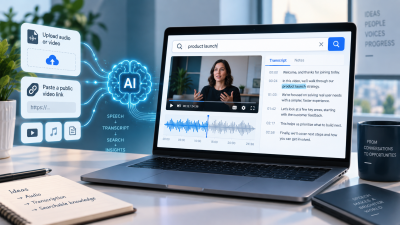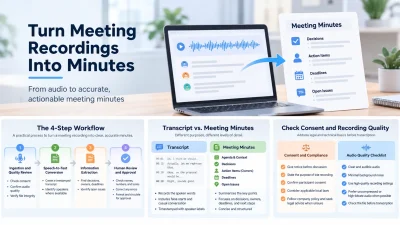
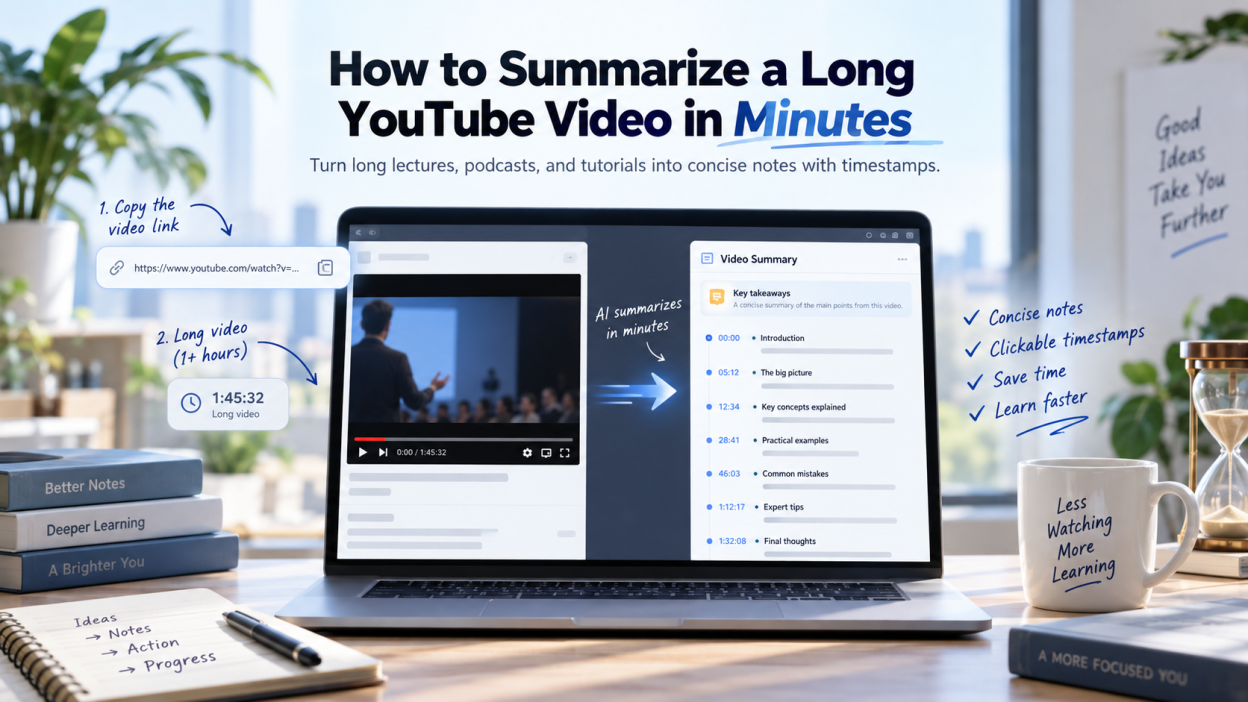
Long-form videos dominate online education, technical workshops, and industry conferences. Watching a two-hour recording to find ten minutes of useful information is not always practical. A video summarizer can take a YouTube URL, retrieve its transcript, separate the main points from filler, and return organized notes with clickable timestamps. That is often faster than searching through the playback bar yourself.
Whether you need to digest a panel discussion, a university lecture, or a software tutorial, automated workflows can cut consumption time drastically. This guide explains how to create notes from a video URL, compares browser extensions with web apps, covers videos with no native transcript, and outlines checks for keeping the notes reliable.
Fastest Way to Get Key Takeaways From Long Videos
One quick way to pull takeaways from a long recording is to paste its link into a text extractor. Instead of analyzing the video frame by frame, these tools read the caption track and send the transcript to a language model. A video to notes ai tool can return a structured brief in twenty to forty seconds, whether the video is twenty minutes or three hours long.
+-------------------------------------------------------------------------+
|                    QUICK THREE-STEP SUMMARY WORKFLOW                    |
+-------------------------------------------------------------------------+
| 1. Copy Link      | Open the target video and copy the clean URL from    |
|                   | the address bar or the native share menu.           |
+-------------------+-----------------------------------------------------+
| 2. Submit URL     | Paste the link into the summarizer and select your   |
|                   | target format (e.g., bulleted brief or outline).    |
+-------------------+-----------------------------------------------------+
| 3. Review Notes   | Read the generated bullet points and click specific  |
|                   | timestamps to verify context in the original video. |
+-------------------+-----------------------------------------------------+
By converting spoken dialogue into text, these tools can skip introductions, sponsor segments, and banter. The result includes the central thesis, supporting arguments, and timestamps that point to where each point appears in the video.
Step-by-Step Guide to Summarizing Videos With Web-Based Tools
Web summarizers are convenient because they do not need a local installation, browser permissions, or system access. You can use them from desktop and mobile browsers in four steps.
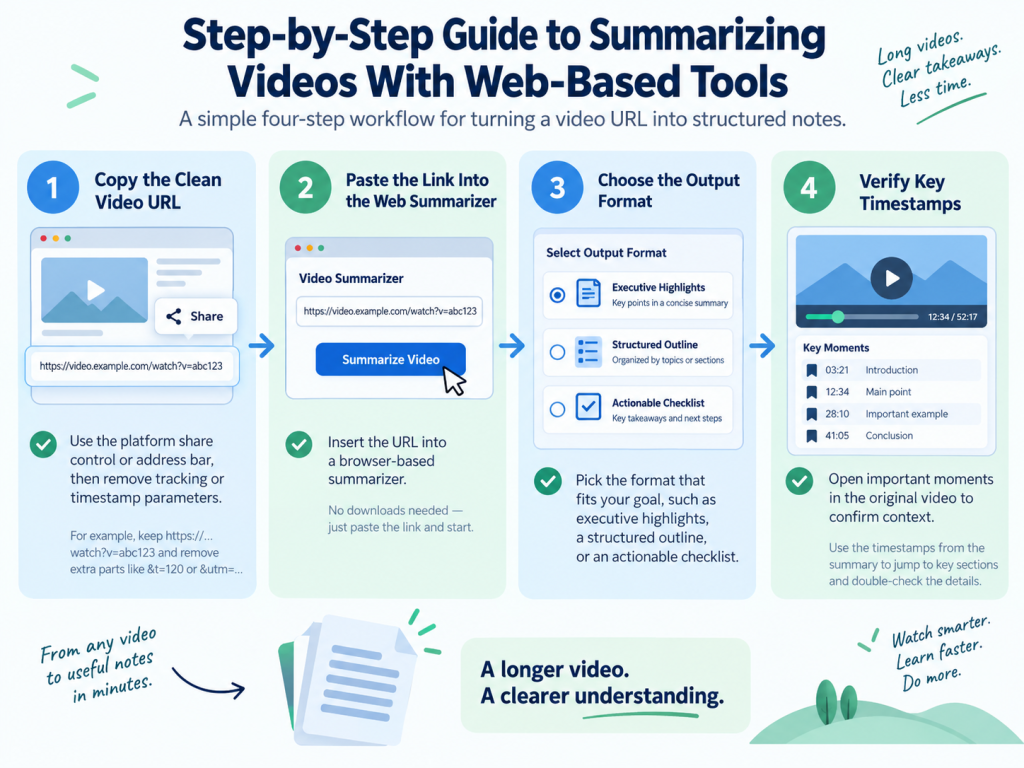
Step 1: Copy the Clean Video URL
Open the video in a desktop browser or mobile app, then use the platform’s share control to copy the link. The URL should contain the core video identifier but not tracking tags or timestamp parameters such as &t=120s. A clean URL lets the processor retrieve the transcript from the beginning.
If you want to read the dialogue before creating a summary, see how to see transcript on youtube in the native player. The raw transcript can show whether the creator supplied edited subtitles or the platform used automatically generated captions.
Step 2: Insert the Link Into the Web Summarizer
Open a summarizer in a new tab and paste in the URL. Because web tools run on remote servers, extraction does not use your computer’s local memory or battery. The service contacts the host server, confirms permissions, and places the subtitle track in its processing buffer.
Step 3: Choose Your Summary Output Parameters
Most tools let you choose a format that suits the project:
- Executive highlights: Five to ten high-level bullets covering the main conclusions.
- Structured outlines: Chronological chapter headings with nested points and supporting evidence.
- Actionable checklists: Numbered steps for technical instructions, prerequisites, or referenced tools.
Choosing a format first helps keep the notes concise and usable.
Step 4: Verify Generated Timestamps Against Original Playback
After the tool returns notes, check the timestamp links attached to important statements. Open two or three of those moments in the source video. If the speaker refers to a diagram, financial chart, or live demonstration, the timestamp lets you see details that the transcript does not include.
Browser Extensions vs. Web Applications for Video Summaries
The choice between a browser extension and a web application depends on video volume, the devices you use, and your browser-permissions policy. Both work with transcripts, but their requirements differ.
| Evaluation Metric | In-Browser Extension | Standalone Web Application |
|---|---|---|
| Installation Requirement | Requires browser extension store download | Zero installation; runs directly in browser tabs |
| Convenience & Speed | One-click access inside the native video player | Requires pasting URL into a separate tab |
| Cross-Device Mobility | Limited to desktop browsers supporting add-ons | Works across desktop, mobile browsers, and tablets |
| System Resource Impact | Runs active background scripts in your browser | Negligible local footprint; handled on remote servers |
| Privacy & Permissions | Often requires permissions to read webpage data | Processes only the public URL you paste |
| Best For | High-volume daily researchers on desktop setups | Mobile users, security-conscious teams, and study hubs |
Extensions place their interface beside the video player. When you open a video, the extension detects the page and can create a summary without a tab switch. That can be useful if you process dozens of clips each week.
Extensions may need permissions that corporate IT policies and privacy-conscious users would rather not grant. They also rarely work in mobile browsers. Students who want an organized study system can use a standalone note taking ai for students platform across laptops, tablets, and phones without adding another browser extension.
How to Tailor Summaries for Lectures, Podcasts, and Tutorials
Different types of video need different note structures. An interview benefits from a different layout than a hands-on coding tutorial. Clear instructions and formatting options help match the summary to the source material.
+-------------------------------------------------------------------------+
|                       CONTENT-SPECIFIC PROMPTING                        |
+-------------------------------------------------------------------------+
| LECTURES:     "Extract main arguments, core definitions, primary        |
|               formulas, and cited literature with timestamps."          |
+-------------------------------------------------------------------------+
| PODCASTS:     "Identify speakers, summarize their distinct views,       |
|               and outline the primary topic transitions."               |
+-------------------------------------------------------------------------+
| TUTORIALS:    "List required tools, sequential execution steps,         |
|               exact commands or parameters, and common gotchas."        |
+-------------------------------------------------------------------------+
Academic Lectures and Course Recordings
Lectures and academic panels often contain technical concepts, citations, and precise definitions. Generic bullet points can flatten nuanced arguments. With a lecture summarizer ai, set the tool to identify core concepts, build a glossary for specialized terms, and pull direct examples.
Long-Form Conversational Podcasts
Podcasts move across topics, anecdotes, and interruptions. A strictly chronological summary can become hard to follow. For open-ended discussions, use a tool with speaker diarization. It groups statements by speaker and helps separate banter from the main subject.
Step-by-Step Technical Tutorials
Tutorials about coding, hardware repair, or creative software require precision. Ask for a sequential checklist that includes prerequisites, exact settings or commands, and relevant warnings. That makes it easier to follow the tutorial without repeatedly pausing the video.
Interactive Follow-Up Inquiries
Many tools include a chat panel with the parsed transcript. After receiving an initial summary, you can ask questions such as:
- “What specific software package did the speaker recommend around minute 14?”
- “What objections did the guest raise regarding remote team productivity?”
- “Summarize the third step of the deployment workflow in three sentences.”
This lets you use a video as a source for targeted research instead of passive listening.
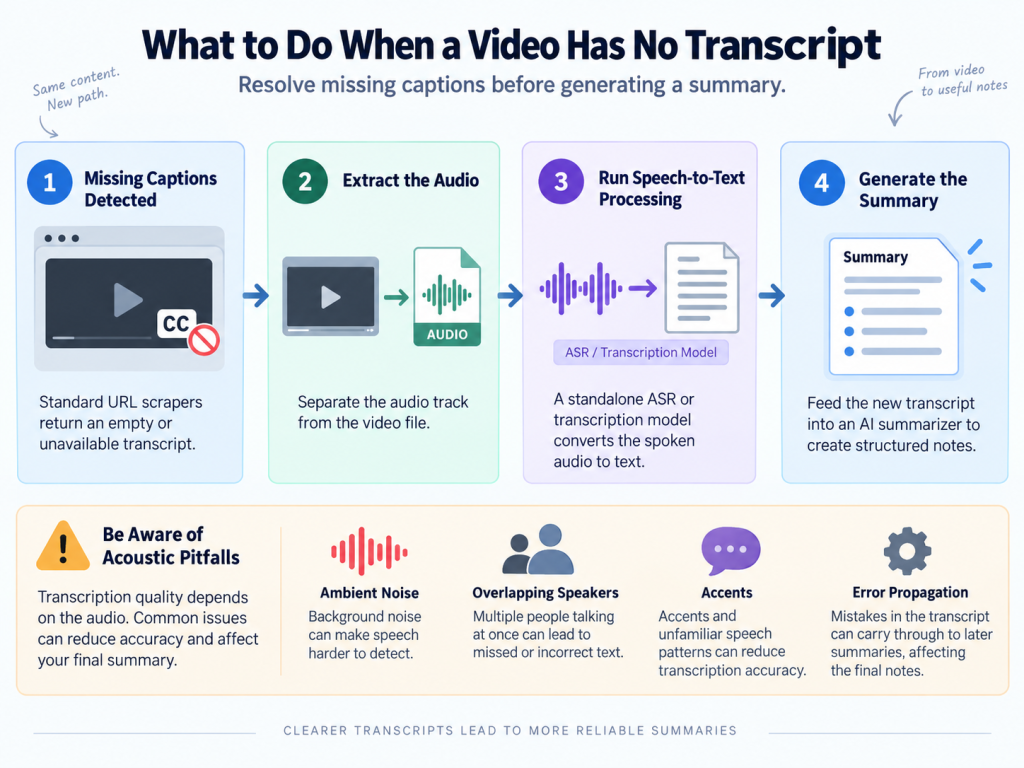
What to Do When a Video Has No Closed Captions or Transcript
Most link-based summarizers need a caption file from the video platform. If a creator uploads a video without subtitles or disables automated transcription, these tools cannot find a transcript and usually return an error. In that situation, extract the audio and create text with speech-to-text processing before making a summary.
+-------------------------------------------------------------------------+
|                TRANSCRIPTLESS VIDEO RESOLUTION WORKFLOW                 |
+-------------------------------------------------------------------------+
| 1. Missing Captions Detected -> Standard URL scrapers return empty track|
| 2. Audio Extraction          -> Separate audio stream from visual file  |
| 3. Standalone ASR Processing -> Run independent speech-to-text model    |
| 4. Text Ingestion & Summary  -> Input generated text into AI summarizer |
+-------------------------------------------------------------------------+
Why Standard Link Summarizers Break
Link-based tools generally do not run speech recognition on multi-hour video streams because of the compute cost. They scrape the lightweight text file created by the platform’s automatic captioning pipeline instead. If no subtitle track exists, there is no text to parse.
Practical Workflows: From Audio to Summary Without Native Captions
For an uncaptioned video, use either a command-line pipeline or a desktop workflow with no configuration to create a transcript and then summarize it.
Method A: Developer Command-Line Toolchain (yt-dlp + Whisper + LLM)
For local control and no recurring tool subscriptions, use yt-dlp with OpenAI’s open-source Whisper model and then a preferred LLM.
Step 1: Extract Audio with yt-dlp
Run yt-dlp in a terminal to download only the audio track. That keeps the file smaller and can reduce download time:
yt-dlp -x --audio-format mp3 -o "input_audio.%(ext)s" "<YOUTUBE_URL>"Step 2: Transcribe Spoken Audio Using Whisper CLI
Run Whisper on the local machine to create a plain-text transcript:
whisper input_audio.mp3 --model base --output_format txt --language en(Tip: If your machine has a dedicated GPU or the video contains technical jargon, replace --model base with --model medium or --model small for improved accuracy.)
Step 3: Feed the Transcript into Claude or ChatGPT
Open input_audio.txt and paste the raw text into Claude or ChatGPT with a focused prompt:
I am providing the raw, unedited transcript of a video recording.

Please generate a structured summary that includes:
1. An Executive Summary (3-5 sentences outlining the core objective)
2. Key Takeaways (bulleted points with main arguments and evidence)
3. Action Items or Step-by-Step Instructions mentioned by the speaker
4. A Glossary of any specialized terms or tools referenced

Transcript text:
[PASTE TRANSCRIPT HERE]
Method B: Zero-Config / No-Code Desktop Workflow
If you would rather not use a terminal, the same pipeline can run in standalone graphical applications:
- Extract audio: Use a desktop audio-capture tool or web converter to download an MP3 audio track from the video link.
- Run local ASR: Drag the MP3 into a desktop Whisper wrapper such as MacWhisper (macOS) or Whisper Desktop (Windows). These apps use the local CPU or GPU for speech recognition without uploading audio to third-party servers.
- Export and summarize: Export the transcript as a
.txtfile, upload or paste it into an LLM web interface, and run the structured prompt above.
Using Dedicated Web Transcription Platforms
Another option is to download the media and upload it to a dedicated speech-to-text service. A mp4 to transcript utility processes the file with speech-recognition models and returns an exportable transcript for a summarizer.
Technical Acoustic Pitfalls in Spoken Audio
Uncaptioned video can be difficult to transcribe when it has ambient noise, overlapping speakers, or strong accents. Clinical speech-acoustic studies report word error rates exceeding 50% in conversational speech in difficult acoustic settings, especially when microphones capture too much reverberation or competing dialogue.
[Raw Acoustic Noise / Overlapping Voices]
                 |
                 v
[High Word Error Rate (WER > 50%) in Speech Recognition]
                 |
                 v
[Error Propagation to Downstream NLP / Hallucinated Summaries]
When a speech-recognition engine misreads acoustic syllables, later tools can misunderstand the message as well. Computational-linguistics research links early transcription mistakes to severe error propagation to downstream NLP tasks, which can produce summaries that misattribute arguments or invent conclusions. Review the raw transcript before summarizing an unscripted discussion to reduce that risk.
Evaluating Free and Paid Video Summarizers
Free and paid tools both condense video, but they differ in video-length limits, context capacity, and export options. The right choice depends on how many videos you process and how you use the notes.
+-------------------------------------------------------------------------+
|                   FEATURE TIER SELECTION CHECKLIST                      |
+-------------------------------------------------------------------------+
| FREE TIER SUITABILITY:                                                  |
| [ ] Summarizing 1-3 videos per week                                     |
| [ ] Video runtimes stay under 20-30 minutes                             |
| [ ] Basic bullet points meet your study or research needs               |
| [ ] Manual copy-pasting into notes works fine                           |
|                                                                         |
| PAID TIER NECESSITY:                                                    |
| [ ] Processing multi-hour lectures, conferences, or long podcasts       |
| [ ] Batch processing multiple video links at once                       |
| [ ] In-depth Q&A across the entire full-length transcript               |
| [ ] Direct exports to Markdown, Notion, Obsidian, or clean PDFs        |
| [ ] Ingesting custom audio/video files that lack native captions        |
+-------------------------------------------------------------------------+
Video Duration and Context Window Limits
Free tools often limit videos to twenty or thirty minutes. Language-model providers charge by token, so a three-hour seminar with 35,000 spoken words needs a large context window and substantial compute. Paid platforms handle longer recordings by processing transcript chunks in order and then synthesizing the full text.
Formatting, Export Options, and Batch Workflows
Free tools often show notes in a text box, which you must copy and paste. Paid platforms may offer Markdown downloads, PDF exports, and sync options for Notion and Obsidian. Batch processing can save time if you summarize several recordings for work or research.
How to Verify Accuracy and Avoid Hallucinations in Video Notes
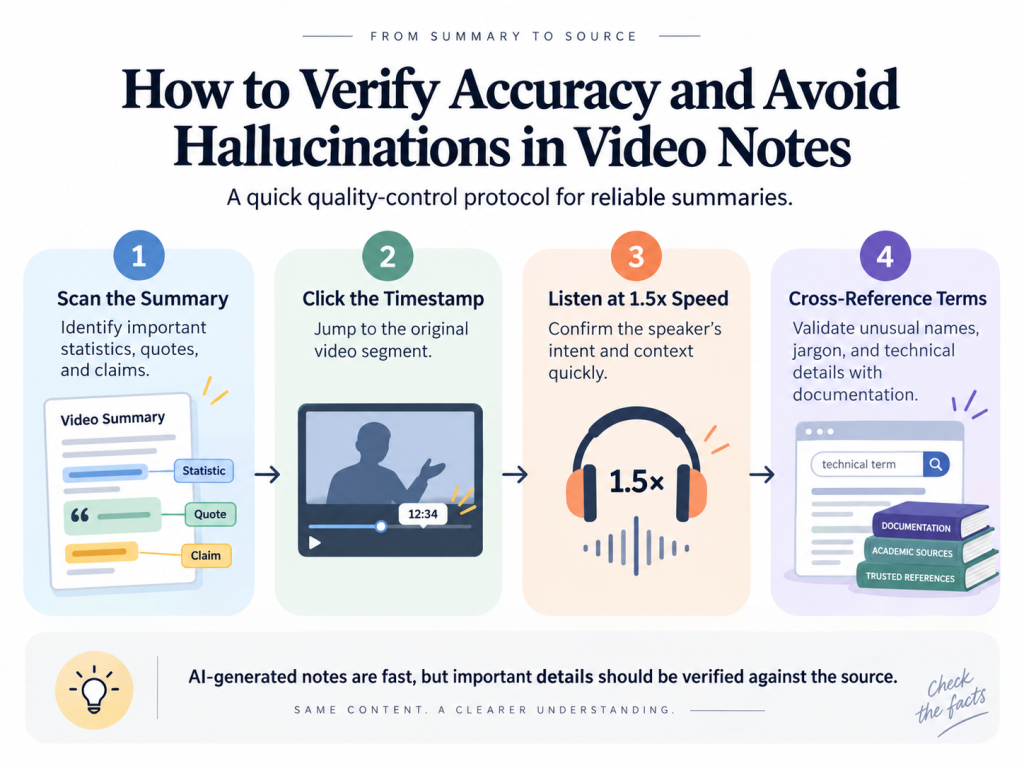
Automated summaries can save time, but language models generate plausible text rather than independently fact-checking the source. If a transcript contains phonetic mistakes or unclear speech, the summary may contain polished statements that do not match the speaker’s meaning.
A survey on LLM hallucination causes and mitigation notes that neural models can generate confident, fluent statements with no factual support in the source context. Understanding this problem matters for research integrity.
Practical Fact-Checking Checklist
Use these checks to review your notes:
- Audit quantitative claims: Check metrics, dates, percentages, and dollar figures against the timestamped audio. Automated captions can drop or transpose numbers.
- Listen to key points at 1.5x speed: For an important claim, use the timestamp to replay the ninety-second segment at 1.5x. This can help confirm the speaker’s intent.
- Verify proper nouns and technical jargon: Speech-recognition engines can misspell brand names, software packages, and medical terminology. Check unusual terms against official product documentation.
- Watch for contextual tone inversions: AI can read sarcasm or hyperbole as factual. If a founder jokes that their business will go bankrupt next week, check whether the summary treats that as literal company guidance.
+-------------------------------------------------------------------------+
|                    SUMMARY QUALITY-CONTROL PROTOCOL                     |
+-------------------------------------------------------------------------+
| 1. Scan Output       -> Identify critical statistics, quotes, and claims|
| 2. Click Timestamp   -> Jump directly to original video chapter segment |
| 3. Listen at 1.5x    -> Confirm speaker's literal intent and context    |
| 4. Cross-Reference   -> Validate unusual terminology via documentation  |
+-------------------------------------------------------------------------+
Automated extraction plus quick spot checks gives you the speed of AI-generated notes while helping you avoid factual errors.
Master How to Summarize a Long YouTube Video in Minutes
Video summarizers can turn hour-long recordings into structured notes in minutes. Instead of spending an afternoon moving through playback sliders, you can request executive briefs, outlines, and time-coded takeaways when you need them.
Use a browser extension for one-click summaries during desktop browsing, or a web app for cross-device access and privacy. For lectures and tutorials, ask for definitions and step-by-step procedures. For videos without captions, use a yt-dlp and Whisper command-line toolchain or no-code desktop tools to extract audio and create a transcript before summarizing. Then check numbers and important quotes against the original timestamps to keep your notes accurate and dependable.
FAQs
Can Automated Tools Summarize Videos That Lack Subtitles or Transcripts?
Standard URL-based summarizers cannot process videos without subtitles because they scrape existing caption tracks. To summarize a video without closed captions, extract its audio and run it through a standalone speech-to-text engine before generating notes.
How Do Video Summarization Tools Extract Information So Quickly?
Video summarizers read the transcript file hosted by the media platform instead of analyzing video frames one by one. Text processing uses negligible bandwidth and computing power, so language models can return synthesized points in under a minute.
Can I Ask Follow-Up Questions to an Automated Video Summary?
Yes. AI summarizers load the parsed transcript into a conversational context window. After the first summary, use the chat interface to ask follow-up questions, request clarification on definitions, or search for exact quotes.
Are Video Summarizer Tools Accurate With Complex Technical Topics?
Accuracy depends on the underlying transcript. If captions mishear technical jargon or noise obscures speech, the summary may repeat factual errors. Cross-reference technical claims against the video’s original timestamps.