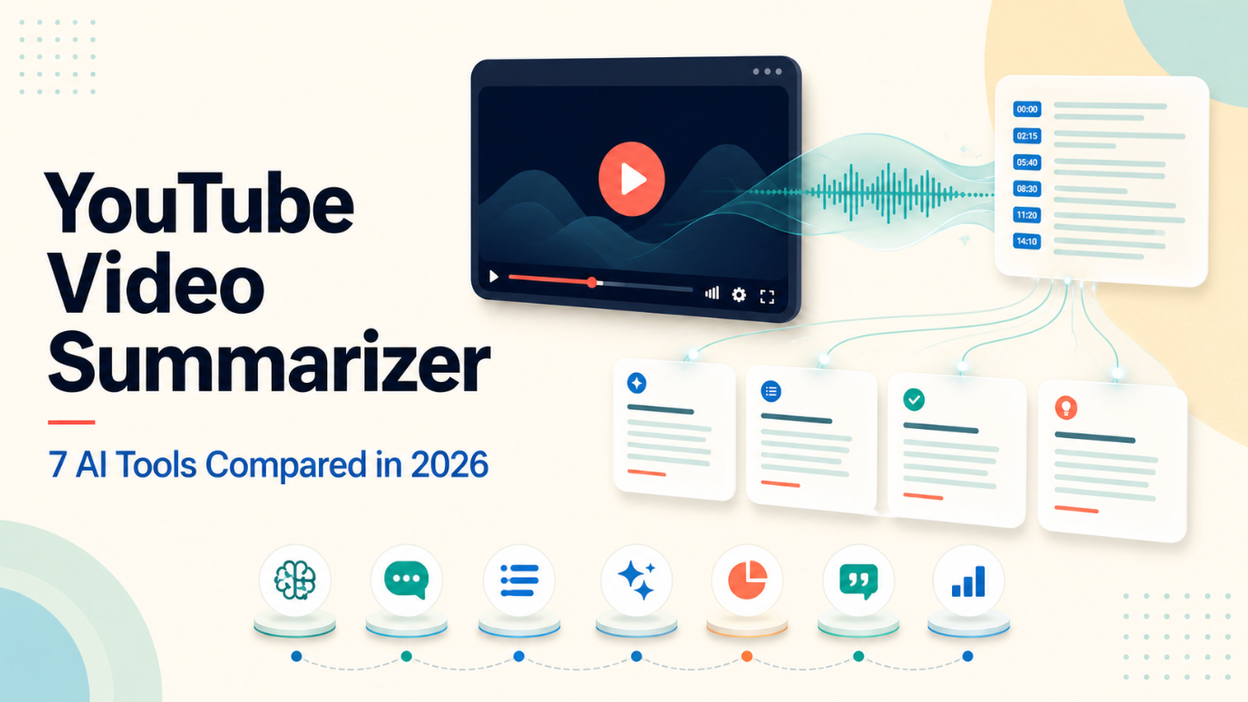
A YouTube video summarizer turns a video or its transcript into a shorter written overview, helping you understand the main ideas quickly before deciding what to watch in full. The most useful tools do not merely produce generic bullets: they give you a readable summary, expose the transcript or timestamps when available, and make their free limits clear.
People use these tools for several different jobs. A student may want notes from a lecture, a creator may be researching several videos, a researcher or professional may need to extract key information efficiently, and a viewer may simply want the answer buried inside a tutorial. Because many YouTube videos are long and information-dense, a good summarizer can save time, improve comprehension, support study and research, and speed up content workflows. Long-video coverage, live-stream support, security, multilingual output, and summary accuracy matter too, but they are selection factors rather than the only reason people search for a YouTube video summarizer.
For a fast, focused workflow, I would start with Lunote Video Summary. It gives Lunote users a direct route from a YouTube video to readable key points, while the related Video Transcript tool is useful when I need the underlying words rather than only the conclusion. Mindgrasp is stronger for a broader study system, Jotform is useful when follow-up chat and output controls matter, Decopy offers unusually generous no-login access, NoteGPT goes deeper into study artifacts, Eightify is convenient inside YouTube, and Glasp fits readers building a reusable knowledge library.
If your priority is a free YouTube video summarizer, read the allowance closely: “free” can mean a no-login public tool, a small monthly quota, a trial, or a feature that requires another paid AI account. This comparison looks at the main types of tools, their features, strengths, limitations, free and paid access, workflow differences, practical use cases, and how to choose the right option for your needs.
This comparison is based on current product documentation, public interfaces, pricing pages, and recurring user concerns. It is a documentation and workflow comparison, not a controlled accuracy benchmark. Provider claims are identified as claims, and features, limits, and prices were reviewed on August 16, 2026 and may change.
Editorial disclosure: This article is published for Lunote, so Lunote is the publisher’s own product. I evaluate where it fits and where another tool may be the better choice instead of treating its inclusion as independent proof that it is universally the best option.
YouTube Video Summarizer Tools at a Glance
| Tool | Best for | Free access | Paid model | Main strength | Main limitation |
| Lunote | Fast summaries inside a broader content workflow | Free access available; current allowance depends on account status | Check current Lunote pricing | Direct path from video to summary, transcript, translation, and other content tools | The summary still needs transcript and source verification for important claims |
| Mindgrasp | Students turning videos into study material | Its public YouTube summarizer advertises unlimited free use without sign-up | Full study platform uses paid plans; verify current pricing | Summary connects to notes, questions, quizzes, and learning workflows | Its YouTube tool processes the transcript, so missing or weak transcripts remain a constraint |
| Jotform AI | Configurable summaries and follow-up questions | Free entry advertised | Broader Jotform plans vary; check pricing | Language and length controls, visible transcript, and chat-based refinement | A broad AI product environment may be more than a user needs for one video |
| Decopy AI | Free, no-login summaries with several output views | Up to 50 videos per day claimed free | No subscription required for the described tool at review time | Timestamps, bullet points, mind maps, FAQs, and 8-language support | Its strongest accuracy and privacy statements are provider claims |
| NoteGPT | Long-form study notes and high-volume processing | 15 free quotas per month | Pro $9.99/month; annual equivalent shown as $9/month | Transcript, summary, mind map, translation, chat, channel and batch workflows | Credit rules and multiple plan limits take time to understand |
| Eightify | Summaries while browsing YouTube | Verify the current extension or app offer | Pricing and allowances may vary by platform and region | Fast key takeaways, timestamps, and browser/mobile convenience | A highly compressed takeaway format can be too shallow for nuanced videos |
| Glasp | Saving summaries into a knowledge workflow | Official page describes free basic use without sign-up | The YouTube summary service is currently described as free | Summary, transcript, highlighting, export, and knowledge-library context | Better for readers who want to save and organize findings than one-off users |
Do not compare subscriptions by monthly price alone. For video tools, the useful unit may be videos, minutes, transcript length, AI credits, or files. A cheap plan with a 30-minute cap can cost more in practice than a higher plan that handles the two-hour lectures you actually watch.
How I Compared YouTube Video Summarizer Tools
I compared the tools around the decisions a user actually has to make: summary usefulness, video-to-text and transcript access, free entry, long-video handling, live-stream constraints, creator and study workflows, security statements, timestamps, and output controls. Because I did not run a controlled output test across all seven products, the recommendations below describe documented workflows and likely tradeoffs rather than measured accuracy winners.
1. Transcript reliability
Most YouTube summarizers do not “watch” a video like a person. They process captions or a generated transcript, then summarize that text. Mindgrasp describes this process directly: paste the URL, let the AI process the transcript, then receive the summary. If names, numbers, jargon, or speaker turns are wrong in the transcript, the summary inherits a damaged source.
2. Long-video coverage
A useful AI YouTube video summarizer for lengthy videos should segment content rather than compress every topic into one paragraph. I look for chapters, time-based sections, adjustable detail, or a way to ask about a specific part so I can review the summary before deciding whether to watch the full video. “Works with long videos” is not enough unless the provider explains the duration limit or how it handles a long transcript.
3. Traceability
Timestamps and transcript access are more valuable than decorative confidence. They let me jump back to the video, check a quote, hear the speaker’s tone, and see what happened immediately before and after the summarized claim.
4. Output control
Students may want the tool to extract key information into study notes or flashcards. A researcher may want arguments and evidence. A creator may want an outline, chapters, or content ideas. Flexible output options for concise summaries cannot serve all of them equally well in just one format. Length controls, prompts, chat, Q&A, mind maps, and export formats improve practical value.
5. Free limits and real cost
The Reddit discussion supplied for this article repeatedly returns to “free,” long-video limits, context-window limits, and whether a tool requires ChatGPT Plus. Users also ask for no-sign-up access, extensions, support beyond YouTube, and the ability to upload their own recordings to summarize their own videos. Those are purchasing questions, not minor details, and when a tool is promoted as free, people also watch for hidden fees.
6. Language and content fit
Clear English lectures are easier than multilingual panels with videos in other languages, noisy field recordings, code-heavy tutorials, music analysis, or videos where meaning appears primarily on screen. I look for language support but do not assume a multilingual label guarantees equal transcription quality in every language, which matters when you need reliable summaries from educational videos, tutorial videos, and noisier formats alike.
7. Privacy and reuse
A public YouTube URL is already public, but the summary, questions, saved notes, account history, and uploaded private recordings may not be. Before using a summarizer for internal webinars, unreleased interviews, client research, or classroom recordings, I read the provider’s retention and training terms.
7 YouTube Video Summarizer Tools Reviewed
Prices and published allowances below were checked on August 16, 2026, in US dollars. Promotions, regional app-store prices, taxes, and renewal terms can change, so verify the final checkout screen before subscribing.
1. Lunote — Best for a Fast Video-to-Knowledge Workflow
Lunote Video Summary is the tool I would open first when the goal is straightforward: create a concise YouTube video summary without building an elaborate research database. As an AI-powered tool, its position inside Lunote matters because summarization is rarely the last step. I may need the transcript, a translation, a clean document, or a shorter version for another audience.
The workflow is simple: paste a YouTube video link, generate the summary, review the extracted ideas, and return to the source for anything consequential. When I need exact language, Lunote Video Transcript is the better companion because a summary is not a quotation record. If the video is in another language, Lunote Text Translator can help with selected passages after I verify what was said.
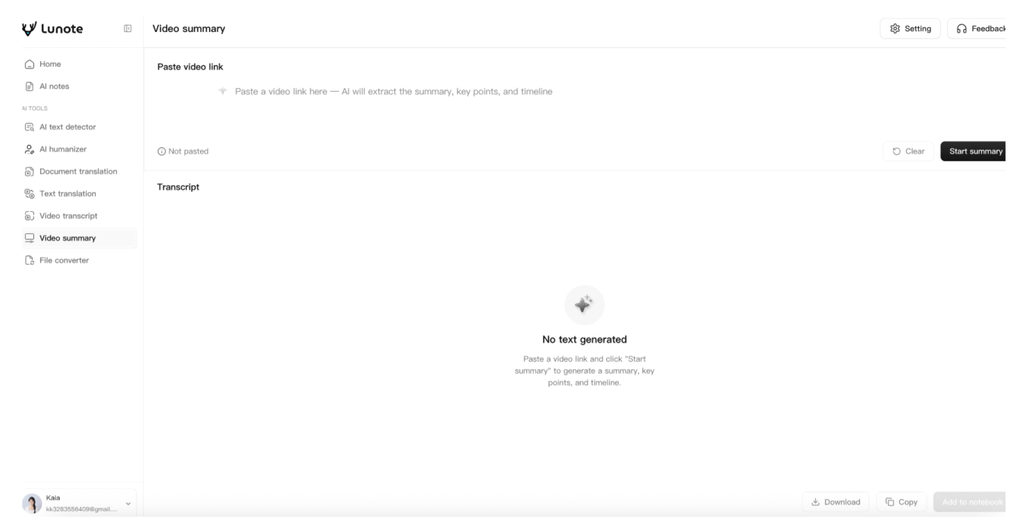
- Open the YouTube video, copy its full URL from the browser address bar or YouTube’s Share menu, and make sure it points to a public video rather than a private Studio or editing link.
- Open Lunote Video Summary and paste the URL into the video input area.
- Start the summary process and keep the page open while Lunote retrieves the available video information and transcript. If the video is private, age-restricted, region-restricted, still live, or missing accessible captions, the tool may not have enough source text to summarize.
- Read the generated overview once for structure, then note every name, number, date, quotation, product specification, and strong conclusion that needs verification.
- Open Lunote Video Transcript when you need the underlying wording. Search the transcript or return to the corresponding part of the original video before quoting or acting on a claim.
- Copy only the verified notes into your document or research system. Keep the video URL and relevant timestamps with the notes so another reader can return to the source.
Do not repeatedly regenerate a summary to force a preferred conclusion. If the output misses a visually demonstrated step, inspect the video itself: transcript-based summarization may not capture charts, code, gestures, on-screen labels, or before-and-after footage that the speaker never describes aloud.
Lunote features, pros, and cons
Key features
- accurate summaries designed for quick orientation.
- A separate Video Transcript tool for reviewing the source wording.
- Related translation, document, conversion, and writing tools inside the same Lunote workflow.
- Browser-based access without requiring a dedicated desktop summarizer.
Pros
- Keeps summary and transcript review close together, which helps users check reliable summaries without assembling several unrelated tools.
- Suitable for straightforward lectures, explainers, interviews, webinars, and creator research.
- Provides a practical next step when a summary needs translation, document handling, or editing.
Cons
- A summary remains dependent on the transcript or captions available for the video.
- The tool should not be treated as a quotation source or a replacement for watching consequential sections.
- Current free allowances and plan packaging need to be checked in the live product.
- Visual-only demonstrations, charts, and screen activity may not be represented fully in transcript-based output.
A direct summary-and-transcript workflow
I would use Lunote for lectures, webinars, explainers, interviews, product research, creator research, conference talks, and industry talks when I want quick orientation before deciding what deserves full attention. It is also a sensible option for someone who prefers one content workspace over separate subscriptions for summaries, transcripts, translation, document handling, and rewriting.
For content creators, the responsible workflow is summary first, source review second, original angle third. A video summary can expose the argument and structure, but it should not be turned directly into a derivative article. I would identify the claims worth checking, watch those sections, consult additional sources, and add my own analysis.
Where the workflow still needs human review
Lunote cannot make a weak source reliable. Auto-generated captions may confuse product names, figures, accents, or multiple speakers. A concise summary may also omit a caveat that matters more than the headline. Treat it as a navigation layer over the video, not a substitute for the source when accuracy matters.
Lunote access and pricing
| Access or plan | Price | What it means for video summarization |
| Free access | $0 | Lets users try Lunote’s browser-based tools; the live allowance may depend on the current product limit. |
| Paid access | Check the Lunote pricing page | Lunote does not currently provide a sufficiently stable public plan-and-quota breakdown for this article to quote responsibly. Confirm the billing period, video limits, and included tools before checkout. |
Free access is available, while live allowances and paid packaging can change. Check Lunote pricing before comparing it with a specialist subscription. I would judge the cost across the complete workflow: summary, transcript, translation, document conversion, and any follow-up editing I would otherwise do in separate tools.
Verdict: Start with Lunote when you want a clean, direct YouTube video summarizer connected to practical follow-up tools. Use the transcript and original video to verify names, numbers, quotations, and disputed conclusions.
2. Mindgrasp — Best for Turning Videos Into Study Material
Mindgrasp’s AI YouTube Video Summarizer is positioned as an entry point to a larger study system. The public tool says users can paste a YouTube URL without downloading the video, and its documentation states that the AI processes the video’s transcript to identify topics and discussions.
That transcript-first explanation is useful because it sets the correct expectation. Mindgrasp says the public tool can summarize unlimited YouTube videos for free without sign-up and supports multiple languages. It also notes that live streams work best after they end and a full transcript becomes available. This is more credible than implying that an active broadcast can always be summarized accurately in real time.
The broader Mindgrasp platform adds notes, questions, quizzes, flashcards, an AI tutor, file inputs, and integrations. For a student, these outputs can be more useful than a shorter summary. A lecture becomes something to retrieve and test, not only skim once.
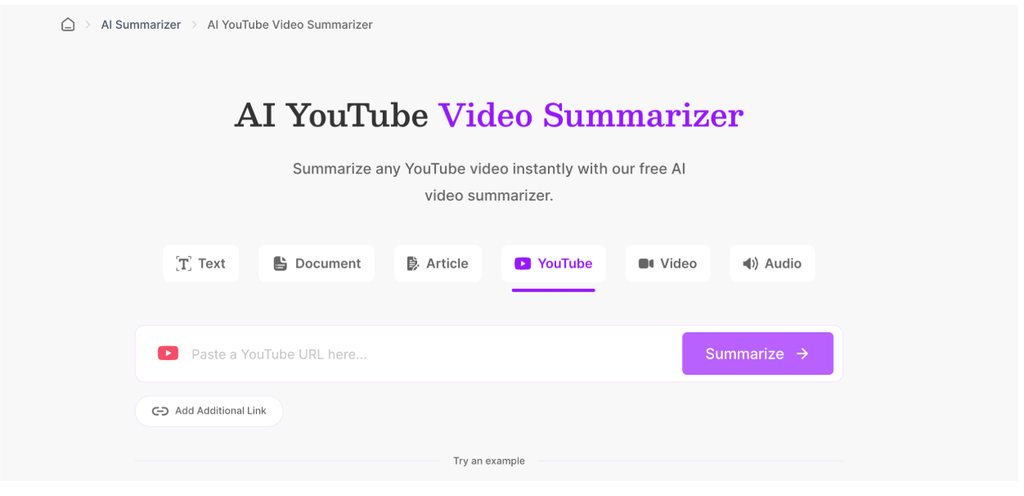
- Copy the URL of a completed, publicly accessible YouTube video. Mindgrasp says live streams work best after the stream ends and a complete transcript becomes available.
- Open Mindgrasp’s public YouTube summarizer and paste the link; no video download is required for the documented public workflow.
- Select the YouTube input and submit the URL. According to Mindgrasp, the tool processes the video’s transcript to identify topics and important discussions.
- Read the summary beside the original video. Check unfamiliar terms and figures against the captions before turning them into study notes.
- If you use the wider Mindgrasp platform, continue from the same source into notes, questions, quizzes, flashcards, or AI Tutor prompts. Ask narrow questions such as “What example supports the second principle?” rather than requesting another general summary.
- Before relying on the free workflow repeatedly, confirm whether the next action stays inside the public summarizer or requires a Mindgrasp account or paid study plan.
Mindgrasp features, pros, and cons
Key features
- Public YouTube summarizer that Mindgrasp advertises as free and available without sign-up.
- Transcript-based summary generation with multilingual support claimed by the provider.
- Wider study system with notes, questions, quizzes, flashcards, and an AI tutor.
- Support for additional learning inputs such as documents, recordings, and course materials in the broader platform.
Pros
- Strong fit for students who want to convert a lecture into active study material rather than read one short recap.
- Clearly explains that the summarizer processes the video’s transcript.
- Completed-video guidance sets a more realistic expectation for livestreams.
Cons
- The free public summarizer and paid study platform are not the same product allowance.
- Flashcards and quizzes can confidently repeat a transcription error if the user skips transcript review.
- The wider learning system may add unnecessary complexity for someone summarizing one video.
- “Unlimited” and accuracy statements remain provider claims rather than independent benchmark results.
Why it works particularly well for students
I would choose Mindgrasp for lecture videos, exam preparation, recorded classes, and learners who want to summarize videos to study faster, ask questions, or create study materials from the same source. It also makes sense when YouTube is only one input among PDFs, slides, recordings, and course-platform content, and it can even help summarize podcasts when that source material is posted on YouTube.
Where the free summarizer ends and the study platform begins
“Unlimited free” applies to the public YouTube summarizer claim, not automatically to every feature in the full study platform. Confirm what requires an account or subscription after the initial summary. More importantly, check the transcript before memorizing generated notes. A polished flashcard built from a misheard term is still wrong.
Mindgrasp access and pricing
| Plan | Monthly billing | Annual billing | Main difference |
| Public YouTube summarizer | $0 | $0 | Advertised for free use without sign-up; this does not include every feature in the study platform. |
| Basic | $9.99/month | $5.99/month, billed $71.88/year | Unlimited assistant questions, study tools, file uploads, focused reading, and library storage. |
| Scholar | $12.99/month | $8.99/month, billed $107.88/year | Adds AI Math Expert and the Chrome extension beta. |
| Premium | $14.99/month | $10.99/month, billed $131.88/year | Adds iOS access, live recording, multi-file sessions, and image analysis. |
The public YouTube summarizer advertises free, no-login use. The broader platform has paid plans and may change packaging, so consult Mindgrasp’s current pricing. I would pay only if the study system—questions, notes, quizzes, multiple source types, and ongoing organization—reduces work beyond what the free summary already provides.
Verdict: Mindgrasp is the strongest fit here for students who want to turn a video into an active study session. It is less compelling if you only need one short summary and will never use the learning tools.
3. Jotform AI — Best for Configurable Summaries and Follow-Up Chat
Jotform’s AI YouTube Video Summarizer emphasizes control after the URL is pasted, positioning the page as a summary tool. Its page describes language and summary-length choices, a transcript shown for reference, and a chat box that can rephrase, translate, explain, or answer questions about the result.
The transcript view is the differentiator I care about. It creates a basic audit trail: when a summary says the speaker recommends a particular method, I can search the underlying transcript and see whether the statement was direct, conditional, or part of an example. Jotform also suggests asking the chat to focus on definitions, setup steps, tips, or a specific part of the recording, and to generate summaries in different lengths or languages.
This makes the tool more adaptable than a fixed summary generator. A student can ask for definitions; a manager can ask for decisions and actions; a creator can request an outline. The danger is assuming a confident chat answer adds new evidence. It remains grounded in whatever transcript and context the system retrieved.
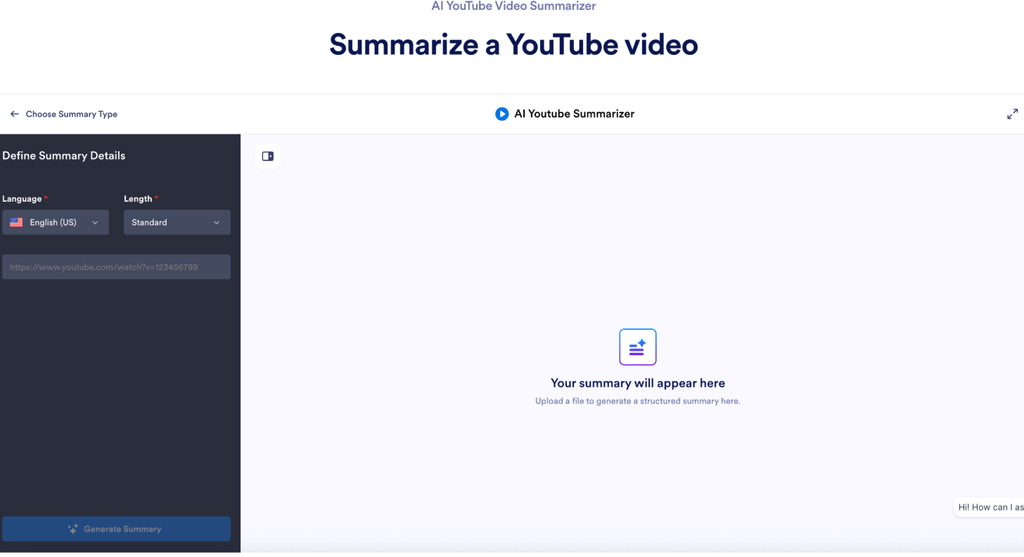
How to generate and refine a summary in Jotform AI
- Copy the YouTube URL and paste it into Jotform’s AI YouTube Video Summarizer.
- Choose the output language and summary length before generating. Use a shorter setting for screening and a longer setting when examples or qualifications matter.
- Generate the summary, then compare it with the transcript Jotform displays as a reference.
- Use the chat box to narrow the result: ask for definitions, ordered setup steps, examples, decisions, objections, or a recap of a specific section.
- Select a passage when you want it rephrased, simplified, or translated for another audience, but return to the transcript before treating the rewritten passage as a quotation.
- Save the original URL and any source location separately. A follow-up answer is an interpretation of the retrieved transcript, not additional evidence outside the video.
Jotform AI features, pros, and cons
Key features
- YouTube URL input with selectable summary language and length.
- Generated transcript displayed as a reference beside the summary.
- Follow-up chat for explaining, translating, rephrasing, and narrowing the result.
- Support for several summarization categories beyond YouTube in Jotform’s wider AI environment.
Pros
- Gives users more control than a fixed one-paragraph summary.
- Transcript visibility makes terminology and examples easier to check.
- Follow-up questions work well for tutorials, definitions, action items, and audience-specific summaries.
Cons
- Chat answers can sound authoritative even when the retrieved transcript is incomplete or incorrect.
- The broader Jotform product and pricing structure may be more than a one-off user needs.
- Free entry does not automatically define the allowance for every AI action or connected feature.
- Users still need the original video when tone, visuals, or exact quotations matter.
Who benefits from transcript-plus-chat
I would choose Jotform when I need to move from summary to questions without copying the transcript into another chatbot. It suits tutorials, research interviews, team learning, and videos that need different levels of detail for different readers.
The limits of confident follow-up answers
Jotform is a broad platform, so distinguish the free summarizer experience from features governed by the wider account and plan structure. Verify whether the video is accessible, whether captions are available, and whether the transcript represents multiple speakers correctly. For factual research, follow the timestamps back to the source rather than citing the AI answer.
Jotform access and pricing
| Access or plan | Price | Relevance to the YouTube summarizer |
| AI YouTube Video Summarizer | Free entry | The public summarizer can be tried without buying a full Jotform business plan; the page does not publish a separate paid summarizer quota. |
| Starter | $0 | Jotform’s wider free account; platform limits apply, but they should not be presented as a dedicated YouTube-summary allowance. |
| Bronze | $34/month billed annually | Wider Jotform platform limits and branding removal; not a summarizer-only subscription. |
| Silver | $39/month billed annually | Higher platform limits; not evidence of a larger YouTube-summary quota. |
| Gold | $99/month billed annually | Higher business limits and eligible HIPAA features; generally excessive for video summarization alone. |
| Enterprise | Custom quote | Multiuser administration, security, service, and custom deployment requirements. |
The tool is marketed with free entry, while Jotform’s broader account limits and paid tiers are listed on its official pricing page. The relevant value is not form capacity; it is whether the AI summary, transcript, refinement chat, and other input formats are available at the volume you need.
Verdict: Jotform is a strong option when summary length, language, transcript review, and follow-up questions matter more than producing the fastest possible bullets.
4. Decopy AI — Best Free No-Sign-Up Option With Multiple Views
Decopy AI’s YouTube Video Summarizer makes one of the clearest free-access offers in this group. Its official page says no login is required and users can summarize up to 50 videos per day. It generates key ideas, bullet points, mind maps, FAQs, transcripts, and timestamped summaries, with support for eight or more languages.
That range of output formats is useful for long educational content. Bullet points provide a scan; the mind map exposes hierarchy; FAQs turn ideas into retrieval prompts; timestamps provide a route back to the recording. Decopy says videos under 90 minutes generally process smoothly and that longer videos use adjusted summary granularity. I treat that as the provider’s description based on its internal testing, not an independently verified performance limit.
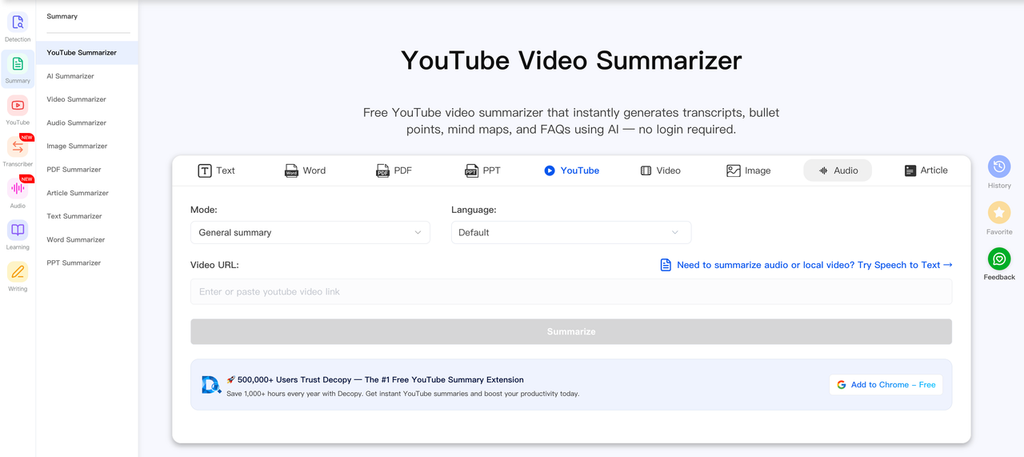
The company also states that it does not retain video links, transcripts, or summaries. That is a meaningful privacy claim, but a sensitive workflow still deserves a review of the complete privacy policy and current implementation rather than relying only on landing-page copy.
How to use Decopy without creating an account
- Open Decopy’s YouTube Video Summarizer and paste a public YouTube URL into the input box.
- Start the summary and wait for the tool to retrieve captions or create the source text it needs. Decopy says no login is required for this workflow.
- Review the main summary first, then switch among the available transcript, bullet-point, timestamped summary, mind-map, and FAQ views according to the task.
- Use timestamps to watch the sections behind the most important points. A polished mind map is useful for orientation but does not prove that every branch is complete or correctly prioritized.
- Copy a section or download the available result format only after checking names, figures, and conclusions against the source.
- If you plan to summarize many videos, confirm that the live daily allowance still matches Decopy’s published claim before building it into a recurring workflow.
Decopy features, pros, and cons
Key features
- No-login YouTube URL workflow.
- Summary, transcript, bullet-point, timestamp, mind-map, and FAQ views.
- Download or copy options for generated material.
- Support for eight or more languages claimed on the product page.
- Published allowance of up to 50 YouTube videos per day at the time of review.
Pros
- Low-friction option for testing a public video without creating an account.
- Multiple output views help users move from scanning to structured study.
- Timestamps offer a practical route back to the video.
Cons
- Accuracy, complete key-point capture, and data-retention statements come from Decopy itself.
- A mind map or FAQ can make an incomplete interpretation look more authoritative.
- The quota and credit system is more complicated than the tool’s low-friction landing page suggests.
- Videos dominated by visuals, overlapping speech, poor audio, or sarcasm remain difficult.
What you get without creating an account
I would try Decopy when I want a free AI YouTube video summarizer with no sign-up, especially as one of the casual viewers or for structured lectures, tutorials, podcasts, webinars, or creator research. It is also appealing when mind maps and FAQ views help me understand a topic faster.
Claims I would verify in the output
The page makes strong statements about accurate captions, complete key-point capture, and verified facts. Those are marketing claims. No summarizer can guarantee it never misses an important point, particularly when audio is unclear or the video relies on charts, demonstrations, sarcasm, or visual evidence not expressed in speech.
Decopy’s published free allowance
| Plan | Price | Monthly allowance relevant to summarization |
| Free | $0 | Limited shared quotas and premium credits; YouTube videos with subtitles use quotas, while videos without subtitles use premium credits. |
| Lite | $6.99/month | 1,100 quotas and 800 premium credits. |
| Basic | $14.99/month | 3,000 quotas and 2,000 premium credits. |
| Premium | $29.99/month | Unlimited basic-feature quotas and 5,000 premium credits; no-subtitle processing still uses premium credits. |
Decopy’s current pricing documentation uses shared quotas and premium credits, which is more restrictive and more complicated than a simple “50 videos per day” promise. A subtitled video uses basic quotas, while a video without subtitles can consume premium credits. Check the counter shown in the live interface before processing several videos because summarization, writing, detection, and study features may draw from the same allowance.
Verdict: Decopy is the most attractive no-account experiment in this comparison. Use its transcript and timestamps to validate the polished output rather than accepting its accuracy claims at face value.
5. NoteGPT — Best for Long Videos, Batch Work, and Study Artifacts
NoteGPT’s YouTube Video Summarizer ranks prominently because it helps summarize youtube videos without stopping at one summary box. It also supports workflows across multiple youtube videos. The ecosystem includes transcripts, summaries, mind maps, translations, AI chat, quizzes, flashcards, audio and video processing, channel summarization, and batch workflows.
This breadth matters for long-form learning and research, especially for heavy youtube content workflows. A user can start with a transcript, create structured notes, ask follow-up questions, and move information into a reusable study system. NoteGPT’s official plan page also distinguishes videos that already have subtitles from those requiring transcription. That is the kind of operational detail many “summarize any video” pages omit.
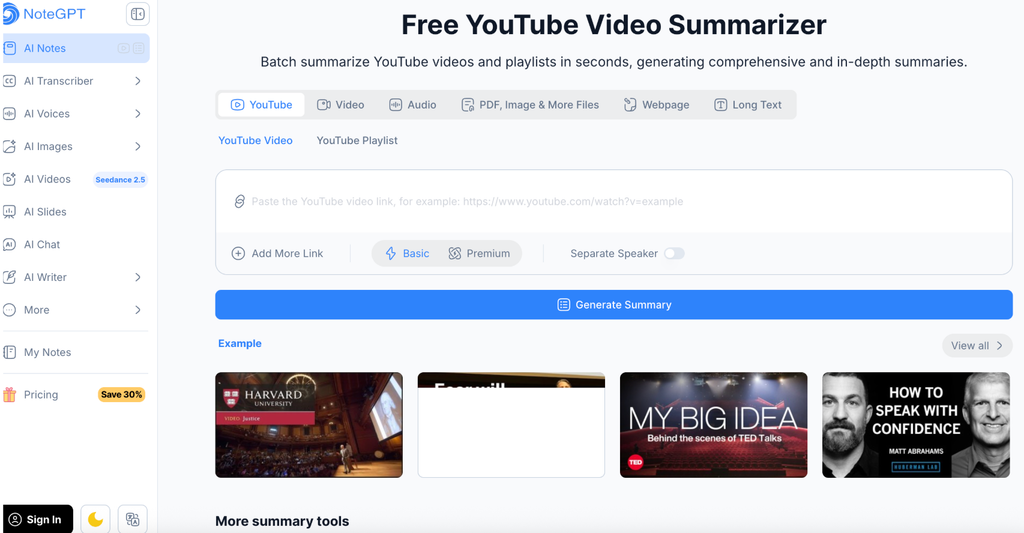
How to summarize a video in NoteGPT
- Open NoteGPT’s YouTube Video Summarizer and paste the video URL. Confirm whether the video already has subtitles because NoteGPT publishes different allowances for subtitled and non-subtitled videos.
- Choose the source language or automatic detection where available, then generate the transcript and summary.
- Review the transcript before creating additional outputs. Correct or note obvious errors in names, jargon, and speaker attribution so they are not repeated in later study materials.
- Generate only the artifact you need next—such as a summary, mind map, translation, quiz, flashcards, or AI chat—because free and paid actions may consume different quotas or credits.
- For batch or channel work, test one representative video before submitting several. Confirm duration, subtitle status, file-size limits, simultaneous-processing limits, and the number of channels included in the selected plan.
- Check the account’s remaining basic quotas and premium credits before starting a long or non-subtitled video; do not assume that an “unlimited” label applies equally to every transcription and generation action.
NoteGPT features, pros, and cons
Key features
- YouTube transcript and summary generation.
- Mind maps, translations, chat, quizzes, flashcards, and presentation-oriented outputs.
- Channel summarization and batch-processing options on eligible plans.
- Separate handling and plan limits for videos with subtitles and videos requiring transcription.
- Support for local audio and video files in the wider product.
Pros
- Broadest workflow in this comparison for repeated study and research tasks.
- Publishes unusually detailed plan limits for subtitle status, duration, file size, batches, and channels.
- Can turn one source into several different learning or research artifacts.
Cons
- Basic quotas, premium credits, duration rules, and plan tiers require careful reading.
- Creating several artifacts can consume allowance faster than users expect.
- The feature set is excessive for someone who only wants one concise summary.
- Batch processing multiplies the cost of an unnoticed transcript error, so a representative video should be checked first.
Why it suits heavier video workloads
I would shortlist NoteGPT for researchers, students, analysts, and creators processing many lectures, channels, podcasts, or local files. It becomes more valuable when summaries need to turn into mind maps, translations, presentations, or review materials.
The quota system is the real learning curve
The plan structure is complex. Basic quotas and premium credits cover different actions, and free use is shared across features. NoteGPT’s help center says the free account receives 15 quotas per month, so “free” is an evaluation allowance rather than unrestricted use. Check how many quotas your particular video consumes before committing.
NoteGPT plans and video limits
| Plan | Monthly billing | Annual billing | Main allowance |
| Free | $0 | $0 | 15 shared quotas per month across NoteGPT features. |
| Pro | $9.99/month | About $9/month billed annually | 1,000 basic quotas and 100 premium credits under the plan displayed during this review. |
| Unlimited | $29/month | $19.92/month, billed $239/year | Unlimited basic quotas, 2,800 premium credits, and higher video and batch limits. |
| Max | $99/month | $69/month, billed $829/year | Unlimited basic quotas, 10,000 premium credits, and the highest published processing limits. |
The official NoteGPT pricing page lists Pro at $9.99 per month, with an annual equivalent of $9 per month, and 1,000 basic quotas plus 100 premium credits. Unlimited is displayed at $29 monthly or $19.92 per month on the current annual offer. Plan limits differ for subtitled YouTube videos, videos without subtitles, local file size, simultaneous processing, and channel batches.
Verdict: NoteGPT offers the deepest high-volume learning workflow in this group, but occasional users should test the quota system carefully before paying for features they may not need.
6. Eightify — Best Browser and Mobile Convenience
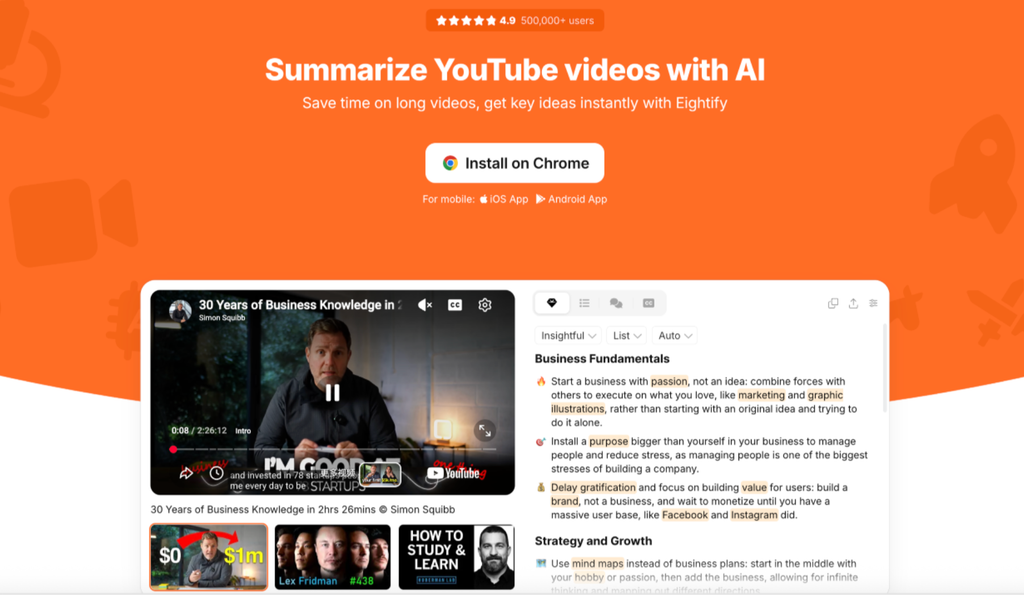
Eightify is built around reducing a YouTube video to a small set of key insights, giving you an AI YouTube summary while browsing, often with timestamps and multilingual access. Its browser extension and mobile availability reduce friction because the summary appears close to the video rather than in a separate research workspace.
This is the tool I would consider when deciding whether a video deserves attention. Eight takeaways can expose the topic, argument, and useful sections quickly, which saves tons of time when screening videos. For daily browsing, that convenience may matter more than mind maps, flashcards, or large export systems.
How to use Eightify while browsing YouTube
- Install Eightify from the official browser extension or mobile app listing linked from its website, then review the requested browser or device permissions before approving them.
- Open a supported YouTube video and launch the Eightify summary control shown beside or within the video page.
- Generate the key insights and use the timestamps to jump to sections that appear relevant.
- Change the available language or display option when necessary, but verify names and technical terms in the original captions because translated summaries add another interpretation layer.
- Treat the compact takeaways as a screening tool. For a lecture, legal discussion, research interview, or detailed tutorial, open the transcript or use a transcript-centered service before relying on what Eightify omitted.
- Check the current extension or app allowance before regular use because pricing and free limits may differ across browser stores, mobile platforms, regions, and promotions.
Eightify features, pros, and cons
Key features
- Browser-extension and mobile-app access close to the YouTube viewing experience.
- Compact key insights and timestamp navigation.
- Multilingual summary positioning.
- Fast screening workflow for deciding which parts of a video deserve attention.
Pros
- Removes much of the copy-and-paste friction of a separate summarizer website.
- Useful for scanning interviews, commentary, reviews, and tutorials while browsing.
- Timestamps make the compressed takeaways easier to investigate.
Cons
- A compact or fixed takeaway format can remove disagreement, examples, and late qualifications.
- Browser permissions and mobile-app data handling deserve review.
- Pricing and free allowances are not presented consistently across every platform and region.
- Less suitable than a transcript-centered workflow for citations or high-consequence decisions.
Why convenience is Eightify’s main advantage
I would use Eightify for screening interviews, news commentary, product videos, tutorials, and long recommendations before watching selected chapters. It is particularly suited to users who live in YouTube and want the summary embedded in that habit.
The tradeoff of aggressive compression
A fixed takeaway format creates aggressive compression. It can flatten debate, treat examples as conclusions, or omit the one caveat a researcher needs. The Chrome and mobile products may also have platform-specific limits or prices. Review the current store listing and checkout rather than assuming one plan applies everywhere.
Why I would verify Eightify’s price in the store
| Access or plan | Price | What to verify |
| Initial/free access | Varies by platform | Confirm how many summaries are included, maximum video length, whether an account is required, and when a paywall appears. |
| Paid subscription | Shown in the relevant browser or mobile store | Eightify does not publish one sufficiently stable global web price that can be applied to every browser, mobile platform, region, and promotion. Check the final renewal price and billing period in the store. |
Eightify’s public website does not present a stable plan allowance that I can use as a durable comparison figure. Check Eightify’s official site and the relevant browser or mobile store before subscribing, then compare the number and length of videos included rather than relying on a price quoted by a third-party review.
Verdict: Eightify is excellent for deciding what to watch and where to jump. I would choose a transcript-centered tool for academic citation, legal review, or any task where omitted nuance has a real cost.
7. Glasp — Best for Building a Reusable Knowledge Library
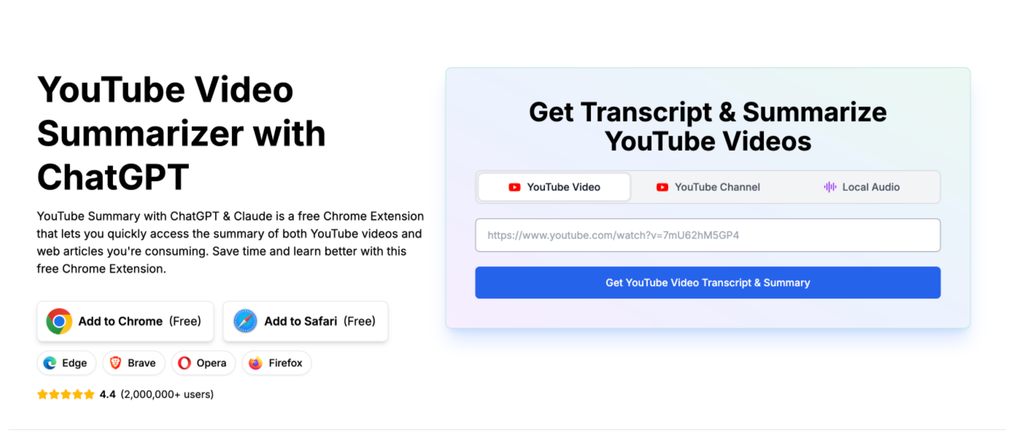
Glasp’s YouTube Summary combines advanced AI summaries with transcripts, highlighting, notes, export, and the broader idea of collecting what you learn from the web. That makes it different from a disposable URL box. The value appears after the fifth or fiftieth video, when saved ideas can be revisited and connected.
For research, I like tools that preserve the path back to the source. A summary should help me locate evidence, not become an uncited replacement for it. Glasp’s transcript and knowledge-oriented workflow support that habit, especially for people already highlighting articles and saving notes.
How to summarize and save a video with Glasp
- For a one-off summary, paste the YouTube URL into Glasp’s web summarizer. For repeated use, install the official extension and review its permissions.
- Retrieve the transcript and generate a summary. Glasp’s documented workflow can offer model, prompt, language, summary length, key point, and timestamp choices depending on the interface being used.
- Keep timestamps visible and click back to the original video before saving a quotation or disputed claim.
- Highlight only passages you expect to reuse, and add a short note explaining why each highlight matters. Saving an entire transcript without context creates a larger archive but not necessarily better knowledge.
- Export or organize the summary in the wider Glasp library if you already maintain a research system there; otherwise, copy the verified notes and source URL into your existing workspace.
- Before syncing private research, review what the account stores, which items are public or private, and whether the extension history matches your privacy requirements.
Glasp features, pros, and cons
Key features
- Web-based YouTube transcript and summary access.
- Browser extensions and mobile options.
- Timestamped summaries, transcript highlighting, custom prompts, and selectable AI models described by Glasp.
- Saving, organizing, and exporting highlights into a broader knowledge library.
Pros
- Strong connection between a summary and the source transcript.
- Useful for people who repeatedly research videos and web articles.
- Basic web summarization is currently described as free and available without sign-up.
- Highlights and notes preserve why a source mattered after the initial viewing session.
Cons
- The knowledge-library workflow creates organization work that one-off users may not want.
- Extensions require permission review, and saved research can reveal browsing interests or project history.
- Model choice and custom prompts can produce inconsistent outputs across repeated summaries.
- A large archive becomes difficult to search and trust if users save summaries without timestamps or personal notes.
From one video summary to a research library
I would choose Glasp for literature reviews, creator research, professional learning, and anyone maintaining a personal knowledge system across videos and webpages. It also fits users who want a browser extension rather than a standalone summarizer tab.
When saving everything creates more work
Knowledge-library features create more saved data and more organization work. If you only need to summarize one video, the extra system may add friction. Users should also decide whether saved highlights and summaries contain sensitive research or personal learning history before synchronizing them to an account.
Glasp’s current free access
| Plan | Monthly billing | Annual billing | YouTube-summary allowance |
| Free | $0 | $0 | 3 basic YouTube summaries per day, one tracked channel, and up to 3 videos for that channel. |
| Pro | $15/month | $12.50/month, billed $150/year | Unlimited basic summaries, 1,000 advanced summaries per month, and tracking for 5 channels with up to 30 videos each. |
| Unlimited | $36/month | $30/month, billed $360/year | Unlimited basic summaries, 5,000 advanced summaries per 30 days, and tracking for 25 channels with up to 500 videos each. |
Glasp’s official YouTube Summary page currently describes the summarizer and transcript access as free, with no sign-up required for basic use. I would still check the live interface before depending on a particular model, history, export, or extension feature because the surrounding product can change independently of the public summarizer.
Verdict: Glasp is the best fit for turning repeated video research into a durable collection. For a quick one-off summary, Lunote or Decopy is simpler.
What People Actually Need From a YouTube Video Summarizer
The strongest demand is not for a particular AI brand. It is for a high-quality shortcut from video to useful information. Topic data emphasizes summary quality, video-to-text access, AI-generated summaries, saving time, and creator workflows. Community discussions then expose the friction hidden behind those broad needs.
Save time without losing the answer
Users want to decide quickly whether a lecture, tutorial, interview, or review deserves full attention before committing to the entire video. The pain is not merely that videos are long; it is that the useful answer may be buried inside repetition, sponsorship, setup, or discussion. A good summary should surface the main argument and the sections worth watching rather than pretending that watching is never necessary.
Turn video to text that can be checked
A readable summary is helpful, but transcript access and timestamps make it usable for study and research. They let users check a name, number, qualification, instruction, or extract key information instead of trusting a fluent paragraph with no path back to the source. This is why video-to-text is a central need rather than an optional extra.
Get genuinely free access without sign-up surprises
Some recommendations require another paid AI account, expose a quota only after processing, or describe a trial as free access. Users want to know before pasting a link whether the tool is no-sign-up, quota-based, time-limited, or paid. The article therefore separates a public free tool from a free account allowance and a subscription trial.
Produce useful notes for study and content research
Students want concepts, definitions, questions, and review material. Content creators want key insights, core ideas, competing arguments, chapters, and source timestamps—not a derivative script ready to copy. A single generic paragraph does not serve both groups, so output controls and follow-up questions matter.
Handle long videos and live streams only when the transcript supports it
Long YouTube videos are a meaningful but smaller long-tail need. Manual transcript copying can hit context limits, while automated segmentation can disconnect an early claim from a later qualification. Live streams add another constraint: many tools work reliably only after the replay and full transcript are available.
Protect private uploads and saved research
A public YouTube link presents less privacy risk than an internal recording, but accounts may still retain links, transcripts, prompts, and summaries. Users working with webinars, interviews, courses, or client material need clear retention terms and an approved workflow. “Data secure” should be treated as a decision criterion, not assumed from a lock icon.
How to Summarize a YouTube Video With AI
- Copy the full YouTube URL rather than a shortened or playlist-tracking variant when possible.
- Paste it into Lunote Video Summary or the selected AI tool.
- Choose summary length, language, or output type if controls are available, and some options can instantly provide the first summary draft.
- Read the transcript before the summary when names, figures, technical terms, or quotations matter.
- Use timestamps to watch the sections supporting the main claims.
- Ask follow-up questions that are narrow and verifiable: “What reason did the speaker give at 32:10?” is better than “Explain everything.”
- Save the source URL, video title, channel, publication date, access date, and relevant timestamp with your notes.
- Rewrite the result for your own purpose only after verifying it against the video and other sources.
If the video has no accessible transcript, use Lunote Video Transcript or another tool that explicitly transcribes audio. Do not silently treat “no transcript found” as “nothing important was said.”
A Five-Minute Accuracy Test Before You Pay
I would test any AI video summarizer with the same three videos:
- A 10-minute clear explainer with several named facts and numbers.
- A 60- to 90-minute interview with two speakers, disagreement, and late-stage qualifications.
- A video in your real subject area with jargon, slides, demonstrations, or an accent representative of your workload.
For each output, score:
- Did it identify the actual main claim?
- Were names, numbers, dates, and technical terms correct?
- Did it preserve disagreement and words such as “may,” “unless,” and “only if”?
- Can every major point be traced to a timestamp or transcript passage?
- Did it cover the final third of the long video rather than overweighting the introduction?
- How many minutes of cleanup were needed?
- Did the free plan disclose its limit before processing?
The best tool is not the one producing the longest summary. It is the one that gives you the right level of detail with the least verification and repair work.
Can an AI Summarize a YouTube Video Without a Transcript?
Sometimes, but the tool must create a transcript from the audio first using artificial intelligence for speech-to-text before summarization. That is a different and more expensive pipeline than reading existing captions. It introduces speech-recognition errors before summarization begins.
Be skeptical when a provider says it summarizes any YouTube video but does not explain whether it uses creator captions, YouTube auto-captions, or its own transcription. Music-heavy videos, overlapping speakers, poor microphones, strong background noise, and screen-only demonstrations are difficult. Even a short clip can still be hard to summarize when the important meaning is visual—code typed on screen, charts, equations, gestures, before-and-after images—because a transcript-only summary may miss it completely.
For videos without subtitles, choose a tool that states a transcription limit and lets you review the text. NoteGPT, for example, publishes different duration allowances for subtitled and non-subtitled videos by plan. This is more useful than a generic “unlimited video length” statement.
How to Summarize Long YouTube Videos Without Losing Context
First, request a chapter-level outline rather than one global paragraph. Second, ask for claims, evidence, examples, objections, and conclusions as separate fields. Third, inspect the beginning, middle, and final third of the transcript. Finally, ask targeted questions only after the initial structure is clear.
For a lecture, I would request definitions, principles, examples, and unresolved questions. For an interview, I would separate each speaker’s position and moments of agreement or disagreement. For a tutorial, I would preserve prerequisites, ordered steps, commands, warnings, and expected results. For a product review, I would record the test conditions, comparisons, drawbacks, price at the time of review, and final recommendation.
This structured approach reduces the chance that the AI turns a nuanced video into generic “key takeaways.” It also creates notes that are easier to verify and reuse.
Using YouTube Summaries for Study, Research, and Content Creation
Students
Use summaries to preview a lecture, identify difficult sections, and build questions before watching. Do not rely on them as a replacement for assigned material. Keep timestamps with notes and compare generated definitions with the course’s own terminology.
Researchers and journalists
Treat summaries as discovery tools. Verify quotations in the recording, check whether the transcript is official, distinguish the speaker’s claim from established fact, and consult primary documents. A generated summary is not a citable witness.
Content creators
Use summaries to analyze structure, audience questions, repeated themes, and content gaps. Do not copy another creator’s sequence or phrasing. The stronger workflow is to compare several sources, develop an original thesis, and disclose or attribute sources where appropriate. The Lunote blog can support the wider content workflow, but the evidence still belongs to the original sources.
Teams and professionals
For public webinars, summaries can speed up internal sharing. For private meetings or client recordings, confirm consent, access rights, retention, and approved tooling. If the material begins as a private file rather than a YouTube URL, use a tool designed for uploaded media and review its security terms.
Common YouTube Summary Mistakes
Citing the summary instead of the video
Link to the original video and include timestamps. The summarizer is an intermediary, not the source of the speaker’s statement.
Assuming timestamps prove accuracy
A timestamp improves traceability but can still point to an incorrectly transcribed or oversimplified section. Watch it.
Ignoring visual information
Transcript-based tools may miss charts, demonstrations, facial reactions, on-screen corrections, and text that is never spoken.
Using one output format for every video
A tutorial needs ordered steps; an interview needs speaker attribution; a lecture needs concepts and examples. Choose or prompt for the appropriate structure.
Turning a summary directly into publishable content
This produces generic derivative writing and can repeat factual errors. Verify, add sources, develop an original perspective, and edit for the intended reader. If a draft becomes stiff or mechanical, Lunote AI Humanizer can assist with phrasing, but it should not replace source work or authorship judgment.
Frequently Asked Questions
What is the best YouTube video summarizer in 2026?
There is no verified accuracy winner in this comparison, though these tools aim to generate accurate summaries from video content. Lunote is a practical starting point for a fast summary connected to transcript and content tools; Mindgrasp fits students, Jotform fits configurable summaries and questions, Decopy fits no-sign-up use, NoteGPT fits high-volume study work, Eightify fits in-browser screening, and Glasp fits knowledge collection. Choose according to transcript access, verification needs, output format, free limits, and the kinds of videos you summarize.
Is there a free AI YouTube video summarizer with no sign-up?
Decopy says users can summarize up to 50 videos per day without an account, while Mindgrasp advertises an unlimited free public YouTube summarizer without sign-up. Confirm the live limit before relying on either. Lunote also offers free access, with the current allowance determined by account status and plan.
Can ChatGPT summarize a YouTube video?
ChatGPT can summarize a transcript you provide or video content it can access through an available workflow, but pasting only a URL does not always guarantee reliable retrieval. Long transcripts may need segmentation. A specialist tool simplifies transcript extraction, timestamps, and structured output.
Can AI summarize a YouTube video without subtitles?
Yes, if the service performs speech-to-text first. Accuracy depends on audio quality, speakers, language, jargon, and the transcription model. Review the generated transcript before trusting the summary.
What is the best AI YouTube summarizer for long videos?
Choose a tool that publishes duration rules, segments the video, and exposes timestamps or transcripts. NoteGPT provides explicit plan limits for videos without subtitles; Decopy describes behavior around videos under and over 90 minutes; Mindgrasp says completed videos work best when a full transcript exists. Test your real video length before buying.
Can a YouTube summarizer process live streams?
Usually not reliably while the stream is live. Mindgrasp states that live streams work best after completion and after a transcript has been generated. A replay with captions is a more stable source than an active broadcast.
Are YouTube video summaries accurate?
They can be useful, but accuracy varies with the transcript, subject, length, model, and requested compression. Clear, structured speech is easier than noisy panels or visual tutorials. Verify critical claims, quotations, numbers, and conclusions in the original video.
Can I use a YouTube summary for content creation?
Use it for research, outlining, comparison, and locating relevant sections. Do not republish a lightly rewritten summary. Watch the key sections, consult more than one source, add original analysis, and respect copyright and attribution requirements.
Does a YouTube video summarizer support multiple languages?
Many do. Decopy lists eight or more languages, Mindgrasp says it supports multiple languages, and other tools offer translation. Language availability does not guarantee equal transcript quality, so test the specific language and accent you need.
Is it safe to paste a YouTube link into an AI summarizer?
A public URL usually creates less exposure than uploading a private recording, but providers may still store links, transcripts, summaries, questions, and account history. Read the privacy and retention terms, especially for unpublished, educational, client, or internal material.
Final Recommendation
Use Lunote Video Summary when you want a direct, readable summary and an easy path to related transcript, translation, and document workflows. Choose Mindgrasp when the summary must become study material, Jotform when follow-up chat and output control matter, Decopy when no-login free access is the priority, NoteGPT for batch and long-form learning, Eightify for YouTube-native convenience, and Glasp for a lasting knowledge library.
Whichever tool you choose, keep one rule: the summary tells you where to look; the video tells you what happened. The more important the decision, quotation, lesson, or claim, the more closely you should return to the transcript and original timestamp.7 Best AI YouTube Video Summarizers in 2026: Tested & Good