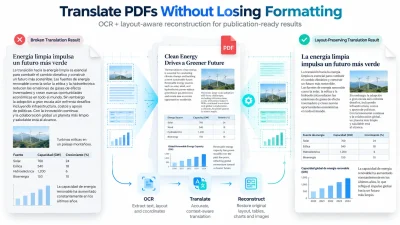
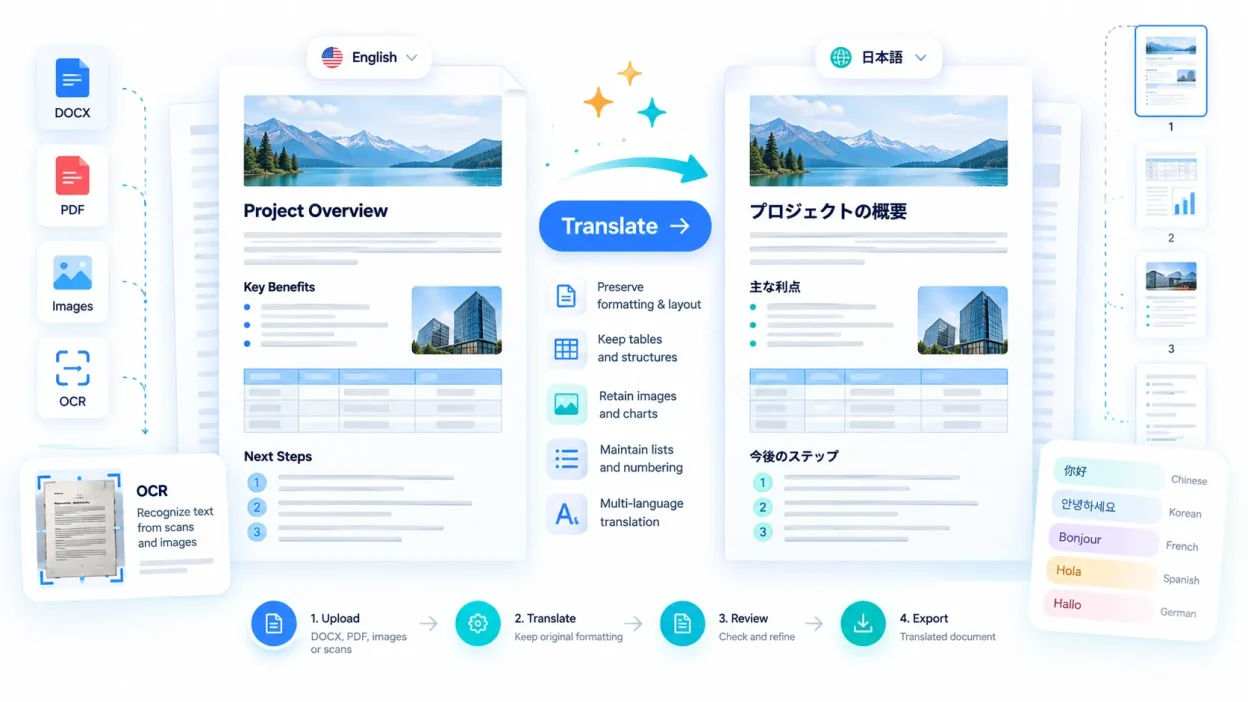
Translating a document is easy. Keeping the layout usable after translation is harder. Text can expand or contract, tables can reflow, images can move, and scanned pages may need OCR before translation begins.
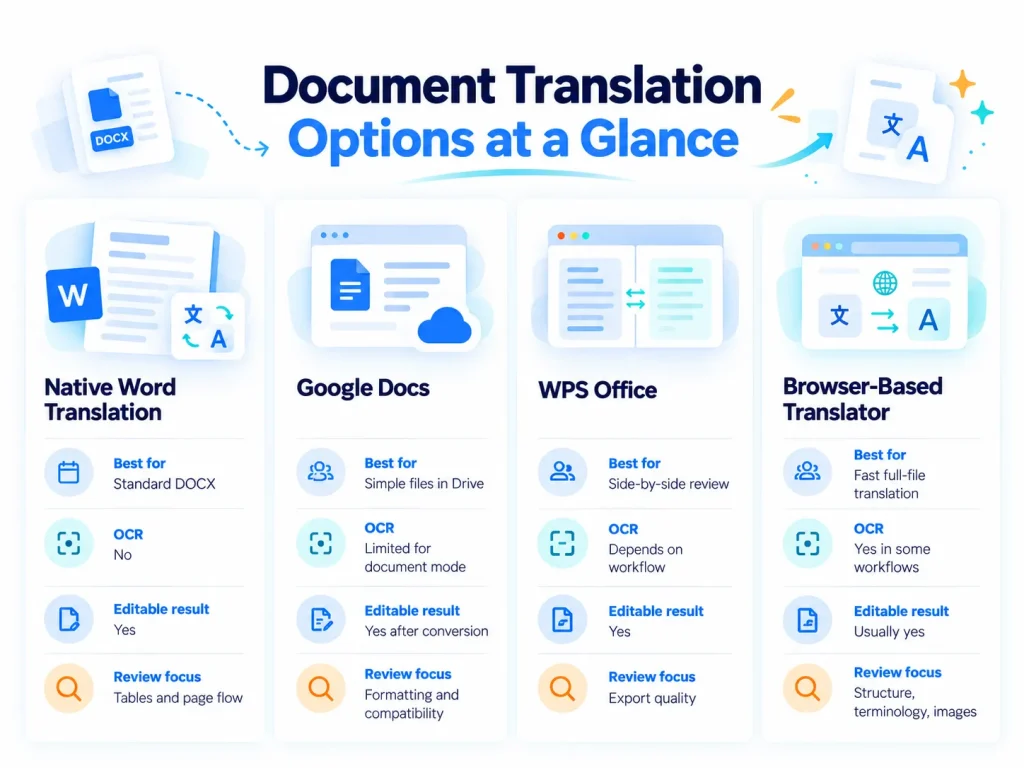
Microsoft Word, Google Docs, WPS Office, and browser-based translators handle full files differently. The main issues are OCR, text expansion, tables, images, and the final review. Lunote AI can translate a complete document in the browser while keeping headings, paragraphs, lists, and tables organized for review.
Quick Guide to Translating Documents Into Other Languages
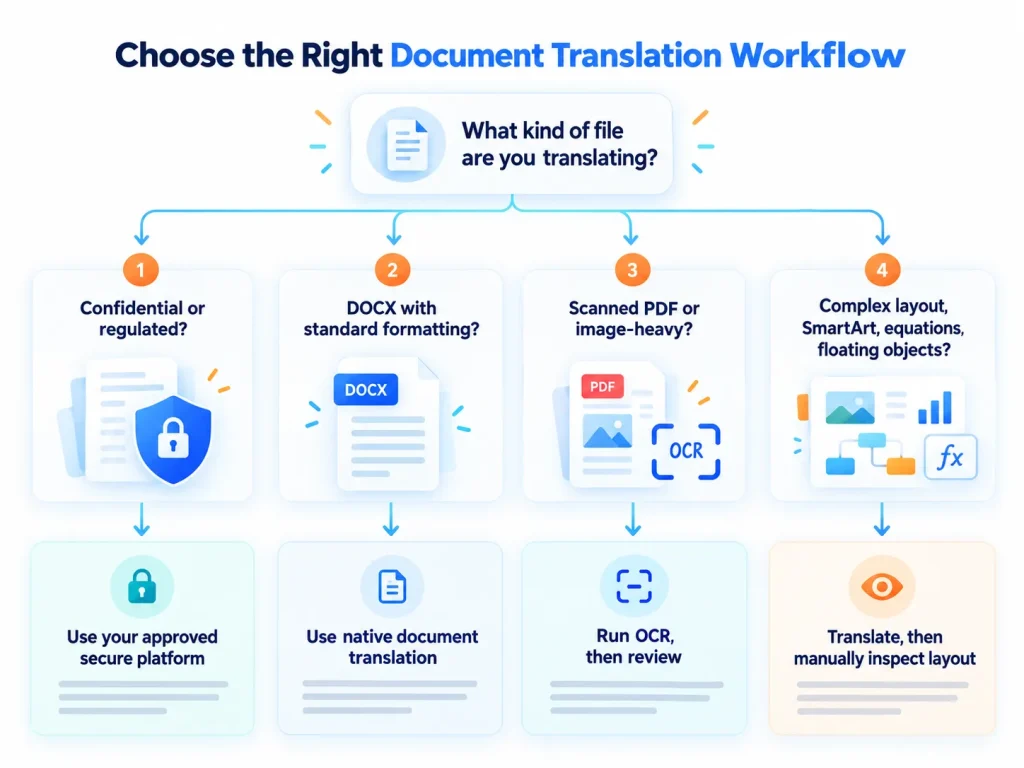
Choose a workflow that fits the document, not simply the translator already open in your browser.
Engineering manuals, product documentation, and patent material need consistent terms across headings, captions, tables, and repeated references. A complete-document technical document translation workflow keeps those terms in context instead of treating each paragraph separately.
Translating an Entire File in Microsoft Word
Microsoft Word can translate a complete document without replacing the original. In Microsoft 365 and Office 2021, it opens the translation as a separate copy that you can compare with the source before saving or sharing.
Pre-Translation File Checks in Word
Clean the source file before translating it:
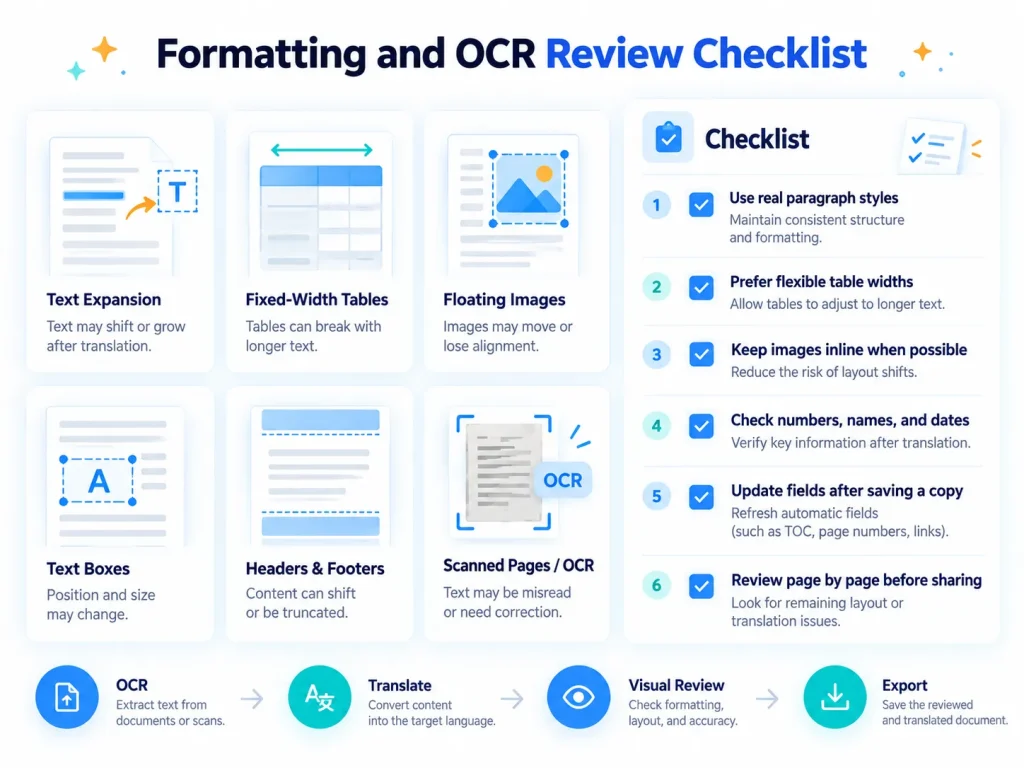
- Use real paragraph styles: Apply Heading 1, Heading 2, Normal, Caption, and other styles instead of simulating them with manual font changes.
- Remove spacer paragraphs: Use paragraph spacing instead of repeated blank lines.
- Check image wrapping: Inline images are usually more predictable when surrounding text expands than floating images positioned in front of or behind text.
- Inspect tables: Narrow fixed-width columns are a common source of clipping and unexpected row growth.
- Reveal manual line breaks: A forced
Shift + Enterbreak that looks intentional in English can land in the middle of a translated phrase. - Confirm what is actually editable: Text baked into screenshots, diagrams, and other raster images is not ordinary Word text.
Microsoft 365 / Word: Exact Menu Path
- Open the DOCX file in Word.
- Select Review → Translate → Translate Document.
- Choose the target language. Word can detect the source language automatically, but verify it when the file contains mixed-language passages.
- Select Translate. Word creates a translated copy in a separate window rather than overwriting the original.
- Save the translated copy with a language suffix, such as
Product_Manual_DE.docx. - Compare the two documents visually. Do not stop after checking whether the sentences “look translated.” Review page count, tables, headers, footers, image positions, numbered lists, text boxes, and fields.
Google Docs Uses a Different Workflow
Google Docs does not use Word’s Review ribbon. On a computer, the documented path is Tools → Translate document. Google creates a translated copy in a new window and also saves it in Google Drive. If the option is missing while editing a Microsoft Office file in Google Docs, Google says the file may need to be converted to the native Google Docs format first.
WPS Office Uses Its Own Translation Interface
WPS Office uses a different interface. Open the Word, PDF, or PowerPoint file, then use Parallel Translate in the WPS AI toolbar to view the source and translated content side by side before saving or exporting the result.
Translating Specific Passages and Highlighted Text in Word
If you only need a few sentences, translate the selection instead of rebuilding the full file. This limits unnecessary layout changes.
- Highlight the target text.
- Select Review → Translate → Translate Selection.
- Choose the target language and review the result in the Translator pane.
- Select Insert if you want Word to replace the selected text, or copy the translation manually if you need a bilingual version.
- Recheck local formatting. A translated phrase may be longer than the original even when only one sentence was replaced.
Selection translation works well for quotations, captions, table cells, and short updates because the rest of the document stays untouched.
Using Web-Based Document Translators
A browser-based translator can process a complete file without desktop software and may support OCR for scans. In Lunote AI, you upload a supported document, choose the source and target languages, review the translated structure, and download the result without copying each paragraph by hand.
Comparing Document Translation Options
Compare document translators by file support, upload limits, OCR behavior, and whether the result remains editable. The table below covers those differences.
| Tool | File Support and Limits | What to Check After Translation |
|---|---|---|
| Lunote AI Document Translator | With Lunote AI, you can upload PDF, DOC, DOCX, PPT, and PPTX files under 50 MB, then choose the source and target languages for the complete document. | We preserve document structure and support OCR for scanned content. Review tables, images, fonts, page breaks, numbers, names, and specialized terminology before sharing the translated file. |
| Google Translate: Documents | Google currently documents DOCX, PDF, PPTX, and XLSX uploads up to 10 MB. PDFs must be 300 pages or fewer. | Google explicitly notes that text inside images and scanned PDF pages may appear in output but is not translated. Document translation is a desktop/large-screen workflow rather than a small-screen feature. |
| DeepL File Translation | File formats and per-file size limits depend on the account or plan. DeepL supports Word and PDF among other formats, with higher limits on paid plans. | DeepL says translated files retain original formatting, images, and fonts, but scan quality, custom fonts, and large images can affect PDF translation. CAD-exported PDFs are not supported for PDF translation. |
| Adobe Acrobat + Adobe Express | In Acrobat, the documented path is Convert → Translate this PDF, which opens the document in Adobe Express. You can translate all pages, one page, or selected text. | Adobe warns that scanned, secured, large, or complex PDFs, as well as files using unsupported fonts or languages, may be skipped. |
| Canva Translate | Canva translates text inside designs and documents and supports page-level translation in its editor. | Canva is useful when the translated content must remain editable as a design. Its own workflow includes an option to resize fonts automatically, which is directly relevant when translated text grows. |
A Safer Online Document Translation Workflow
- Keep the original file untouched. Work from a duplicate.
- Prefer the editable source format. If you have both a DOCX and a PDF, translate the DOCX first unless the PDF is the authoritative layout file.
- Upload the complete document. A document-level translator can preserve more context than paragraph-by-paragraph copy/paste.
- Select the language pair manually when necessary. Auto-detection is convenient, but short headings, product codes, names, and mixed-language files can be ambiguous.
- Download the translated file and compare it page by page. Use the source as the visual reference, not just the translated text.
Managing File Size and Format Boundaries
File limits depend on the product and plan. Lunote AI accepts supported documents under 50 MB. Google Translate accepts documents up to 10 MB and limits PDFs to 300 pages. DeepL sets different limits by file type and subscription.
If your source arrives as an Apple Pages file, convert pages file to word before translation. Open the converted DOCX once to check page breaks, fonts, tables, and image anchors, because conversion itself can change the layout. You can then upload the DOCX to Lunote AI for full-document translation.
Why Formatting Breaks After Translation
Formatting usually breaks because the translated text no longer fits the space designed for the source language.
Text Expansion and Contraction
Different languages need different amounts of horizontal and vertical space to express the same idea. A short English label can become a longer German phrase; a Chinese or Japanese translation may use fewer characters but require different fonts, line height, punctuation, or spacing behavior.
Reichen Sie Ihr Anmeldeformular ein
A narrow fixed-width element can clip, wrap, or push adjacent objects when the translated phrase grows.
Reichen Sie Ihr Anmeldeformular ein
Allow the element to wrap or resize, then inspect the resulting page flow.
Translation quality and layout are separate concerns. The systematic survey on machine translation benchmarks examines how translation quality is measured. Even a good translation still needs a visual check after it is placed back into tables, text boxes, and page layouts.
Language pairs with less training data and documents with specialized terminology need extra review. Check names, industry terms, dates, numbers, and repeated phrases across the full file so the translation stays consistent from page to page.
Formatting Preservation Checklist
- [ ] Use flexible table widths: Prefer AutoFit or percentage-based layouts where practical. Extremely narrow fixed-width columns are fragile under text expansion.
- [ ] Keep images inline when the design allows it: Floating objects are more likely to overlap text when paragraph lengths change.
- [ ] Leave spare room in text boxes: A callout designed to fit English perfectly has no safety margin for translation.
- [ ] Use fonts with broad Unicode coverage: Missing glyphs can trigger font substitution and change line breaks.
- [ ] Remove decorative manual line breaks: Use paragraph and layout settings instead of forcing lines with
Shift + Enter. - [ ] Review list numbering: Check multilevel numbering after translation, especially in contracts and procedures.
- [ ] Inspect headers and footers on every section: Different section settings can produce different results inside the same file.
- [ ] Update fields only after saving a copy: Page counts, references, TOCs, and other Word fields can recalculate and shift pagination.
Layout, reading order, images, and text boxes all affect a translated document. Research in the survey on multimodal document understanding examines how text and visual structure interact. Use flexible layouts where possible, then compare the translation with the source.
Formatting Edge Cases to Check
1. SmartArt, Shapes, and Text Inside Graphics
Text inside SmartArt, diagrams, screenshots, and some drawing objects may not behave like body text. A graphic may fail to resize even when its words are translated. Export a test copy and inspect each graphic. For important documents, rebuild critical labels as editable text layers instead of leaving them permanently embedded in an image.
2. Headers, Footers, Page Numbers, and Fields
A translated paragraph can add or remove pages, which changes page-number fields and can shift cross-references. After translation, update the table of contents and fields only after you have saved a separate translated copy. Then confirm that section-specific headers and footers still appear where expected.
3. Equations and MathType / LaTeX Containers
Do not expect a document translator to “translate” mathematics itself. The surrounding prose, equation captions, and variable explanations may change while the equation object should remain structurally intact. Check equation numbering, inline spacing, and any text embedded inside equation images or external MathType objects.
4. Content Controls, Checkboxes, and Form Fields
Form documents can contain content controls, dropdowns, checkboxes, protected regions, and legacy form fields. Translate a copy, then test the form as a user would. A document can look correct while a control label, tab order, or protected field behaves incorrectly.
5. Right-to-Left Languages
Arabic and Hebrew are not just “longer or shorter text.” Paragraph direction, punctuation, table order, mixed Latin text, numbers, and image placement can all require RTL-aware review. A clean English layout should not be assumed to mirror correctly without testing.
A Word VBA Macro to Audit Layout Risks Before Translation
This macro leaves the document unchanged. It creates a separate report of common layout risks, including tables with AutoFit disabled, floating shapes, manual line breaks, text boxes, and content controls. Run it before translating a complex Word file.
Sub AuditTranslationLayoutRisks()
    Dim src As Document
    Dim report As Document
    Dim t As Table
    Dim shp As Shape
    Dim cc As ContentControl
    Dim rng As Range
    Dim fixedTables As Long
    Dim floatingShapes As Long
    Dim textBoxes As Long
    Dim manualBreaks As Long
    Dim contentControls As Long
    Dim i As Long

    Set src = ActiveDocument
    Set report = Documents.Add

    For Each t In src.Tables
        If t.AllowAutoFit = False Then
            fixedTables = fixedTables + 1
        End If
    Next t

    For Each shp In src.Shapes
        floatingShapes = floatingShapes + 1
        If shp.TextFrame.HasText Then
            textBoxes = textBoxes + 1
        End If
    Next shp

    For Each cc In src.ContentControls
        contentControls = contentControls + 1
    Next cc

    Set rng = src.Content.Duplicate
    With rng.Find
        .ClearFormatting
        .Text = "^l"
        .Forward = True
        .Wrap = wdFindStop
        Do While .Execute
            manualBreaks = manualBreaks + 1
            rng.Collapse wdCollapseEnd
        Loop
    End With

    With report.Content
        .InsertAfter "Translation Layout Risk Audit" & vbCrLf & vbCrLf
        .InsertAfter "Source file: " & src.Name & vbCrLf
        .InsertAfter "Tables with AutoFit disabled: " & fixedTables & vbCrLf
        .InsertAfter "Floating shapes: " & floatingShapes & vbCrLf
        .InsertAfter "Shapes containing text: " & textBoxes & vbCrLf
        .InsertAfter "Manual line breaks: " & manualBreaks & vbCrLf
        .InsertAfter "Content controls: " & contentControls & vbCrLf & vbCrLf
        .InsertAfter "Review each flagged item in the translated copy."
    End With

    report.Activate
End Sub
The macro deliberately flags possible risks. A listed object may work correctly, but it deserves a check after translation.
Managing Scanned and Image-Based Pages
Scanned documents introduce two separate tasks: optical character recognition and translation. If OCR misreads a product code, person’s name, decimal value, or legal clause, the translation can be fluent and still be wrong.
Scanned and image-based files need OCR before translation. Lunote AI’s free pdf ocr translate workflow combines both steps and keeps the recognized content organized for review. Check names, numbers, measurements, and low-quality scans against the source.
OCR Verification Pass
- Check numbers first: prices, dates, measurements, invoice totals, IDs, and version numbers.
- Check names and product terminology: OCR errors often survive into otherwise fluent translations.
- Compare page-by-page: look for missing text blocks, rotated pages, tables read in the wrong order, or captions merged into body copy.
- Use the editable source if you have it: a native DOCX or PPTX usually gives the translator cleaner structure than a flattened scan.
Security and Data Privacy Checks Before Uploading Sensitive Files
Before uploading confidential or regulated files, review the privacy terms for the exact service and plan you are using. Retention, model-training policies, access controls, data location, and deletion options can differ between products and account types.
Confidentiality alert: Do not upload restricted personal data, unreleased commercial material, privileged legal documents, source code, or other confidential files to a service your organization has not approved.
Privacy and Security Questions to Check
- Retention: How long are uploaded files and generated translations stored?
- Training use: Does the provider use customer content to train or improve models, and does that differ by plan?
- Access controls: Who can access the files inside the provider’s organization or your own workspace?
- Data location and subprocessors: Where is data processed, and which third parties are involved?
- Contractual controls: Is there a DPA, enterprise agreement, audit report, or compliance documentation relevant to your industry?
- Deletion controls: Can you remove uploaded and generated files, and is deletion documented?
For contracts and other high-stakes files, a legal document translation workflow can prepare a translated copy for review. It does not provide legal validation. Ask qualified reviewers to check any wording that affects rights, obligations, deadlines, or liability.
Automatic quality scores can compare translation systems, but they cannot decide whether a contract clause, compliance statement, or table heading is acceptable for a particular use. Research on the evaluation of machine translation metrics explains why high-stakes documents still need reviewers who understand the context.
Which Workflow Fits Each Document Type?
| Document Type | Reasonable First Workflow | Main Risk to Check |
|---|---|---|
| Standard DOCX report | Microsoft Word native translation or a document translator that returns editable structure | Tables, headings, page count, inline vs floating images |
| Scanned PDF | OCR-capable translator, then manual OCR verification | Recognition errors before translation |
| Design-heavy brochure | Canva/Adobe-style design workflow or translate source copy before final layout | Text expansion, font replacement, text-box overflow |
| Technical manual | Document-level translation with terminology review | Repeated terms, labels inside figures, measurements, part numbers |
| Legal or regulated document | Approved secure platform plus qualified human review | Semantic precision, confidentiality, version control |
Best Practices on How to Translate a Word Document Into Another Language
If the source is a Word file, start with the actual Word workflow: Review → Translate → Translate Document. Save the generated copy under a new filename, then treat translation and layout verification as two separate review passes.
For browser-based translation, use the editable source when possible and check the tool’s current upload limits. For a large batch, test one representative document first. Verify its text, structure, tables, images, and page flow before processing the rest.
FAQs
Why Does Document Translation Sometimes Break Tables and Visual Layouts?
Translated text can take more or less space than the source text. Fixed-width table columns, narrow callout boxes, manual line breaks, and floating images are especially sensitive because the page must recalculate around the new text. Flexible widths, inline images, and real paragraph styles reduce the amount of repair required.
Can Microsoft Word Translate an Entire Document?
Yes. In supported versions of Word, select Review → Translate → Translate Document, choose the target language, and select Translate. Word opens a translated copy in a separate window. Microsoft states that the feature requires an internet connection and connected experiences.
Can Google Translate Translate a Full DOCX or PDF?
Yes, within current limits. Google documents support for DOCX, PDF, PPTX, and XLSX files up to 10 MB, with PDFs limited to 300 pages. Google also notes that text in images and scanned PDF pages is not translated in document mode.
Can I Translate Scanned Documents or Non-Editable Text Inside Files?
Only if the workflow includes OCR or another image-text recognition step. Even then, verify the recognized text before trusting the translation. Numbers, names, product codes, and low-quality scans are common sources of OCR errors.
What Is the Maximum File Size for Web Document Translation?
There is no single universal limit. Google Translate currently documents a 10 MB limit for document uploads, while DeepL limits depend on file type and subscription. We currently accept supported document uploads under 50 MB. For other services, check the provider’s current limits before processing a large batch.
Is It Safe to Translate Confidential or Business Contracts Online?
That depends on the provider, account type, contract, retention policy, training policy, access controls, and your organization’s requirements. Do not assume that “free” means unsafe or that “enterprise” automatically means compliant. Verify the exact service terms and use human review for documents where wording has legal or regulatory consequences.