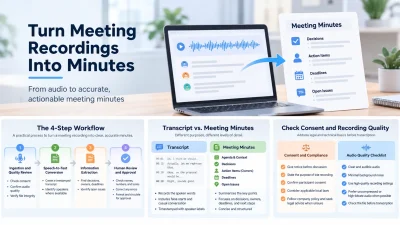
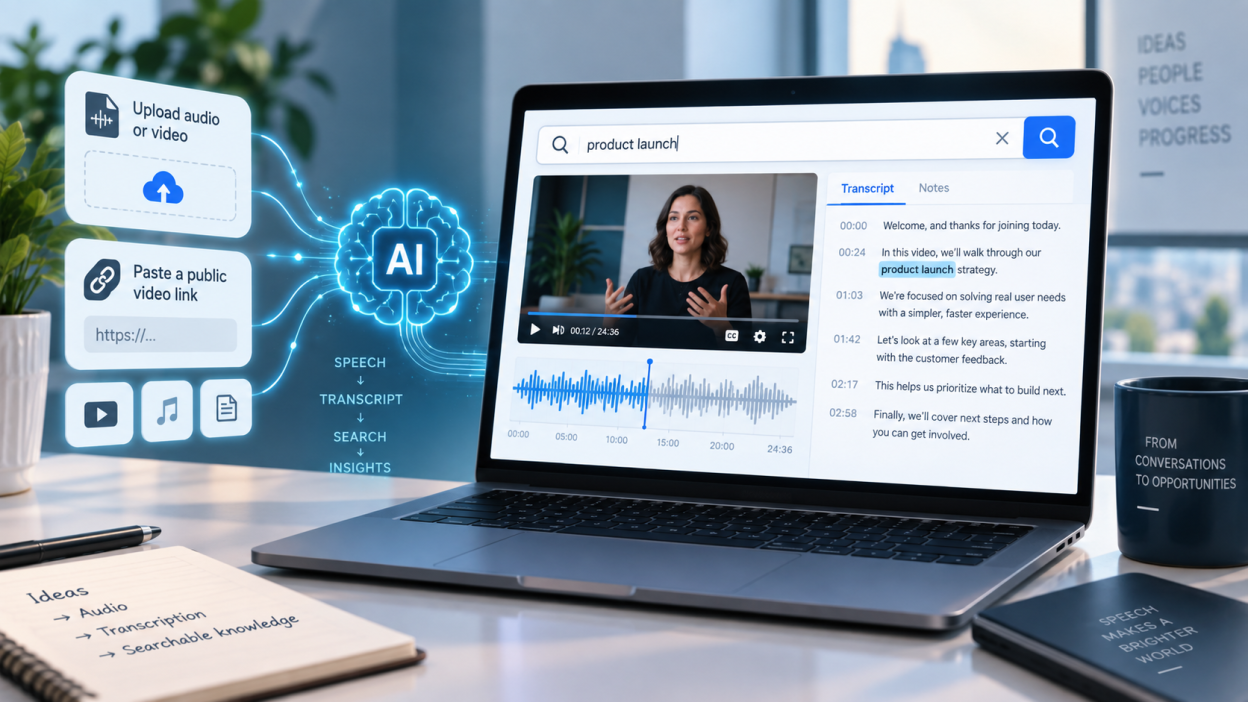
AI transcription uses deep neural networks to turn spoken dialogue in video files, voice recordings, and public streaming links into searchable text. Instead of typing out conversations by hand, creators, researchers, and enterprise teams can use automated speech recognition to produce time-aligned transcripts in minutes. Speech engines analyze audio signals, separate voices, identify language patterns, and return text that can be edited, turned into subtitles, or searched.
Turning audio and video into text makes recordings easier to use. A specific quote or a slide mentioned at a certain time can be found without scrubbing through hours of footage. This guide explains how speech-to-text systems work, how to convert local files and streaming URLs, how to transcribe with Lunote AI, how free extractors differ from cloud platforms, and how to automate recurring transcription work.
How AI Transcription Turns Speech Into Searchable Text
Automated speech-to-text systems use acoustic and language models to process speech in stages. The engine converts continuous sound waves into spectrograms, which show audio frequencies over time. An acoustic model uses those frequencies to identify phonemes, the basic sound units of language. A language model then estimates likely word sequences from grammar and context. Finally, the system aligns recognized words to a timeline and adds punctuation, capitalization, and sentence breaks.
Most transcription systems accept media in two ways:
- Direct media uploads: Users upload recorded files in formats such as MP3, AAC, WAV, and FLAC. When users convert mp3 to txt, the engine extracts the audio, normalizes sample rates, removes static frequencies, and transcribes the cleaned dialogue stream.
- Streaming web URLs: Users provide a public YouTube, Vimeo, or cloud-storage link. The engine sends the remote audio track to cloud servers, so users do not need to download a large video file before transcription begins.
After decoding, the system produces text with timestamps. Users can select a word or phrase to move the synchronized player to that point in the recording. This makes long recordings easier to search, scan, and cite.
How to Transcribe Media Files and Online Video Links
Converting audio or video into an indexed record involves three stages: media ingestion, automated processing, and review. The same sequence works across different file sources.
[Step 1: Media Ingestion]       -->    [Step 2: Neural Processing]     -->    [Step 3: Verification & Export]
•Local upload (MP4, WAV, MP3)         •Acoustic filtering & cleanup         •Keyword search & text editing
•Public streaming URL input           •Language identification & alignment  •SRT / VTT subtitle generation
•Cloud storage webhook trigger        •Diarization & timestamp mapping      •AI summary & action items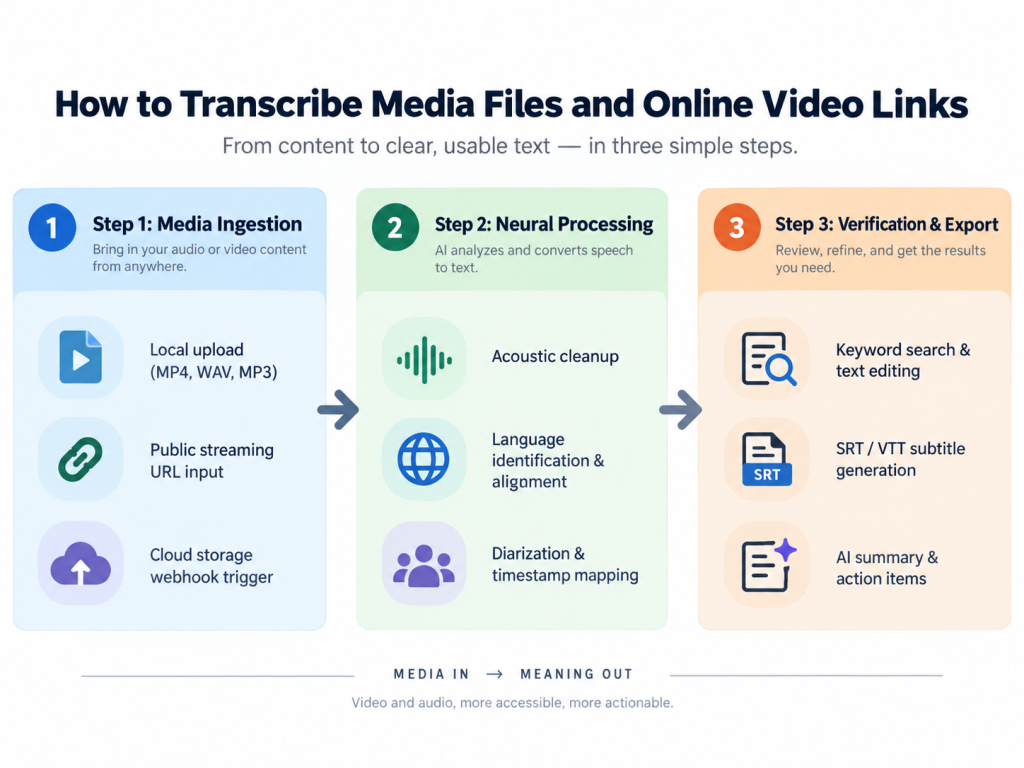
Step 1: Ingestion and Media Preparation
Start with the recording or public URL you want to transcribe. Audio quality has a direct effect on the result, so use the clearest source you have.
Transcribing Local Media Files
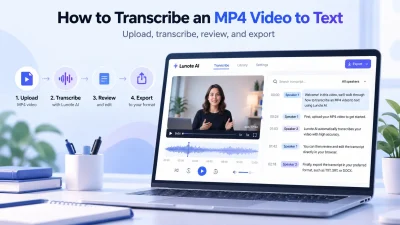
For local recordings, make sure the file uses a common format such as MP4, MOV, WAV, or MP3. To transcribe mp4 to text, upload the video through your transcription dashboard or API endpoint. Video files may be large, but speech engines process only the audio track. Some platforms extract that track as soon as the upload starts, which can reduce processing time and bandwidth use.
Transcribing Public Video URLs
For media hosted online, copy the full public link from your browser and paste it into the transcription interface. You do not need an intermediate download. To inspect lectures, interviews, or market analysis on public video platforms, you can search youtube transcripts with keyword queries against the extracted dialogue timeline. The video must be public or unlisted. Transcription engines cannot crawl private videos that require platform credentials.
Step 2: Automated Processing and Alignment
After ingestion begins, the engine handles several processing steps:
- Acoustic pre-processing: The system filters background rumble, microphone pops, and electrical hum to better isolate voices.
- Language identification: The engine checks the opening audio buffer to identify the spoken language, or uses a language profile chosen by the user.
- Phonetic decoding: Neural networks map phonemes to words and use vocabulary databases to distinguish homophones.
- Temporal alignment: The system assigns start and end timestamps to transcribed words and sentence boundaries.
Step 3: Review, Correction, and Export
Even strong speech models sometimes need a human review, especially for brand names, acronyms, and uncommon names. Open the transcript in an editor, search for important points, check technical terms, and correct speaker labels. Then choose an export format that fits the next step in your workflow:
- Plain text (.txt): Text without timestamps or formatting, for documentation archives and knowledge bases.
- Markdown (.md): Retains headings, dialogue breaks, and speaker labels for publication.
- Subtitle files (.srt / .vtt): Include the line breaks and timing information required by video-editing software and streaming players.
Using Lunote AI for Audio and Video Transcription
For people who want searchable text from recordings or online video without installing transcription software, Lunote AI offers a browser-based way to transcribe audio and video.
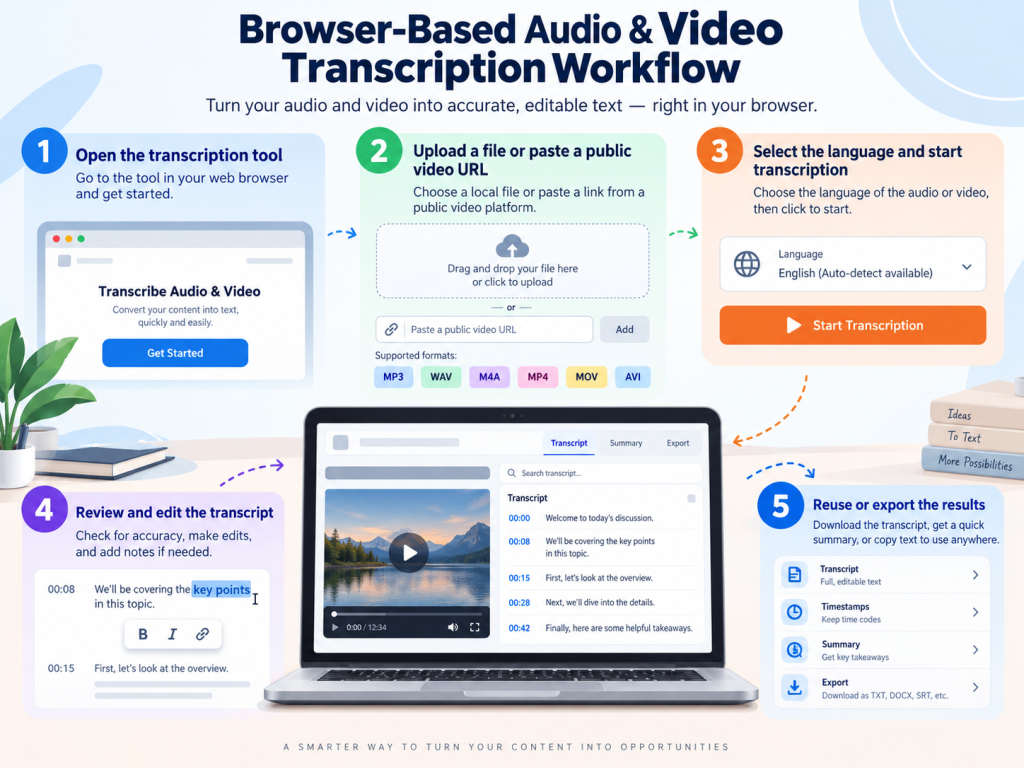
To transcribe media with Lunote:
- Open the transcription tool: Visit Lunote AI and open the Audio to Text or Video to Text tool. The workflow runs in the browser.
- Add your audio or video: Upload a supported file or paste a YouTube or other supported public video URL. Supported formats include MP3, WAV, M4A, MP4, MOV, and AVI.
- Start the transcription: Select a language if that option is available, then let Lunote convert the spoken content into text.
- Review and edit the transcript: Check names, technical terms, numbers, and other details. Lunote supports searchable, editable transcripts, and timestamps can help you return to the relevant part of the source video.
- Reuse or export the transcript: Copy, edit, or export the finished transcript. Lunote’s AI tools can also use it to create summaries, notes, key takeaways, captions, articles, and other content.
Features That Make Transcripts Easier to Use
A transcript without supporting metadata can be hard to navigate. A long block of text does not show who spoke, when something was said, or what may need follow-up. Transcription platforms use features such as timestamps, speaker labels, and summaries to organize the output.
Timestamp Mapping
Timestamps connect each word in a transcript to a point in the recording. When you select a sentence during a long interview, the player can jump to the corresponding millisecond. That avoids manual fast-forwarding through long recordings. Timestamps also support video editing because producers can identify clips by working from the matching text.
Speaker Diarization and Voice Identification
Speaker diarization identifies who spoke at a given time. The system compares vocal characteristics, pitch contours, and frequency signatures, then groups matching voices and assigns labels such as “Speaker 1” and “Speaker 2.” In board meetings, clinical consultations, and podcasts, these labels keep dialogue attribution clear. Users can replace generic labels with participants’ names to create meeting records with less manual work.
AI Summaries and Action Extraction
Some transcription workflows pair speech recognition with large language models to shorten long conversations into usable notes. Instead of reading a full sixty-minute transcript, users can use video to notes ai to produce takeaways, meeting minutes, and task lists. These tools can group dialogue by topic, create chapter markers with titles, and identify open questions. The result is structured documentation from an unstructured conversation.
What Affects Transcription Accuracy
Speech recognition has improved, but recording conditions still matter. With a single presenter speaking into a studio microphone, commercial speech engines can reach accuracy rates of 95% to 98%. Noise and other audio problems can reduce recognition accuracy.
A systematic synthesis of speech recognition error rates found that controlled dictation settings can produce word error rates below 10%, while complex conversations with multiple speakers can exceed 50%. Several factors contribute to that gap:
- Overlapping dialogue and crosstalk: When people speak at once, their waveforms overlap. The model may not be able to isolate individual phoneme sequences, which can lead to omitted words.
- Ambient noise: Air-conditioning hum, room reverberation, traffic, and keyboard clicks lower the signal-to-noise ratio and can mask quiet consonants.
- Regional accents and dialects: Models trained mainly on standardized accents may have more difficulty with non-native pronunciation and regional phrasing. An evaluation of ASR performance across accents found statistically significant differences when processing non-standard accents rather than standard reference speech.
- Compression and low bitrates: Heavily compressed files, such as 32 kbps voice memos, discard higher frequencies and make similar-sounding words harder to distinguish.
Teams sometimes use automated correction before passing media into later language tasks. Research on ASR error detection and post-processing indicates that language-model-based editing can detect phonetic anomalies and resolve confusion from context.
Audio Checklist for Better Accuracy
- Microphone placement: Put dynamic or condenser microphones 4 to 8 inches from the speaker’s mouth to maintain a high direct-to-reverberant sound ratio.
- Room acoustics: Record in furnished rooms with soft surfaces, rugs, or acoustic baffling to reduce flutter echo and wall reflections.
- Source formats: Capture audio as uncompressed WAV or high-bitrate MP3, at least 128 kbps with a 44.1 kHz sample rate, to retain high-frequency vocal detail.
- Speaker discipline: Ask participants to pause briefly before replying to reduce crosstalk and overlapping audio.
Free Transcript Extractors and Cloud Transcription Services
The right tool depends on media volume, security requirements, and integration needs. Casual users may use a simple web extractor for a short piece of text, while enterprise teams may need a scalable cloud platform. If you only need to handle an occasional video without advanced formatting, a free video transcribe tool can be a practical starting point.
This table compares free online extractors with dedicated cloud transcription services:
| Evaluation criteria | Free online transcript extractors | Full-featured cloud platforms |
|---|---|---|
| Account requirement | None required; runs in the browser | Account registration and API key authentication required |
| Input limits | File-size caps, typically below 50 MB, or short video durations | Multi-gigabyte files and continuous live audio streams |
| Speaker diarization | Usually absent; text appears as one block | Voice clustering with customizable speaker labels |
| Timestamp precision | Basic intervals or no timestamps | Millisecond-accurate word-level and sentence-level alignment |
| Export formats | Plain-text copy and paste only | SRT, VTT, JSON, Markdown, and PDF options |
| Custom vocabulary | Not supported; the engine uses default dictionaries | User-defined dictionaries for technical terms and brand names |
| Data privacy and retention | Public-server handling without formal retention or compliance guarantees | Enterprise encryption (AES-256), SOC2 compliance, and zero-data-retention options |
| Automated integrations | Manual file uploads and link submission | REST APIs, cloud webhooks, and cloud-storage triggers |
Automating Ongoing Audio and Video Transcription
Media organizations, research institutions, and enterprises that record dozens of remote meetings each week may not want to submit every file manually. They can set up a transcription pipeline that starts when a new recording arrives. Cloud storage, webhooks, and speech APIs can process incoming media automatically.
[Media Recorded] --> [Cloud Storage Folder] --> [Webhook Notification] --> [Speech-to-Text API] --> [Document Database]
(Zoom / Cam)         (S3 / Dropbox / Drive)     (Automated Event)          (Neural Transcription)   (Searchable Archive)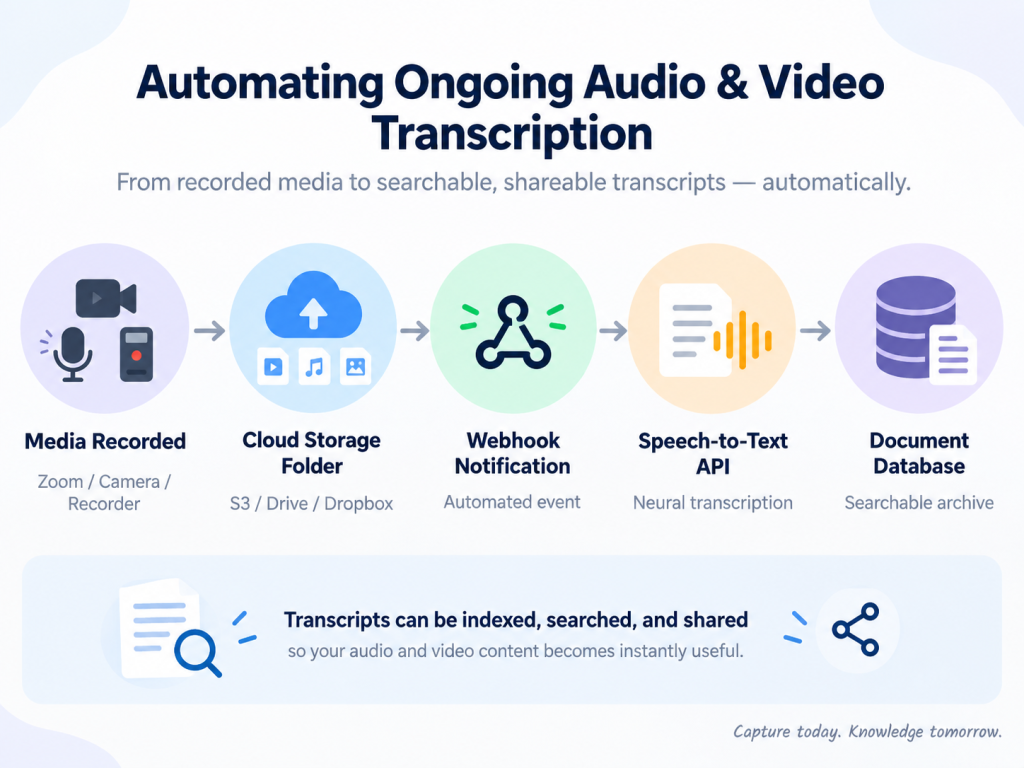
An automated transcription pipeline has four stages:
- Media capture and storage sync: When a podcast recording ends or a video meeting finishes, the recording software saves the file to a cloud-storage directory such as an Amazon S3 bucket, Google Drive folder, or Dropbox directory.
- Event notification: A new file triggers a webhook notification that sends its location, format, and metadata to an automation bridge or middleware handler.
- API ingestion and transcription: The middleware sends an authenticated request to the speech-recognition engine. The service extracts the audio, applies custom dictionaries for company terms, processes speaker diarization, and calculates timestamps.
- Delivery and indexing: When transcription is complete, the engine returns structured JSON or Markdown. An automated script saves the transcript to the organization’s knowledge base, notifies team channels through messaging webhooks, and indexes it for internal search.
This automation removes repetitive administrative work. New recordings can become searchable documentation within minutes, which helps keep organizational knowledge accessible across departments.
Getting More From Audio and Video With AI Transcription
Speech-to-text technology can turn audio and video into searchable documentation. It can be used for field interviews, classroom lectures, and production subtitles, and it reduces the time spent typing transcripts by hand. Clear recordings, an appropriate transcription tool, speaker diarization, and timestamps all help make the resulting text more useful.
Frequently Asked Questions About AI Media Transcription
Can AI Transcribe an Online Video From a Link Without Downloading It?
Yes. Web transcription services and speech APIs can process public URLs from YouTube, Vimeo, and cloud-hosted media. They send the audio track to cloud servers, so the user does not need to download a large video file first.
How Can an AI Transcript Be Exported as an SRT Subtitle File?
SubRip Subtitle (.srt) files need line numbers, millisecond time boundaries, and line-length limits. Speech-recognition systems keep timestamp data with recognized words. During SRT export, the system groups sentences into readable chunks, applies subtitle timing, and produces a formatted subtitle file for video-editing software.
How Long Does AI Transcription Take for an Hour-Long Recording?
Cloud-based speech engines can process audio faster than real-time playback. An hour-long recording generally takes two to five minutes, depending on server capacity, audio complexity, and speaker diarization. Manually transcribing one hour of clear speech often takes four to six hours.
Which Audio and Video Formats Work With Transcription Engines?
Transcription engines support common audio formats such as MP3, WAV, M4A, AAC, and FLAC, plus video formats including MP4, MOV, WebM, and MKV. Uncompressed formats and high-bitrate files, such as WAV or 320 kbps MP3, preserve phonetic frequencies and can improve recognition accuracy.
Are Proprietary Business Recordings Safe With Cloud Transcription Tools?
That depends on the provider’s privacy architecture. Enterprise cloud transcription platforms may use encryption in transit (TLS 1.3) and at rest (AES-256). Some professional services also offer zero-data-retention policies that state customer recordings are not logged, kept indefinitely, or used to train public foundation models.